

Moderation Queue
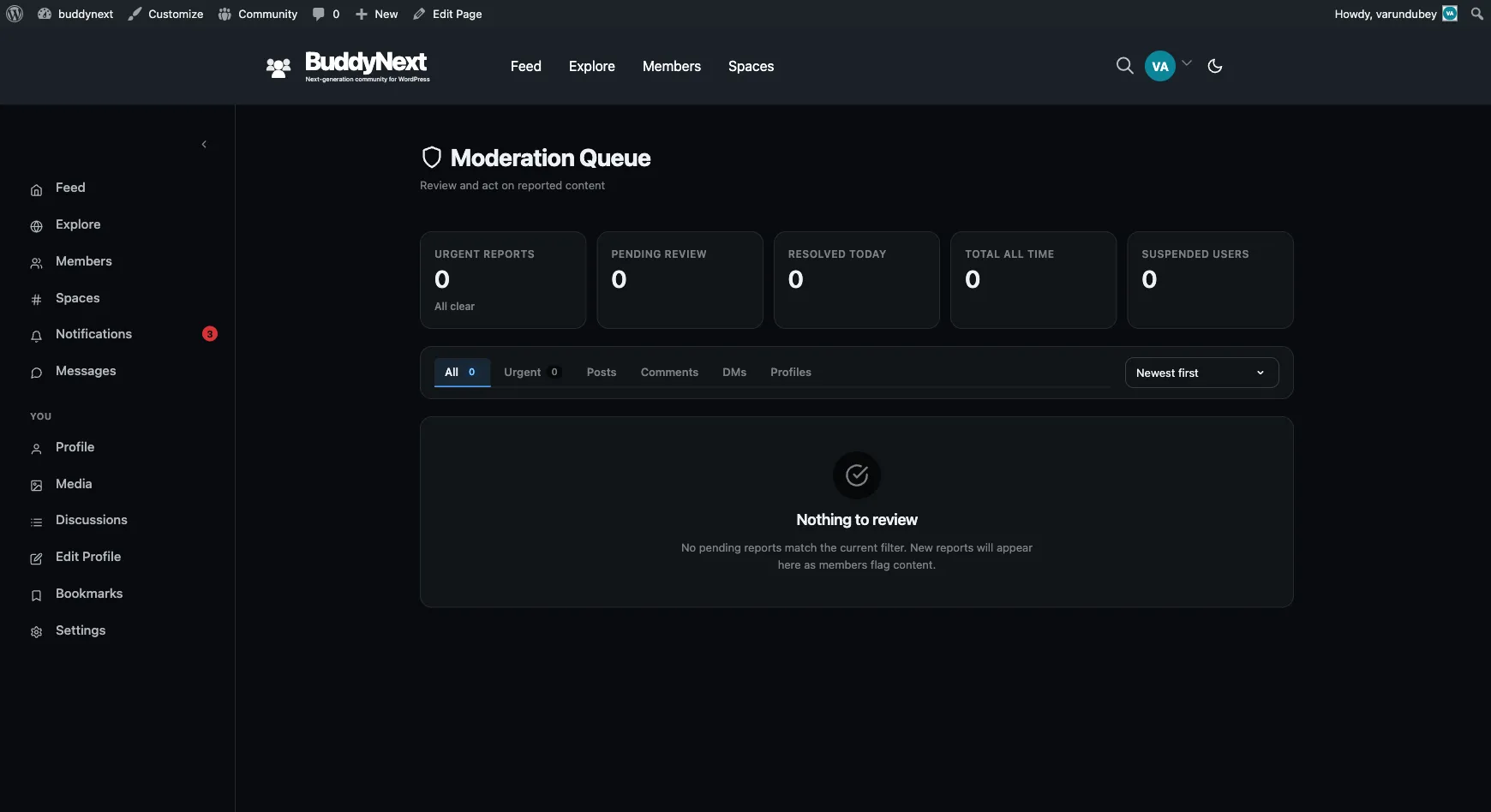
The moderation queue is the page where moderators review reported content and pending items, then act on them: dismiss a report, escalate it, resolve it, or take action on the content or the member. It is the single place a moderator works through everything members have flagged.
Why use it
Section titled “Why use it”A community’s reports are only useful if someone can act on them quickly and fairly. The queue turns a stream of individual reports into one organized worklist: grouped by item, sorted by urgency, with the context a moderator needs to decide without leaving the page.
For the owner, a clear queue is what keeps moderation fast at scale. Reports on the same post are merged into one row so a moderator acts once per piece of content instead of clicking through five identical reports. Counters at the top show how much is pending, what is urgent, and how much was cleared today, so you can see at a glance whether your team is keeping up. For the moderator, every report carries the reason, who and how many reported it, and a preview of the content, so the decision is grounded in evidence rather than guesswork. That combination - grouped, prioritized, evidence-backed - is what keeps decisions both quick and fair.
How it works (for moderators)
Section titled “How it works (for moderators)”The queue lives on its own Moderation page in your community. Only members with moderator permission can open it. Everyone else sees an Access Restricted panel.
Reading the queue
Section titled “Reading the queue”The top of the page shows summary counters:
| Counter | What it shows |
|---|---|
| Urgent reports | Items reported by three or more members. |
| Pending review | Reports waiting for a decision. |
| Resolved today | Reports cleared so far today. |
| Total all time | Every report ever filed. |
| Suspended users | Members currently suspended. |
Below the counters is a filter strip and the list of reported items. Each row represents one reported item (with all of its reports merged) and shows the offender, a preview or excerpt of the content, the reason or reasons given, and how many members reported it.
Filtering and sorting
Section titled “Filtering and sorting”Use the filter tabs to focus the list, and the sort control to order it:
- Type tabs - All, Urgent, Posts, Comments, DMs, Profiles. Urgent shows only items reported three or more times.
- Sort - Newest first, or Most reported (the items with the highest report counts first).
These let a moderator triage a large queue by going after the most-reported items first, or by handling the freshest reports as they arrive.
Note: There is no Media tab, and that is on purpose. Reported photos and videos do not come here. They go to the media plugin’s own review queue, under WPMediaVerse > Media Moderation in the WordPress admin, because that plugin owns the media. If your community allows photo and video uploads, put both queues on your moderators’ rounds.
Acting on a report
Section titled “Acting on a report”Each row has an action cluster. The actions available from the queue page are:
- View in context - opens the reported post, comment, or profile so you can see it in full before deciding.
- Dismiss - closes the report with no action. Use this when the content is fine and the report does not hold up. The report is marked dismissed and recorded against your account.
- Remove content - takes the reported content down.
- Warn user - sends the member a warning without removing their standing.
- Strike user - records a moderation strike against the member.
- Suspend account - suspends the member so they can no longer post.
Warning, striking, and suspending a member are actions against the person rather than the single item. For how strikes, suspensions, warnings, and appeals work, see User Moderation.
Two more outcomes exist for a report’s lifecycle:
- Escalate - flags a report as needing a more senior decision, moving it to an escalated state.
- Resolve - explicitly closes a report as handled.
Note: Escalate and Resolve are part of the report workflow, but in the current release they are not yet surfaced as buttons on the queue page. From the page itself, Dismiss and Remove cover the everyday close-out paths.
Every action is logged
Section titled “Every action is logged”Every moderation decision - dismiss, remove, warn, strike, suspend - is written to a permanent moderation log. The log is the audit trail of who did what and when, so a community can answer “why was this removed” and review its moderators’ decisions over time.
You can filter the log and export it to CSV, for a compliance record or an outside review. The background jobs that maintain moderation report their status - and how long log entries are kept - in the admin hub’s tools, where you can also run them on demand if you need the queue processed right now rather than waiting for the next scheduled pass.
The pending-content view
Section titled “The pending-content view”The queue’s default view is the pending list: items that have been reported and are waiting for a decision. As members flag content, new rows appear here. Working the pending list down to zero is the day-to-day job of moderation.
When nothing matches the current filter, the queue shows a Nothing to review state confirming there are no pending reports for that filter. This is the normal, healthy state of a well-tended queue, not an error. New reports appear here as members flag content.
Good to know
Section titled “Good to know”- Access is restricted to moderators. The page checks for moderator permission. Roles resolve both site-wide and per space, so a space moderator can review reports tied to their space. Members without the permission see an Access Restricted panel rather than the queue.
- Reports are grouped per item. Multiple reports on the same post are merged into one row, with the reasons combined and the reporter count shown, so you act once instead of repeatedly.
- Urgency is automatic. An item crosses into Urgent once three or more different members have reported it. The Urgent tab and the Urgent reports counter both use this threshold.
- Privacy on direct messages. A reported direct message shows a privacy notice in place of its content, so a moderator can act on the report without reading the private message.
- Concurrency. Because the queue is shared, an item another moderator already handled may have already changed state by the time you reach it. Reload the queue to see the current pending list.
Free vs Pro
Section titled “Free vs Pro”The moderation queue, its filters, the report actions, and the moderation log are all part of BuddyNext free. Pro adds higher-volume tooling for teams that process many reports, including acting on multiple items in one pass. See Bulk Moderation in the Pro documentation.
Related
Section titled “Related”- Reporting Content - how items arrive in the queue
- Moderating a Member - what warn, strike, and suspend do
- Community Roles and Moderators - who may open the queue
- Bulk Moderation - acting on many queued items at once in Pro