

Assignment Report
Overview
Section titled “Overview”The Assignment Report shows all assignment submissions from your LearnDash courses. You can review submitted files, approve assignments, award points, leave feedback, and download submissions — all from the dashboard.
Screenshots
Section titled “Screenshots”Admin View
Section titled “Admin View”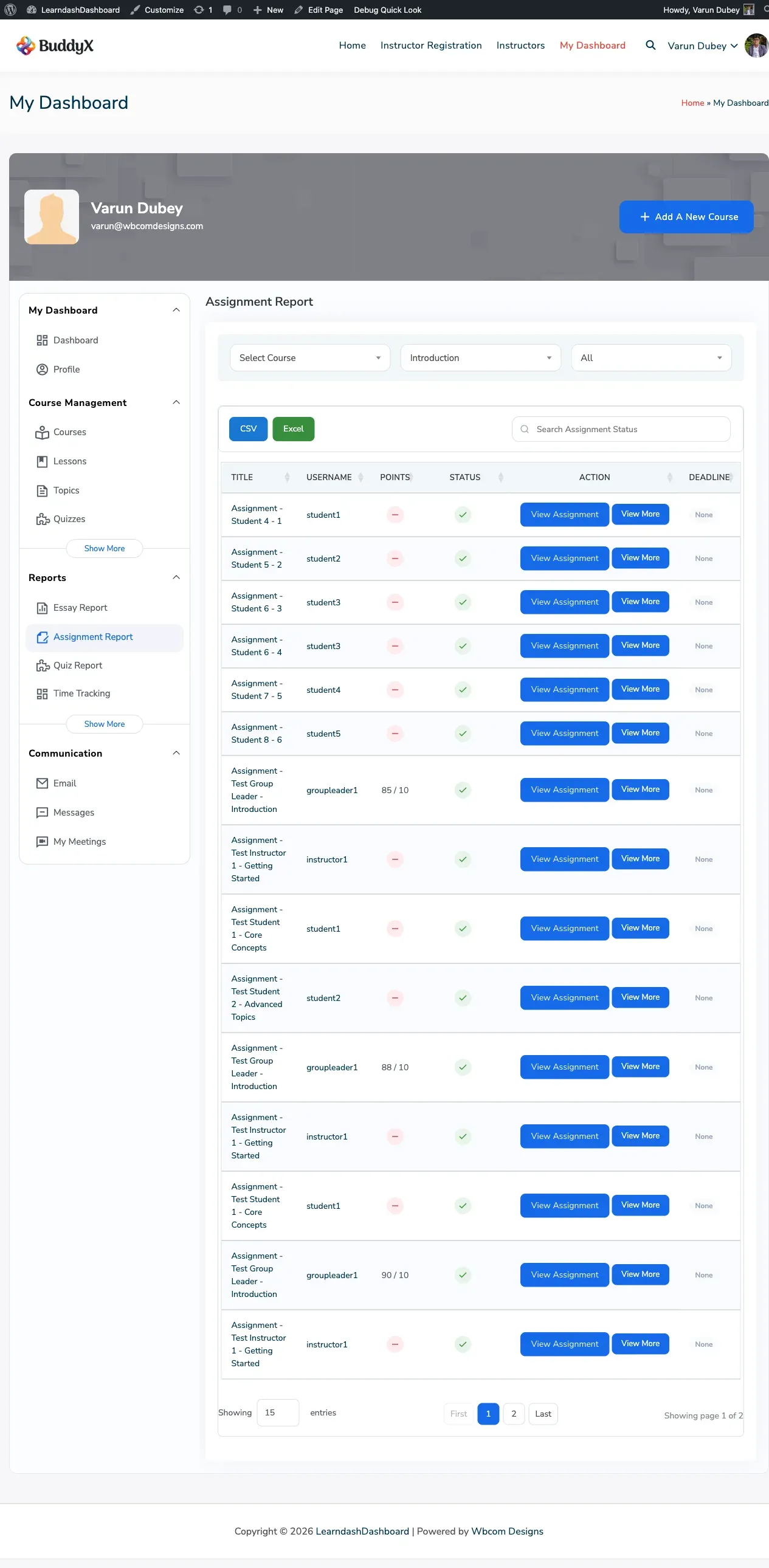
Instructor View
Section titled “Instructor View”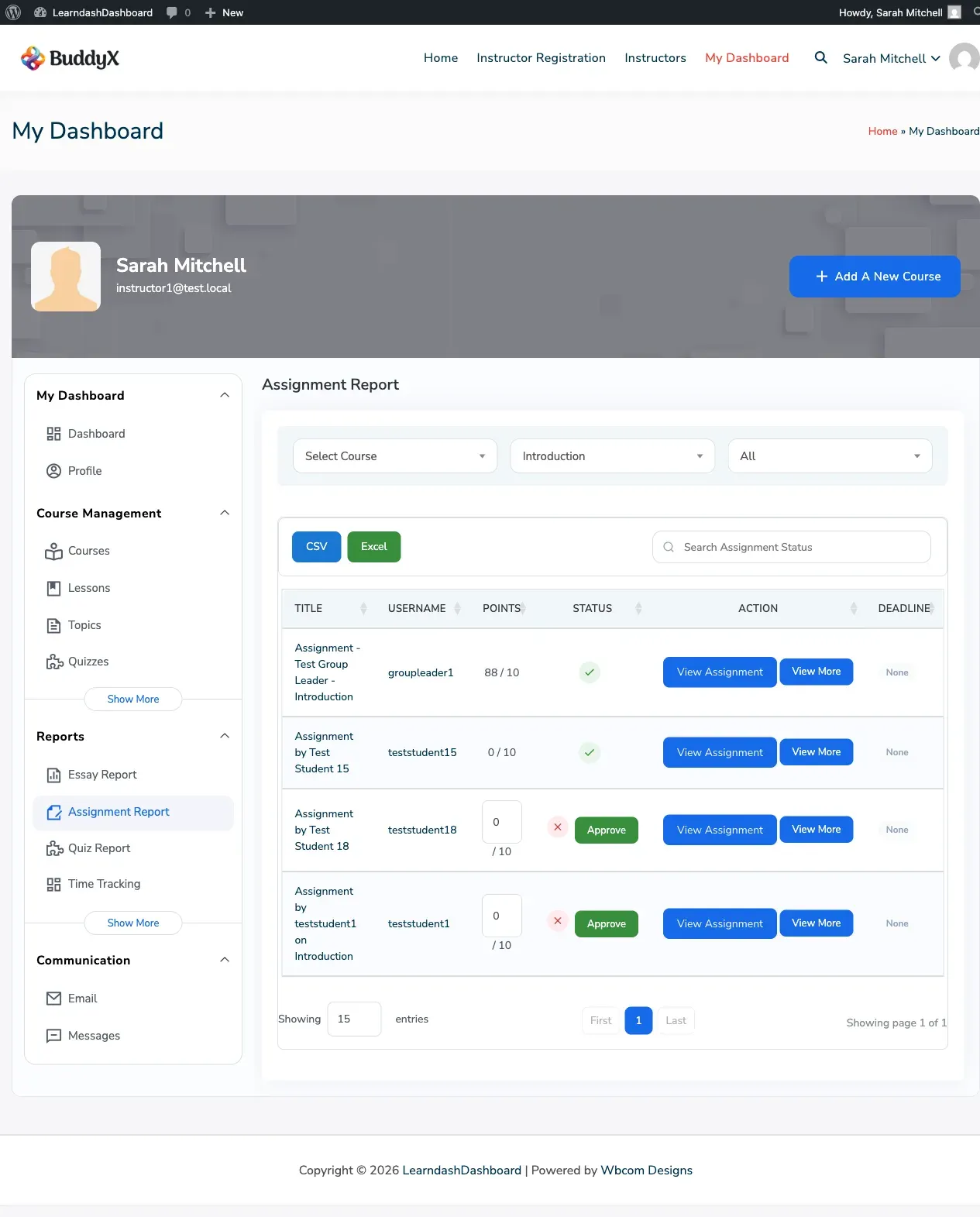
Group Leader View
Section titled “Group Leader View”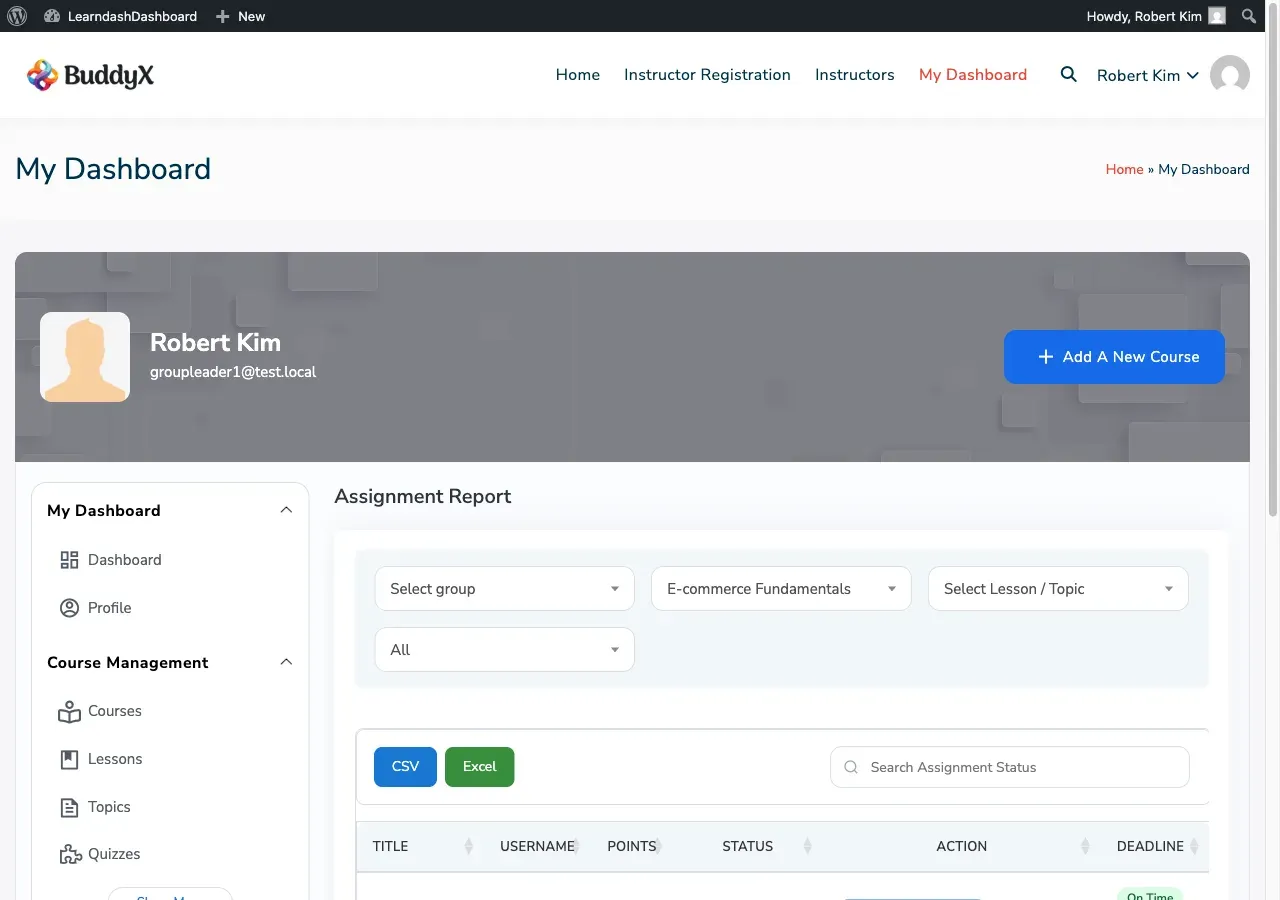
How to Access the Assignment Report
Section titled “How to Access the Assignment Report”Go to your dashboard and click Assignment Report in the sidebar. This section is available to admins, instructors, and group leaders.
What You See in the Report
Section titled “What You See in the Report”Each row represents one assignment submitted by a student.
| Column | Description |
|---|---|
| Title | The assignment name. Click to download or open the submitted file. |
| Username | The student who submitted the assignment |
| Points | Points awarded out of the maximum |
| Status | Shows a checkmark for approved, an X for not yet approved, and an Approve button for pending assignments |
| Action | View Assignment to preview the file; View More to expand the row |
| Deadline | Shows if the assignment is overdue, due soon, or has no deadline |
Additional columns (such as course name, lesson, and submission date) are available using the Column Visibility button.
Previewing a Submitted File
Section titled “Previewing a Submitted File”Click View Assignment to open a preview of the submitted file. The preview shows:
- The file itself (images and PDFs display inline)
- A download link
- The assignment title and student name
- The comments thread
Approving an Assignment
Section titled “Approving an Assignment”Pending assignments show an Approve button in the Status column.
- Optionally enter a point value in the points field.
- Click Approve.
The status icon updates to a checkmark and the Approve button disappears. The student’s progress advances automatically if the lesson required assignment approval to be marked complete.
Leaving Feedback
Section titled “Leaving Feedback”Click the comment count in the Comments column to open the full comment thread in a new tab. You can also add a comment directly from within the file preview.
Deadline Indicators
Section titled “Deadline Indicators”If assignment deadlines are set up on your courses, each row shows a deadline badge:
| Badge | Meaning |
|---|---|
| Overdue | The deadline has passed |
| Due Soon | The deadline is approaching |
| None | No deadline has been set |
Filtering Results
Section titled “Filtering Results”| Filter | What it does |
|---|---|
| Course | Show assignments from a specific course |
| Lesson | Filter by a lesson within the selected course |
| Student | Search by student name or username |
| Status | Show all, approved only, or not yet approved only |
Who Can See What
Section titled “Who Can See What”| Role | Access | Can Approve |
|---|---|---|
| Admin | All assignments across all courses | Yes |
| Instructor | Assignments from students in your courses | Yes |
| Group Leader | Assignments from students in your assigned groups | No (view only) |
| Student | No access | N/A |
Exporting Assignment Data
Section titled “Exporting Assignment Data”- Apply any filters to focus on the assignments you need.
- Use Column Visibility to choose which columns to include.
- Click CSV or Excel to download the file.
The export includes all matching rows and can include columns such as course name, lesson, and submission date.