

Scroll to Top Button
The Scroll to Top button helps visitors quickly return to the top of your page without manually scrolling. It appears as they scroll down and smoothly animates back to the top when clicked.
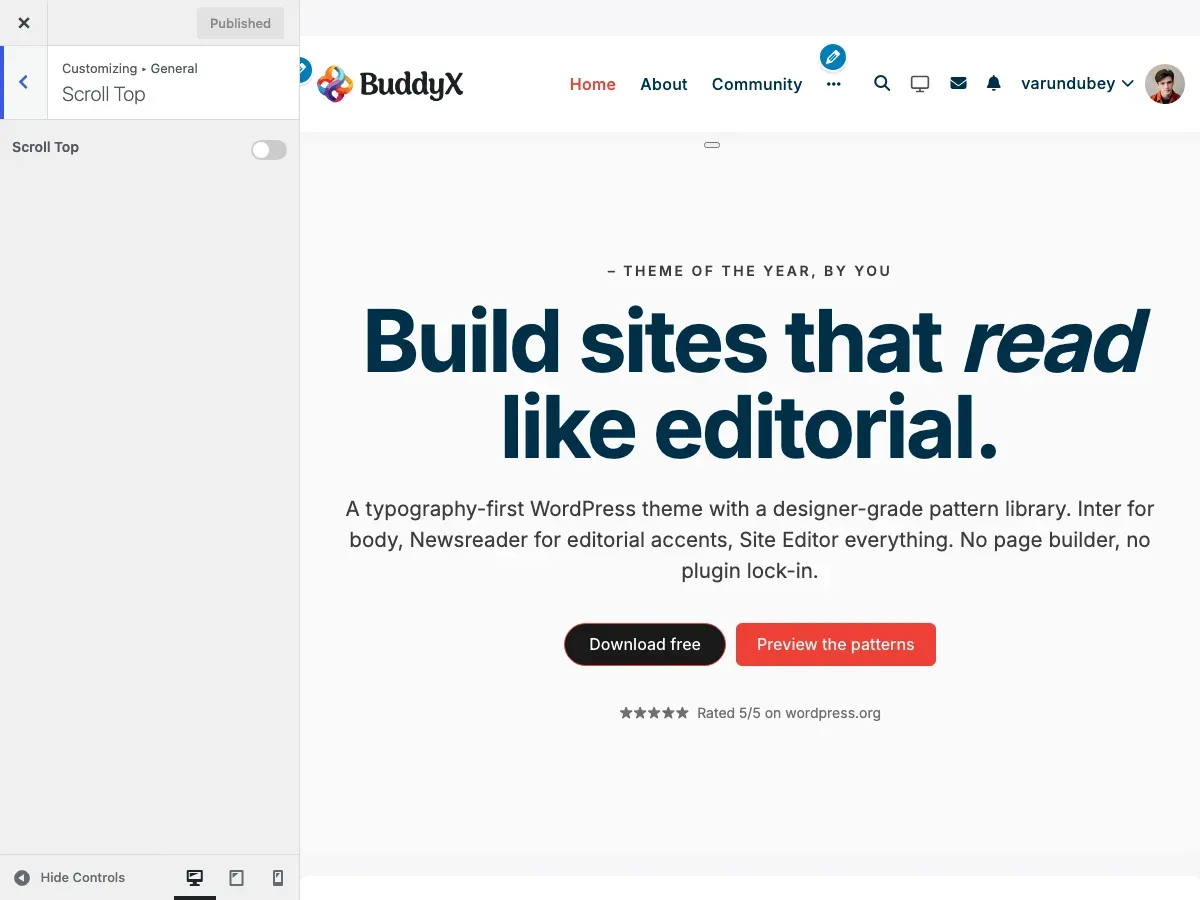
What You Can Do
Section titled “What You Can Do”With BuddyX Pro’s scroll to top feature, you can:
- Add a floating button for easy navigation
- Help visitors return to the header menu
- Improve user experience on long pages
- Enable or disable the button site-wide
- Automatic appearance based on scroll position
- Smooth animated scrolling effect
What Is a Scroll to Top Button?
Section titled “What Is a Scroll to Top Button?”When visitors scroll down long pages (blog posts, product listings, member directories), they may want to quickly return to the top to access navigation or header elements. The Scroll to Top button provides a one-click shortcut.
How It Works:
Page Top┌────────────────────────────┐│  [Header/Menu]             │├────────────────────────────┤│                            ││  Content                   ││                            │  User scrolls down ↓│                            ││  More content...           ││                            ││  Even more...              ││                            ││  [↑] ← Button appears      │└────────────────────────────┘
Click button → Smooth scroll back to top
Enabling Scroll to Top Button
Section titled “Enabling Scroll to Top Button”- Go to Appearance > Customize
- Click on General > Scroll Top
- Switch Scroll Top to Yes
- Click Publish
Now scroll down any page and watch for the button to appear.
Button Behavior
Section titled “Button Behavior”When It Appears
Section titled “When It Appears”| Scroll Distance | Button State |
|---|---|
| 0 - 300px | Hidden (not needed yet) |
| 300px+ | Fades in smoothly |
The button only shows after you’ve scrolled 300 pixels down the page. This prevents it from cluttering the view when you’re still near the top.
Note: The 300px trigger distance is hardcoded in the theme’s JavaScript - it is not a Customizer option. Changing it requires overriding the scroll script from a child theme.
Visual States
Section titled “Visual States”Hidden (at top of page):
┌────────────────────────┐│ [Header] ││ ││ Content starts here ││ │ (No button visible)│ │└────────────────────────┘Visible (after scrolling):
┌────────────────────────┐│ ││ Content (scrolled) ││ ││ More content... ││ [↑] │ ← Button appears└────────────────────────┘Click Behavior
Section titled “Click Behavior”When clicked, the button:
- Smoothly animates scroll back to top (300ms duration)
- Uses easing for natural feel (not instant jump)
- Remains visible during scroll
- Fades out once at the top
Animation:
User at bottom → Click [↑] → Smooth scroll animation → Arrive at top ↓ ↓ ↓ ↓ Visible Scrolling Scrolling HiddenButton Design
Section titled “Button Design”Default Appearance
Section titled “Default Appearance”The BuddyX Pro scroll to top button has a clean, modern design:
| Property | Style |
|---|---|
| Shape | Circular |
| Icon | Font Awesome up arrow, in the theme primary color |
| Size | 50px × 50px |
| Background | Translucent fill with a border ring and a circular scroll-progress indicator |
| Position | Bottom-right corner |
| Distance from edge | 20px from bottom, 20px from right |
Visual:
Screen Edge ↓ ┌───────────────────┐ │ │ │ Your Content │ │ │ │ │ │ [↑] │ ← 20px from right └───────────────────┘ ↑ 20px from bottomMobile Appearance
Section titled “Mobile Appearance”On mobile devices, the button keeps the same 50px circular size and bottom-right position, which stays comfortably tap-friendly. If it overlaps another fixed element (a cart bar, chat widget, etc.), reposition it with the CSS shown below.
| Device | Behavior |
|---|---|
| Phone | 50px button, bottom-right, touch-friendly |
| Tablet | Same 50px button and position |
| Landscape | Same button; move it with CSS if it overlaps other controls |
When to Use Scroll to Top
Section titled “When to Use Scroll to Top”Highly Recommended For:
Section titled “Highly Recommended For:”| Page Type | Why |
|---|---|
| Blog posts | Long articles need easy navigation back to menu |
| Product archives | Shoppers browsing many products |
| Member directories | Long lists of community members |
| Activity feeds | Social feeds with infinite scroll |
| Course listings | Educational sites with many courses |
| Forum topics | Long discussion threads |
Less Critical For:
Section titled “Less Critical For:”| Page Type | Why |
|---|---|
| Homepage | Often short, above-the-fold focused |
| Contact page | Usually single-screen |
| Login/Register | Short forms, no scrolling |
| Landing pages | Designed to scroll through linearly |
| Single-product pages | Return to top less needed |
Customization Options
Section titled “Customization Options”While BuddyX Pro includes a styled button by default, you can customize it with CSS.
Change Button Color
Section titled “Change Button Color”Add to Appearance > Customize > Additional CSS:
/* Custom button background */#scrollUp {    background-color: #007bff !important; /* Blue */}
/* Hover effect */#scrollUp:hover {    background-color: #0056b3 !important; /* Darker blue */}
Change Button Size
Section titled “Change Button Size”/* Larger button (default is 50px) */#scrollUp { width: 60px !important; height: 60px !important; font-size: 20px !important;}Change Button Position
Section titled “Change Button Position”/* Move to left side */#scrollUp { right: auto !important; left: 20px !important;}
/* Move higher from bottom */#scrollUp { bottom: 40px !important;}Change Button Shape
Section titled “Change Button Shape”/* Square button */#scrollUp { border-radius: 4px !important; /* Less rounded */}
/* Pill shape */#scrollUp { border-radius: 25px !important; width: 50px !important; height: 50px !important;}Custom Icon
Section titled “Custom Icon”The arrow glyph is drawn by the button’s ::after pseudo-element (a Font Awesome up arrow), so override that:
/* Use a different arrow glyph */#scrollUp::after { content: "⬆" !important; /* Different arrow */ font-size: 24px;}Recommended Setups by Site Type
Section titled “Recommended Setups by Site Type”Only Scroll Top (on/off) is a Customizer setting. The trigger distance (300px) is hardcoded in JavaScript and the position is set in CSS, so the “trigger distance” and “position” values below are design targets you reach with the child-theme CSS/JS shown in the Customization section - not Customizer fields.
Blog / Magazine
Section titled “Blog / Magazine”Scroll Top: YesTrigger Distance: 300px (default)Position: Bottom-rightWhy: Long articles benefit greatly from quick return to navigation.
E-Commerce Store
Section titled “E-Commerce Store”Scroll Top: YesTrigger Distance: 300pxPosition: Bottom-right (avoid cart button)Why: Shoppers browse many products and need easy access to header cart/menu.
Community Platform
Section titled “Community Platform”Scroll Top: YesTrigger Distance: 200px (earlier)Position: Bottom-rightWhy: Activity feeds are infinitely scrolling; members need quick navigation.
Corporate Website
Section titled “Corporate Website”Scroll Top: YesTrigger Distance: 400px (later)Position: Bottom-rightWhy: Professional sites with longer content pages benefit from the feature.
Landing Page
Section titled “Landing Page”Scroll Top: NoTrigger Distance: N/AWhy: Landing pages are designed for linear, downward scrolling to CTA.
Portfolio Site
Section titled “Portfolio Site”Scroll Top: OptionalTrigger Distance: 500pxPosition: Bottom-left (avoid contact button)Why: Gallery-style portfolios may not need it; depends on layout.
Educational Platform
Section titled “Educational Platform”Scroll Top: YesTrigger Distance: 300pxPosition: Bottom-rightWhy: Course listings and lesson content often require scrolling.
User Experience Best Practices
Section titled “User Experience Best Practices”| Practice | Why |
|---|---|
| Don’t show immediately | Appearing too early feels intrusive |
| Smooth animation | Instant jumps are jarring |
| Visible but subtle | Should help, not distract |
| Consistent position | Users learn where to look |
| Responsive size | Work on all devices |
Accessibility Features
Section titled “Accessibility Features”BuddyX Pro’s scroll to top button includes accessibility considerations:
| Feature | Benefit |
|---|---|
| Keyboard accessible | Can be triggered with Enter/Space |
| ARIA label | Screen readers announce “Scroll to top” |
| Focus indicator | Visible outline when focused |
| Touch-friendly | Large enough for finger taps |
| High contrast | Visible to users with vision impairments |
For Users with Motion Sensitivity:
The smooth scroll respects the prefers-reduced-motion CSS media query. Users who’ve set this preference get instant scroll (no animation).
Performance Considerations
Section titled “Performance Considerations”| Aspect | Impact |
|---|---|
| File size | ~2KB JavaScript (minimal) |
| Scroll performance | Uses optimized scroll detection |
| Animation | CSS-based (hardware accelerated) |
| Load time | No impact on page load speed |
Best Practices:
- Button loads asynchronously
- Scroll detection is throttled
- No impact on Core Web Vitals
- Works with lazy loading plugins
Common Questions
Section titled “Common Questions”Can I disable scroll to top on specific pages? Yes, with custom code or page meta boxes. By default, it applies site-wide when enabled.
Does the button work on mobile? Yes! The button is fully responsive and touch-friendly on all mobile devices.
Why doesn’t the button appear immediately? It only shows after scrolling 300px to avoid cluttering the view when you’re near the top.
Can I change the button icon? Yes, with custom CSS. You can use different arrows, text, or custom icons.
Does it work with infinite scroll? Yes! The button works perfectly with infinite scroll features on activity feeds and archives.
Will it slow down my site? No. The scroll to top button is extremely lightweight and has no measurable performance impact.
Can I have multiple scroll buttons? Not recommended. One scroll to top button is standard practice and avoids confusion.
Does it work with sticky headers? Yes! The button scrolls to the absolute top, which includes sticky headers.
Why would I disable this feature? Some minimalist designs or short-page sites don’t need it. Landing pages often disable it to encourage downward scrolling.
Troubleshooting
Section titled “Troubleshooting”Button Not Appearing
Section titled “Button Not Appearing”Solutions:
- Verify setting is enabled in Customizer > General > Scroll Top
- Scroll down at least 300px on the page
- Clear browser cache and theme caches
- Check browser console for JavaScript errors
- Disable other plugins temporarily to check for conflicts
Button Not Scrolling
Section titled “Button Not Scrolling”Solutions:
- Check for JavaScript errors in browser console
- Verify jQuery is loading properly
- Test in a different browser
- Disable conflicting smooth scroll plugins
Button Appears in Wrong Position
Section titled “Button Appears in Wrong Position”Solutions:
- Check for conflicting CSS from other plugins
- Inspect element to see what’s overriding position
- Add
!importantto your custom CSS positioning - Check for fixed/sticky elements blocking the button
Button Looks Different Than Expected
Section titled “Button Looks Different Than Expected”Solutions:
- Clear all caches (browser, plugin, CDN)
- Check if custom CSS is being applied
- Inspect element to see inherited styles
- Verify theme is updated to latest version
Alternative Solutions
Section titled “Alternative Solutions”If you need more control over scroll behavior:
| Plugin | Features |
|---|---|
| WPFront Scroll Top | Multiple icon options, custom images |
| Scroll to Top | Extensive position and style controls |
| Dynamic Scroll to Top | Progress indicator, custom triggers |
Note: BuddyX Pro’s built-in button is optimized and sufficient for most sites.
Related Settings
Section titled “Related Settings”- Sticky Header - Works with scroll to top button
- Site Layout - Overall page layout settings
- Mobile Header - Mobile navigation options
- Footer Settings - Bottom of page elements
Got a question? We’re a friendly team - happy to help.
- Visit our Documentation Portal
- Email us at support@wbcomdesigns.com