

Member Profiles
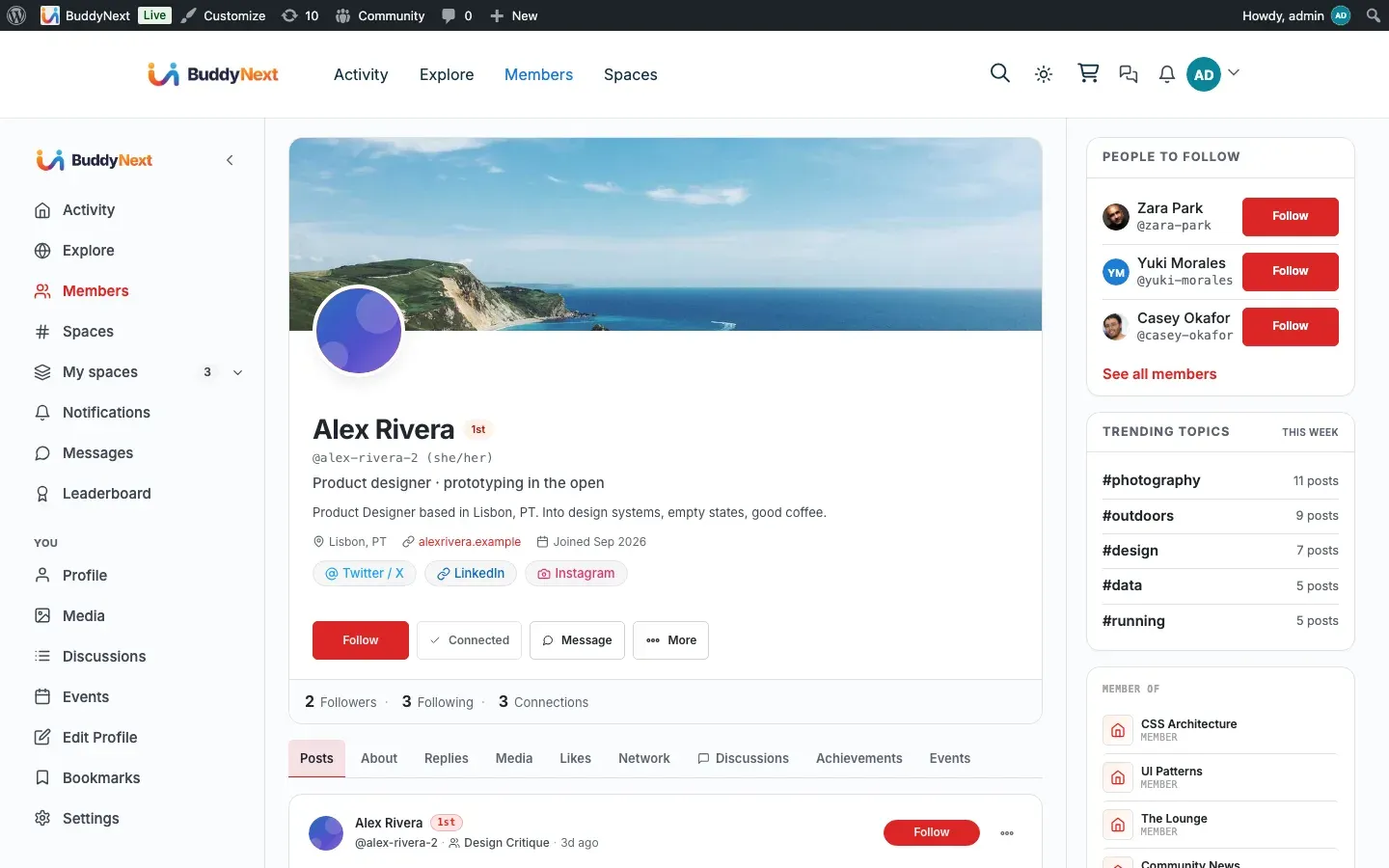
A member profile is the public page that represents a person in your community. It carries their avatar, cover photo, display name, bio, custom field details, and the buttons other people use to follow or connect with them.
Why use it
Section titled “Why use it”The profile is where trust starts. Before anyone follows a member, joins a conversation they started, or accepts a connection request, they look at that member’s profile to decide who they are dealing with. A filled-out profile - a real photo, a clear name, a short bio - reads as a real person and gets more follows, more replies, and more connection accepts. A blank profile reads as a drive-by account and gets ignored.
For the site owner, strong profiles are what make a directory worth browsing and a community worth staying in. The more members who complete their profile, the more the whole space feels alive instead of empty. That is why BuddyNext shows members a completion bar that nudges them to finish (see Profile Completion) and gives owners control over the default look so even an unfinished profile still looks intentional.
For the member, the profile is the one place they control how the community sees them. Every field they fill in, and every privacy choice they make on those fields, is theirs to set.
How it works (for members)
Section titled “How it works (for members)”Viewing your own profile and other members’ profiles
Section titled “Viewing your own profile and other members’ profiles”Every member has a profile page at their own address. Open any member’s profile to see their cover photo and avatar at the top, their display name and bio, their follower and connection counts, and the buttons to follow or connect with them. Below the header, their custom profile fields appear grouped into sections.
What you see on someone else’s profile depends on your relationship with them. Each field can be set to show to everyone (Public), to logged-in members only (Members only), to followers only, to connections only, or to no one but the member (Only me). If a field is hidden from you, it simply does not appear. The group a field belongs to sets the ceiling, and each member picks their own field’s audience up to that ceiling; new fields start at Members only.
Your own profile shows you an Edit Profile entry point so you can update any part of it.
Editing your display name and bio
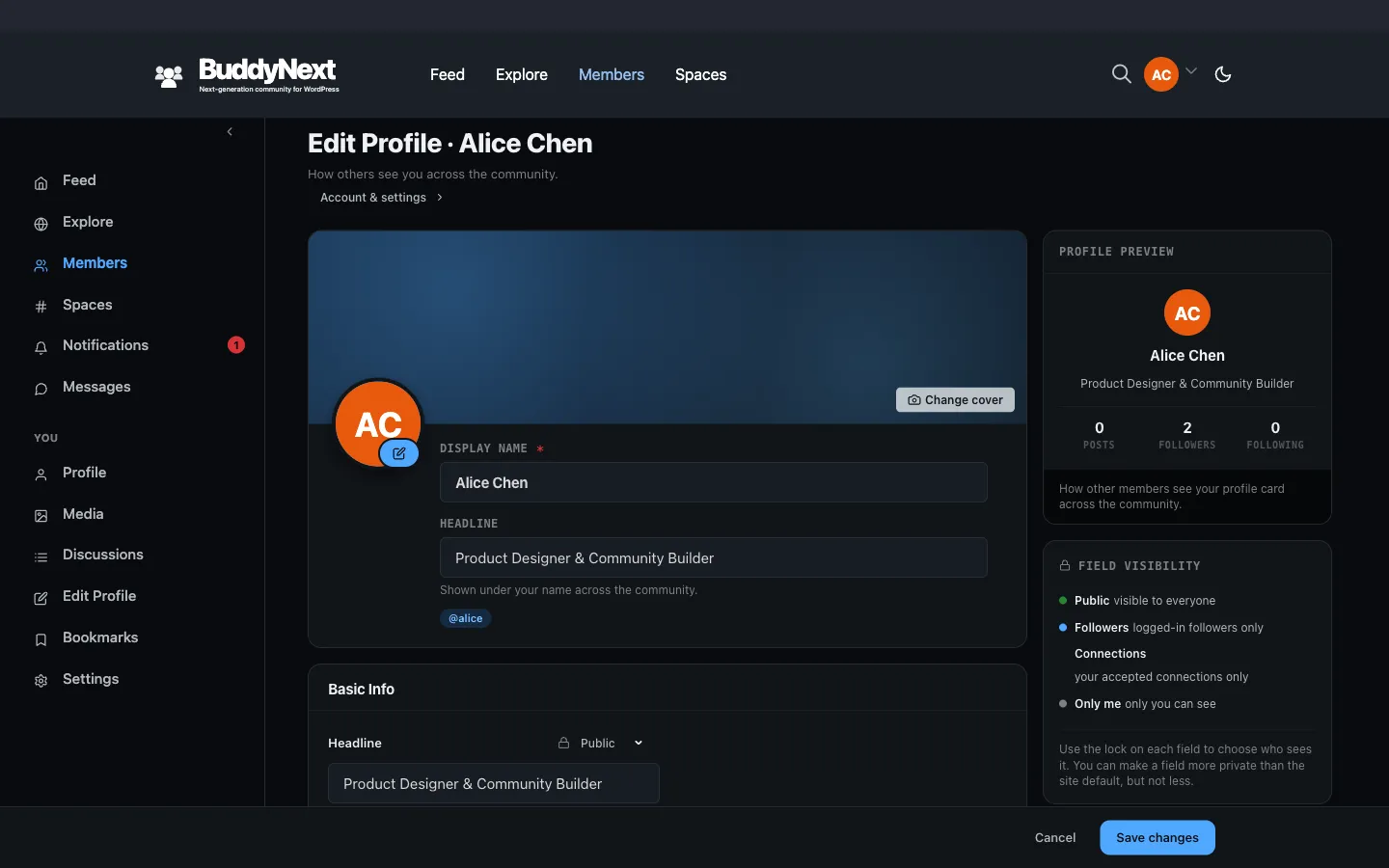
Section titled “Editing your display name and bio”Open Edit Profile from your own profile. The edit form lists every field group with its fields.
- Display name is the name shown across the community. It cannot be left empty - if you clear it and save, the form keeps your previous name.
- Bio is a short description of yourself, up to 1000 characters.
Fill in or change any field, then save. A confirmation appears and your profile view updates with the new values.
Each field also has a privacy control next to it. The field’s default is only a starting point, not a floor: you set your own field’s audience anywhere up to the ceiling the group allows - opening it up to everyone, or narrowing it to connections only or just yourself. That choice is enforced everywhere the field is read.
Uploading your avatar and cover photo
Section titled “Uploading your avatar and cover photo”From your profile or the edit screen you can upload two images:
- Avatar - your profile picture, shown everywhere your name appears (the directory, the feed, comments, member cards).
- Cover photo - the wide banner across the top of your profile header.
Pick an image and it uploads and replaces the current one immediately. If you have not uploaded an avatar, the community shows a fallback based on the site owner’s avatar style setting (see Setting it up). If you have not uploaded a cover photo, the site’s default cover is shown.
Setting a username (your profile handle)
Section titled “Setting a username (your profile handle)”Your profile has a web address. By default it uses a system-assigned address, but you can claim a custom handle - a short, readable username that becomes part of your profile link.
When you type a handle, BuddyNext checks availability live as you type and tells you whether it is free or already taken before you save. A handle is accepted only when:
- It is not blank.
- It is not already used by another member.
- It is not a reserved system address belonging to a different member.
Handles are converted to a clean, URL-safe form automatically (lowercase, spaces and punctuation turned into hyphens), so what you save is always a valid link.
The Profile Header block
Section titled “The Profile Header block”The Profile Header block renders the top of a profile: cover photo, avatar, display name, bio, social links, the follower and connection stats, and the follow and connect buttons. Site owners place this block on the profile layout, and it shows the correct member’s details automatically.
The block has two display options the owner can toggle when placing it:
| Option | What it does | Default |
|---|---|---|
| Show stats | Shows the follower and connection counts in the header | On |
| Show actions | Shows the follow and connect buttons in the header | On |
A related block, the Member Card block, shows a compact version of a member - avatar, name, and a follow button - for sidebars and widgets.
Setting it up (for owners)
Section titled “Setting it up (for owners)”Profiles work out of the box. The settings below control how members appear when they have not uploaded their own images. They live in the Members admin area under the Avatar and Cover tab.
| Setting | What it does | Default |
|---|---|---|
| Default avatar style | What to show when a member has no uploaded avatar. Initials draws a coloured circle with the member’s initials and makes no network request. Default image shows a single image you upload for every member without an avatar. Gravatar uses the WordPress / Gravatar fallback. In all three, a member’s own uploaded avatar still overrides the default. |
Initials |
| Default avatar image | The image shown for members with no avatar. Only takes effect when the avatar style is set to Default image. Upload from the media library or paste an image URL. |
Empty |
| Default cover photo | The banner shown on profiles where the member has not uploaded their own cover. Upload from the media library or paste an image URL. | Empty |
To remove a default avatar or cover image you previously set, use the remove control in the same tab and save.
Good to know
Section titled “Good to know”- An admin can remove a member’s avatar. Site administrators can delete any member’s uploaded avatar. After removal, that member falls back to the site’s default avatar style until they upload a new one. Members can always re-upload their own.
- Handles are unique across the whole community. No two members can hold the same handle, and the system-reserved address pattern is protected, so a member cannot claim an address that points to someone else.
- Privacy is enforced on read, not just on display. When a field is set to followers-only or connections-only, it is filtered out for everyone who does not qualify, both on the profile page and in any connected app - so a hidden field is genuinely hidden, not just visually removed.
- Empty profiles hide their own detail. A field group with no filled values does not render, so a brand-new profile looks clean rather than showing a wall of blank rows. This is also why completing your profile matters - filled fields are what make the page worth visiting.
Free vs Pro
Section titled “Free vs Pro”Everything on this page - viewing profiles, editing display name and bio, avatar and cover uploads, custom fields with per-field privacy, claiming a handle with live availability checking, and the profile header and member card blocks - is part of BuddyNext free.
Related
Section titled “Related”- Custom Profile Fields - the fields that fill out the profile below the header
- Profile Completion - the bar that nudges members to finish their profile
- Following Members - the one-way follow relationship the profile buttons trigger
- Connecting With Members - the two-way connection the profile also offers