

Connecting With Members
A connection is a two-way relationship that both members agree to: one member sends a request, the other accepts it, and from then on they are connected to each other. It is the closer, mutual counterpart to one-directional Following.
Why use it
Section titled “Why use it”Connections model a real relationship rather than a one-sided interest. Because both members opt in, a connection signals “we know each other” the way a connection does on LinkedIn or a friendship does on Facebook. That mutual agreement is what makes connections useful for privacy.
For a site owner, connections unlock a “connections only” privacy level. Members can keep certain content - profile fields, posts, or who can message them - visible to their connections and no one else. Without a mutual relationship to anchor it, that privacy plan would have nothing to gate on. Connections give members a trusted inner circle and give the site a way to offer genuinely private sharing.
Most members will follow many people (open, one-way) and connect with a smaller, mutual group. See Following for the open side of the social graph.
How it works (for members)
Section titled “How it works (for members)”Send a connection request
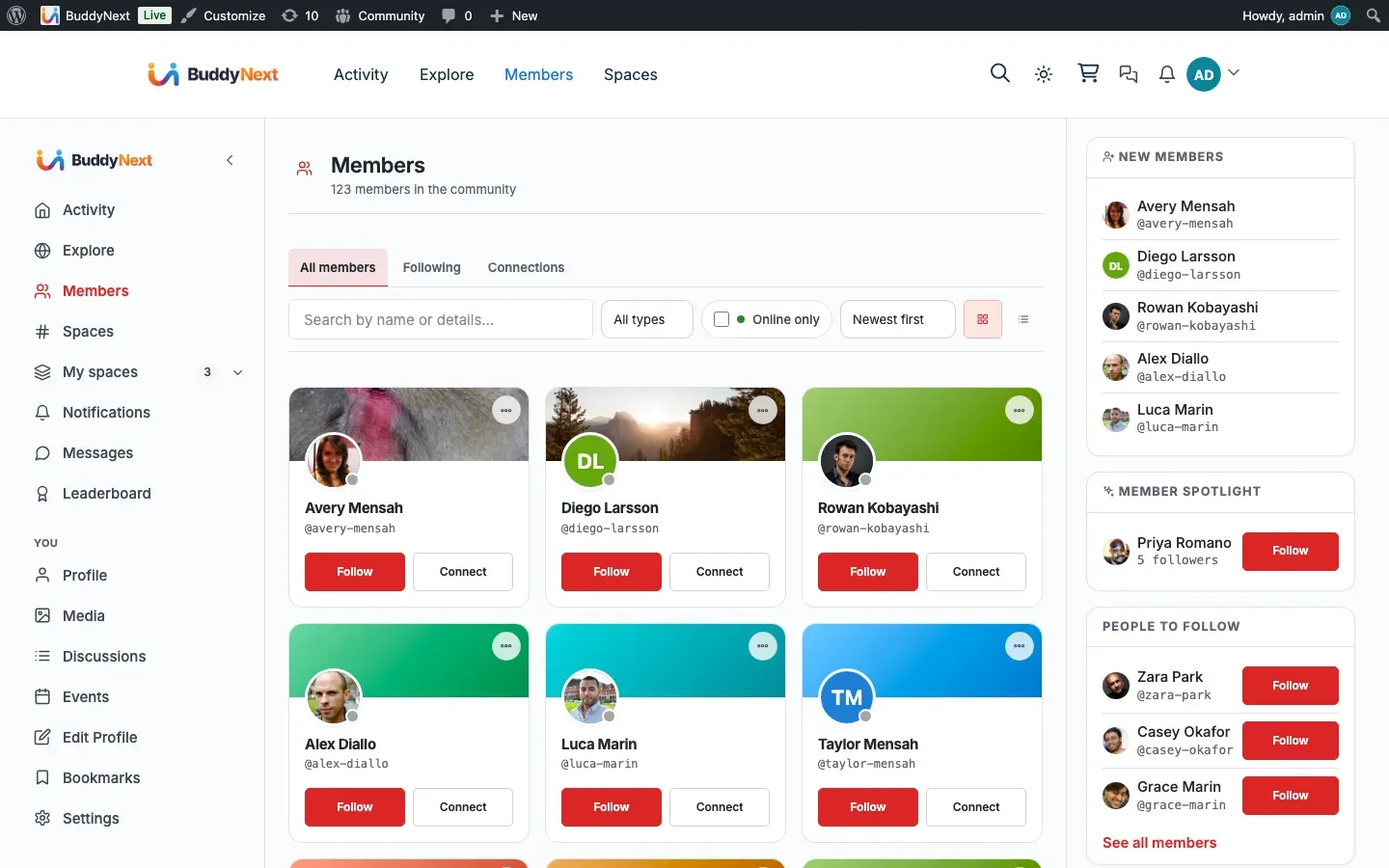
Section titled “Send a connection request”Open a member’s profile and select the Connect button. By default this is one click: the request is sent immediately and the button changes to Pending. The recipient gets a notification and can accept or decline.
You can also send a request from a member card in the directory, in followers and following lists, or in sidebars - the connect control behaves the same everywhere.
Note: By default, connecting is a single click with no extra step, like Facebook. If the site owner has turned on the optional connection note, you are asked to add a short message with your request first, like LinkedIn. Adding a note is always optional even when the step is shown - you can send the request without one - and it is never forced on members by default.
Accept or decline a request
Section titled “Accept or decline a request”When someone sends you a connection request, you get a notification that links to their profile. On their profile you will see Accept and Decline buttons:
- Accept - you are now connected to each other, and the connection counts toward both members’ connection totals.
- Decline - the request is dismissed and no connection is made. The other member is not connected to you. A declined request is not permanent: the same member can send a fresh request after a short cool-down (about 7 days by default), so a decline is a “not now,” not a block.
Withdraw a request you sent
Section titled “Withdraw a request you sent”If you sent a request that has not been answered yet, your button shows Pending. Select it to withdraw the request before the other member acts on it. The pending request is removed and the button returns to Connect.
Disconnect
Section titled “Disconnect”Once you are connected, the button shows Connected. Selecting it removes the connection for both members. Anything that was shared on a “connections only” basis stops being visible to that member after you disconnect.
View your connections
Section titled “View your connections”Your accepted connections are listed on your profile, and your connection count appears in your profile stats. The directory can also show how you relate to another member, including how many connections you have in common with them.
Setting it up (for owners)
Section titled “Setting it up (for owners)”Connections work out of the box with no required configuration. The connect flow, accept/decline, and the “connections only” privacy level are all available by default.
| Setting | What it does | Default |
|---|---|---|
| Ask for a note when connecting | Off: one click sends the connection request, like Facebook. On: the member is asked to add a short note with their request, like LinkedIn, and that note is shown to the recipient in their connection-request inbox, next to Accept and Decline, so they can decide before accepting. The note is capped at 280 characters. | Off |
| Notify on connection request | Sets whether members are notified by default when they receive a connection request. Members can still change their own preference. | On |
Tip: Leave the connection note off unless your community is professional or networking-focused. For most social communities, a one-click connect gets people connected faster and matches what members expect from Facebook-style sites. Turn the note on when you want members to introduce themselves before a connection is formed.
Good to know
Section titled “Good to know”- A connection has three states. Pending - a request has been sent and not yet answered. Accepted - both members have agreed and are connected. Blocked - if either member blocks the other, the connection path is closed (see Blocking and Muting).
- You cannot connect with yourself. A request to your own account is rejected.
- Duplicate requests are rejected. If you already have a pending or accepted connection with a member, a second request to them is turned down rather than creating a duplicate.
- Blocking closes the connection path. If you or the other member has a block in place, a connection request cannot be sent, and the privacy gate treats you as unconnected.
- Incoming requests are handled from the requester’s profile and from notifications. The notification you receive links straight to the requester’s profile, where the Accept and Decline buttons appear. An empty account with no pending requests simply shows the Connect button and an empty connections list - that is the expected empty state.
- Connecting is not following. A connection is mutual and both members must agree; following is one-way and instant on public accounts. See Following.
- A member can hold up to 5,000 connections. Because a connection lands on both people’s graphs, the limit is checked when a request is accepted, and it is checked on both members. If either side is already at the ceiling, the acceptance is refused with a message saying so. The same 5,000 ceiling applies to following - see Following.
The Connect Button block
Section titled “The Connect Button block”The Connect control renders automatically in profile context - the profile header and member cards - so members get the connect control without any setup. The standalone Connect button block is no longer offered in the block inserter.
The control reflects the current state for the viewer: Connect, Pending (request sent), Accept / Decline (request received), or Connected. It respects the connection-note setting, so when the note step is off the button is one click.
Related
Section titled “Related”- Following Members - the open, one-way counterpart to a connection
- Blocking and Muting - how a block closes the connection path
- Notifications - the request and accept alerts members receive