

Blocking and Muting
BuddyNext gives every member three self-protection tools for dealing with another person: block, mute, and restrict. Block cuts off interaction and messaging both ways, mute quietly hides someone’s content from you, and restrict limits how much another person can interact with you. You manage all three from a member’s profile and from your own profile settings.
Why use it
Section titled “Why use it”A community is only as welcoming as the control its members have over who reaches them. Without these tools, the only options are to put up with unwanted attention or to leave. Block, mute, and restrict cover the full range of situations a real member runs into:
- Someone is harassing you and you want them gone from your experience entirely. Use block.
- Someone posts a lot and you would rather not see it, but you have no real conflict with them. Use mute, and they never know.
- Someone is borderline and you want to keep an eye on things while limiting what they can do to your content, without the finality of a block. Use restrict.
Because each tool solves a different problem, members can pick the lightest action that fixes their situation instead of being forced into an all-or-nothing block. That keeps the community calmer and keeps people from quitting over a single bad interaction. These are member-driven safety controls: no admin has to approve them, and they take effect immediately.
How it works (for members)
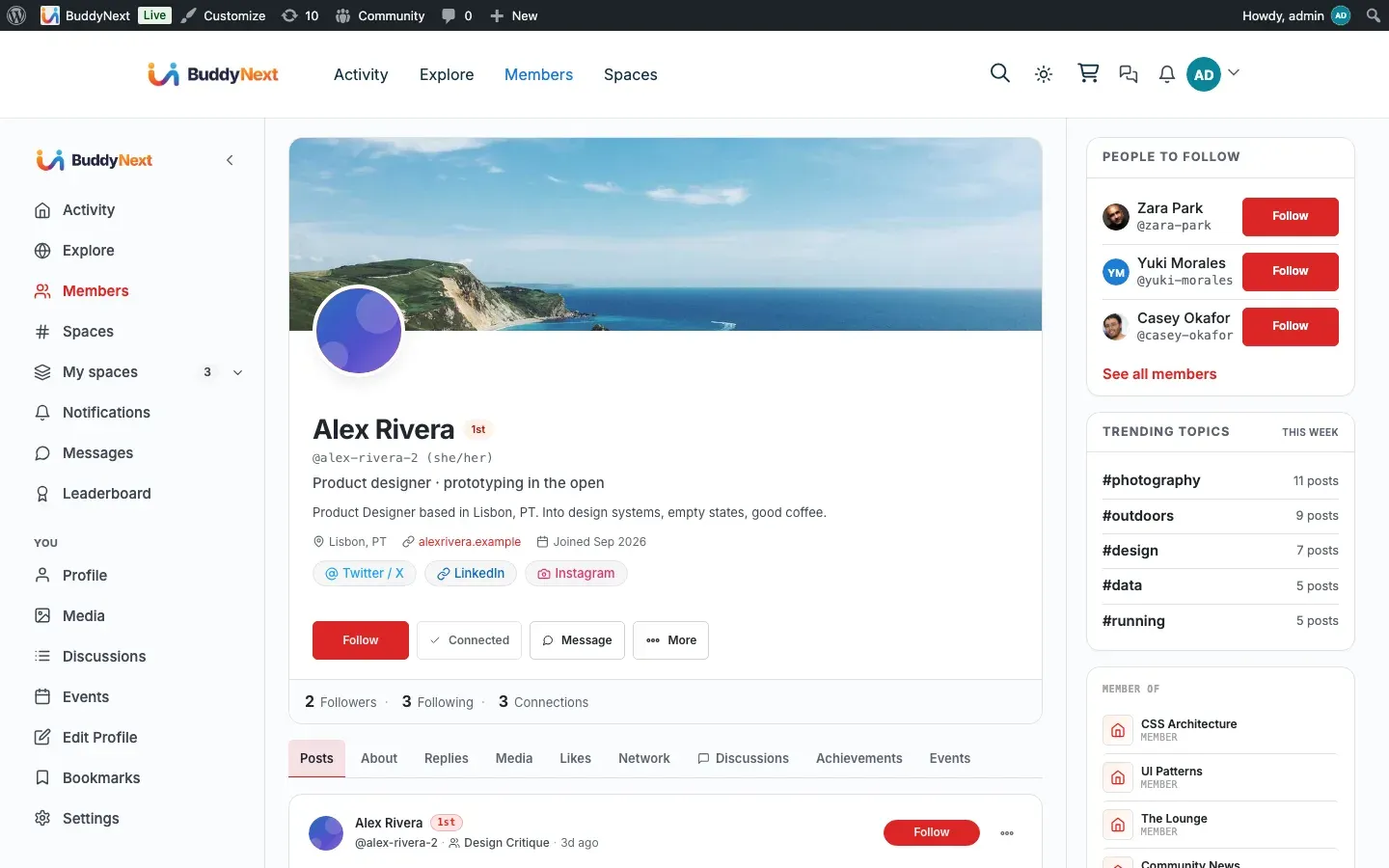
Section titled “How it works (for members)”All three actions start from the other person’s profile. Open their profile, open the more-menu (the “…” menu near their name), and choose Mute, Restrict, or Block.
Mute and Block are also reachable from a member’s card in the directory (the kebab menu), and since 1.0.8 Block is available directly in the photo lightbox, so a member who runs into an upsetting image can block its uploader without first hunting down their profile. See Profile Media and Albums.
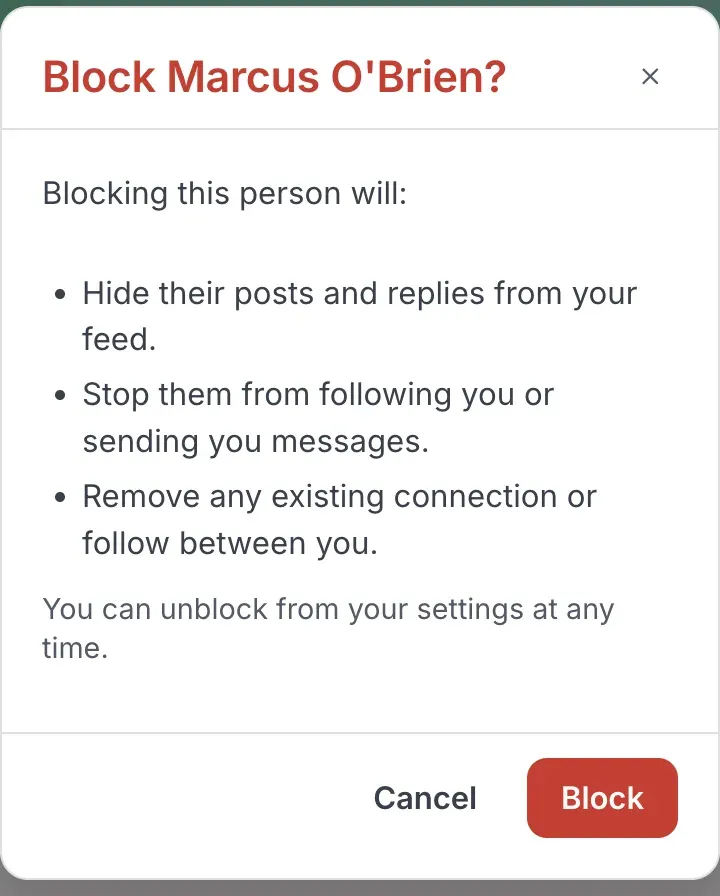
Blocking is the strongest action. When you block someone:
- Neither of you can interact with the other. The block applies in both directions.
- Direct messages between the two of you are prevented.
- They cannot follow you, and an existing follow relationship is cut off.
Because blocking is a strong, hard-to-miss change, BuddyNext asks you to confirm in a short dialog before the block goes through. After you block someone, you can undo it later from your profile settings.
Note: Blocking is mutual in effect - once you block a person, the wall sits between both of you, not just on your side.
Muting is the quiet option. When you mute someone, their content stops appearing for you, but nothing is cut off on their end and they are not told. There is no confirmation step - mute and unmute are a single tap. Use it when you simply want a quieter feed without making a statement.
Restrict
Section titled “Restrict”Restrict is the in-between option, modeled on the “limit this person” pattern from mainstream social apps. It limits how much the other person can interact with you while stopping short of a full block. Like mute, it applies quietly and toggles on and off in one tap.
Managing your blocked and muted lists
Section titled “Managing your blocked and muted lists”Everything you have blocked, muted, or restricted is listed in one place in your profile settings, so you never have to revisit the other person’s profile to undo an action. Open your own profile settings to find the list, then remove anyone from it to unblock, unmute, or unrestrict them. This is also where the block confirmation dialog points you when it says you can reverse a block later.
Setting it up (for owners)
Section titled “Setting it up (for owners)”Blocking, muting, and restricting are member-driven safety tools. They are always available to logged-in members and there is no per-feature admin setting to switch them on or configure them - a member just uses them from any profile. There is nothing for an owner to enable here.
What an owner should know:
- These actions never require admin approval and take effect instantly.
- Each action signals connected tools - gamification, analytics, messaging - so they can respond when a member blocks, mutes, or restricts someone. This happens automatically and is not a setting you toggle.
Good to know
Section titled “Good to know”- Block is directional in how you trigger it, mutual in effect. You are the one who blocks, but the resulting wall sits between both people.
- Block prevents direct messages. Once a block is in place, the two of you cannot message each other. The messaging layer checks the block list before delivering.
- Block prevents following. A blocked person cannot start following you, and blocking removes the path for an existing follow.
- Mute and restrict are silent. The other person is not notified when you mute or restrict them.
- Upgrading is safe. If you mute someone and later block them, the relationship is upgraded cleanly rather than duplicated, so you never end up with conflicting states.
- Undo lives in one place. Use the blocked / muted / restricted list in your profile settings to reverse any of the three - you do not have to find the person’s profile again.
Free vs Pro
Section titled “Free vs Pro”Block, mute, and restrict are all part of free BuddyNext. There is no Pro upgrade required for any of the three member-facing self-protection tools described here.
Related
Section titled “Related”- Following Members - the follow relationship a block cuts off
- Reporting Content - escalating to moderators when a block is not enough
- Direct Messaging - the messages a block prevents