

Spaces
Spaces are the sub-communities inside your BuddyNext site - focused groups where members gather around a shared topic, team, course, or interest. Each space has its own member list and its own activity feed, so conversation stays on-topic instead of getting lost in the site-wide stream.
Why use it
Section titled “Why use it”A single community feed works when everyone cares about the same thing. It stops working the moment your members care about different things. A product team, a city chapter, a fan club, and a paid mastermind all want their own corner - not one shared wall where every post competes for attention.
Spaces give you that structure:
- Organize a large community into smaller, focused groups. Members join the spaces that match their interests and skip the rest, so the content they see stays relevant.
- Keep discussion on-topic. A post made inside a space lands in that space’s feed, not the global feed. The “Photography” space stays about photography.
- Control who sees what. A space can be open to everyone, gated behind a join request, or invite-only and hidden from view. See Space Types and Privacy for the full breakdown.
- Give members ownership. Anyone you allow can start a space and run it - approve members, post updates, and moderate - without you administering every group by hand.
For the site owner, spaces turn one busy feed into a set of self-running rooms. For members, they turn a noisy community into the two or three places they actually want to be.
How it works (for members)
Section titled “How it works (for members)”Browse the spaces directory
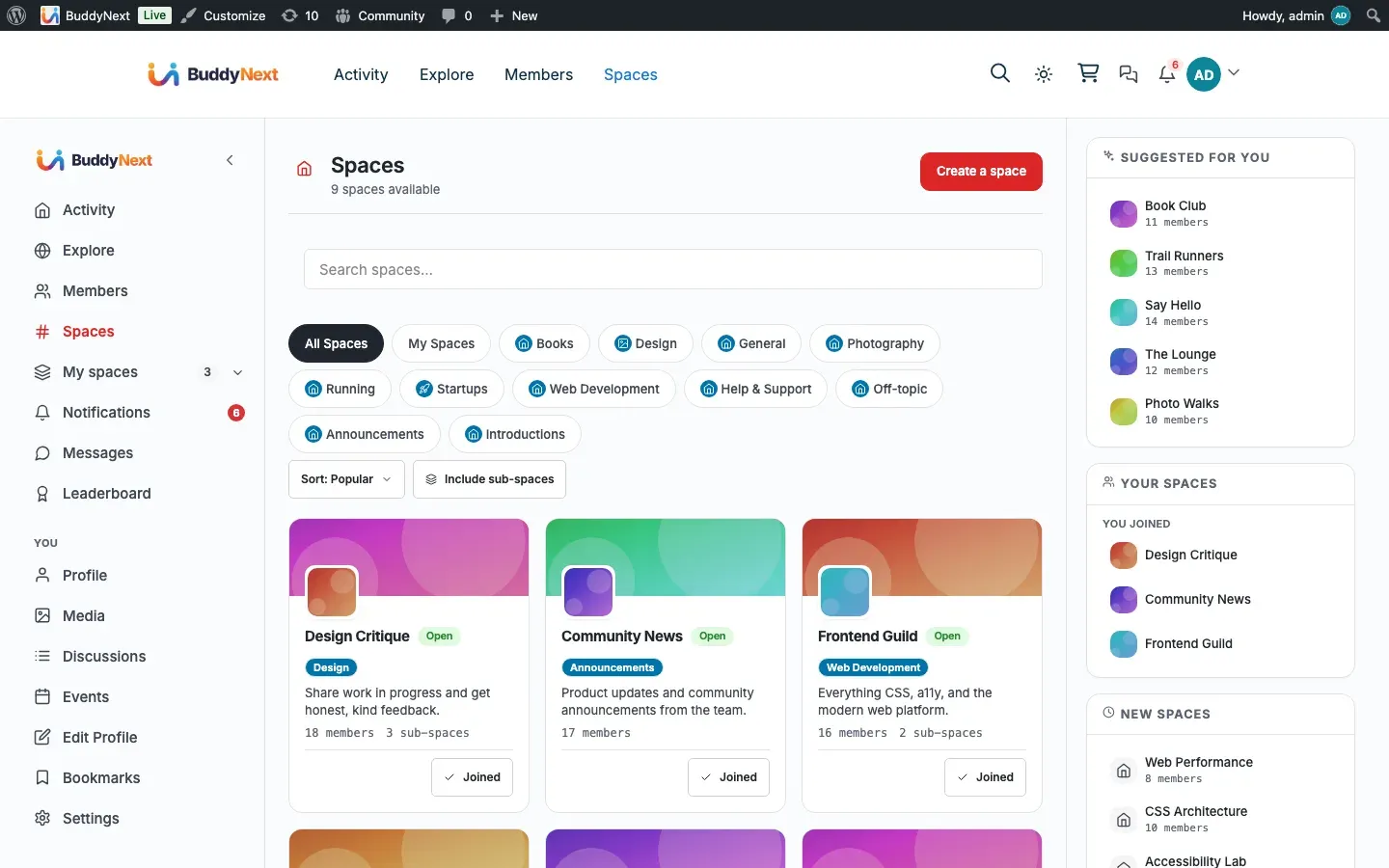
Section titled “Browse the spaces directory”The Spaces directory is the front door. It lists every space a member is allowed to see (secret spaces stay hidden), with search, category, and type filters plus sorting so a member can find the right group fast even when there are hundreds.
Filter by category
Section titled “Filter by category”Spaces can be grouped into categories (for example “Teams”, “Regions”, “Hobbies”). A member picks a category to narrow the directory to just those spaces. The site owner manages the category list and can set a default category for new spaces.
View a space
Section titled “View a space”Selecting a space opens its home page: the space header, an about panel, a member list, and the space feed. For an open space, anyone can read the feed. For a private space, non-members can still open the About tab and read the space’s description, house rules, and moderator list - enough to decide whether to request a place - but the feed itself is gated until they are approved.
My Spaces
Section titled “My Spaces”Every member has a “My Spaces” view listing the spaces they belong to, so their groups are one click away. This is also where pending join requests show up while a member waits to be approved.
Join, leave, or request to join
Section titled “Join, leave, or request to join”How a member joins depends on the space type:
- Open space - one click joins instantly. The member becomes a member right away and can post. An open space can optionally require approval, in which case the click files a request; that toggle is offered on open spaces only.
- Private space - clicking sends a join request. The space owner or a moderator approves or declines it. A member can cancel a pending request before it is answered.
- Secret space - there is no join button, because the space is hidden. A member can only get in through an invite from the owner.
A member can leave any space they have joined at any time from the space page.
Post in a space feed
Section titled “Post in a space feed”Once a member belongs to a space, the composer at the top of the space feed lets them post directly into that space. The post appears in the space feed for other members - it does not spill into the global site feed. Members react, comment, and engage on space posts the same way they do anywhere else on the site.
Search a space’s posts
Section titled “Search a space’s posts”A space’s Feed tab has a search box that returns only that space’s own posts. It exists because a space gets harder to search exactly as it succeeds: past the first screenful, finding “that thread about pricing from last month” meant scrolling, or using community-wide search and mentally discarding every other space’s results.
Results are paged, they render as the same post cards you can react and reply to, and Clear returns you to the feed. The box respects the space’s privacy: in a space you cannot read, it is not offered, and it returns nothing.
Full detail, including what the results include: Search.
Putting spaces on your own pages
Section titled “Putting spaces on your own pages”You are not limited to the built-in Spaces directory. Two blocks let you drop spaces onto any page or post you build in the editor, so you can surface them wherever your members already look.
| Block | What it shows |
|---|---|
| The Spaces Directory block | The full, filterable directory - search, category, and type filters with paginated space cards. Use it to build a dedicated “Communities” landing page. |
| The Space Card block | A single space as a card (header, member count, join control). Use it to feature one space on a homepage or in a sidebar. |
Tip: These blocks read the same live data as the built-in directory, so memberships, join states, and counts stay in sync wherever you place them.
Setting it up (for owners)
Section titled “Setting it up (for owners)”Space behavior is configured under the Spaces settings tab. These controls set the defaults and limits for every space on the site; individual space owners then manage their own space from its settings page.
| Setting | What it does | Default |
|---|---|---|
| Who can create spaces | Restricts space creation to any member or to admins only. Admins-only prevents members from creating unmoderated spaces. | Any member |
| Max spaces per member | Maximum number of spaces one member can create. Untick the box for no limit. Admins are exempt. | 0 (no limit) |
| Allow sub-spaces | Lets space owners create spaces nested inside their own. Turn off to keep every space top-level. | On |
| Max sub-spaces per space | Maximum number of sub-spaces an owner can create inside their space. Untick the box for no limit. | 0 (no limit) |
| Default visibility for new spaces | The type a space starts with when created (Open, Private, or Secret). Owners can still change it per space. | Open |
| Default category for new spaces | The category a new space is filed under when none is chosen. Manage the category list under Spaces, Directory, Categories. | None |
Note: The master on/off switch for the whole Spaces feature lives on the Features tab, not here. When Spaces is turned off there, the directory and these settings are inactive.
Good to know
Section titled “Good to know”- Slugs are unique. Two spaces cannot share the same URL slug. If a name produces a slug that already exists, the create attempt is rejected and the member is asked to choose another.
- The creator becomes the owner. When a member creates a space they are automatically added as its owner and counted as its first member.
- Secret spaces never appear in listings. They are excluded from the directory and from public space lists, so a non-member has no way to discover one exists.
- Banned members cannot rejoin. If an owner bans a member from a space, that member is blocked from joining again until they are unbanned.
- Empty directory. Before any space exists, the directory shows an empty state inviting eligible members to create the first one.
Free vs Pro
Section titled “Free vs Pro”Everything on this page is part of BuddyNext free: the directory, the three space types, join and leave flows, the space feed, member management, and the blocks for placing spaces on your own pages.
BuddyNext Pro adds membership-gated spaces - spaces that require a paid plan or specific entitlement to join. These build on the same space framework but add a paywall in front of the join action. See Space Types and Privacy and the Gated Spaces documentation for how paid access works.
Related
Section titled “Related”- Creating and Managing a Space - starting, editing, and running a space
- Space Types and Privacy - the Open, Private, and Secret models
- Space Categories - the directory filter members browse by
- Gated Spaces - putting a paid membership in front of a space