

Setup Wizard
Setup Wizard
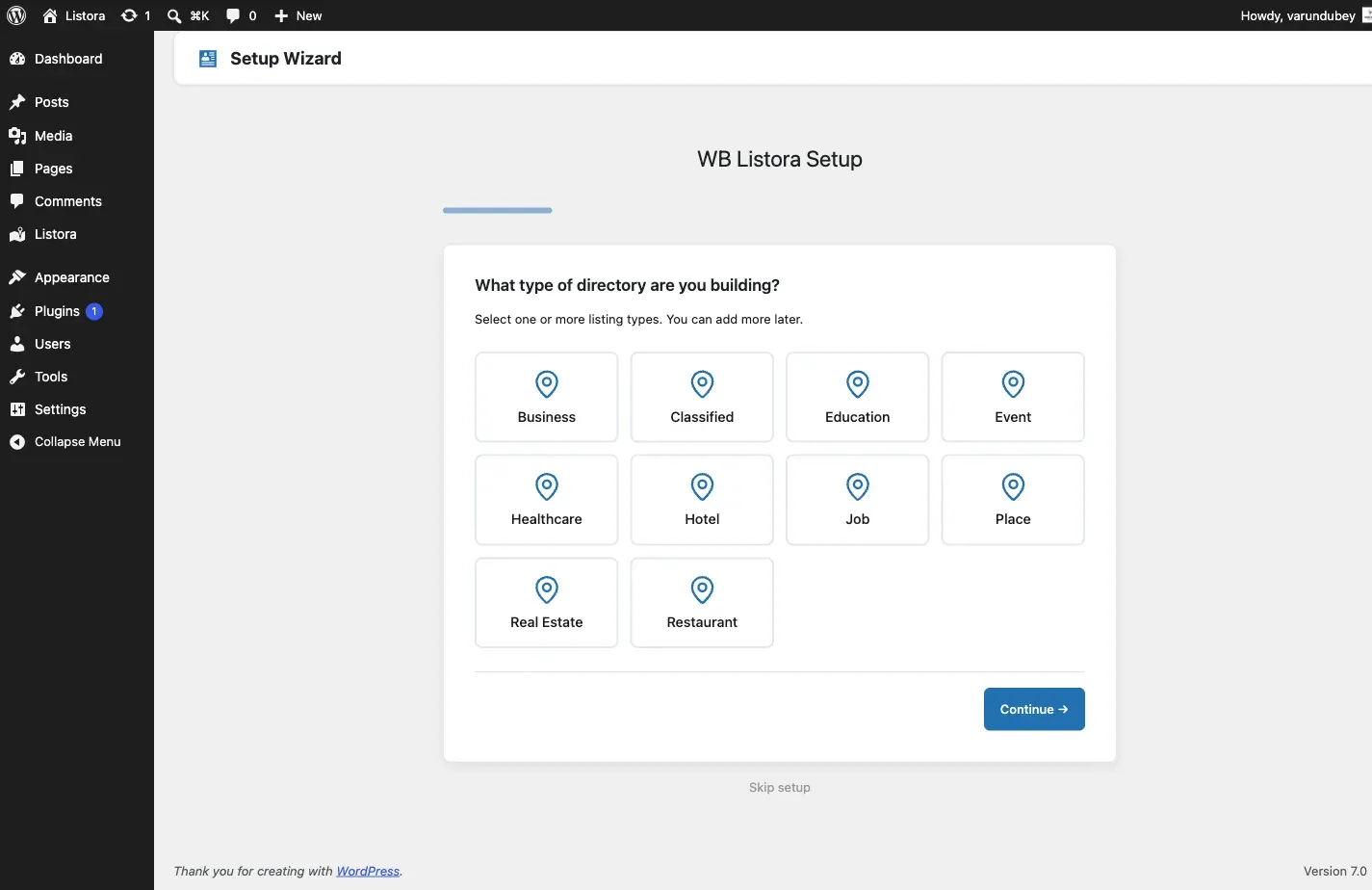
Section titled “Setup Wizard”The Setup Wizard runs automatically after activation and walks you through configuring your directory in 6 steps.
Step 1: Welcome
Section titled “Step 1: Welcome”Choose your directory type - the wizard pre-configures settings based on your choice:
- General Directory - businesses, services, shops
- Restaurant Directory - restaurants, cafes, bars
- Hotel Directory - hotels, resorts, vacation rentals
- Real Estate - properties, apartments, houses
- Custom - start from scratch
Step 2: Listing Types
Section titled “Step 2: Listing Types”Select which listing types to enable. Each type comes with pre-configured fields:
- Business (8 fields)
- Restaurant (14 fields including cuisine, price range, hours)
- Hotel (12 fields including star rating, amenities)
- Real Estate (12 fields including price, bedrooms, area)
- Healthcare, Education, Event, Job, Automotive, Pet Services
You can add, remove, or customize types later from Listora > Listing Types.
Step 3: Map Settings
Section titled “Step 3: Map Settings”Configure your map provider and defaults:
- Map Provider: OpenStreetMap (free, no API key) or Google Maps (Pro)
- Default Location: Set the center point for your directory
- Default Zoom Level: How zoomed in the map starts
Step 4: Pages
Section titled “Step 4: Pages”The wizard creates essential pages automatically:
- Directory - main listing search and grid page
- Add Listing - frontend submission form
- Dashboard - user dashboard for managing listings
- Compare - side-by-side listing comparison
Step 5: Demo Content
Section titled “Step 5: Demo Content”Optionally install demo listings to see how your directory looks. Demo content includes 20 listings across multiple types with images, reviews, and map locations.
Step 6: Done
Section titled “Step 6: Done”Your directory is ready. The wizard shows links to:
- View your directory
- Add your first listing
- Customize settings
- Read the documentation
Re-running the Wizard
Section titled “Re-running the Wizard”Go to Listora > Settings > General and click Re-run Setup Wizard, or navigate directly to wp-admin/admin.php?page=listora-setup.