

Overview Tab — Stats & Configuration Snapshot
The Overview tab is the landing page when you open WB Plugins → Contact Me. It gives you live counts of activity plus a one-glance summary of the current configuration.
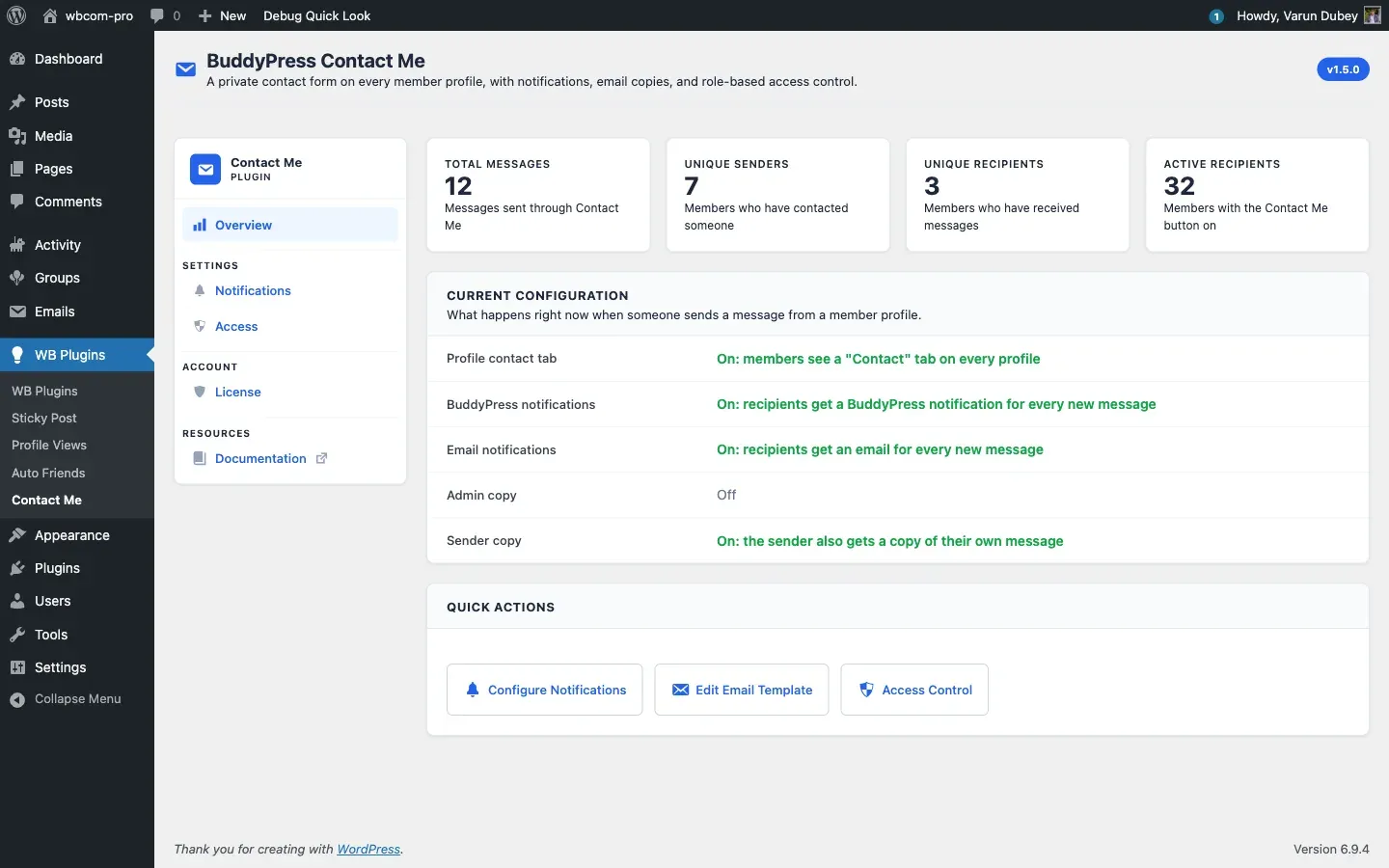
Top stat cards
Section titled “Top stat cards”Four counters appear across the top of the page:
- Total messages — every row in the
{prefix}contact_metable. This is the all-time count, not “this month”. - Unique senders — distinct user IDs that have sent at least one message. Guest submissions do not count toward this — guests are aggregated separately.
- Unique recipients — distinct user IDs that have received at least one message.
- Active recipients — members whose
contact_me_buttonuser-meta is anything other than'off'. This number tells you how many members currently show a Contact tab to anyone allowed by the role rules.
Current configuration snapshot
Section titled “Current configuration snapshot”The middle card lists the five most-asked-about settings with a green / grey badge for each:
- Profile contact tab — whether the Contact tab is rendered at all.
- BuddyPress notifications — whether recipients get a notification bell entry.
- Email notifications — whether recipients get a templated email.
- Admin copy — whether site admins get BCC’d on every message.
- Sender copy — whether the sender gets a receipt.
You can change any of these from the Notifications and Access tabs — the snapshot is a quick-confirm view, not editable inline.
Quick actions
Section titled “Quick actions”Three shortcut buttons at the bottom:
- Configure Notifications — jumps to the Notifications tab.
- Edit Email Template — opens Dashboard → Emails filtered to the contact-message email post for direct content edits.
- Access Control — jumps to the Access tab.
What this tab is not for
Section titled “What this tab is not for”The Overview tab is read-only at the data level. There is no message moderation UI, no bulk-delete, no sender-block list. Message moderation happens per-message from the recipient’s inbox; admin moderation happens via the Site admin copy option in the Notifications tab plus your existing email workflow.
Where the data comes from
Section titled “Where the data comes from”All counters query the {prefix}contact_me table directly via the data layer (BCM_Messages_Repo), not via cached transients — so the numbers are always accurate the moment you open the tab. On large message tables you may notice a slight load delay; the queries are indexed by recipient and a COUNT(DISTINCT) is fast in practice up to the hundreds of thousands.
What’s next
Section titled “What’s next”Once you have a feel for the activity numbers, head to the Notifications tab to control how recipients find out about new messages.