

Survey Responses
View, manage, and export survey responses. Track completion rates, send email notifications, and analyze user feedback from your WB Surveys.
Accessing Responses
Section titled “Accessing Responses”Navigate to WP Admin → WB Surveys → Responses
View all survey submissions in one centralized location.
Response List View
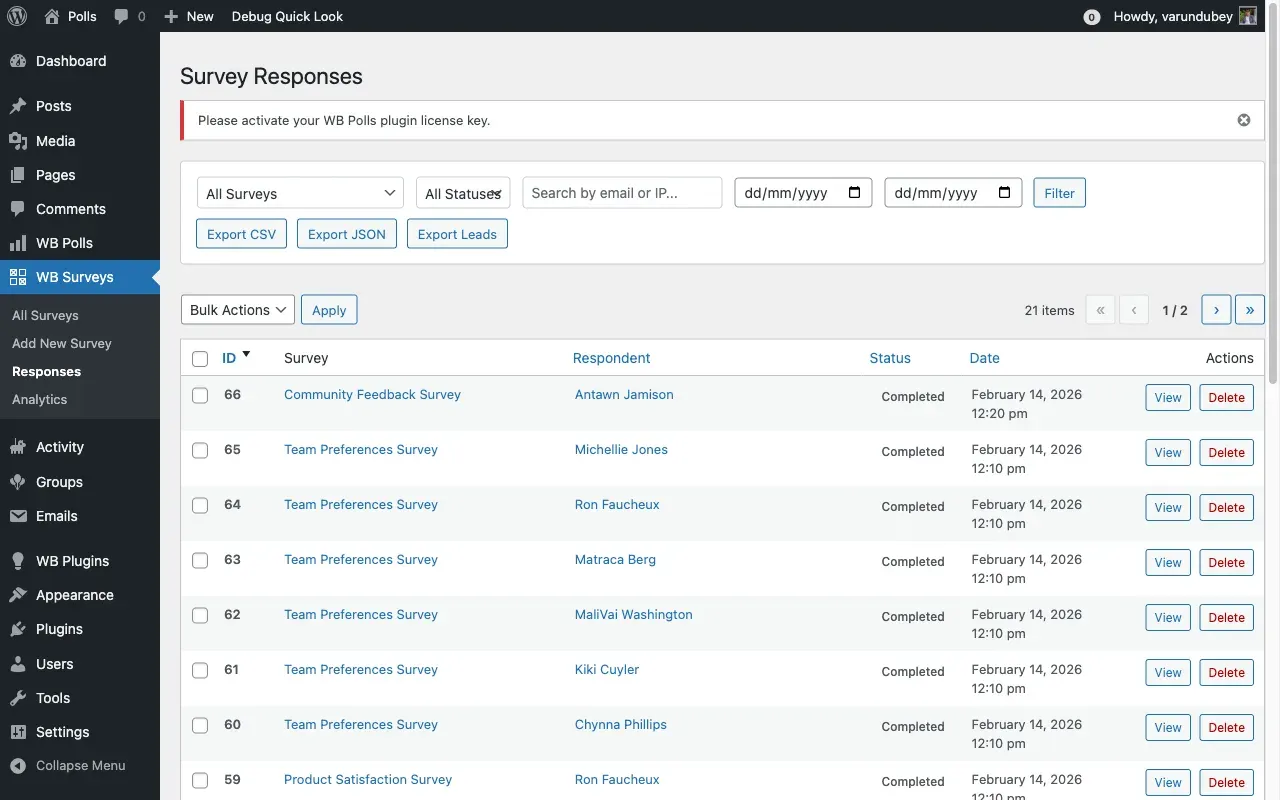
Section titled “Response List View”The responses page displays all survey submissions across all surveys.
List Columns
Section titled “List Columns”| Column | Information |
|---|---|
| Survey | Survey title with link |
| Respondent | User name or email (guests) |
| Status | Completed or Started |
| Started At | Timestamp when begun |
| Completed At | Timestamp when finished |
| IP Address | Respondent’s IP |
| Actions | View, Delete |
Filter Options
Section titled “Filter Options”Filter by Survey: Dropdown to show responses for specific surveys only.
Filter by Status:
- All — Show both completed and started
- Completed — Only finished surveys
- Started — Abandoned/incomplete surveys
Filter by Date Range: Select start and end dates to narrow results.
Apply Filters: Click Filter button to refresh the list with your criteria.
Viewing Individual Responses
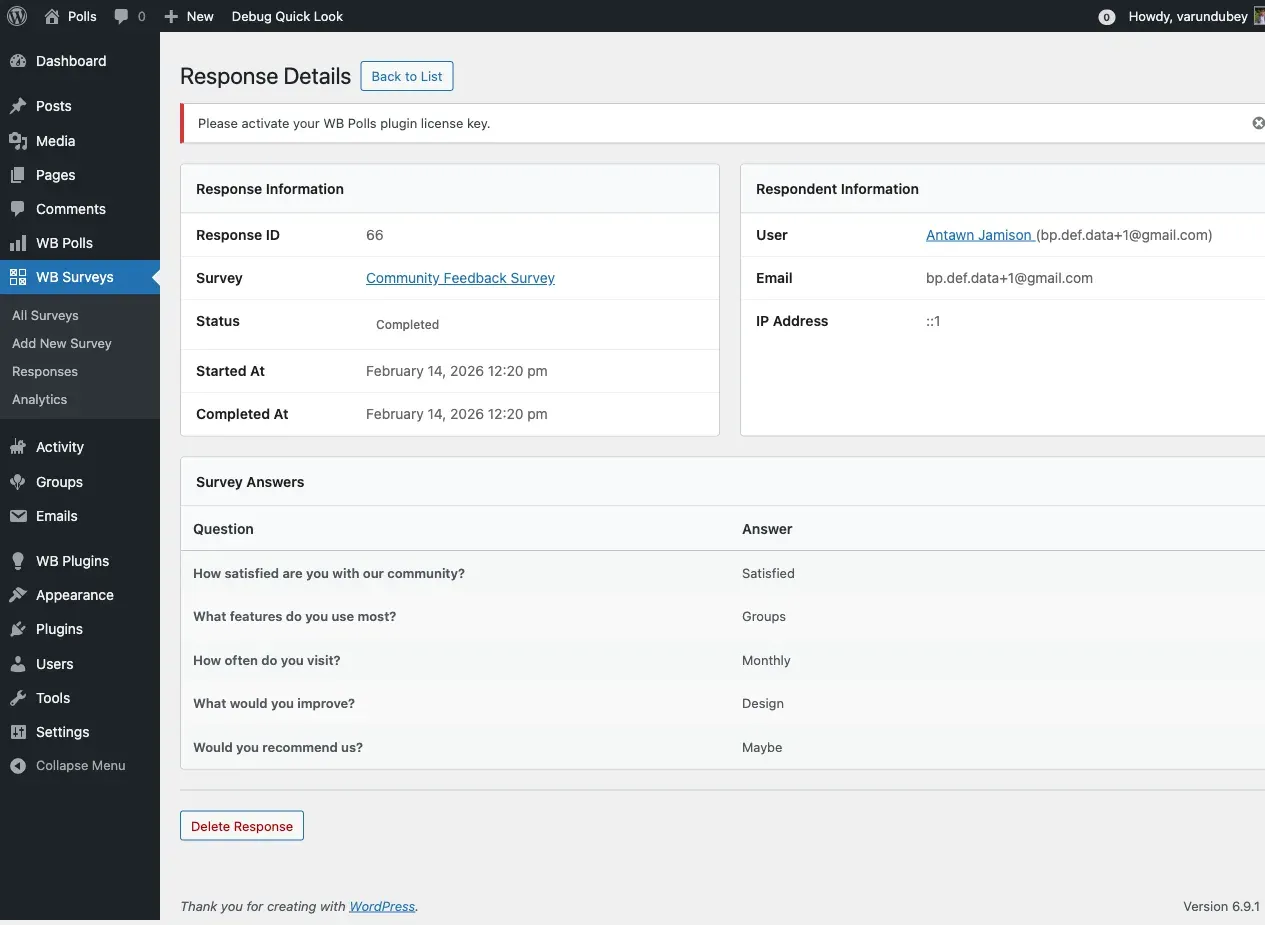
Section titled “Viewing Individual Responses”Click View on any response to see detailed answers.
Response Details
Section titled “Response Details”Header Information:
- Survey title
- Respondent name/email
- Submission status (Completed/Started)
- Started timestamp
- Completed timestamp
- IP address
- User agent (browser/device)
Answers Section: All questions with user responses displayed in order:
| Question Type | Display Format |
|---|---|
| Text | Plain text answer |
| Textarea | Multi-line text answer |
| Multiple Choice | Selected option(s) |
| Checkbox | Checked items list |
| Dropdown | Selected value |
| Rating | Star/number rating |
| File Upload | Download link |
Response Actions:
- Export — Download this response as JSON
- Delete — Remove permanently
Response Statistics
Section titled “Response Statistics”View survey performance metrics at the top of each survey’s response page.
Key Metrics
Section titled “Key Metrics”| Metric | Calculation |
|---|---|
| Views | Total survey page loads |
| Starts | Unique users who began |
| Completions | Finished submissions |
| Completion Rate | (Completions / Starts) × 100 |
Interpreting Stats
Section titled “Interpreting Stats”High completion rate (80%+):
- Survey is engaging and clear
- Appropriate length
- Well-designed questions
Low completion rate (below 50%):
- Survey too long
- Confusing questions
- Technical issues
- Timing/expiration problems
High starts, low completions:
- Survey abandonment issue
- Consider shortening
- Review question order
- Check for required fields blocking progress
Exporting Responses
Section titled “Exporting Responses”Export survey data for analysis in spreadsheet or data tools.
CSV Export
Section titled “CSV Export”From Admin Panel:
- Navigate to WB Surveys → Responses
- Filter to desired survey
- Click Export CSV button
- File downloads automatically
CSV Format:
- First row: Column headers (question titles)
- Subsequent rows: One response per row
- Includes metadata: ID, user, timestamps, status
JSON Export via REST API
Section titled “JSON Export via REST API”Endpoint: GET /wp-json/wbsurvey/v1/responses/export/{survey_id}
Parameters:
| Parameter | Type | Purpose |
|---|---|---|
survey_id |
int | Survey to export |
status |
string | Filter: completed/started/all |
start_date |
string | Filter from date (Y-m-d) |
end_date |
string | Filter to date (Y-m-d) |
Example Request:
curl -X GET "https://yoursite.com/wp-json/wbsurvey/v1/responses/export/42?status=completed"Response Format:
{ "survey_id": 42, "survey_title": "Customer Satisfaction", "export_date": "2026-02-14", "total_responses": 150, "responses": [ { "id": 1, "user_id": 5, "email": "user@example.com", "status": "completed", "started_at": "2026-02-10 10:30:00", "completed_at": "2026-02-10 10:35:00", "ip_address": "192.168.1.1", "response_data": { "question_1": "Very satisfied", "question_2": "5 stars" } } ]}Email Notifications
Section titled “Email Notifications”Configure automated emails for survey events.
Admin Notifications
Section titled “Admin Notifications”Triggered when: A survey is completed
Sent to: Admin email address (from WP settings)
Email Content:
- Survey title
- Respondent name/email
- Completion timestamp
- Link to view response in admin
Enable/Disable: Navigate to WB Surveys → Settings → Notifications
Toggle Admin Notification on Completion
Respondent Confirmation Emails
Section titled “Respondent Confirmation Emails”Triggered when: A user completes a survey
Sent to: Respondent’s email address
Email Content:
- Survey title
- Thank you message
- Copy of their responses (optional)
- Next steps or call-to-action
Enable/Disable: Navigate to WB Surveys → Settings → Notifications
Toggle Send Confirmation to Respondent
Email Placeholders
Section titled “Email Placeholders”Customize email templates with dynamic content:
| Placeholder | Replaced With |
|---|---|
{survey_title} |
Survey name |
{user_name} |
Respondent name |
{user_email} |
Respondent email |
{completion_date} |
Date completed |
{response_url} |
Admin view link |
{site_name} |
WordPress site name |
{site_url} |
Site homepage URL |
Example Template:
Hi {user_name},
Thank you for completing our {survey_title} survey on {completion_date}.
Your feedback helps us improve {site_name}.
Best regards,The {site_name} Team
Managing Responses
Section titled “Managing Responses”Deleting Individual Responses
Section titled “Deleting Individual Responses”From Response List:
- Hover over response row
- Click Delete link
- Confirm deletion
From Single Response View:
- Open response details
- Click Delete button
- Confirm deletion
What Gets Deleted:
- Response record from database
- All answer data
- Response meta fields
- Decrements survey completion count
Note: Deletion is permanent and cannot be undone.
Bulk Operations
Section titled “Bulk Operations”Select Multiple Responses:
- Check boxes next to responses
- Select Bulk Actions dropdown
- Choose action: Delete
- Click Apply
Available Bulk Actions:
- Delete — Remove selected responses
Safety Tip: Always export before bulk deleting.
Response Data Storage
Section titled “Response Data Storage”Database Tables
Section titled “Database Tables”Main Response Table: wp_wbsurvey_responses
| Column | Type | Purpose |
|---|---|---|
id |
bigint | Unique response ID |
survey_id |
bigint | Survey post ID |
user_id |
bigint | WordPress user (0 for guests) |
email |
varchar | Respondent email |
ip_address |
varchar | IP address |
user_agent |
text | Browser/device info |
response_data |
longtext | JSON of all answers |
status |
varchar | completed/started |
started_at |
datetime | Begin timestamp |
completed_at |
datetime | Finish timestamp |
created_at |
datetime | Record creation |
Response Meta Table: wp_wbsurvey_response_meta
Stores additional metadata for responses.
| Column | Purpose |
|---|---|
response_id |
Links to main response |
meta_key |
Meta field name |
meta_value |
Meta field value |
Privacy Considerations
Section titled “Privacy Considerations”GDPR Compliance
Section titled “GDPR Compliance”User Rights:
- Right to access their responses
- Right to delete their data
- Right to export their data
Implementation:
- Use WordPress privacy tools
- Add survey responses to data export
- Include responses in erasure requests
IP Address Storage
Section titled “IP Address Storage”IP addresses are personally identifiable information.
Legal Basis Required:
- Legitimate interest (fraud prevention)
- Consent (disclosure in privacy policy)
- Legal obligation (varies by jurisdiction)
Best Practices:
- Disclose IP collection in privacy policy
- Consider anonymizing after X days
- Provide option to disable IP logging
Troubleshooting
Section titled “Troubleshooting”Responses not appearing
Section titled “Responses not appearing”- Check survey status is published
- Verify responses submitted successfully
- Clear admin page cache
- Check database table exists
Export file empty
Section titled “Export file empty”- Filter may be excluding all responses
- Survey has no completed responses
- Permission issue generating file
- Check PHP memory limit
Email notifications not sending
Section titled “Email notifications not sending”- Verify SMTP configuration
- Check spam folder
- Test with WP Mail SMTP plugin
- Review email logs
- Confirm recipient email valid
Completion rate incorrect
Section titled “Completion rate incorrect”- Stats calculate on page load
- Clear transient cache
- Check for database errors
- Verify counter increments on submit
Documentation by Wbcom Designs — docs.wbcomdesigns.com