

Resume Builder
Pro feature — Requires WP Career Board Pro.
The Resume Builder lets candidates create structured, multi-section resumes directly on your WordPress site — no PDF uploads, no external tools required.
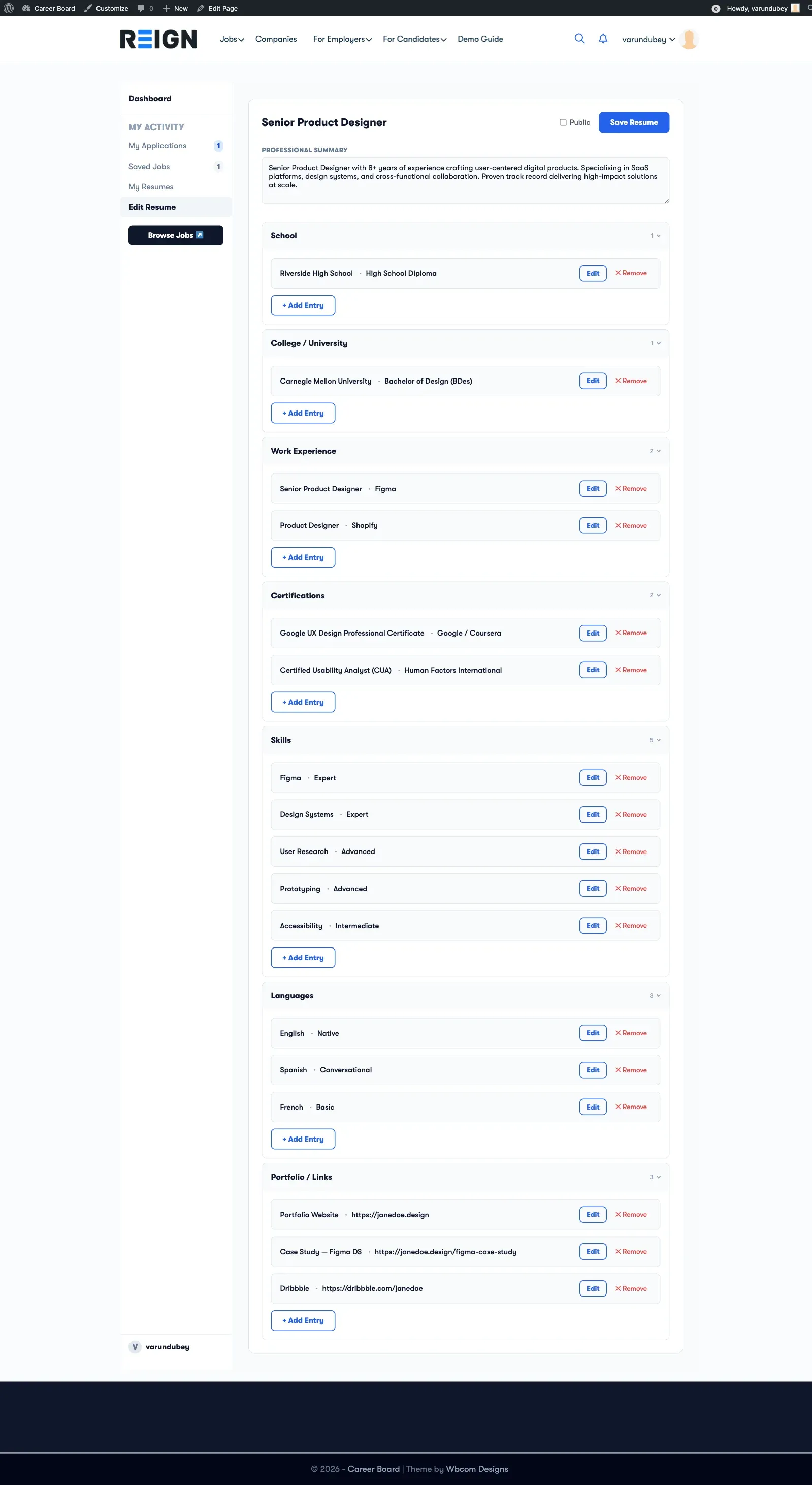
What Candidates Can Build
Section titled “What Candidates Can Build”A resume is made up of sections. Each section holds structured entries:
| Section | What it stores |
|---|---|
| Professional Summary | A free-text overview paragraph |
| Work Experience | Job title, company, dates, description |
| Education | Degree, institution, dates |
| Skills | Skill name and optional proficiency level |
| Languages | Language name and proficiency |
| Certifications | Certificate name, issuing body, date |
| Links | Portfolio, GitHub, LinkedIn, etc. |
Admin Setup
Section titled “Admin Setup”Before candidates can use the Resume Builder, set it up in two steps:
- Create a page and add the Resume Builder block to it
- Go to WP Career Board → Settings → Pages and assign that page to the Resume Builder Page field
Once assigned, the Candidate Dashboard’s My Resumes tab will link to this page automatically.
My Resumes Tab
Section titled “My Resumes Tab”Candidates access their resumes from Candidate Dashboard → My Resumes.
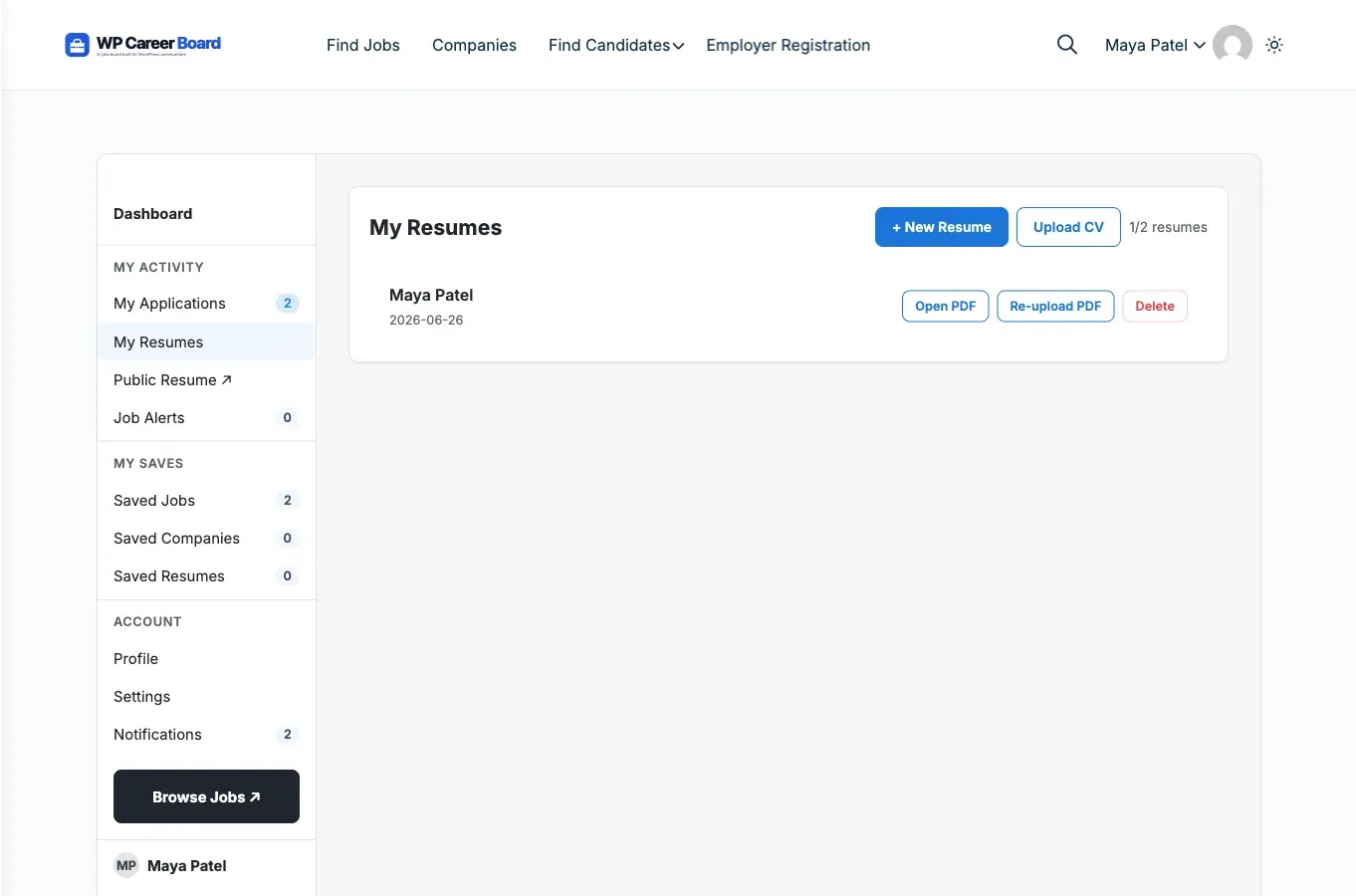
From this tab, candidates can:
- See all saved resumes with their last-updated date
- Click Edit to open a resume in the builder
- Click Create New Resume to start a new one
- Click Delete to permanently remove a resume
Using the Resume Builder
Section titled “Using the Resume Builder”The builder is organized into collapsible sections. Click any section header to expand it.
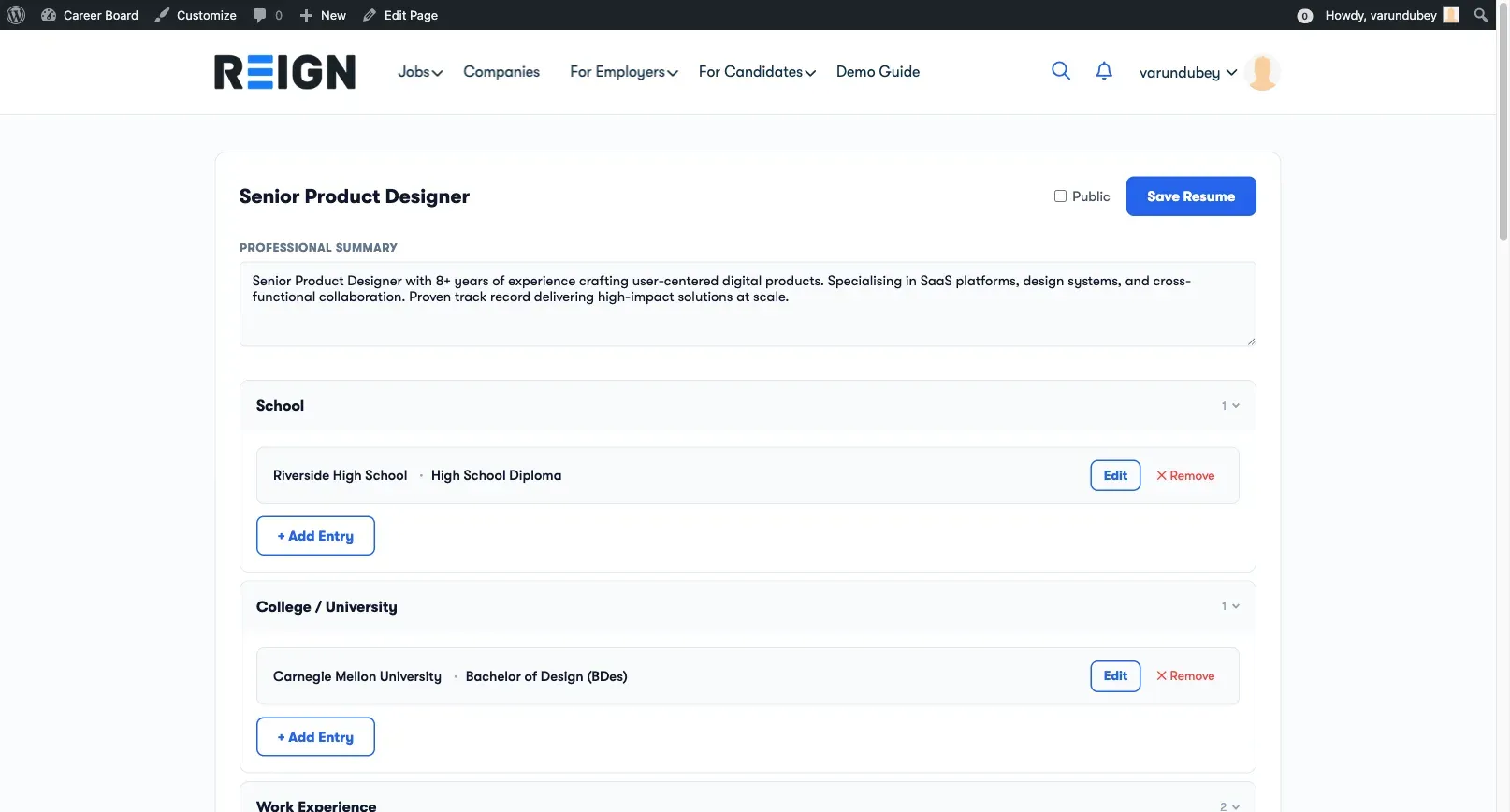
Adding Entries
Section titled “Adding Entries”- Open any section (e.g., Work Experience)
- Click + Add Entry
- Fill in the fields
- Click Save on the entry
The entry appears as a compact row. Click it to expand and edit again.
Entry Fields
Section titled “Entry Fields”Work Experience: Job Title, Company, Start Date, End Date, “Currently working here” toggle, Description
Education: Degree / Qualification, Institution, Start Year, End Year, Field of Study
Skills: Skill name, Proficiency level (Beginner / Intermediate / Advanced / Expert)
Languages: Language name, Proficiency (Native / Fluent / Conversational)
Certifications: Certificate name, Issuing organization, Issue date
Links: URL, Label (e.g., “Portfolio”, “GitHub”)
Auto-Save
Section titled “Auto-Save”The Resume Builder saves each entry individually when you click Save on that entry. There is no global save button. A “Saved” confirmation briefly appears after each save.
Multiple Resumes
Section titled “Multiple Resumes”Candidates can create more than one resume — for example, one for engineering roles and one for management roles. The dashboard lists all resumes with their last-updated date.
Attaching a Resume to an Application
Section titled “Attaching a Resume to an Application”When a candidate applies for a job, they can select one of their saved resumes to attach. The employer sees the full structured resume on the application — not a PDF attachment.
Resume Visibility
Section titled “Resume Visibility”- Private (default) — visible only to the candidate and employers who receive applications from them
- Public — visible in the Find Resumes employer archive
Candidates toggle visibility in the Resume Builder header.