

Commission Reports
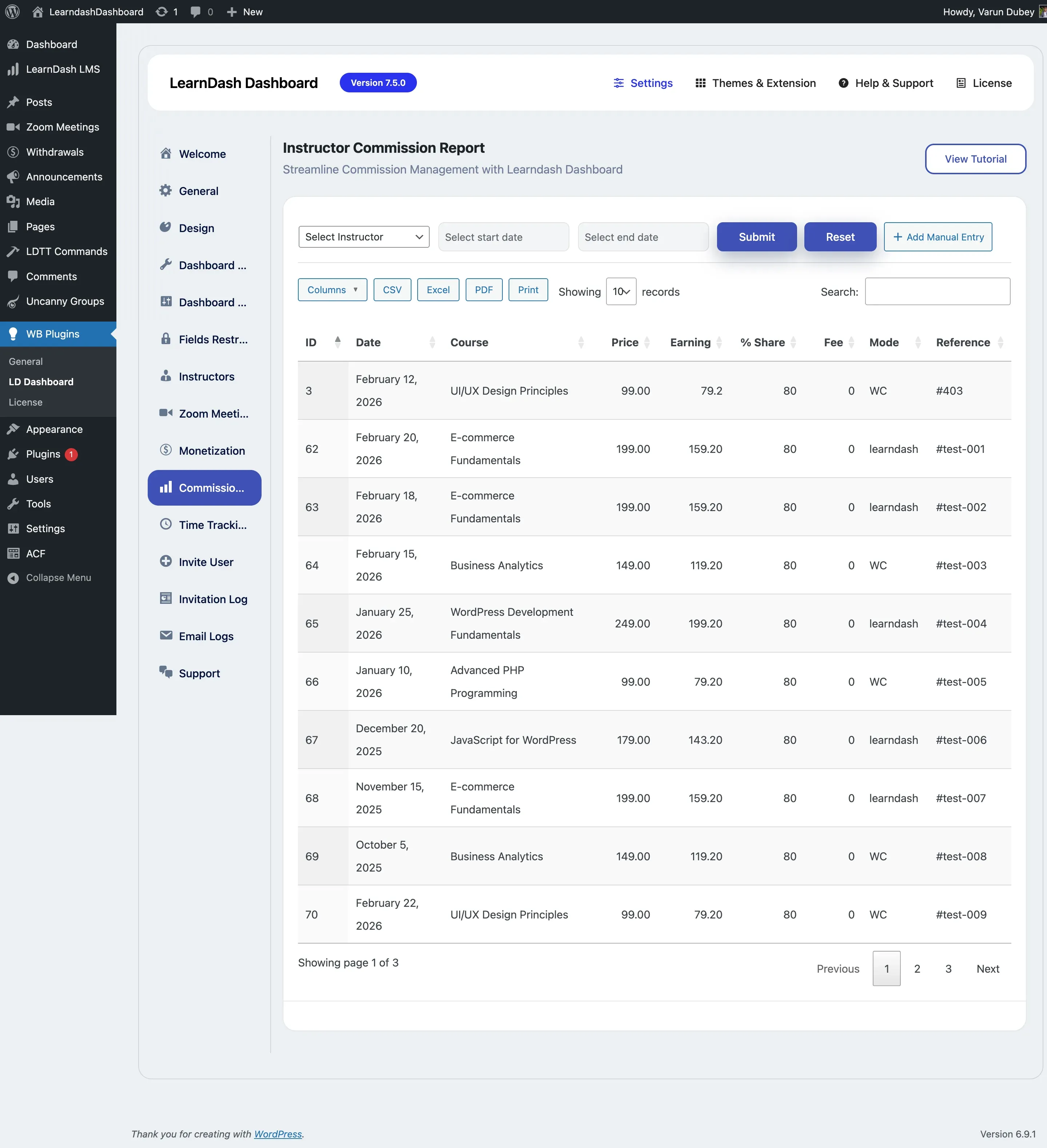
The Commission Report gives you a complete view of all instructor earnings across your platform. Filter by instructor or date, add manual entries, export data, and process payout requests — all from one page.
Screenshots
Section titled “Screenshots”Admin view
How to Access
Section titled “How to Access”Go to WordPress Admin > LearnDash Dashboard > Commission Report.
This page is only available when Monetization is enabled in your settings.
Reading the Report Table
Section titled “Reading the Report Table”Every course sale that generated a commission appears as one row in the table:
| Column | What it shows |
|---|---|
| Date | When the sale was recorded |
| Course | The course that was sold |
| Price | The full sale price |
| Earning | The instructor’s commission amount |
| % Share | The revenue share percentage applied |
| Fee | Any platform fee that was deducted |
| Mode | Whether the sale came through LearnDash or WooCommerce |
| Reference | The order or transaction reference number |
Filter the Report
Section titled “Filter the Report”Narrow the data to what you need:
- Choose a specific instructor from the Select Instructor dropdown
- Set a Start Date and/or End Date to filter by sale date
- Click Submit to apply, or Reset to clear all filters
When you select an instructor, a summary bar appears showing their total Paid Earnings and Unpaid Earnings.
Add a Manual Commission Entry
Section titled “Add a Manual Commission Entry”Click + Add Manual Entry to record a commission that was not captured automatically. This is useful for offline sales, manual adjustments, or bonus payments to instructors.
How to Add a Manual Entry
Section titled “How to Add a Manual Entry”- Click the + Add Manual Entry button above the report table
- A dialog opens with the following fields:
| Field | Required | Description |
|---|---|---|
| Instructor | Yes | Select the instructor who should receive the commission from the dropdown |
| Course | Yes | Select the course this commission is associated with |
| Commission Amount | Yes | Enter the amount to credit (e.g., 25.00) |
| Note / Reference | No | Add an optional note explaining the entry (e.g., “Offline workshop payment” or “Bonus for Q1”) |
- Click Add Commission to save the entry
- The new commission appears in the report table with “Manual” as the mode
Export Commission Data
Section titled “Export Commission Data”Click CSV in the table header to download the currently filtered data as a spreadsheet.
Process Withdrawal Requests
Section titled “Process Withdrawal Requests”When an instructor submits a withdrawal request, it appears in your WordPress admin for review.
- Go to WordPress Admin > Withdrawals
- Open the withdrawal entry
- Update the status to Approved or Rejected
The instructor receives an automatic email notification when you change the status.