

Setting Up the Resume Builder
The Resume Builder is delivered as a Gutenberg block (wcb/resume-builder). Most sites do not need to create this page by hand - the Pro setup wizard provisions the candidate-facing pages for you. The steps below cover both the automatic path and the manual one.
Quickest path: the setup wizard
Section titled “Quickest path: the setup wizard”When you first activate WP Career Board Pro, the setup wizard creates the candidate-facing Pro pages and maps them in settings. The wizard creates a Find Candidates page (containing the wcb/resume-search-hero and wcb/resume-archive blocks) and wires the candidate dashboard so the My Resumes tab can open the builder.
If a page is ever missing, go to WP Career Board → Settings → Resumes. When a required page is not mapped, the tab shows a Create Missing Resume Pages button that recreates and assigns it.
Manual path: add the block yourself
Section titled “Manual path: add the block yourself”- Go to Pages → Add New
- Set the title (e.g., “Resume Builder” or “Edit Resume”)
- Add the Resume Builder block to the page body (it lives under the Widgets block category)
- Publish the page
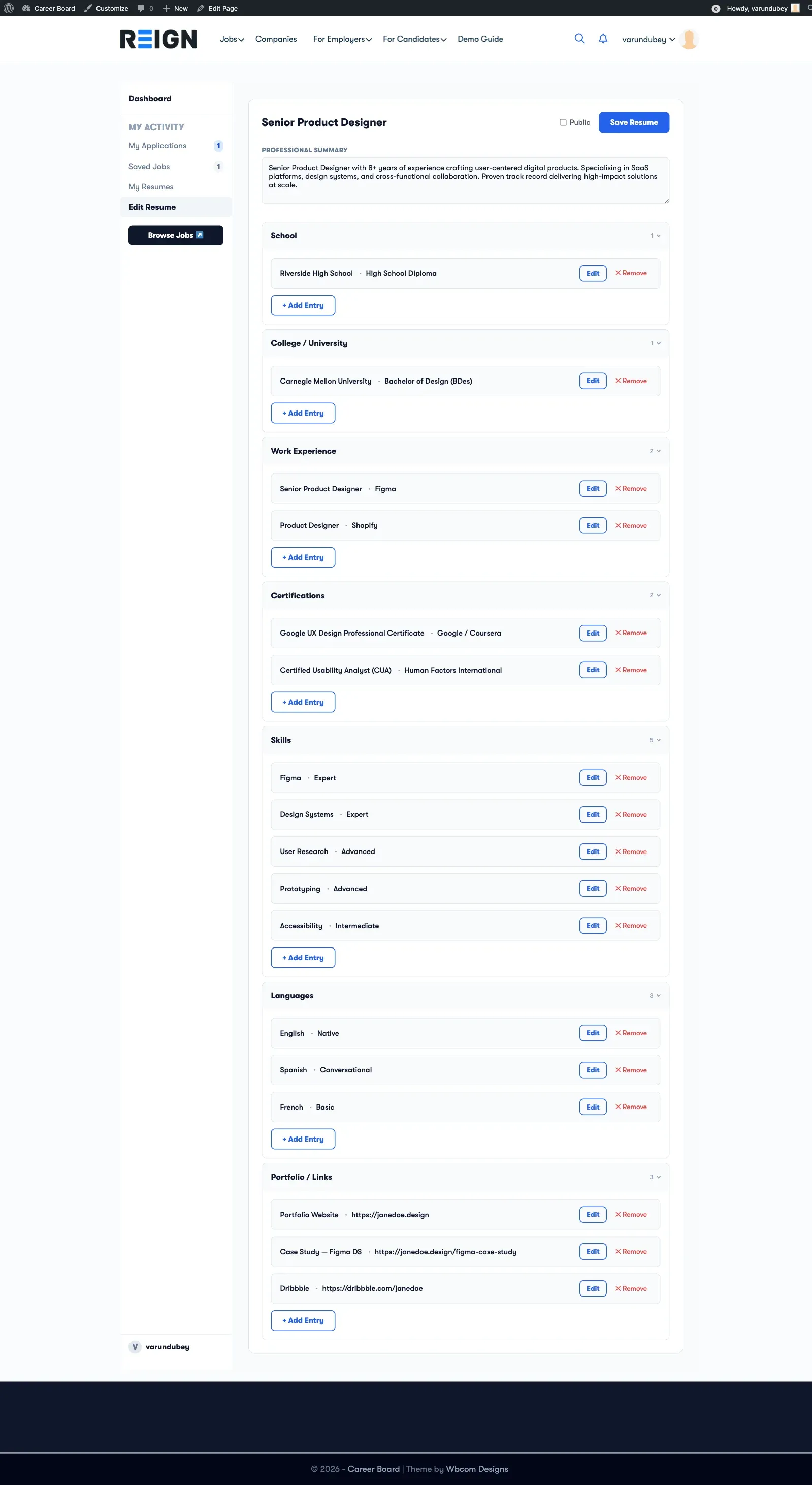
The Resume Builder loads the resume named in the URL’s ?resume_id= parameter, so a single page serves every candidate’s builder.
Find Resumes page setting (the candidate directory)
Section titled “Find Resumes page setting (the candidate directory)”The only resume page registered under WP Career Board → Settings → Pages is the Find Resumes Page - the public candidate directory, not the builder:
- Go to WP Career Board → Settings → Pages
- Find the Find Resumes Page field (described as “Contains the wcb/resume-archive block. Public listing of candidate resumes.”)
- Select the page that holds the
wcb/resume-archiveblock - Click Save Changes
The builder itself has no page-mapping setting; candidates reach it from the dashboard (see below). Directory and profile visibility are configured under Settings → Resumes (see Overview → Resume Visibility).
Link from the Candidate Dashboard
Section titled “Link from the Candidate Dashboard”The Candidate Dashboard → My Resumes tab automatically shows:
- An Edit button on each resume that opens the Resume Builder with that resume loaded (via the
?resume_id=parameter) - A Create New Resume action
No further configuration is needed.
Optional: Embedded vs Standalone Mode
Section titled “Optional: Embedded vs Standalone Mode”Standalone mode (default): The Resume Builder lives on its own page. Clicking “Edit” navigates to that page with a ?resume_id= query parameter.
Embedded mode: If you add the Resume Builder block on the same page as the Candidate Dashboard, the builder loads inline within the dashboard (without a page change). The block detects the resume_id parameter and loads the correct resume.
To use embedded mode, add the Resume Builder block to your Candidate Dashboard page instead of a separate page.
Configuring the Block
Section titled “Configuring the Block”The Resume Builder block (wcb/resume-builder) has no configurable attributes in the editor - all customization is handled via CSS or via the field filters. To add or change sections and fields, see Custom Resume Fields.