

Viewing Your Profile
Overview
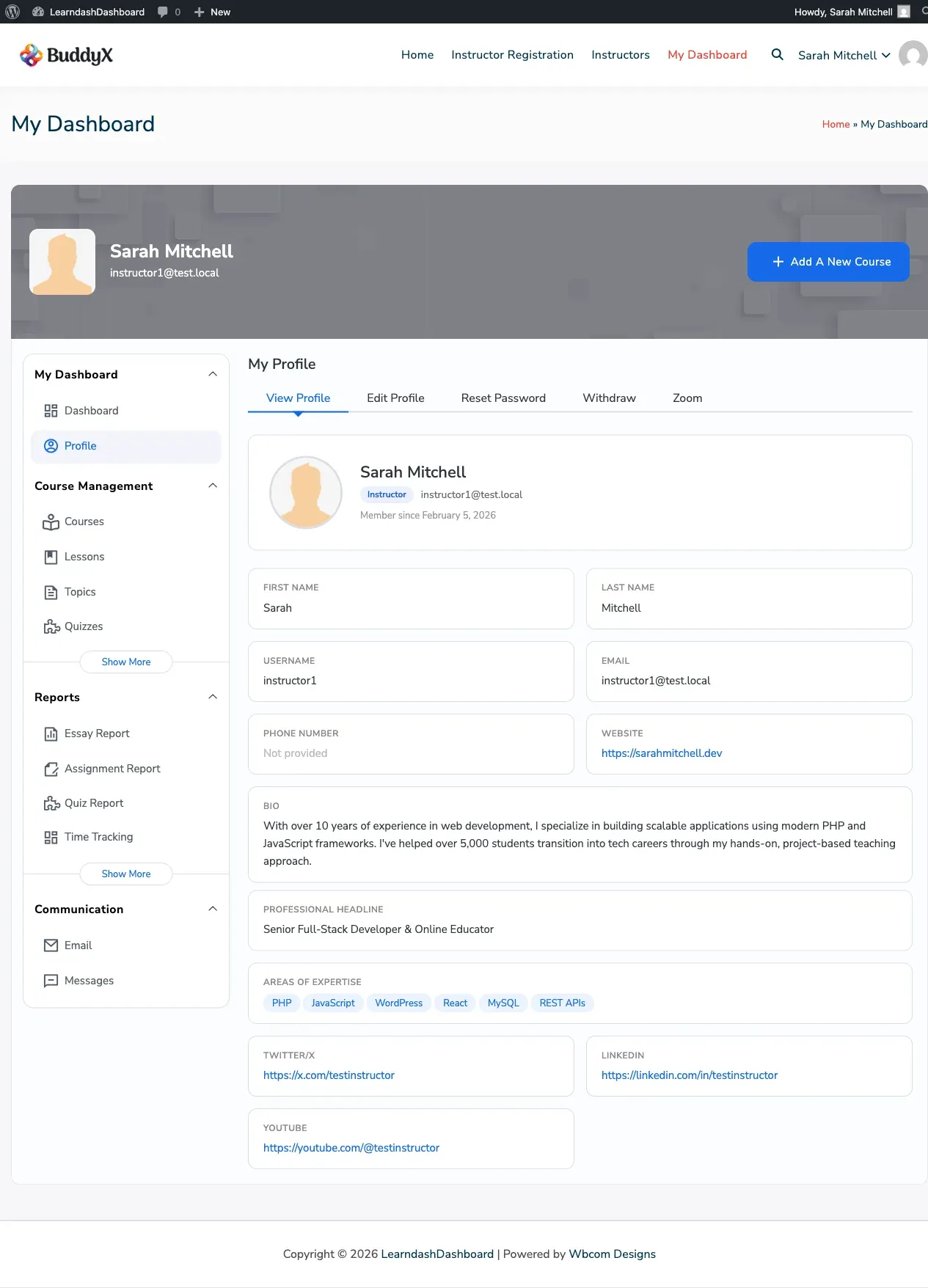
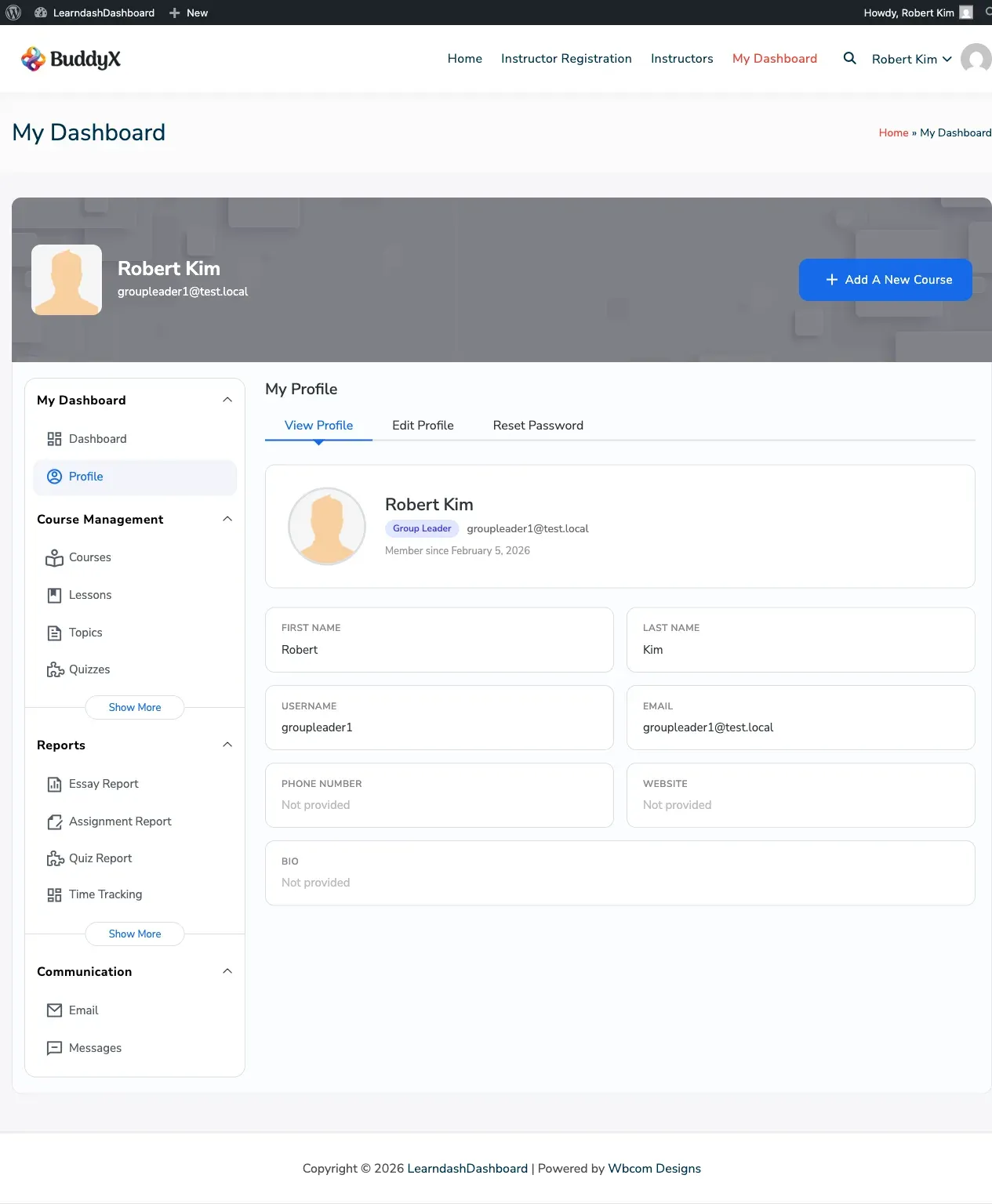
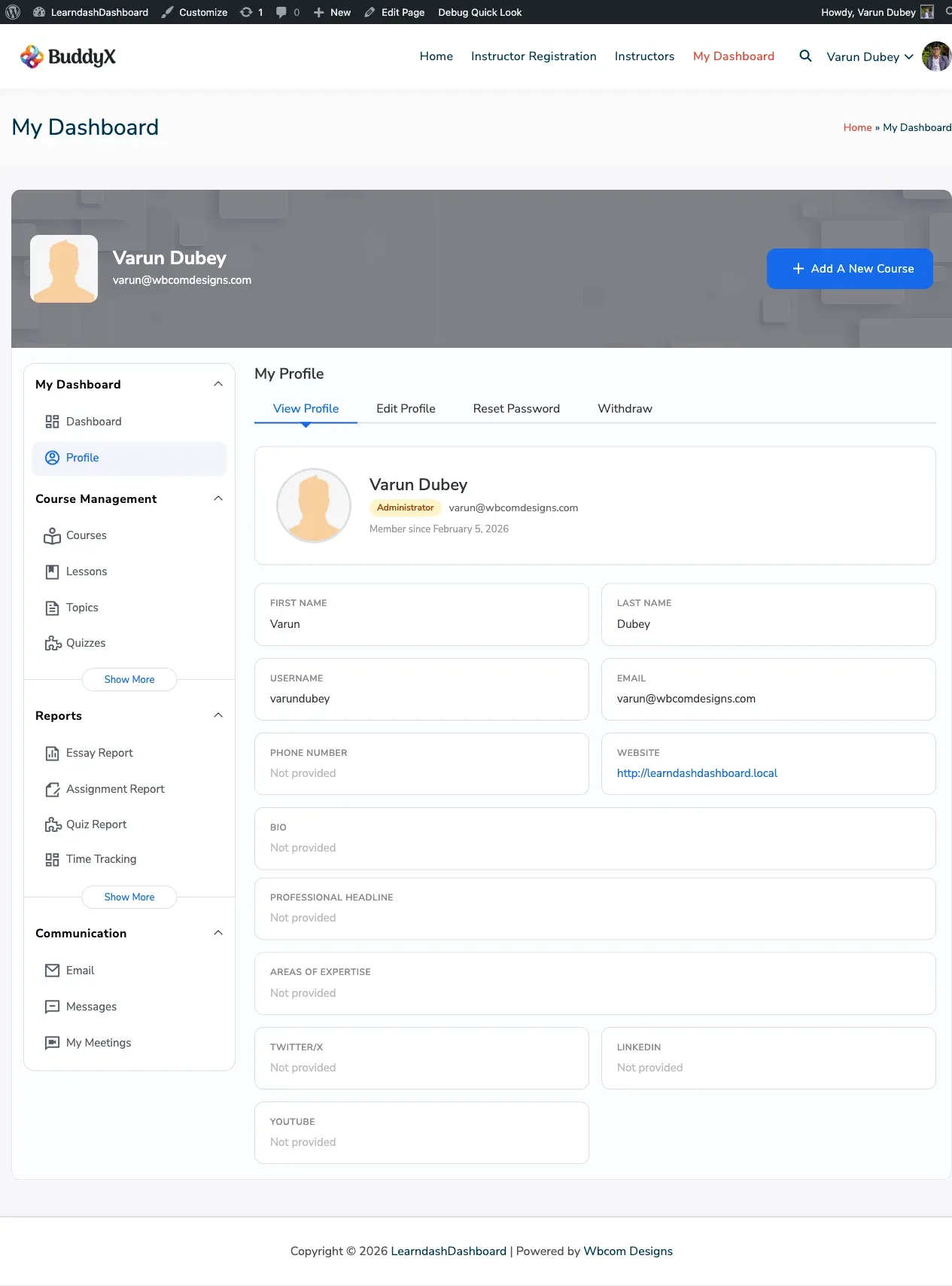
Section titled “Overview”Your profile page shows a summary of your account information. It displays your photo, name, role, contact details, and bio. Instructors also see their professional credentials and social media links here.
How to Access Your Profile
Section titled “How to Access Your Profile”Go to your dashboard and click Profile in the sidebar menu. Your profile opens on the View Profile tab by default.
Screenshots
Section titled “Screenshots”How It Looks
Section titled “How It Looks”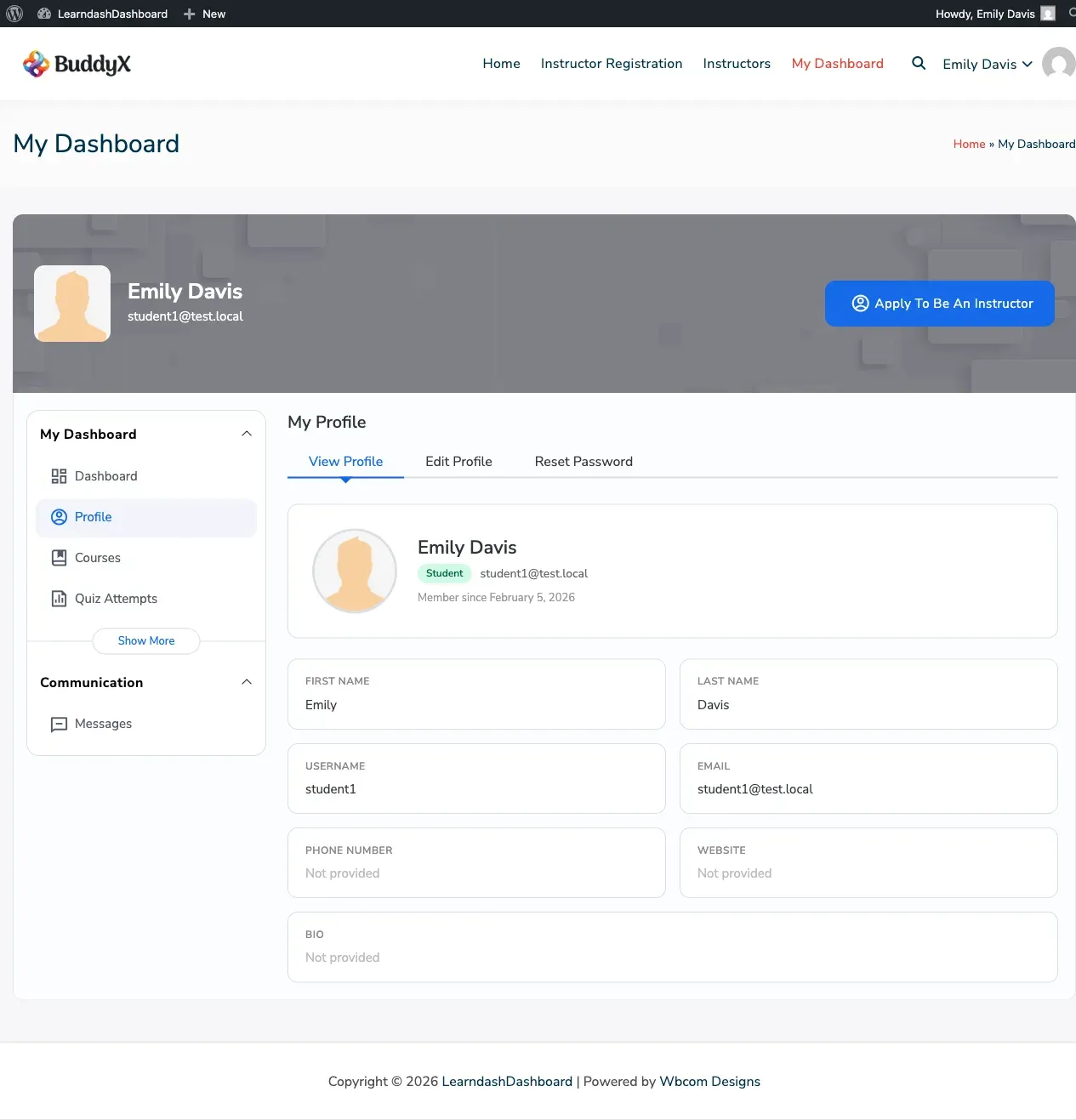
What You See
Section titled “What You See”Profile Card
Section titled “Profile Card”At the top of the page you’ll see:
| Information | Details |
|---|---|
| Profile photo | Your uploaded photo or a default avatar |
| Display name | The name shown to others on your site |
| Role | Student, Instructor, Group Leader, or Administrator |
| Email address | Your account email |
| Member since | The date you joined |
Your Details
Section titled “Your Details”Below the profile card, a grid shows:
| Information | Details |
|---|---|
| First Name | Shows “Not provided” if you haven’t added one |
| Last Name | Shows “Not provided” if you haven’t added one |
| Username | Your login username |
| Your account email | |
| Phone Number | Your phone number, if added |
| Website | A clickable link, if added |
| Bio | Your biography text |
Instructor Section
Section titled “Instructor Section”If you are an instructor or administrator, you’ll also see:
- Professional Headline
- Areas of Expertise (shown as individual tags)
- Twitter/X profile link
- LinkedIn profile link
- YouTube channel link
Students and group leaders do not see this section.
Profile Tabs
Section titled “Profile Tabs”From the Profile section, you can switch between three tabs:
- View Profile — What you are reading now
- Edit Profile — Update your information
- Reset Password — Change your password
Instructors may also see a Withdraw tab (for earnings) or a Zoom tab, depending on your site’s settings.