

Two-Factor Authentication
Two-factor authentication (2FA) adds a second step to signing in. After a member enters their password, they also enter a short one-time code. Even if someone learns the password, they still cannot get in without that code - which gives members real peace of mind that their account is theirs alone.
Why use it
Section titled “Why use it”- Stronger account security. A password alone can be guessed, reused, or leaked. A second factor means a stolen password is not enough on its own.
- Member peace of mind. Members who manage groups, post publicly, or hold sensitive roles get real protection against takeover.
- Built in, no extra service. BuddyNext generates and checks the codes itself. There is no third-party service to sign up for or pay for.
2FA is opt-in. Every member chooses whether to turn it on for their own account.
The methods BuddyNext supports
Section titled “The methods BuddyNext supports”BuddyNext uses a standard authenticator app as the primary method, with two recovery options.
- Authenticator app (primary). Works with any standard app such as Google Authenticator, Authy, or 1Password. The app shows a fresh 6-digit code every 30 seconds.
- Backup codes (recovery). A set of one-time codes generated when 2FA is switched on. Each works once if the authenticator is unavailable.
- Email code (sign-in fallback). At the sign-in challenge, a member can ask BuddyNext to email a one-time code to their address instead of using the app.
How it works for members
Section titled “How it works for members”Members set up and manage 2FA from Settings > Account.
Turning on 2FA
Section titled “Turning on 2FA”- Go to Settings > Account and find the Two-factor authentication card.
- Select Set up two-factor authentication.
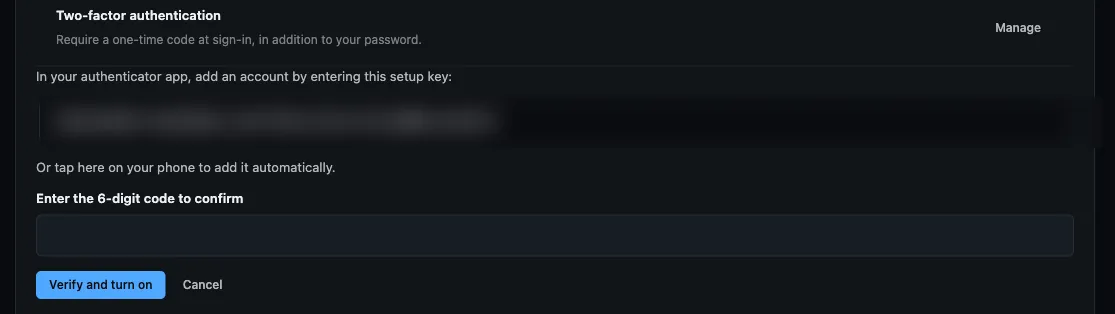
- Scan the QR code with your authenticator app. If you cannot scan it - a desktop authenticator, or a camera you would rather not use - the setup key is shown underneath and can be typed in by hand instead.
- The app starts producing 6-digit codes. Enter the current code on the BuddyNext screen to confirm.
- Once the code is accepted, 2FA turns on and BuddyNext shows your backup codes.
Changed in 1.1.1: Enrolment used to show only the 32-character setup key, which had to be typed into the authenticator by hand. It now shows a QR code, with the key kept as the fallback.
Note: Nothing is enforced until you enter that first code. If you start setup but never confirm, 2FA stays off.
Saving your backup codes
Section titled “Saving your backup codes”Right after setup, BuddyNext shows a set of one-time backup codes. Save these immediately - they are shown only once and will not be displayed again. Keep them somewhere safe and separate from your phone, such as a password manager. Each code works a single time, as a way in if you ever lose access to your authenticator app.
Signing in with 2FA on
Section titled “Signing in with 2FA on”- Enter your email and password as usual.
- BuddyNext asks for your one-time code.
- Open your authenticator app and enter the current 6-digit code. (If you cannot reach the app, enter one of your backup codes instead, or use the email option below.)
- Once the code is accepted, you are signed in.
If you cannot use your authenticator or your backup codes, choose the option to email a code on the sign-in screen. BuddyNext sends a one-time code to your account’s email address; enter it to finish signing in. A mistyped code can be retried while the sign-in session is still active.
Managing or turning off 2FA
Section titled “Managing or turning off 2FA”From the Two-factor authentication card under Settings > Account, once 2FA is on you can:
- Regenerate backup codes - generate a fresh set, which immediately replaces and invalidates your old codes.
- Turn off two-factor authentication - switch 2FA off.
Both of these ask for your account password again before they take effect, so that someone using an already-open session cannot quietly weaken your account.
Setting it up (for owners)
Section titled “Setting it up (for owners)”By default 2FA is opt-in: each member decides for their own account, and nobody is forced. If that is what you want, there is nothing to do.
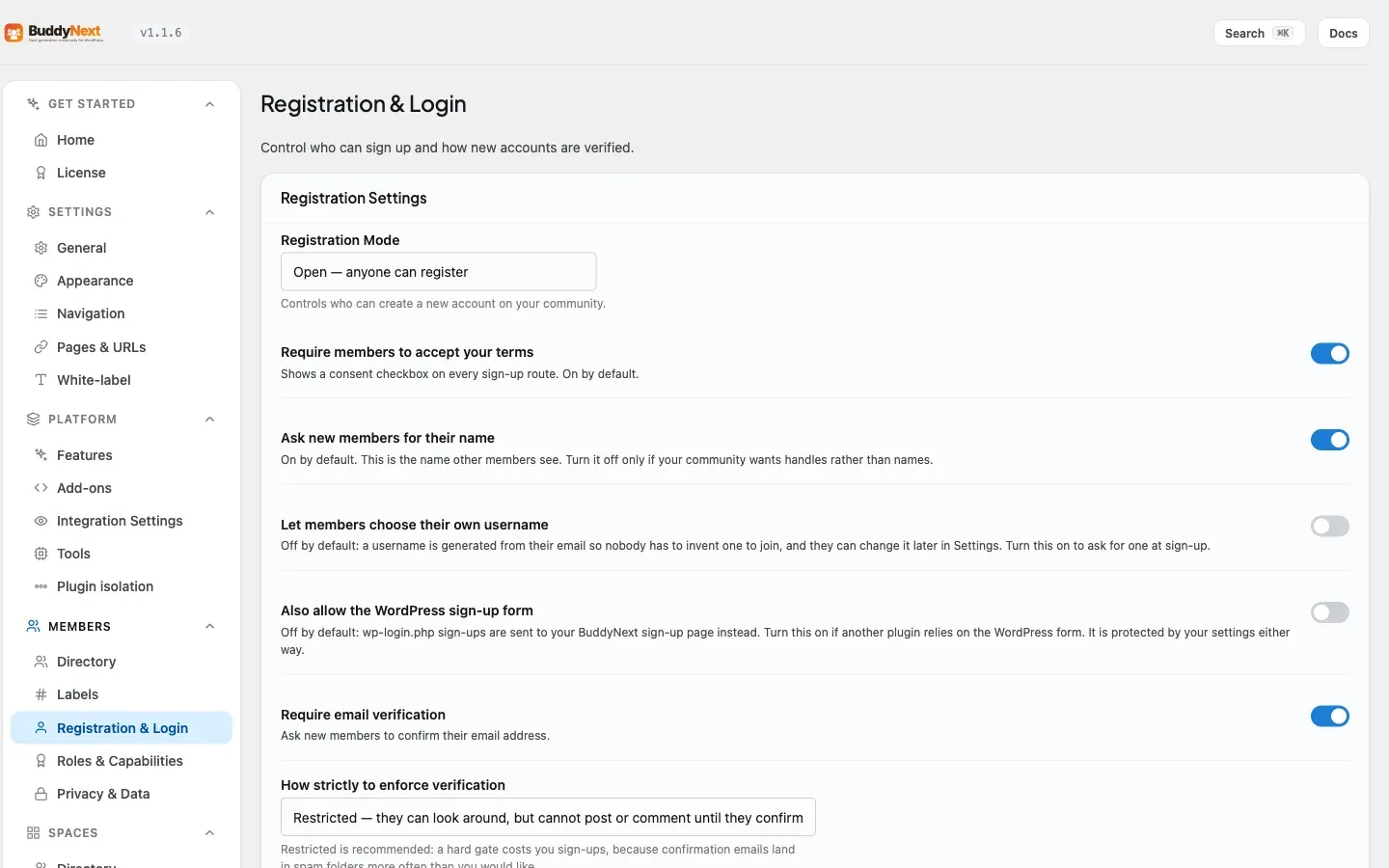
You can also require it. Go to BuddyNext > Members > Registration & Login, find the Spam & Abuse Protection section, and set Require two-factor authentication:
| Setting | What it does | Default |
|---|---|---|
| Require two-factor authentication | Who must use 2FA. Choose Nobody (members can still switch it on themselves), Administrators, Administrators and editors, or Everyone. | Nobody |
| Community name in the app | The community name shown next to the account inside the authenticator app, so members can tell your account apart from others. This one is a developer option, not a settings field. | Your site name |
What “required” actually does
Section titled “What “required” actually does”This is a real requirement, not a nudge. A member in a required role who has not set 2FA up is sent to Settings > Account the next time they use the community, and cannot go anywhere else until they finish the setup. Their sign-in itself still works - they are not locked out of their account, they are held at the door until they add the second factor.
Choose the level deliberately:
- Administrators is the setting most communities want. Your admin accounts are the ones worth attacking, and there are few enough of them that you can tell them in advance.
- Everyone is a serious commitment. Every member, including the ones who signed up five minutes ago, will hit the setup screen before they can use your community. Some of them will leave rather than install an authenticator app. Pick this only if your community genuinely warrants it.
Tip: Before you switch this on, tell the people it will affect. Someone who lands on a mandatory setup screen with no warning reads it as your site being broken. Give them a heads-up and a link to this page, and it reads as your site being careful.
Good to know
Section titled “Good to know”- Lost device. If you lose the phone with your authenticator app, sign in with one of your saved backup codes, or use the email a code option on the sign-in screen. Once back in, go to Settings > Account and regenerate backup codes or set up the app again on your new device.
- Backup codes are one-time. Each backup code works exactly once. When you are running low, regenerate a fresh set from your account settings - the old set stops working as soon as you do.
- Email fallback is time-limited. An emailed sign-in code is valid for a short window. If it expires, request a new one from the sign-in screen.
- Re-enrolling. To move 2FA to a new app or device, turn 2FA off (this asks for your password), then set it up again from scratch. Setting up fresh always produces a new set of backup codes.
- Codes are checked on your device’s clock. Authenticator codes are time-based, so keep your phone’s time accurate (automatic time is fine). A small amount of clock drift is tolerated.
Related
Section titled “Related”- Account Settings - where members set up and manage 2FA
- Login - the one-time code step at sign-in
- Registration - requiring 2FA for chosen roles