

Post Composer
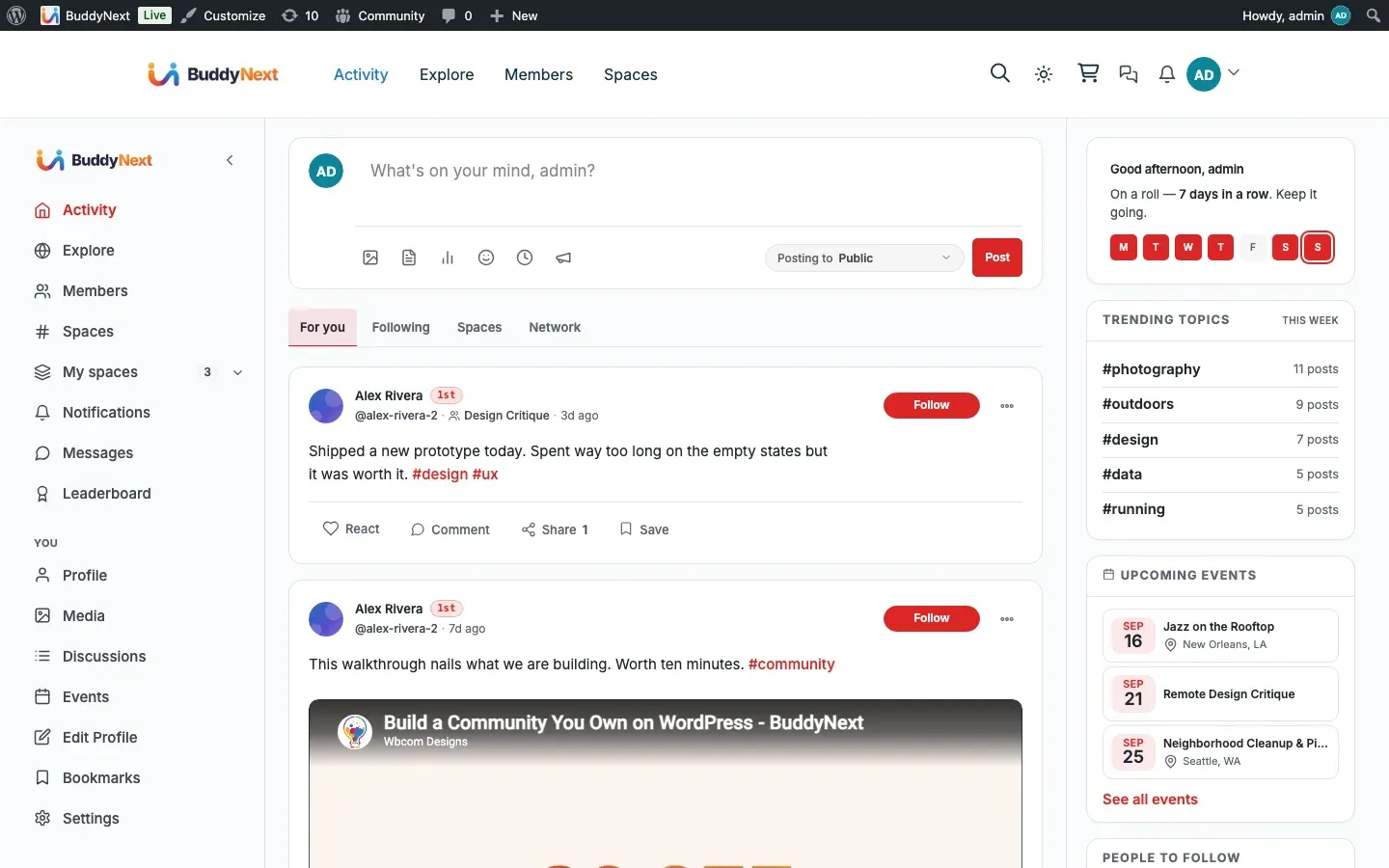
The post composer is the box at the top of the feed where members write and publish posts. It handles plain text, photos and media, links with a preview card, polls, and scheduling, and it lets members edit, delete, pin, and save drafts of their own posts.
Why use it
Section titled “Why use it”Posting has to be effortless or members will not do it. The composer is always visible at the top of the feed so writing a post is one click away, and it grows to fit whatever the member is sharing, a quick thought, a photo, a poll, or a link, without sending them to a separate page.
For members, the value is reach and control in one place: they write once, choose who sees it, and it lands in the right feeds. Drafts mean a half-written post is never lost, and the edit window lets them fix a typo without deleting and re-posting.
For owners, the composer is where you set the tone and the guardrails. Rate limits and review thresholds keep spam and drive-by accounts from flooding the feed, while link previews and the emoji picker keep posts rich and readable. You can tune all of it without touching code, so the same composer suits a tight professional network or a busy public community.
How it works (for members)
Section titled “How it works (for members)”Writing and publishing a post
Section titled “Writing and publishing a post”A member types into the composer and clicks Share. The post is created and appears in the feed. The composer supports several post types from one box:
- Text - the default. Just type and share. @mentions in the text notify the people named.
- Photo and media - attach images or media from the media tools. A member can only attach their own media.
- Link - paste a URL into the post. The community fetches the page’s title, description, and thumbnail in the background and attaches a preview card. The preview may take a moment to appear after posting.
- Poll - turn the post into a poll with 2 to 5 options, and an optional closing date. Other members vote, with one vote per member per poll.
- Schedule - pick a future date and time. The post is held and published automatically when that time arrives; it stays out of the feed until then. The control is labelled with your site’s timezone (for example “Publish at (Europe/Berlin)”), so the time you type is the time the post card will show.
Choosing who sees a post
Section titled “Choosing who sees a post”Before sharing, a member picks an audience from the privacy menu in the composer: Public, Followers, Connections, or Only me. Site admins and space managers get a fifth option, Members only, which keeps the post publicly listed but shows logged-out visitors only a short teaser and a prompt to join. When posting inside a space, the audience is the space’s members. The full meaning of each level and how it is enforced is covered in Post Privacy and Visibility.
Editing and deleting your own posts
Section titled “Editing and deleting your own posts”A member can edit their own post to fix or update the text and change its audience, as long as the edit window is still open (see the settings below). Edited content is re-scanned by the same content checks that run on a new post, so an edit cannot slip banned words or a blocked link past moderation. A member can delete their own post at any time.
Rescheduling a post you have queued
Section titled “Rescheduling a post you have queued”While a post is still scheduled and has not gone live, editing it also lets you move its slot. Open the post’s edit form and you will find a Scheduled for control, prefilled with the time you picked and labelled with your site’s timezone. Change the date and time, save, and the post publishes at the new moment instead. You no longer have to delete a scheduled post and write it again just to move it.
Two rules apply:
- The new time must be in the future. A time that has already passed is refused.
- Only a post that is still scheduled can be moved. Once a post has published, its edit form has no schedule control - editing cannot pull a live post back out of the feed.
Pinning a post
Section titled “Pinning a post”A member can pin one of their own posts to the top of their profile so visitors see it first. Pinning is profile-only: inside a space, important content is featured through Announcements instead (admin-controlled, dismissible, and able to expire on their own - see Activity Feed). Free allows one pin on a profile; Pro raises this (see Free vs Pro).
Drafts
Section titled “Drafts”As a member writes, the composer saves the in-progress post as a draft so nothing is lost if they navigate away or close the tab. Drafts can also sync across devices so a post started on a phone can be finished on a laptop.
Setting it up (for owners)
Section titled “Setting it up (for owners)”The composer’s behavior is controlled from three admin tabs, shown in the Where column below. All work in Free.
| Setting | Where | What it does | Default |
|---|---|---|---|
| Post edit window | Engagement > Social (Activity Feed) | How many minutes after posting a member can still edit their post. Untick the box for no limit. Administrators are never limited. | 60 |
| Enable link previews | Engagement > Social (Activity Feed) | Whether pasted links get an auto-fetched preview card. Turn off to stop the community from fetching external pages. | On |
| Enable emoji picker | Engagement > Social (Activity Feed) | Whether the emoji picker is available in the composer. | On |
| Polls | Platform > Features | Whether members can create poll posts. | On |
| Post rate limit (per minute) | Moderation > Controls | Maximum posts one member may publish per minute, to stop flooding. Untick the box to disable. Administrators and moderators are exempt. | 10 |
| Comment rate limit (per minute) | Moderation > Controls | Maximum comments one member may publish per minute. | 30 |
| Duplicate post window | Moderation > Controls | If a member re-posts identical text within this many minutes, the duplicate is published but flagged into the moderation queue for review. Untick the box to disable. | 0 (off) |
| New member review threshold | Moderation > Controls | New members whose total post count is below this number have their posts flagged into the moderation queue for review (the post still publishes). Untick the box to disable. | 0 (off) |
Note: BuddyNext uses reactive moderation, the same model as mainstream social platforms. The duplicate and new-member thresholds do not hold a post back; the post publishes and a report is filed so a moderator can review it after the fact. If you want posts held for approval before they appear, use pre-moderation in the Moderation settings instead.
Tip: Leave the duplicate and new-member thresholds at 0 for an established, trusted community. Turn them on when you start seeing spam from fresh sign-ups; the new-member threshold is the most effective single setting against drive-by spam.
Good to know
Section titled “Good to know”- The schedule tool is in the Free composer. A Free member can pick a future time and the post stays hidden until then, because the feed never shows future-dated posts. What Pro adds is a place to see and manage scheduled posts, not the clock itself.
- Scheduling is a capability you can withdraw. “Schedule posts” is one of the role capabilities under BuddyNext > Members > Roles & Capabilities. It is granted to members by default; clear it for a role and that role gets no schedule control in the composer, and cannot reschedule an existing post either.
- Schedule times are site times. Every schedule control reads and writes in the timezone set at WordPress Settings > General, and names that zone in its label. An author in a different timezone sees the same digits on the control and on the published post card, rather than two numbers for the same instant.
- Polls have 2 to 5 options. The composer offers two required option fields and three optional ones; fewer than two is rejected with a clear message. Each member gets one vote per poll, and a vote can be switched or removed but not stacked. A poll can also carry an optional closing date, after which it stops accepting votes.
- Announcements are admin-only. A post typed as an announcement can only be created by an administrator, and it pins to the top of the feed as the announcement banner described in Activity Feed. Announcements can carry an optional expiry.
- Suspended members cannot post. A suspended account is blocked from creating posts, comments, and reactions until the suspension ends.
- Unverified members are prompted to verify. If your community enforces email verification, a member who has not confirmed their address sees a prompt in the composer instead of the post going through, with a Resend verification email button right there. Once they verify, posting works normally. When email verification is not enforced, this never appears.
- Archived spaces are read-only. Once a space is archived it stops accepting new posts.
Free vs Pro
Section titled “Free vs Pro”The composer itself, including the schedule clock, link previews, emoji picker, polls, drafts, editing, deleting, rescheduling a queued post, and single-post pinning, is fully available in Free.
Pro adds two things on top:
- Scheduled posts management - a queue view of everything a member has lined up, plus an admin screen (BuddyNext > Campaigns > Scheduled Posts) where the owner can see every scheduled post on the site and cancel it or publish it immediately. Free schedules and reschedules a post from the composer and the post’s own edit form; Pro is where the queue is managed as a whole.
- Multi-pin - pin more than one post to a profile at a time. Free allows a single profile pin.
Related
Section titled “Related”- Post Privacy and Visibility - the audience menu in the composer
- Polls - the poll post type the composer creates
- Scheduled posts - the Pro queue for managing scheduled posts
- Multiple pinned posts - pinning more than one post on a profile