

License Activation
Activating your license connects WP Career Board Pro to wbcomdesigns.com for updates and support.
Where to Find Your License Key
Section titled “Where to Find Your License Key”- Log in to your account at wbcomdesigns.com
- Go to My Account → Licenses
- Copy the license key for WP Career Board Pro
Primary Method: Pro Setup Wizard
Section titled “Primary Method: Pro Setup Wizard”After activating the Pro plugin, a notice appears on all WP Career Board admin screens:
“WP Career Board Pro needs setup - configure your license and credits.”
Click Complete Pro Setup to open the Pro Setup Wizard. The wizard walks you through:
- License step - paste your license key and click Activate & Continue
- Credits Setup step - configure your low-credit threshold and purchase URL
- Pro Pages step (mini-wizard only) - creates the Find Candidates page if missing
The wizard is the recommended activation path, especially on new installs.
Alternative: Settings Page
Section titled “Alternative: Settings Page”You can also activate the license directly without the wizard:
- In your WordPress admin, go to WP Career Board → Settings → License
- Paste your license key in the License Key field
- Click Activate License
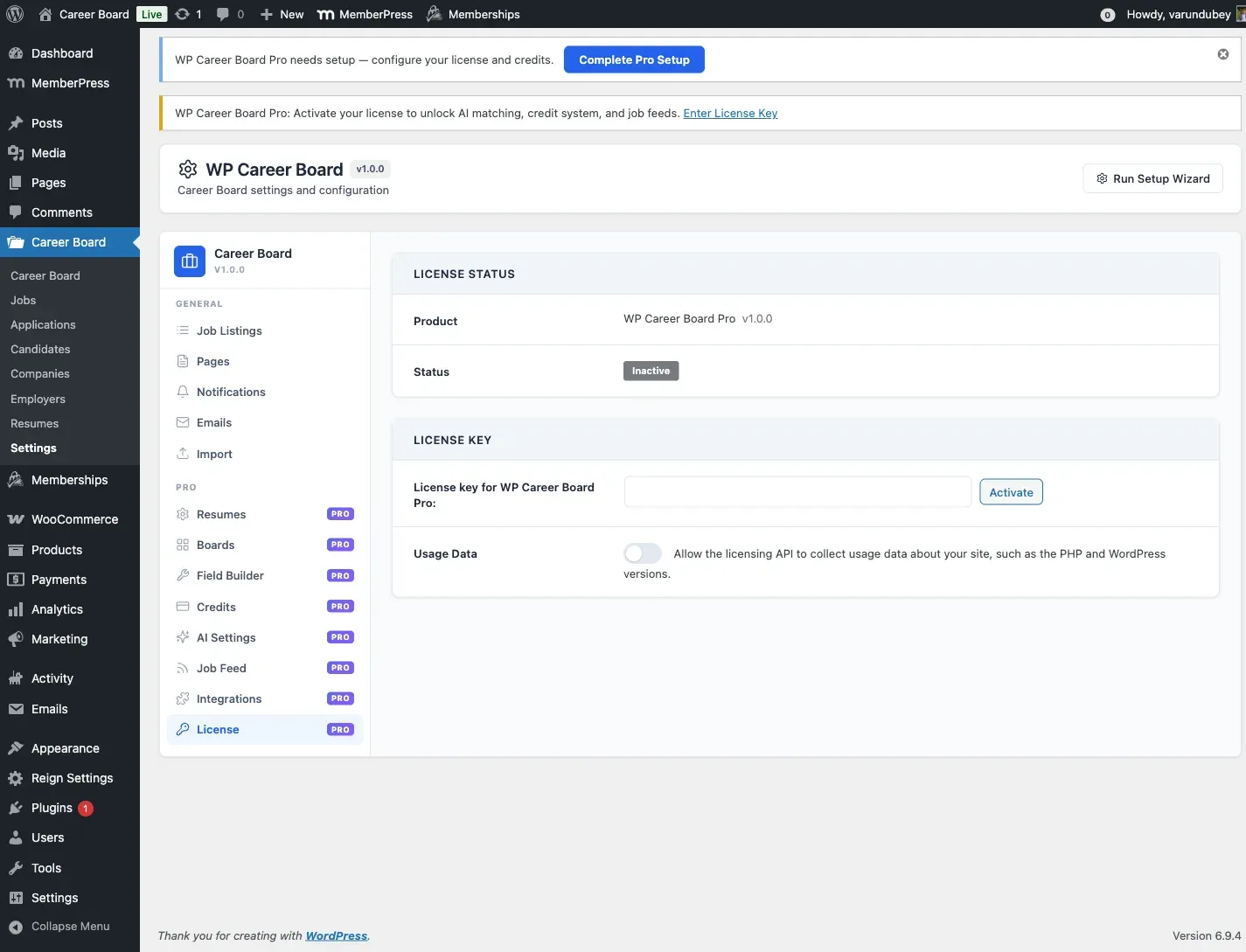
A confirmation message shows your license status, expiry date, and how many sites are active on this license.
License Statuses
Section titled “License Statuses”| Status | Meaning |
|---|---|
| Active | Valid license, updates available |
| Expired | License period ended - plugin still works but no updates |
| Inactive | Key entered but not activated on this site |
| Invalid | Key does not match any license in our system |
| No activations left | All license sites are used - deactivate from another site first |
Managing Sites on Your License
Section titled “Managing Sites on Your License”To add your license to another site, deactivate it from the current site first:
- Go to WP Career Board → Settings → License
- Click Deactivate License
- Activate on the new site
You can also manage all site activations from your account at wbcomdesigns.com.
Renewing Your License
Section titled “Renewing Your License”When your license expires, WP Career Board Pro continues to work - you just won’t receive plugin updates. To renew:
- Log in to wbcomdesigns.com
- Go to My Account → Licenses
- Click Renew next to WP Career Board Pro
After renewal, the plugin automatically picks up the new expiry date on the next license check.
Updates Without an Active License
Section titled “Updates Without an Active License”The plugin functions fully without an active license. License activation is only required to:
- Receive automatic plugin updates
- Access priority support