

Advanced Profile Field Types (Pro)
Pro adds four richer profile field types on top of the free profile builder: an enhanced date, a map-based location, an advanced multi-select, and an advanced number with units. You build these the same way you build any profile field, and members fill them in with the matching input control.
To show any field (of any type) only when another answer matches, use Conditional Logic for Profile Fields.
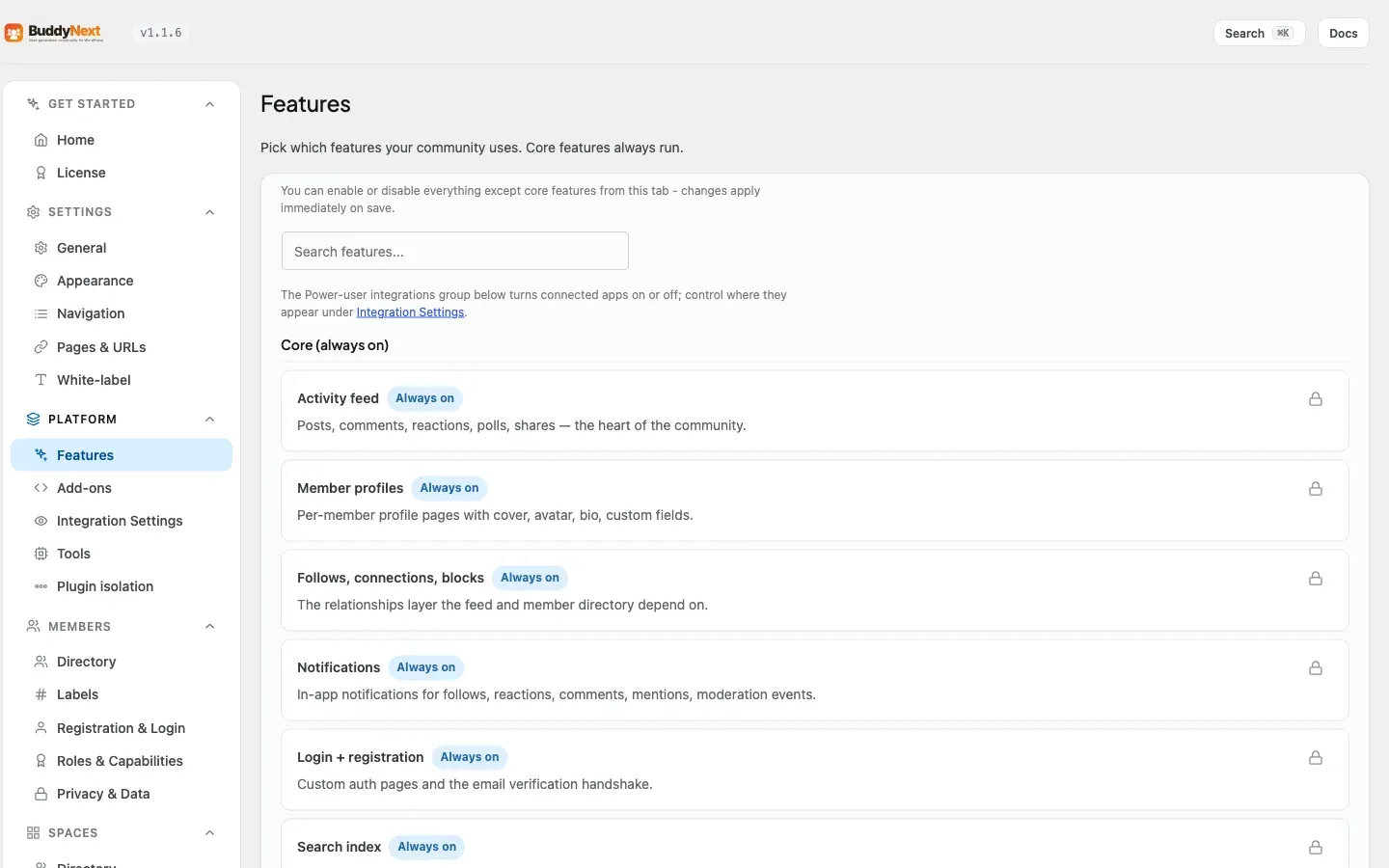
Before you start: These field types come with BuddyNext Pro. With Pro active, they appear in the same profile field builder you already use, so there is nothing extra to switch on. This page covers the Pro field types only. For the base field builder, member-facing profile editing, and the field types that ship free, see Profile Fields.
Why use it
Section titled “Why use it”Plain text fields capture text, and not much else. When you want clean, structured member data, you need controls that match the data. A “Location” field that records a real place on a map is far more useful than a free-text “City” box that members spell five different ways. A “Resume” field that accepts only PDFs is safer than a text box where people paste a link. A number field with a unit and a sensible minimum and maximum stops members entering “lots” in a field meant for years of experience.
Richer field types pay off in three places:
- Members fill profiles in faster because the control does the work (a date picker, a map search, a units-aware number input) instead of asking them to format a value by hand.
- The data comes back consistent, so directory filters, member search, and any later segmentation actually work on it.
A typical use: a professional network asks for a “Years in management” advanced number with a unit and a sensible range, and a location field for each member’s city. Both would be plain text boxes without Pro. Add a condition so the years field only appears when Role is Manager.
How it works (for members)
Section titled “How it works (for members)”A member opens their profile edit screen and sees each Pro field rendered with its own control. Saving validates and stores the value the same way free fields do, and the profile view shows the stored value formatted for reading.
Date (extended)
Section titled “Date (extended)”Renders a native date picker. The member picks a day from the calendar control instead of typing a date string. On the profile view the value is shown using your site’s configured date format.
Location (map)
Section titled “Location (map)”Renders an address box with a map below it. Whatever the member types is what gets saved - they do not have to pick a suggestion from the lookup for their address to stick. If the lookup does recognise the place, its latitude and longitude are stored alongside the address, so the data is usable for distance or directory work later. If it does not, the address is still saved as the member wrote it.
A set location can be cleared. The Remove control next to the field empties it, in the same way the avatar and cover image can be removed.
Note: The map uses OpenStreetMap for its address lookup, loaded from a fast public source by default. If scripts are blocked, or the lookup service is unreachable, the field still works: the address saves as plain text and can still be cleared. Nobody is ever stuck with a location they cannot change.
Multi-select (advanced)
Section titled “Multi-select (advanced)”Renders the owner-defined list of choices and lets the member select more than one. Selections are stored together and shown back as a list on the profile view.
Number (advanced)
Section titled “Number (advanced)”Renders a number input. If you set a unit (for example years or kg), it shows next to the input, and the field enforces any minimum, maximum, and step you configured. The member cannot enter a value outside the allowed range.
Setting it up (for owners)
Section titled “Setting it up (for owners)”Pro field types appear in the same field builder you use for free fields, under the field-type dropdown. Add a field, pick a Pro type, and a small set of type-specific options appears for you to configure. The options below are the ones each Pro type adds on top of the standard field settings (label, description, required, visibility).
Date (extended)
Section titled “Date (extended)”| Setting | What it controls | Default |
|---|---|---|
| (none) | The extended date type has no extra options. It renders a date picker and displays using your site date format. | - |
Location (map)
Section titled “Location (map)”| Setting | What it controls | Default |
|---|---|---|
| (none) | The location type has no extra options to configure. It renders an address box plus map and stores address with coordinates. | - |
Multi-select (advanced)
Section titled “Multi-select (advanced)”| Setting | What it controls | Default |
|---|---|---|
| Choices | The list members pick from, one option per line. | empty |
Number (advanced)
Section titled “Number (advanced)”| Setting | What it controls | Default |
|---|---|---|
| Unit | A label shown next to the input, such as years, km, or kg. | empty |
| Min | The lowest value a member may enter. | empty (no minimum) |
| Max | The highest value a member may enter. | empty (no maximum) |
| Step | The increment the input snaps to (for example 1 for whole numbers, 0.5 for halves). | any |
Good to know
Section titled “Good to know”- Pro field types are built on the free field engine, so visibility, required, and ordering work the same as any free field. See Profile Fields for those base behaviours.
- The location map is a progressive enhancement layered on the saved value. If scripts do not load, members still get a working text input and the value still saves - the picker UX is the enhancement, not the storage.
- Connected clients save through the same checks as the website, so a value entered through the API is validated and stored exactly like one entered on the site.
- Empty profiles show nothing for a field a member has not filled in. To preview a field type end to end, fill it in and reopen the profile view.
Free vs Pro
Section titled “Free vs Pro”The free plugin ships the core field types (text, textarea, select, checkbox, and the other standard inputs) and the whole field builder, member edit form, and profile view. See Profile Fields for that baseline.
Pro adds the four field types documented here - extended date, location, advanced multi-select, and advanced number - by extending the free field engine. No free field type changes; Pro only adds to the type list and the per-type options.
Note: If you have turned Memberships on and chosen a default plan, this becomes a plan perk: members only get it if their plan grants it. With Memberships off (the default), it works for every member. See Membership Plans.
Related
Section titled “Related”- Profile Fields - the base field builder these types extend.
- Conditional Logic for Profile Fields - show a field only when another answer matches.
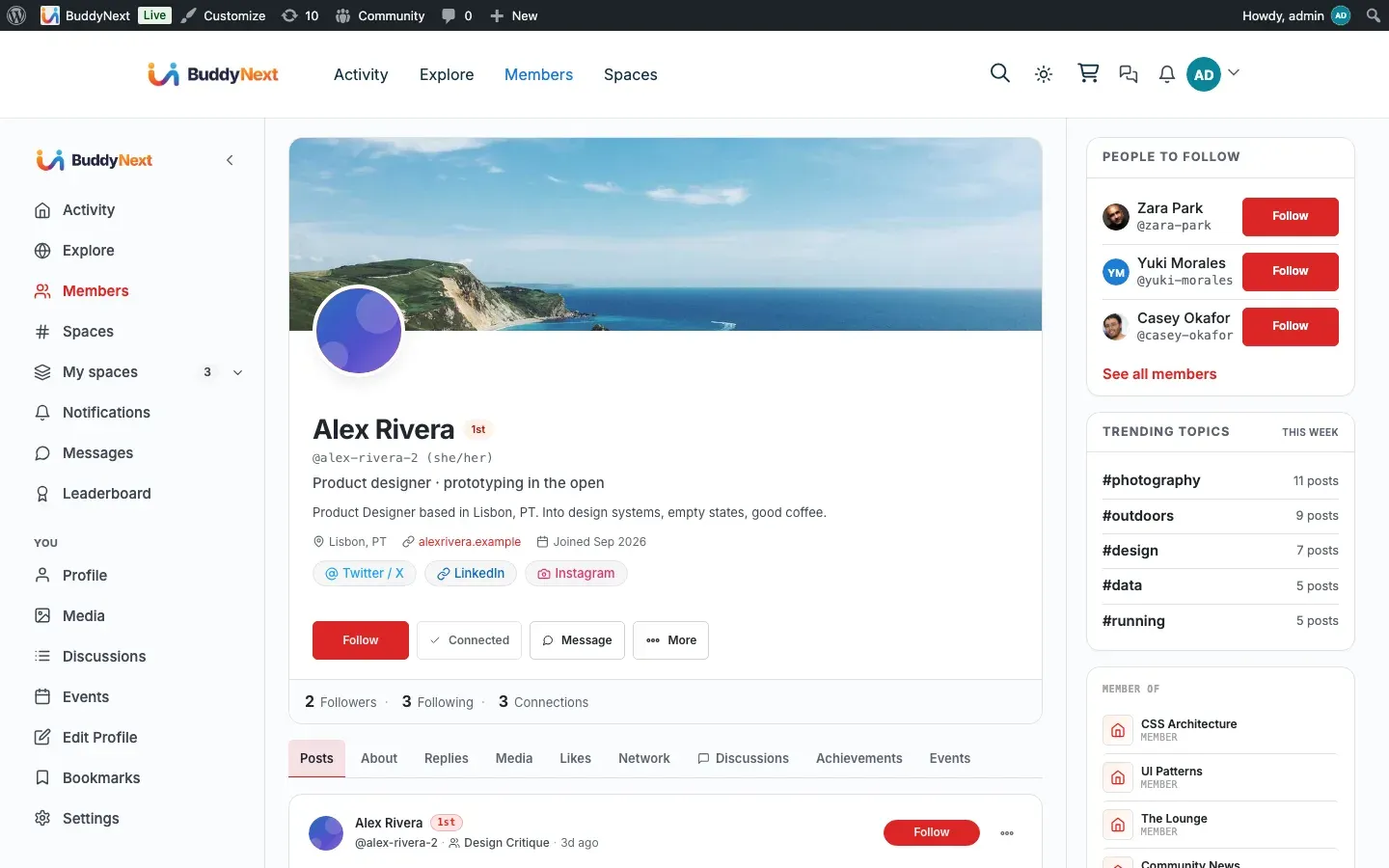
- Member Profiles - where the filled-in fields appear.
- Membership Plans - advanced fields can be a plan perk.