

BuddyPress Integration
Advanced Username Manager seamlessly integrates with BuddyPress and BuddyBoss Platform, adding a dedicated settings tab where members can change their usernames directly from their profile. This integration creates a native, intuitive experience for your community members.
What is BuddyPress Integration?
Section titled “What is BuddyPress Integration?”The BuddyPress integration adds a “Username Change” tab under the Profile Settings section of every member profile. This allows members to manage their usernames without needing access to the WordPress admin area.
Compatible With:
- BuddyPress 5.0 or higher
- BuddyBoss Platform 1.0 or higher
Key Features
Section titled “Key Features”- Native Profile Integration - Username change tab appears naturally in BuddyPress settings
- Member-Friendly - Works entirely from the frontend, no admin access needed
- Automatic Cache Clearing - BuddyPress caches are automatically cleared after username changes
- Profile Slug Support - Unique identifier system for enhanced privacy
- Seamless Redirects - After username change, members are redirected to their updated profile URL
- Access Control - Members can only change their own username (unless they’re super admins)
Enabling BuddyPress Integration
Section titled “Enabling BuddyPress Integration”Step 1: Verify BuddyPress is Active
Section titled “Step 1: Verify BuddyPress is Active”- Go to Plugins → Installed Plugins
- Ensure BuddyPress or BuddyBoss Platform is Active
- Verify the Settings component is enabled in BuddyPress settings

Step 2: Enable Username Change in Profile
Section titled “Step 2: Enable Username Change in Profile”- Navigate to WB Plugins → Advanced Username Manager
- Click the General Settings tab
- Find the option “Enable Username Change in Profile”
- Toggle the switch to ON (green)
- Click Save Changes
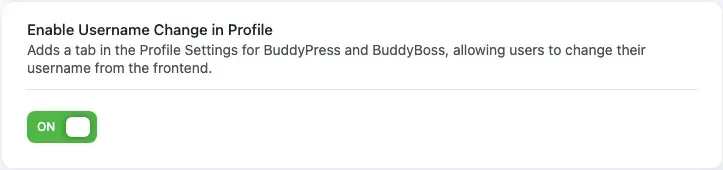
Step 3: Configure Additional Settings
Section titled “Step 3: Configure Additional Settings”While on the General Settings page, configure:
- User Roles - Select which member roles can change usernames
- Cooldown Period - Set how often members can change usernames (7/15/30 days)
- Username Length - Set minimum and maximum character limits
- Profile Link Format - Choose between username or unique identifier URLs (BuddyPress only)
See the General Settings documentation for detailed configuration instructions.
How Members Access Username Change
Section titled “How Members Access Username Change”For BuddyPress
Section titled “For BuddyPress”Members access the username change feature through their profile settings:
- Log in to the site
- Click on your profile avatar or name
- Navigate to Settings → Username Change
- The username change form appears
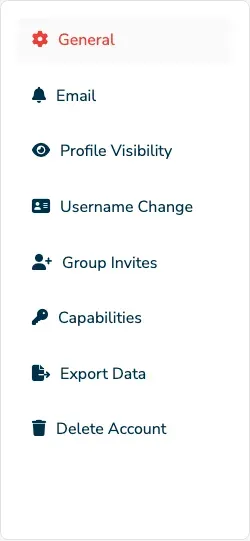
URL Structure:
https://example.com/members/{username}/settings/username-change/For BuddyBoss Platform
Section titled “For BuddyBoss Platform”The process is identical for BuddyBoss users:
- Click your profile
- Go to Settings → Username Change
- Use the form to change your username
The Username Change Tab
Section titled “The Username Change Tab”When members click the Username Change tab, they see:
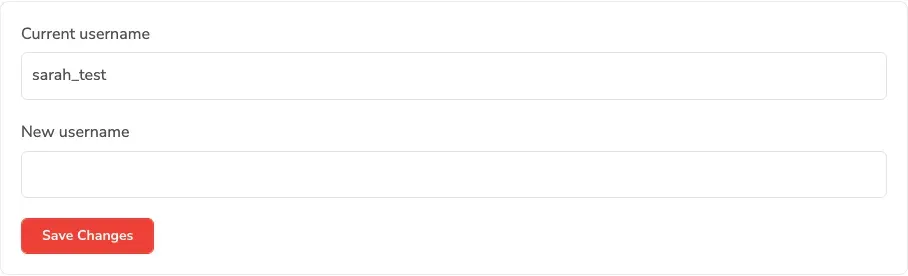
Form Elements
Section titled “Form Elements”- Page Title - “Change username”
- Current Username - Read-only field showing current login name
- New Username - Input field for entering desired username
- Real-Time Validation - Instant feedback on username availability
- Username Suggestions - Alternative options if username is taken
- Save Changes Button - Submit the username change
User Experience
Section titled “User Experience”The form works identically to the shortcode version with all the same features:
- Real-time username availability checking
- Smart username suggestions
- Instant validation messages
- Length requirement checking
- Character validation
See the Username Availability documentation for details on how validation works.
BuddyPress Profile Slug Integration
Section titled “BuddyPress Profile Slug Integration”What is a Profile Slug?
Section titled “What is a Profile Slug?”The profile slug is the part of the URL that identifies a member’s profile:
https://example.com/members/{profile-slug}/By default, BuddyPress uses the username as the profile slug. Advanced Username Manager gives you control over this behavior.
Profile Slug Format Options
Section titled “Profile Slug Format Options”Option 1: Username (Default)
Profile URLs use the actual username:
https://example.com/members/john_doe/https://example.com/members/jane_smith/Behavior:
- When username changes, the profile URL updates to match
- User-friendly and memorable URLs
- Better for SEO and sharing
- Profile URL updates to match the new username
Option 2: Unique Identifier (BuddyPress Only)
Profile URLs use a random hash instead of the username:
https://example.com/members/aum5f8a3c9b1/https://example.com/members/aum8d4e2a7f3/Behavior:
- Profile URLs never change, even when username changes
- Enhanced privacy and anonymity
- Prevents profile stalking
- Unique identifier URLs always work regardless of username changes
Note: This option is only available for BuddyPress sites, not BuddyBoss Platform.
Learn more in the Unique Identifier documentation.
Changing Profile Slug Format
Section titled “Changing Profile Slug Format”- Go to WB Plugins → Advanced Username Manager → General Settings
- Find “User Profile Link Format” (BuddyPress only)
- Select Username or Unique Identifier
- Click Save Changes
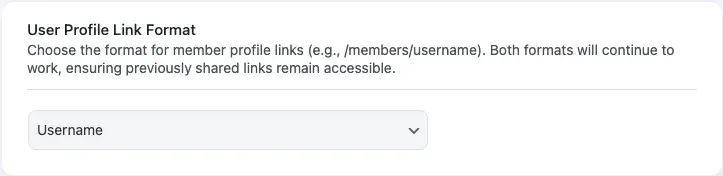
Automatic Cache Handling
Section titled “Automatic Cache Handling”When a member changes their username through BuddyPress, the plugin automatically clears relevant caches to ensure everything works correctly.
BuddyPress Caches Cleared
Section titled “BuddyPress Caches Cleared”After a successful username change:
bp_core_userdata_{user_id}- Member profile databp_user_username_{user_id}- Username cachebp_user_domain_{user_id}- Profile domain cache- WordPress user cache - General user data
What This Means
Section titled “What This Means”- Profile displays update immediately
- Activity streams show the new username
- Friend lists update correctly
- Group member lists reflect the change
- No manual cache clearing needed
Automatic Redirects
Section titled “Automatic Redirects”After a successful username change in BuddyPress, the member is automatically redirected to their updated profile settings page.
Redirect Behavior
Section titled “Redirect Behavior”Before Username Change:
https://example.com/members/old_username/settings/username-change/After Username Change:
https://example.com/members/new_username/settings/username-change/Or, if using Unique Identifier:
https://example.com/members/aum5f8a3c9b1/settings/username-change/Benefits:
- Seamless user experience
- No broken page errors
- Member stays in the correct context
- Success message displays on the updated URL
Access Control
Section titled “Access Control”The BuddyPress integration includes smart access control:
Who Can Change Usernames?
Section titled “Who Can Change Usernames?”By default, members can only change their own username. The “Username Change” tab only appears when:
- Viewing Your Own Profile - You’re logged in and on your own profile
- You Have Permission - Your user role is allowed to change usernames
- Or You’re a Super Admin - Super admins can change any member’s username
Customizing Access Control
Section titled “Customizing Access Control”Developers can customize who has access using the filter hook:
add_filter( 'bp_username_changer_user_has_access', function( $has_access ) { // Custom logic to determine access return $has_access;} );See the Hooks and Filters documentation for more customization options.
Email Notifications
Section titled “Email Notifications”When members change their username through BuddyPress, they receive an email confirmation:
Subject:
“{Site Name} Your Username Has Been Successfully Updated !”
Email Content:
Hello John,
We’re writing to let you know that your username on Example Site has been successfully updated.
Your new username is: john_doe_2026
If you did not request this change, please contact our support team immediately to secure your account.
Thank you for being part of Example Site!
This email can be customized using filter hooks. See the developer documentation for details.
BuddyPress Requirements
Section titled “BuddyPress Requirements”Settings Component Must Be Active
Section titled “Settings Component Must Be Active”The Username Change tab requires the BuddyPress Settings component to be enabled.
To Verify:
- Go to Settings → BuddyPress → Components
- Ensure “Account Settings” is checked
- Click Save Settings if you made changes

If the Settings component is disabled, the Username Change tab will not appear.
Common BuddyPress Scenarios
Section titled “Common BuddyPress Scenarios”Scenario 1: Community Social Network
Section titled “Scenario 1: Community Social Network”Use Case: Open community where members interact frequently
Configuration:
- Enable username changes in profile
- Allow all member roles (Subscribers, Contributors, etc.)
- Use 7-day cooldown for flexibility
- Use username format for friendly URLs
- Standard length limits (5-12 characters)
Scenario 2: Private Membership Community
Section titled “Scenario 2: Private Membership Community”Use Case: Exclusive community with privacy concerns
Configuration:
- Enable username changes in profile
- Restrict to premium member roles only
- Use 30-day cooldown for stability
- Use Unique Identifier format for privacy
- Stricter length limits (6-15 characters)
Scenario 3: Professional Network
Section titled “Scenario 3: Professional Network”Use Case: Business networking similar to LinkedIn
Configuration:
- Enable username changes in profile
- Allow all professional member types
- Use 15-day cooldown for balance
- Use Unique Identifier for clean URLs
- Professional length limits (5-20 characters)
Troubleshooting BuddyPress Integration
Section titled “Troubleshooting BuddyPress Integration”Username Change Tab Not Showing
Section titled “Username Change Tab Not Showing”Problem: The tab doesn’t appear in Profile Settings.
Solution:
- Verify BuddyPress or BuddyBoss is active
- Check that “Enable Username Change in Profile” is enabled in General Settings
- Ensure the BuddyPress Settings component is active
- Confirm your user role has permission to change usernames
- Check that you’re viewing your own profile (or you’re a super admin)
- Clear site cache and BuddyPress caches
Profile URL Breaks After Username Change
Section titled “Profile URL Breaks After Username Change”Problem: Profile page shows 404 error after changing username.
Solution:
- Clear all site caches (WordPress, BuddyPress, plugin caches)
- Go to Settings → Permalinks and click Save Changes (flushes rewrite rules)
- Try accessing the profile using the new username URL
- If using Unique Identifier, try the unique identifier URL
- Check BuddyPress permalink settings
Username Changes But Profile Shows Old Name
Section titled “Username Changes But Profile Shows Old Name”Problem: Profile displays the old username after change.
Solution:
- Hard refresh the page (Ctrl+F5 or Cmd+Shift+R)
- Clear browser cache
- Clear site cache
- Wait a few minutes for caches to expire
- The plugin automatically clears BuddyPress caches, but external caching plugins may need manual clearing
Can’t Access Settings After Username Change
Section titled “Can’t Access Settings After Username Change”Problem: Redirected to wrong URL or 404 page.
Solution:
- Manually navigate to your profile using the new username
- If using Unique Identifier, use that URL instead
- Clear all caches
- Log out and log back in
- The plugin should auto-redirect correctly
Testing BuddyPress Integration
Section titled “Testing BuddyPress Integration”Test Checklist
Section titled “Test Checklist”After enabling BuddyPress integration, test these scenarios:
- Username Change tab appears in your Settings
- Form displays correctly with current username
- Real-time availability check works
- Username suggestions appear when needed
- Can successfully change username
- Receive email confirmation
- Redirected to correct updated profile URL
- Profile displays new username everywhere
- Activity stream shows new username
- Profile URL uses new username (or stays same if using Unique Identifier)
- Cooldown period prevents immediate second change
Test User Accounts
Section titled “Test User Accounts”Create test accounts with different roles:
- Test Subscriber - Test basic member functionality
- Test Contributor - Test with content creation role
- Test Administrator - Test admin override capabilities
Change usernames for each test account to verify role-based permissions work correctly.
Related Documentation
Section titled “Related Documentation”- General Settings - Configure BuddyPress integration options
- Unique Identifier Feature - Learn about profile slug privacy
- Username Availability - How real-time validation works
- Hooks and Filters - Customize BuddyPress integration
- Troubleshooting - Fix common BuddyPress issues