

Login
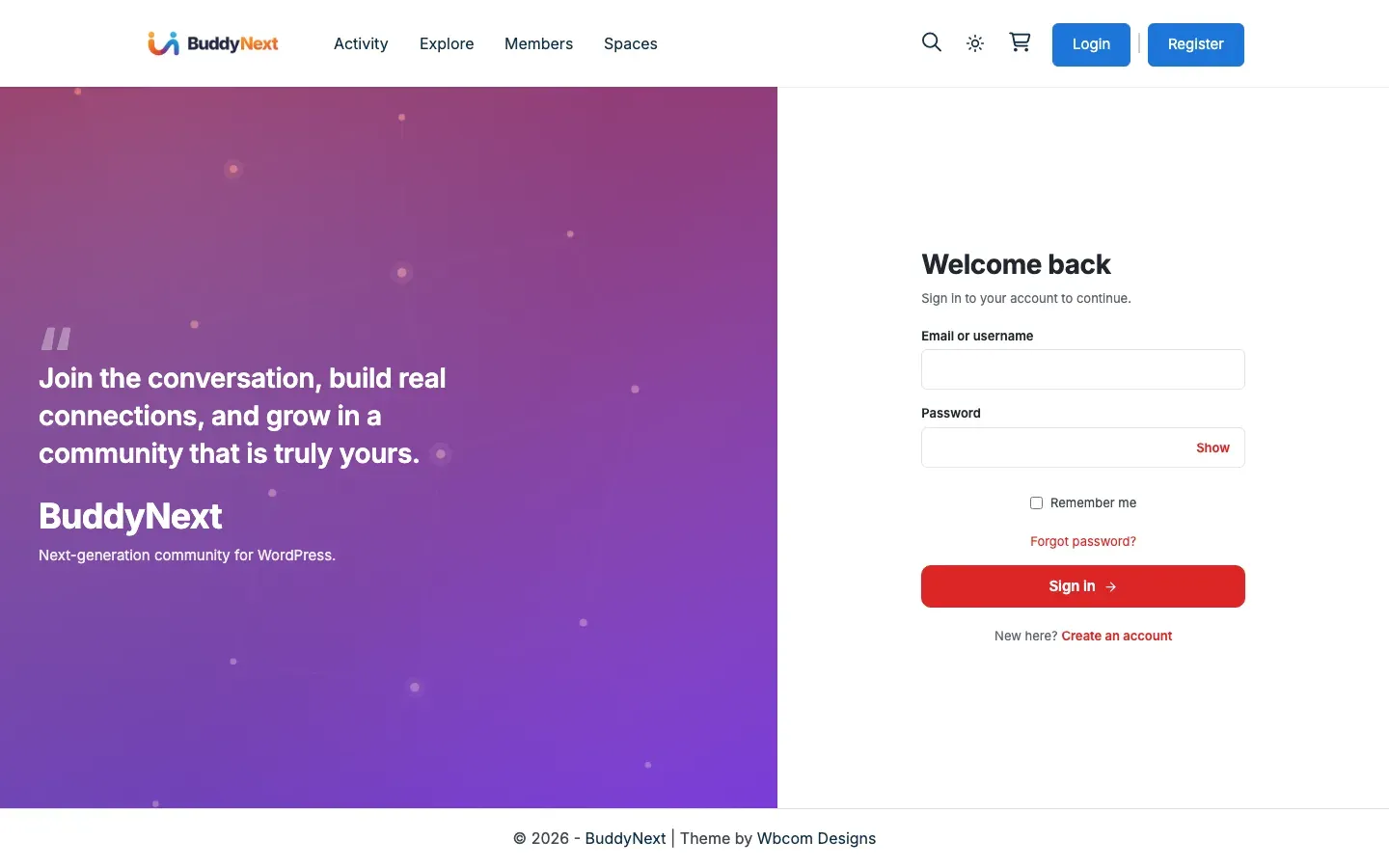
Login is how returning members sign back in to your community. Like the sign-up form, BuddyNext gives you a branded login form that lives on your own site instead of the plain WordPress login screen. Members sign in with the same look and feel as the rest of your community and land straight back where they belong, not in a WordPress dashboard.
Why use it
Section titled “Why use it”- On-brand sign-in. The login form picks up your community’s colors, fonts, and spacing automatically, and on BuddyNext Pro it carries your white-label branding. It can sit beside the same welcome panel as the sign-up form.
- Lands members in the community. After signing in, members go to the activity feed by default, or to a destination you set - never to a WordPress dashboard. Signing out sends them back to your branded login page, not the plain WordPress login screen, so they can sign back in without ever seeing the WordPress admin.
- Everything in one place. Remember-me, the forgot-password link, and any social sign-in buttons all live on the one form, so members never hunt for an option.
- Secure by default. Sign-in runs through WordPress’s own trusted authentication, so password rules, the pending-approval gate, and two-factor verification (where a member has enabled it, or where you require it) all apply.
- Your blocked-IP list applies at the door. An address on your blocked-IP list is refused at sign-in, not just when it tries to post. Someone on that list cannot get into the community at all, including into accounts they already hold. See Content Safeguards for where the list lives.
How it works for members
Section titled “How it works for members”- Open the login page. A member visits your login page - your community’s built-in login hub, or any page where you added the
[buddynext_auth]shortcode. - Enter credentials. They type their email address or username and their password. A show/hide control lets them check the password as they type.
- Choose Remember me. Ticking Remember me keeps them signed in across browser sessions on that device, so they do not have to log in every visit.
- Sign in. On success, BuddyNext sends them to the activity feed by default, or to the redirect you configured.
Forgot your password
Section titled “Forgot your password”The login form has a Forgot password link that opens the branded password-reset screen. The member enters their email or username, and BuddyNext sends a reset link by email. For privacy, the same confirmation message is shown whether or not an account matches, so the form never reveals which addresses are registered. The reset email is branded to match your community, and its link opens your branded “set a new password” screen. Every password reset uses this same branded email and screen, no matter where the member started it.
Note: If an account has two-factor authentication switched on, signing in asks for a one-time code (from an authenticator app, an emailed code, or a backup code) before the session is created. The password is checked first, and the member is only fully signed in once the code is verified.
Setting it up (for owners)
Section titled “Setting it up (for owners)”Place the login form
Section titled “Place the login form”You can publish the login form two ways:
- The built-in login hub. Your community already has a login page, so members can sign in there with no extra setup.
- The
[buddynext_auth]shortcode. Add the shortcode to any page to embed the same branded form wherever you want it. The same form carries both sign-in and create-account, so one page covers login and sign-up.
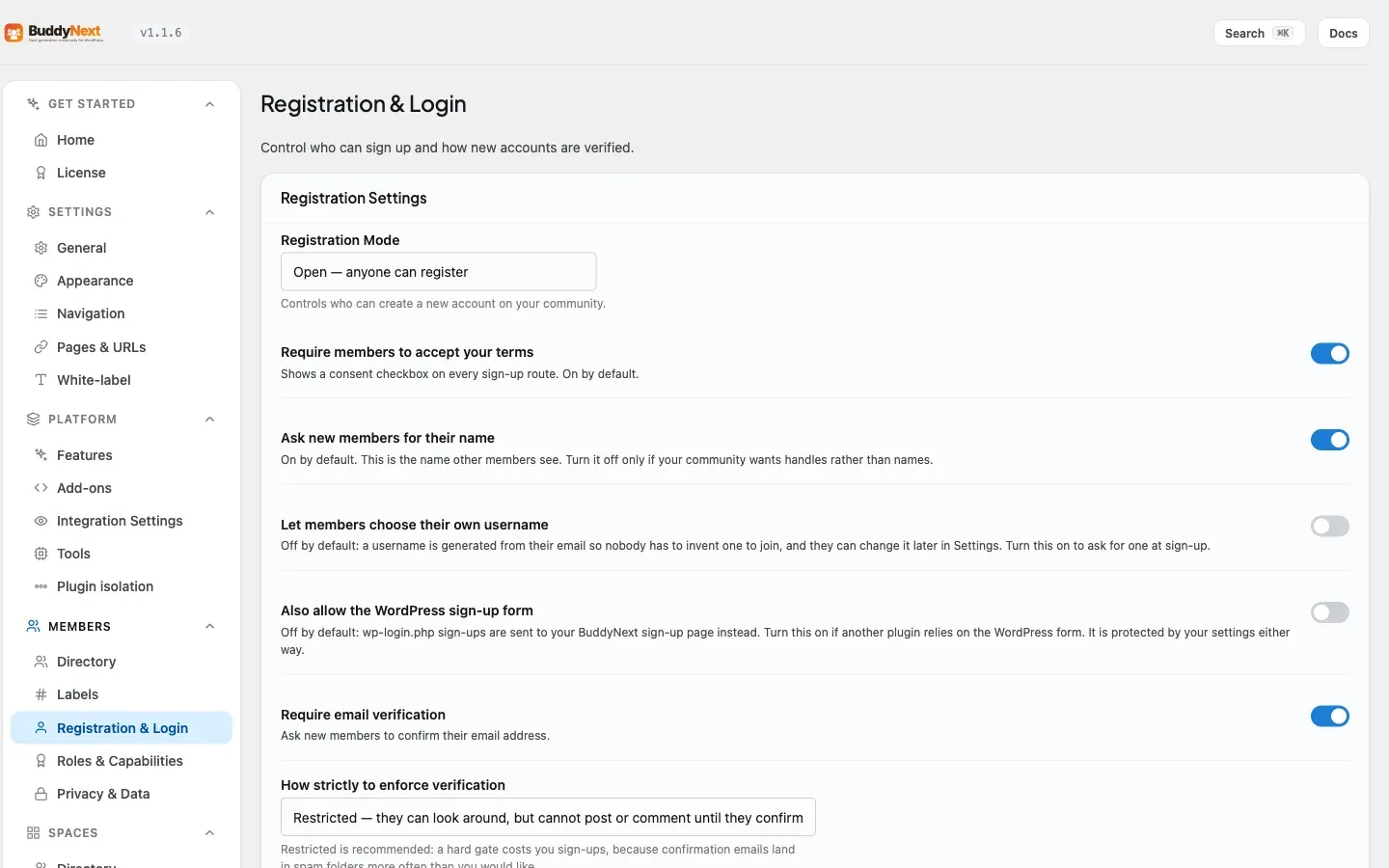
To place it: edit a page, add a shortcode block (or type it directly), enter [buddynext_auth], and publish. Where members land after signing in is set globally under BuddyNext > Members > Registration & Login (blank = the activity feed), not per page.
Where members land after signing in
Section titled “Where members land after signing in”- Default. After a successful sign-in, members go to the activity feed. This applies no matter which login form they used - the built-in login hub, a theme login form, or any other way they signed in - a member never lands on a WordPress dashboard they have no reason to see.
- Custom destination. Set a login redirect under BuddyNext > Members > Registration & Login to send members to a specific page instead of the feed.
- After signing out, members return to your branded login page, ready to sign back in, instead of the default WordPress “you are logged out” screen.
- Welcome panel. The login and sign-up forms share the same branded side panel. Control it under BuddyNext > Members > Registration & Login, in the Login and Sign-up Panel section (show or hide it, plus the heading, tagline, featured quote, and banner image). Those settings apply to both screens.
There is no separate login settings tab - login shares the welcome panel and the same pages as sign-up, and it honors the same account states (a member awaiting admin approval or with an unconfirmed email is gated exactly as the registration flow describes).
Good to know
Section titled “Good to know”- Email or username both work. Members can sign in with either; BuddyNext resolves an email to the matching account automatically.
- Pending and unverified members. A member awaiting admin approval cannot sign in until approved. A member with email verification required can sign in only as far as the verification screen until they confirm.
- Sign out everywhere. From their account settings, a member can end every active session on all devices at once - useful if they signed in on a shared or lost device.
- Social sign-in. If you enable social login, the matching provider buttons appear on the login form too. See the Social Login page.
Related
Section titled “Related”- Registration - the create-account side of the same form
- Social Login - the provider sign-in buttons on the login form
- Two-Factor Authentication - the one-time code step at sign-in
- Content Safeguards - where the blocked-IP list lives