

License Activation
A valid license key unlocks automatic update notifications in the WordPress Plugins screen and priority support from the Wbcom Designs team. Without it, the plugin keeps working but updates stop.
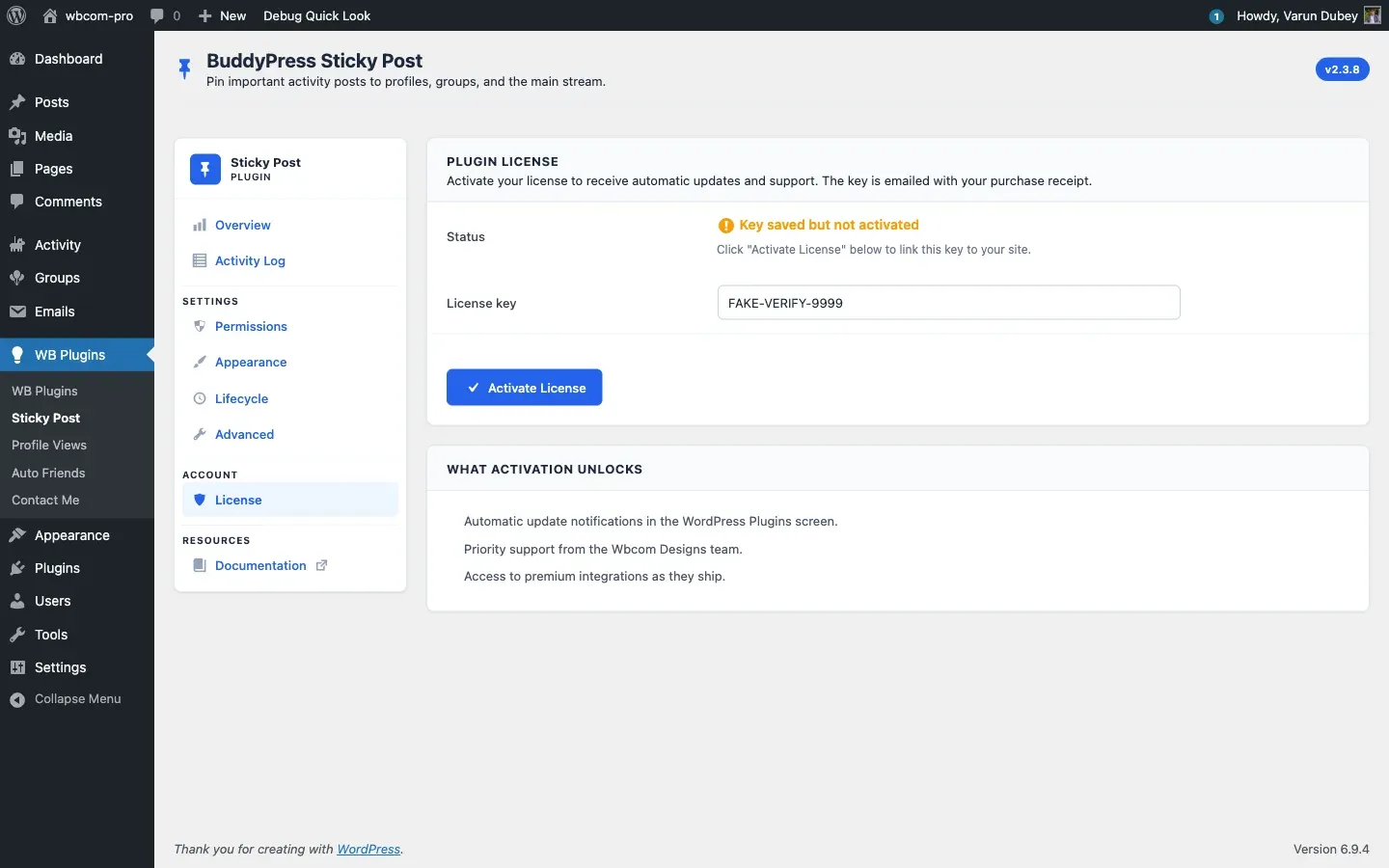
Where to find your key
Section titled “Where to find your key”You receive the license key in the order email when you buy the plugin. You can also find it any time in your Wbcom Designs account under My Account → Licenses.
Activate the license
Section titled “Activate the license”- Go to WB Plugins → Sticky Post → License.
- Paste the key into License key.
- Click Activate License.
On success the status flips to Active: receiving updates, the field becomes read-only and shows the masked key, and an expiry line appears: Renews on YYYY-MM-DD (or Lifetime license — never expires).
If activation fails the response message renders inline on the same License tab — examples include Invalid license., Your license key has expired on …, or Your license is not active for this URL. — without leaving the page.
Deactivate the license
Section titled “Deactivate the license”To move the key to a different site, deactivate it first:
- Open the same License tab.
- Click Deactivate License, confirm the prompt.
- The key field unlocks and you can paste a new key.
Deactivating only stops update checks for that site — it does not consume an activation slot.
Expiry warnings
Section titled “Expiry warnings”When the license is within 30 days of expiry, the License tab shows an amber notice with the exact remaining days: Renews on Apr 30 2026 — only 12 days left. Renew to keep receiving updates.
v2.3.8 redirect fix
Section titled “v2.3.8 redirect fix”Earlier 2.3.x builds redirected license activate / deactivate / failure responses through a now-removed wbcom-license-page slug, which often produced “Sorry, you are not allowed to access this page.” The 2.3.8 release routes every License action back to the in-plugin License tab.
Troubleshooting
Section titled “Troubleshooting”- “Your license is not active for this URL” — the key is registered against a different domain. Deactivate it on the old site (or in your Wbcom Designs account) and try again here.
- “Activation limit reached” — your plan only covers N sites. Free a slot or upgrade.
- “Invalid license” — re-copy the key from the order email or your account; spaces at the ends often break it.
If the License tab keeps refusing a known-good key, contact support@wbcomdesigns.com with your order number and the site URL.