

License activation
The plugin uses Easy Digital Downloads Software Licensing to deliver automatic updates. When you purchased the plugin you received a license key in the order confirmation email. You can also find it under My Account at https://wbcomdesigns.com.
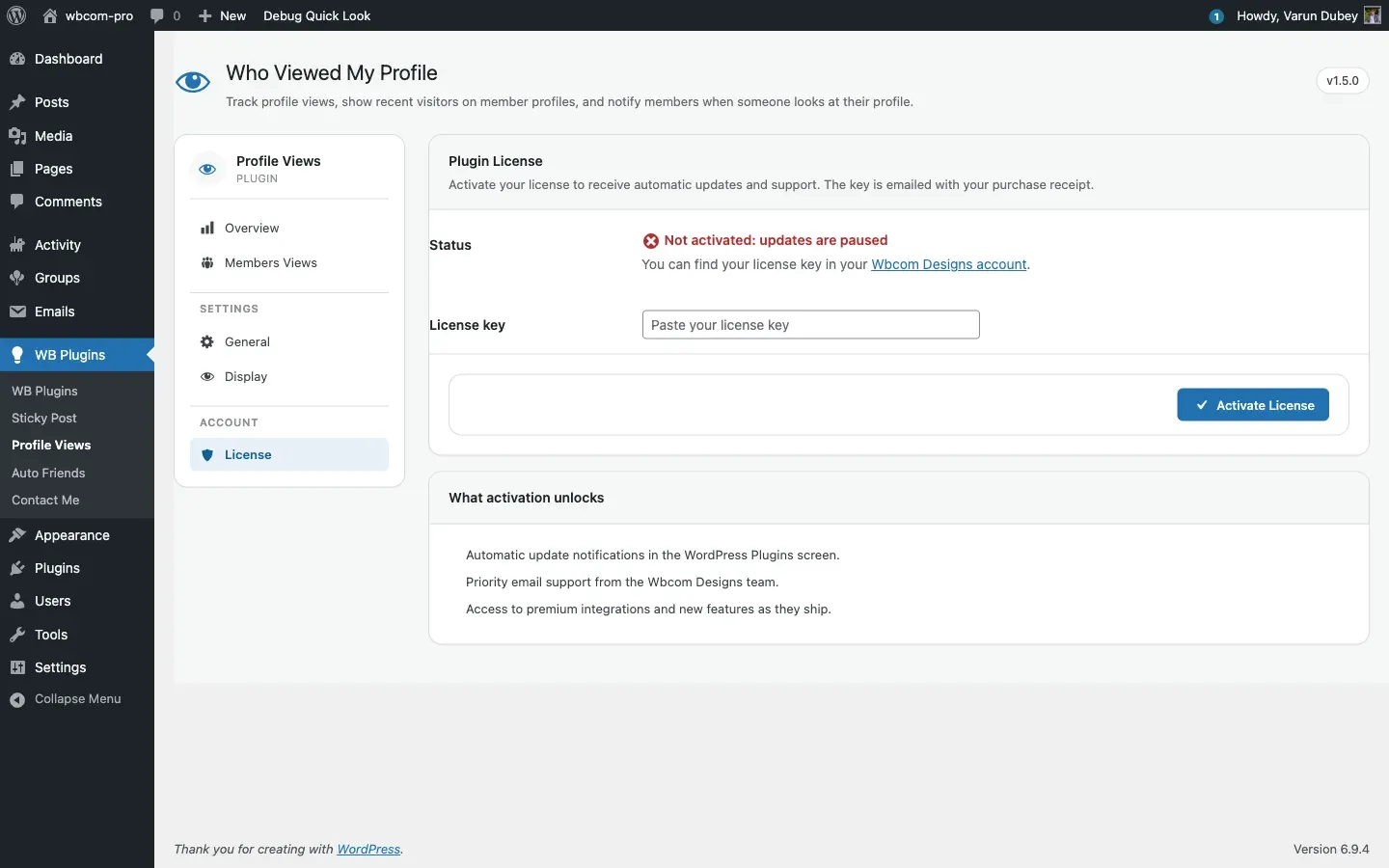
Activate your license
Section titled “Activate your license”- Go to WB Plugins → Profile Views → License in the WordPress admin.
- Paste your license key into the License key field.
- Click Activate License.
- The status changes to Active and the key field becomes read-only.
- WordPress will now show update notifications in Plugins → Installed Plugins when new versions are released.
Deactivate your license
Section titled “Deactivate your license”- On the same License tab, click Deactivate License.
- The key field unlocks so you can paste a different key.
Deactivating removes this site from the license’s activation count. The license remains attached to your account — you just free up the slot so you can use the same key on another site.
What activation unlocks
Section titled “What activation unlocks”- Automatic update notifications in the WordPress Plugins screen.
- Priority email support from the Wbcom Designs team.
- Access to new features and premium integrations as they ship.
Error messages
Section titled “Error messages”Errors appear inline on the License tab after a failed activation attempt. The message comes from the licensing server:
| Message | Cause and fix |
|---|---|
| “Please enter a license key.” | The field was empty. Paste your key before clicking Activate. |
| “Your license key expired on …” | The license term ended. Renew at wbcomdesigns.com. |
| “Your license is not active for this URL.” | The key is valid but was activated for a different domain. Deactivate on the old domain first, then activate here. |
| “Your license key has reached its activation limit.” | All seats are in use. Log in to wbcomdesigns.com, find the license, and remove a stale site entry. |
| “Invalid license.” | The key is not recognised. Check for extra spaces or that you copied the correct key for this product. |
| “This appears to be an invalid license key for Who viewed my profile.” | You may have pasted a key from a different Wbcom product. |
Stored options
Section titled “Stored options”The license tab reads from and writes to these WordPress options:
| Option | Contains |
|---|---|
edd_wbcom_BPPV_license_key |
The license key. |
edd_wbcom_BPPV_license_status |
Status string: valid, expired, invalid, disabled, site_inactive. |
edd_wbcom_BPPV_license_expires |
Expiry date string or lifetime. |
edd_wbcom_BPPV_license_key_data |
Transient caching the full API response for 12 hours. |
After every activate or deactivate attempt the page redirects back to the License tab with a success or error notice. If you see a stale page, reload — the redirect should have happened automatically.
Updates not appearing?
Section titled “Updates not appearing?”WordPress caches plugin update checks for approximately 12 hours. To force an immediate check:
wp plugin update --dry-run --all
wp plugin update --dry-run --all --network  # multisite
For additional help, see Common issues.