

Admin Content
The Posts and Replies admin screen lets you view, search, edit, and moderate every piece of content in your community without visiting the front end.
What You Will Learn
Section titled “What You Will Learn”- How to find and filter community posts and replies
- How to inline-edit a post title or body
- How to trash, approve, or mark content as spam
- How bulk actions work
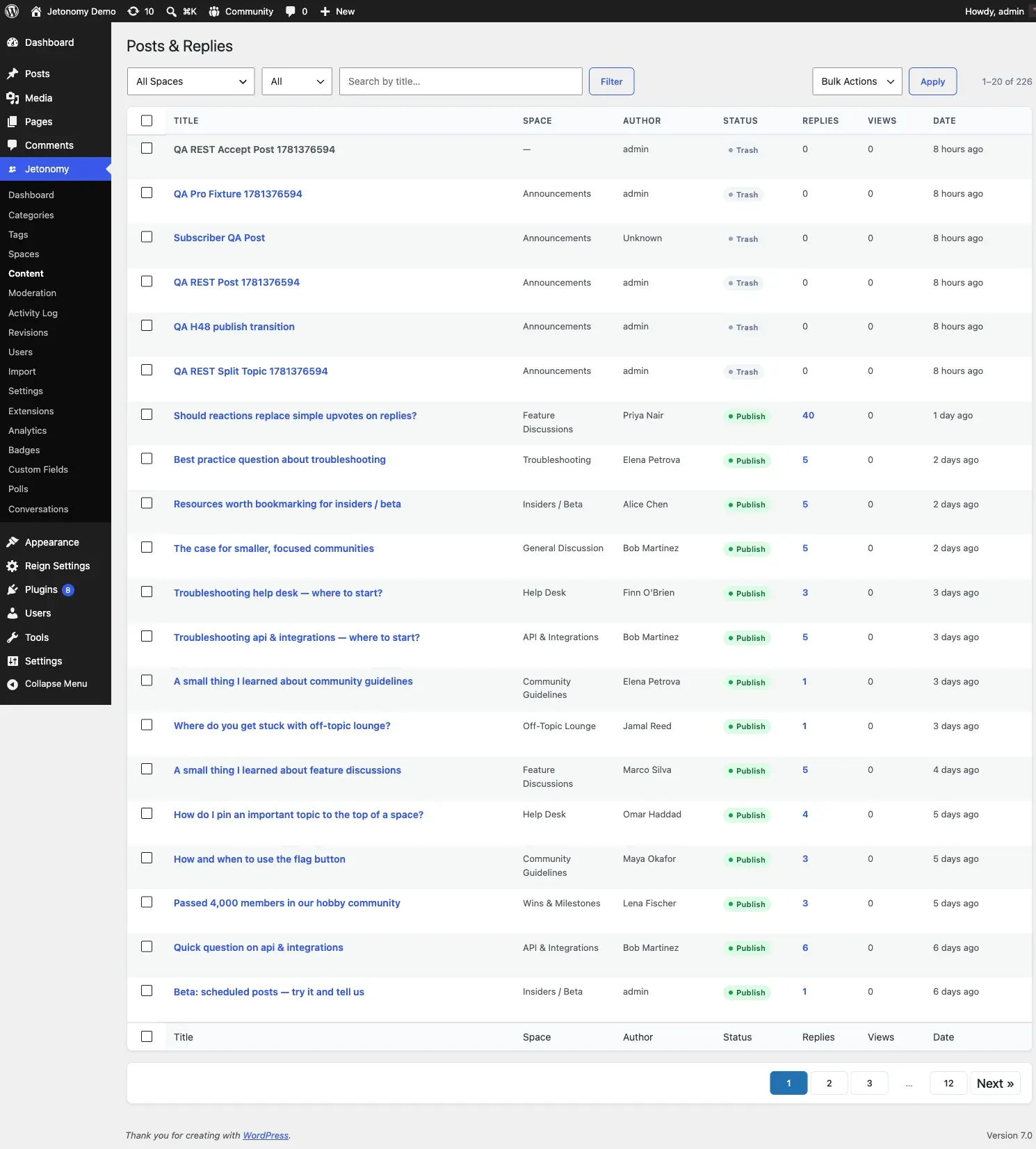
Go to Jetonomy → Posts and Replies to access this screen.
Required Capability
Section titled “Required Capability”The Posts and Replies admin page itself requires jetonomy_manage_settings, which is administrator-only by default. The separate jetonomy_moderate capability (which Editors receive automatically) governs the Moderation screen, not this page.
The Toolbar
Section titled “The Toolbar”The filter bar at the top of the screen has four controls that can be combined freely:
| Control | What it filters |
|---|---|
| Space filter | Show only posts from a specific space |
| Status filter | All, Published, Pending, Spam, or Trash |
| Search box | Searches post titles |
| Clear button | Appears when any filter is active; resets all to defaults |
The counter in the toolbar shows which range of results you are viewing and the total matching count.
Post Table Columns
Section titled “Post Table Columns”| Column | Description |
|---|---|
| (checkbox) | Select row for bulk actions |
| Title | Post title, status badge, reply count link, row actions |
| Space | The space the post belongs to |
| Author | Display name of the author |
| Status | Published, Pending, Spam, or Trash |
| Replies | Reply count, linking to a filtered view of replies for that post |
| Views | View count |
| Date | Time elapsed since creation |
Row Actions
Section titled “Row Actions”Hover a row to reveal its action links.
Edit (inline)
Section titled “Edit (inline)”Click Edit to expand an inline edit panel directly in the table row. You can change:
- Post title (up to 255 characters)
- Post body (full HTML content)
Click Save to apply the change. Click Cancel to collapse the panel without saving.
Moves the post to Trash status. Trashed posts are hidden from the front end but remain in the database. Use the Status filter to view trashed posts and restore them with the Restore action that appears in their row.
Marks the post as spam. Spam posts are hidden from the front end. The author’s reputation is not automatically adjusted by this action.
Opens the post on the front end in a new tab. Only appears when the post has a valid space and slug.
Bulk Actions
Section titled “Bulk Actions”To apply an action to multiple posts at once:
- Check the boxes next to the posts you want to affect. Check the header checkbox to select all visible rows.
- Choose Approve, Move to Trash, or Mark as Spam from the bulk action dropdown.
- Click Apply.
A confirmation prompt appears before the action runs. The spinner in the toolbar indicates the request is in flight.
Tip: If a bulk action partially fails (some rows succeed, some do not), the page will report the count that succeeded. Refresh and re-apply to the remaining rows.
Viewing Replies
Section titled “Viewing Replies”Clicking the reply count number for any post opens a filtered view showing only the replies for that post. Replies use the same toolbar, status filter, and inline-edit actions as posts.
Status Definitions
Section titled “Status Definitions”| Status | Meaning |
|---|---|
| Published | Visible to all users with read access |
| Pending | Created by a member at trust level 0 and awaiting first-post review |
| Spam | Flagged or manually marked as spam |
| Trash | Soft-deleted; not visible on the front end |
Note: Pending posts are held for review when the anti-spam settings require first-post moderation. Once you approve a member’s first post, subsequent posts from that member publish immediately.
What’s Next?
Section titled “What’s Next?”Organize your community’s spaces into categories.