

Notes and Bookmarks
Notes and Bookmarks
Section titled “Notes and Bookmarks”Pro feature. Available in Learnomy Pro.
Learnomy Pro gives every enrolled student a personal notebook and a bookmark list that live right beside the lesson they are studying. Notes are searchable, taggable, and gathered into one account hub, so a learner with hundreds of them can still find the right one.
What you can do
Section titled “What you can do”- Write more than one note on a single lesson, each with its own optional title and body, and edit any of them inline with autosave.
- Organise notes with your own tags, reused from an autocomplete of tags you have created before.
- Bookmark any lesson with a single toggle, so you can jump back to it later.
- Search every note you have written across all your courses with full-text search, then narrow by course or by tag.
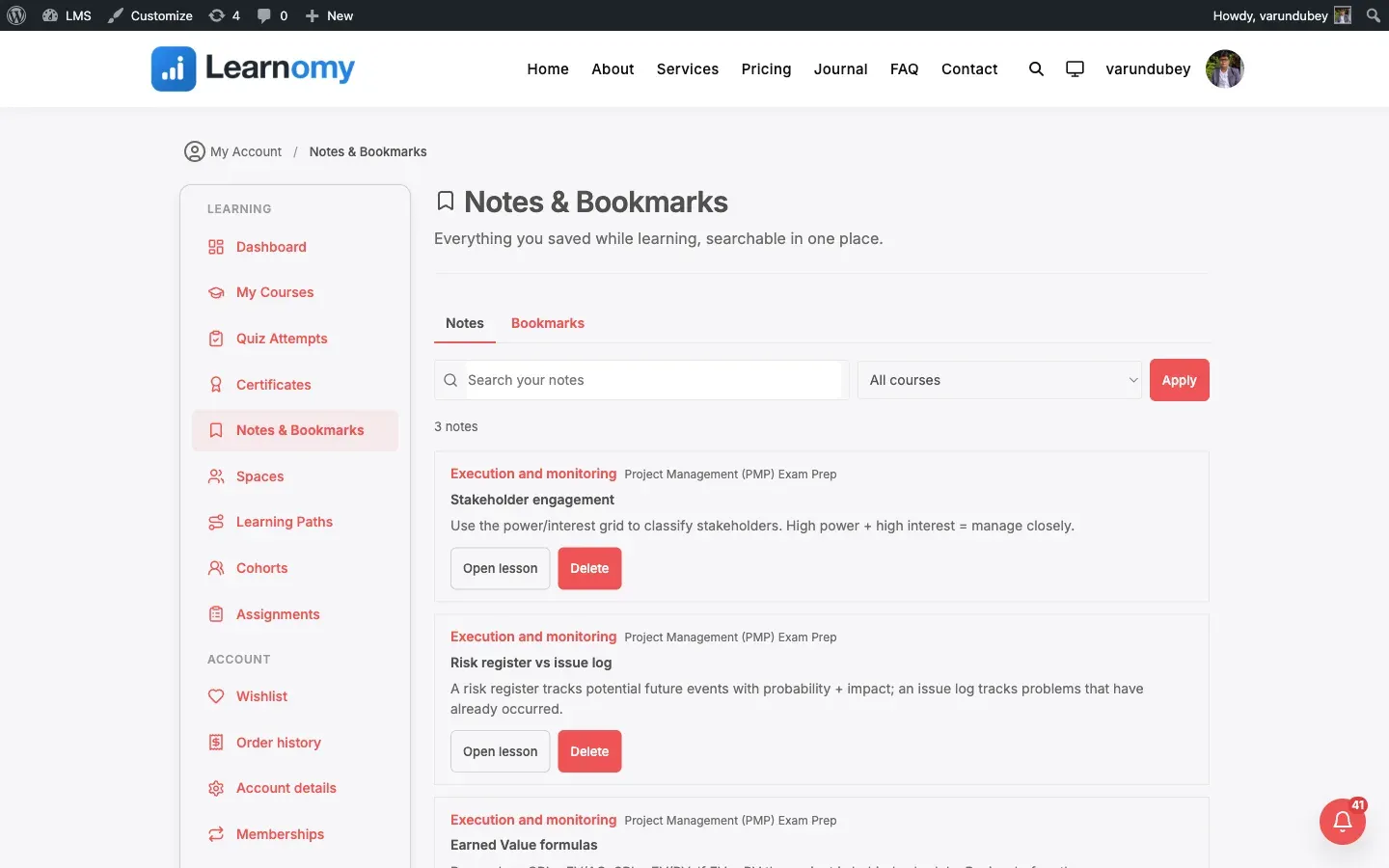
- Manage everything from one place – a first-class Notes & Bookmarks section in My Account at
/account/notes/, with a paginated newest-first list. - See a Notes & Bookmarks summary widget on your student dashboard with live counts that links into the account hub.
- Keep your notes and bookmarks private to you – they are never shared with other students or the instructor.
How to use it
Section titled “How to use it”Step 1 – open a lesson you are enrolled in
Section titled “Step 1 – open a lesson you are enrolled in”The notes panel appears in the lesson player for any lesson in a course you are enrolled in. It is not shown to logged-out visitors or to people who are not enrolled.
Step 2 – add a note
Section titled “Step 2 – add a note”Type in the note field and Learnomy saves it for you – there is no separate Save button. A status indicator shows “Saving” then “Saved”. You can give the note a title, and you can add more than one note to the same lesson.
Step 3 – tag a note
Section titled “Step 3 – tag a note”Add tags to a note to group it with related notes. As you type, Learnomy suggests tags you have used before so your vocabulary stays consistent. Tags are your own – each student has their own tag list.
Step 4 – bookmark the lesson
Section titled “Step 4 – bookmark the lesson”Use the bookmark toggle in the panel to mark the lesson. Toggle it again to remove the bookmark. Each lesson can be bookmarked once.
Step 5 – find notes later from My Account
Section titled “Step 5 – find notes later from My Account”Open My Account -> Notes & Bookmarks (/account/notes/). Use the search bar to full-text search your notes, filter by course or by tag, switch between the Notes and Bookmarks lists, and page through the results. From a note you can jump straight back to its lesson, or delete it.
Settings and options
Section titled “Settings and options”- Multiple notes per lesson. There is no fixed limit on how many notes a lesson can hold. A single note’s body can be up to 10,000 characters.
- Per-student tags. Tags belong to the student who created them and are reused across all their courses.
- Account list page size. The account hub shows 20 notes or bookmarks per page with previous / next navigation and an accurate total count.
- Search behaviour. The account search uses MySQL full-text search across each note’s title and content, with a plain match for very short terms.
- Enable the feature. Notes & Bookmarks is a Pro extension. A site owner turns it on from the Modules screen (LMS Settings > Modules); it is off by default until enabled.
- Privacy requests. Notes, tags, and bookmarks are included in a student’s WordPress personal-data export and are removed on a personal-data erasure request.
For developers
Section titled “For developers”REST API (namespace learnomy-pro/v1, every request is scoped to the current user):
GET /notes– list / search the caller’s notes (q,course_id,tag_id,page,per_page).POST /notes– create a note (lesson_id,title?,content,tags[]?).GET /notes/{id},PATCH /notes/{id},DELETE /notes/{id}– read, update, delete a single note (owner only).GET /lessons/{lesson_id}/notes– this lesson’s notes, used by the in-lesson panel.GET /note-tags,POST /note-tags,DELETE /note-tags/{id}– the caller’s tags and counts.GET /bookmarks– list the caller’s bookmarks (course_id,page,per_page).POST /bookmarks/{lesson_id}– toggle a bookmark;DELETE /bookmarks/{lesson_id}– remove it.
Capability:
learnomy_save_notes– auto-granted to every logged-in user withread. This is the gate on all notes / bookmarks endpoints; lesson-scoped writes additionally require access to the lesson’s parent course.
Storage:
- Four dedicated indexed tables –
lrn_pro_notes,lrn_pro_note_tags,lrn_pro_note_tag_map,lrn_pro_bookmarks. Notes carry a FULLTEXT index on(title, content).
Front routes and hooks consumed:
- Registers the
account-notesfront route (/account/notes/) and a My Account nav item. - Renders the panel on the
learnomy_lesson_player_asideaction and a student-dashboard widget onlearnomy_dashboard_widgets. - Cascades note and bookmark deletion on the
learnomy_lesson_deletedaction.