

Currency and Tax Settings
Set your marketplace currency and configure tax collection so prices display correctly and comply with your local requirements.
Setting Your Currency
Section titled “Setting Your Currency”Your currency applies everywhere – service prices, order totals, vendor earnings, and withdrawal amounts.
- Go to Sell Services > Settings > General
- Select your Currency from the dropdown
- Click Save Changes
Supported Currencies
Section titled “Supported Currencies”| Currency | Code | Symbol |
|---|---|---|
| US Dollar | USD | $ |
| Euro | EUR | E |
| British Pound | GBP | L |
| Canadian Dollar | CAD | C$ |
| Australian Dollar | AUD | A$ |
| Indian Rupee | INR | R |
| Japanese Yen | JPY | Y |
| Chinese Yuan | CNY | Y |
| Brazilian Real | BRL | R$ |
| Mexican Peso | MXN | $ |
Good to know: Changing currency after you already have orders does not convert existing amounts. Only new orders will use the new currency.
Enabling Tax
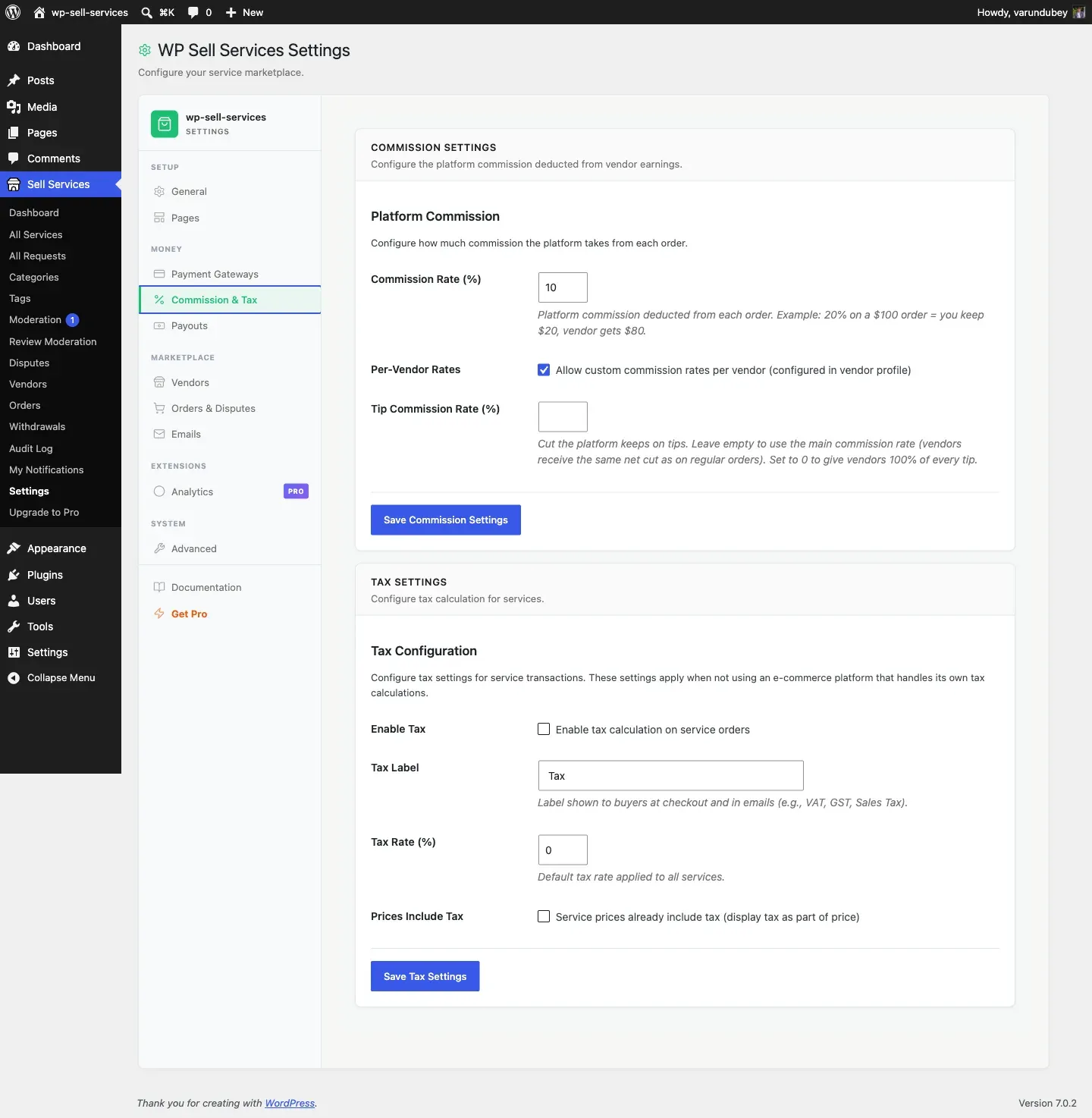
Section titled “Enabling Tax”If you need to collect tax on services, the plugin has a built-in tax system that works with any checkout mode.
How to Turn On Tax
Section titled “How to Turn On Tax”- Go to Sell Services > Settings > Commission & Tax
- Scroll to the Tax Settings section
- Check Enable Tax
- Fill in the settings below
- Click Save Tax Settings
Tax Settings Explained
Section titled “Tax Settings Explained”| Setting | What It Does |
|---|---|
| Tax Label | The name buyers see (e.g., “VAT”, “GST”, “Sales Tax”) |
| Tax Rate (%) | The percentage applied to service prices (e.g., 20 for 20%) |
| Prices Include Tax | Whether your displayed prices already include tax or not |
| Tax on Commission | How tax interacts with your platform commission |
Prices Include Tax vs. Exclude Tax
Section titled “Prices Include Tax vs. Exclude Tax”Prices exclude tax (common in the US): A $100 service with 7% tax charges $107 at checkout. The buyer sees the tax added separately.
Prices include tax (common in the EU): A E120 service with 20% VAT shows E120 at checkout. The tax (E20) is already baked into the displayed price, so the buyer pays what they see.
Tax on Commission
Section titled “Tax on Commission”This setting controls how tax interacts with your platform fee:
- None: No special tax treatment on commission
- Platform: Platform collects tax on the full service amount
- Vendor: Vendors are responsible for their own tax obligations
How Tax Looks at Checkout
Section titled “How Tax Looks at Checkout”Example with tax excluded (US-style):
- Service price: $100.00
- Sales Tax (7%): $7.00
- Total charged: $107.00
Example with tax included (EU-style VAT):
- Service price: E120.00 (includes 20% VAT)
- VAT amount: E20.00
- Total charged: E120.00 (no change at checkout)
Tax and Commission Together
Section titled “Tax and Commission Together”Tax is calculated on the service price. Commission is also calculated on the service price (before tax). They work independently:
- Service price: $100.00
- Tax (7%): $7.00
- Commission (15% of $100): $15.00
- Vendor receives: $85.00
- Platform receives: $15.00 commission
- Tax collected: $7.00 (handled per your tax settings)
Tips for Getting It Right
Section titled “Tips for Getting It Right”- Set currency before creating services. It is easier than converting later.
- Check local tax requirements. Many regions require you to collect and remit tax on digital services.
- Test checkout after changing tax settings to make sure prices display correctly.
- Keep it simple. If you only serve one region, a single flat tax rate works fine.
Related Docs
Section titled “Related Docs”- Commission System – How earnings are split
- Standalone Mode – Built-in checkout settings
- WooCommerce Checkout [PRO] – WooCommerce integration
- Stripe Payments – Card payment setup