

Quotas
Requires MediaVerse Pro - This feature is available exclusively in the Pro version.
Limit free users to 50 photos, give premium members unlimited uploads - quota packages let you build a tiered media community where upgrades have real value.
What Users See
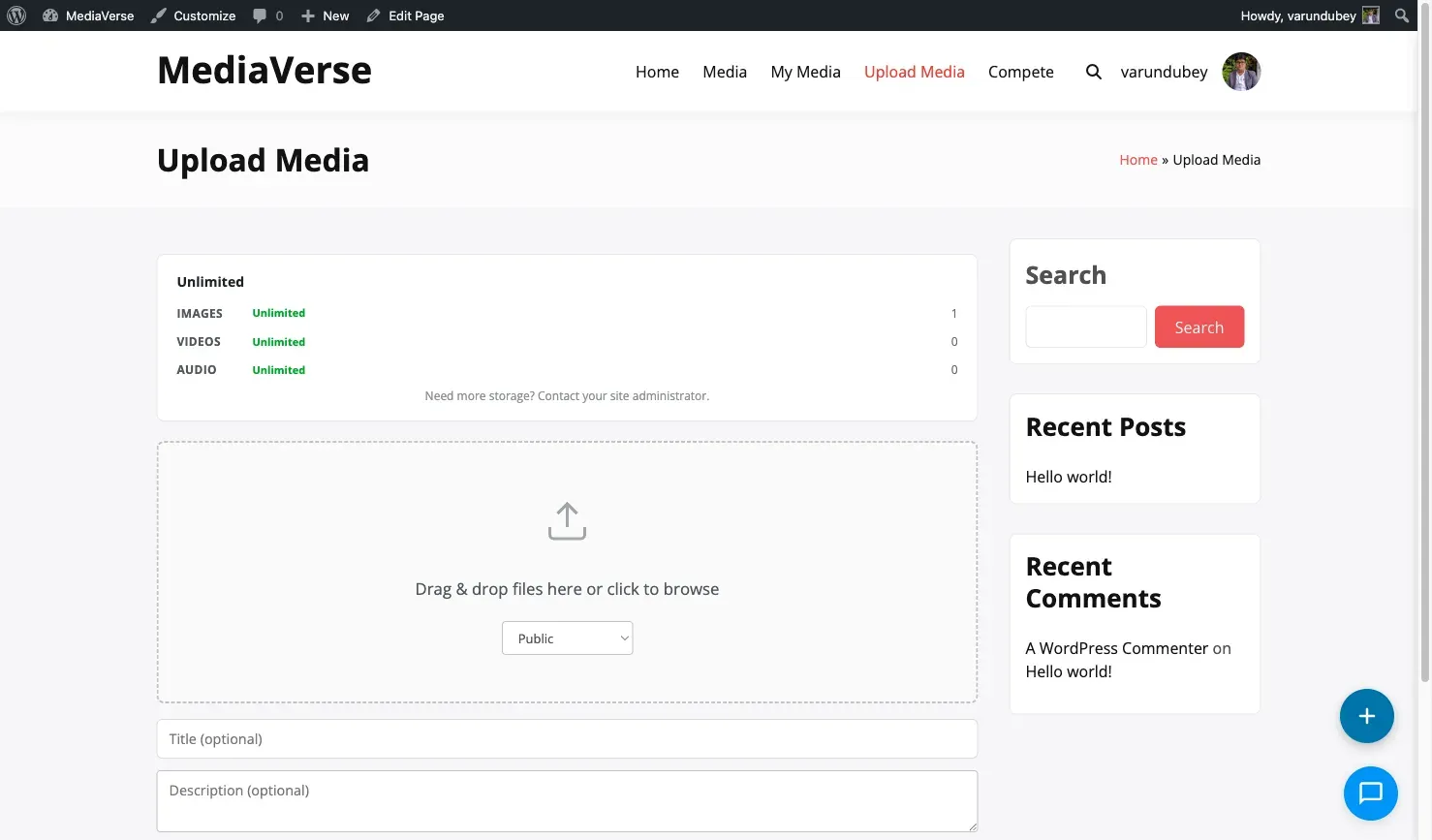
Section titled “What Users See”When a user goes to upload media, a usage widget appears at the top of the upload page. It shows a progress bar for each limit in their active package: how many images they have used out of their allowed total, the same for video and audio, and overall storage used versus their storage cap. When a limit is reached, the upload form shows a friendly message explaining which limit was hit and how to upgrade.
Use Cases
Section titled “Use Cases”- Free tier: 50 photos, 5 videos, 100 MB storage. Upgrade to Pro for unlimited.
- Club membership: 500 photos, 50 videos, 5 GB storage for paying members.
- Content creator plan: Unlimited photos and videos, 50 GB storage.
Setting Up Quotas (for Site Owners)
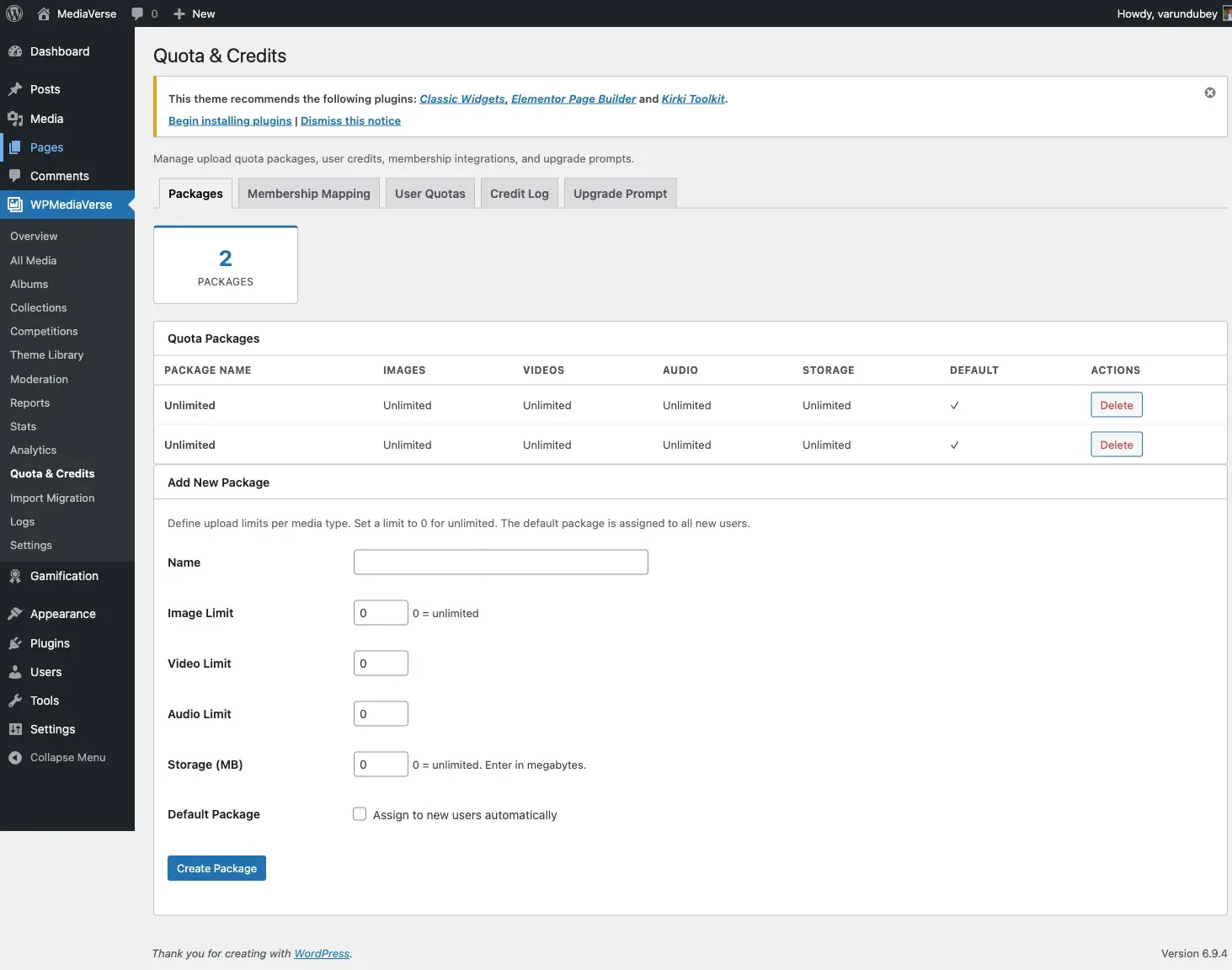
Section titled “Setting Up Quotas (for Site Owners)”- Go to Media > Quota Packages and click Add New Package
- Enter a name (e.g., “Free”, “Pro Member”, “Content Creator”)
- Set the limits for image count, video count, audio count, and total storage. Use
0for unlimited on any dimension - Click Save
- Go to the Assignments tab to map the package to a membership level or user role
- Set a Default Package at Media > Quota Packages > Settings - this applies to users with no membership
Repeat to create as many packages as your membership tiers require.
Membership Integrations
Section titled “Membership Integrations”MediaVerse Pro detects active membership plugins and maps their levels to quota packages automatically.
| Plugin | How to Map |
|---|---|
| MemberPress | Media > Quota Packages > Assignments > MemberPress tab |
| Paid Memberships Pro | Media > Quota Packages > Assignments > PMPro tab |
| WooCommerce Memberships | Media > Quota Packages > Assignments > WooCommerce tab |
When a user holds multiple memberships, MediaVerse Pro applies the highest limits across each dimension independently.
How Quotas Work (Technical)
Section titled “How Quotas Work (Technical)”When a user uploads a file, MediaVerse Pro checks the user’s active quota package before accepting the upload. If the upload would exceed any limit in the package, the upload is rejected.
Users with the manage_mvs_settings capability bypass quotas entirely. Quotas are a soft tool: a user with no assigned package is treated as unlimited.
Database Tables
Section titled “Database Tables”mvs_quota_packages
Section titled “mvs_quota_packages”Stores the quota package definitions. A limit of 0 means unlimited for that dimension.
| Column | Type | Description |
|---|---|---|
id |
bigint | Primary key |
name |
varchar(200) | Human-readable package name |
image_limit |
int unsigned | Maximum image files allowed, 0 for unlimited |
video_limit |
int unsigned | Maximum video files allowed, 0 for unlimited |
audio_limit |
int unsigned | Maximum audio files allowed, 0 for unlimited |
storage_bytes |
bigint unsigned | Total storage cap across all file types, 0 for unlimited |
is_default |
tinyint | Whether this is the default package for users with no membership |
sort_order |
int unsigned | Display ordering |
created_at |
datetime | UTC creation timestamp |
mvs_credit_log
Section titled “mvs_credit_log”Logs every quota credit transaction for auditing.
| Column | Type | Description |
|---|---|---|
id |
bigint | Primary key |
user_id |
bigint | WordPress user ID |
credit_type |
varchar(20) | image, video, or audio |
amount |
int | Change applied (negative = deduct, positive = restore) |
balance_after |
int | Resulting balance for that credit type |
source |
varchar(50) | Origin of the change, e.g. upload |
reference |
varchar(200) | Optional reference string |
note |
text | Free-form note |
created_at |
datetime | UTC timestamp |
REST API
Section titled “REST API”Base URL: /wp-json/mvs-pro/v1/
GET /me/quota
Section titled “GET /me/quota”Get the current quota usage and limits for the logged-in user. Requires the user to be logged in.
GET /users/{user_id}/quota
Section titled “GET /users/{user_id}/quota”Get the quota usage and limits for a specific user. Requires admin (manage_mvs_settings).
Response:
{ "user_id": 5, "package": "Pro Member", "usage": { "image_count": 48, "video_count": 3, "audio_count": 1, "storage_bytes": 524288000 }, "limits": { "image_limit": 500, "video_limit": 50, "audio_limit": 50, "storage_bytes": 5368709120 }}Storage values are raw byte values. Divide by 1073741824 to display in GB.
GET /packages, POST /packages, PUT /packages/{id}, DELETE /packages/{id}
Section titled “GET /packages, POST /packages, PUT /packages/{id}, DELETE /packages/{id}”List, create, update, and delete quota packages. All require admin (manage_mvs_settings).
POST /users/{user_id}/package
Section titled “POST /users/{user_id}/package”Assign a quota package to a user. Requires admin (manage_mvs_settings).
POST /users/{user_id}/credits
Section titled “POST /users/{user_id}/credits”Manually adjust a user’s credits (for migrations or corrections). Requires admin (manage_mvs_settings).
GET /me/credits/history
Section titled “GET /me/credits/history”Return the logged-in user’s own credit transaction history.
Frontend Usage Widget
Section titled “Frontend Usage Widget”A usage summary widget appears on the upload page (via the mvs_before_upload_form action) and the user’s media dashboard (via the mvs_dashboard_after_content action). It shows a progress bar for each limit in the user’s active package.
The widget is rendered by the UsageWidget service. To remove it from the upload page, detach its action callback from mvs_before_upload_form in your own code.