

Quiz Report
Overview
Section titled “Overview”The Quiz Report shows all quiz attempts across your LearnDash courses. Each row is one attempt by one student. You can filter results, view a detailed question-by-question breakdown, and export the data to a spreadsheet.
Screenshots
Section titled “Screenshots”Admin View
Section titled “Admin View”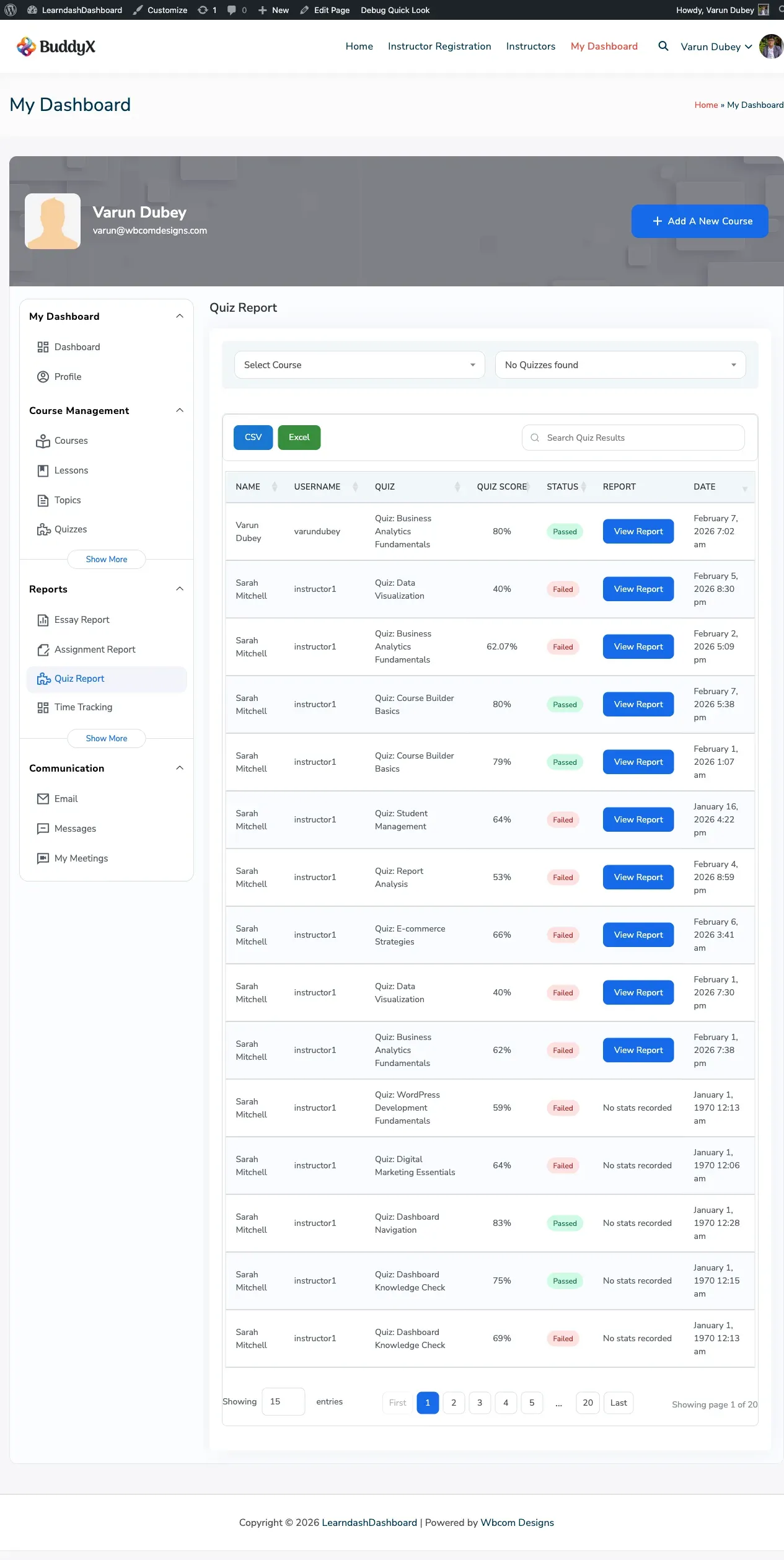
Instructor View
Section titled “Instructor View”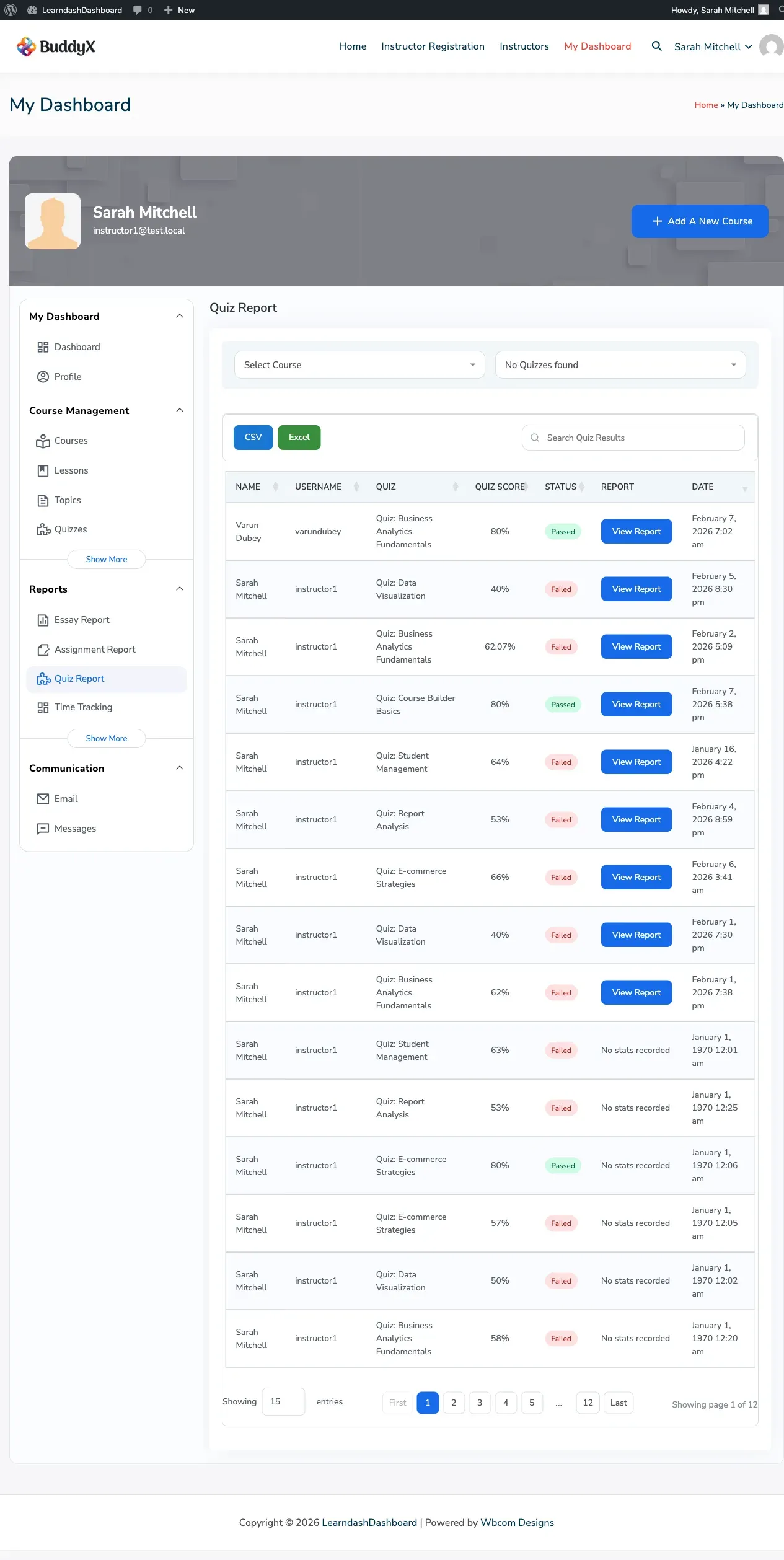
Group Leader View
Section titled “Group Leader View”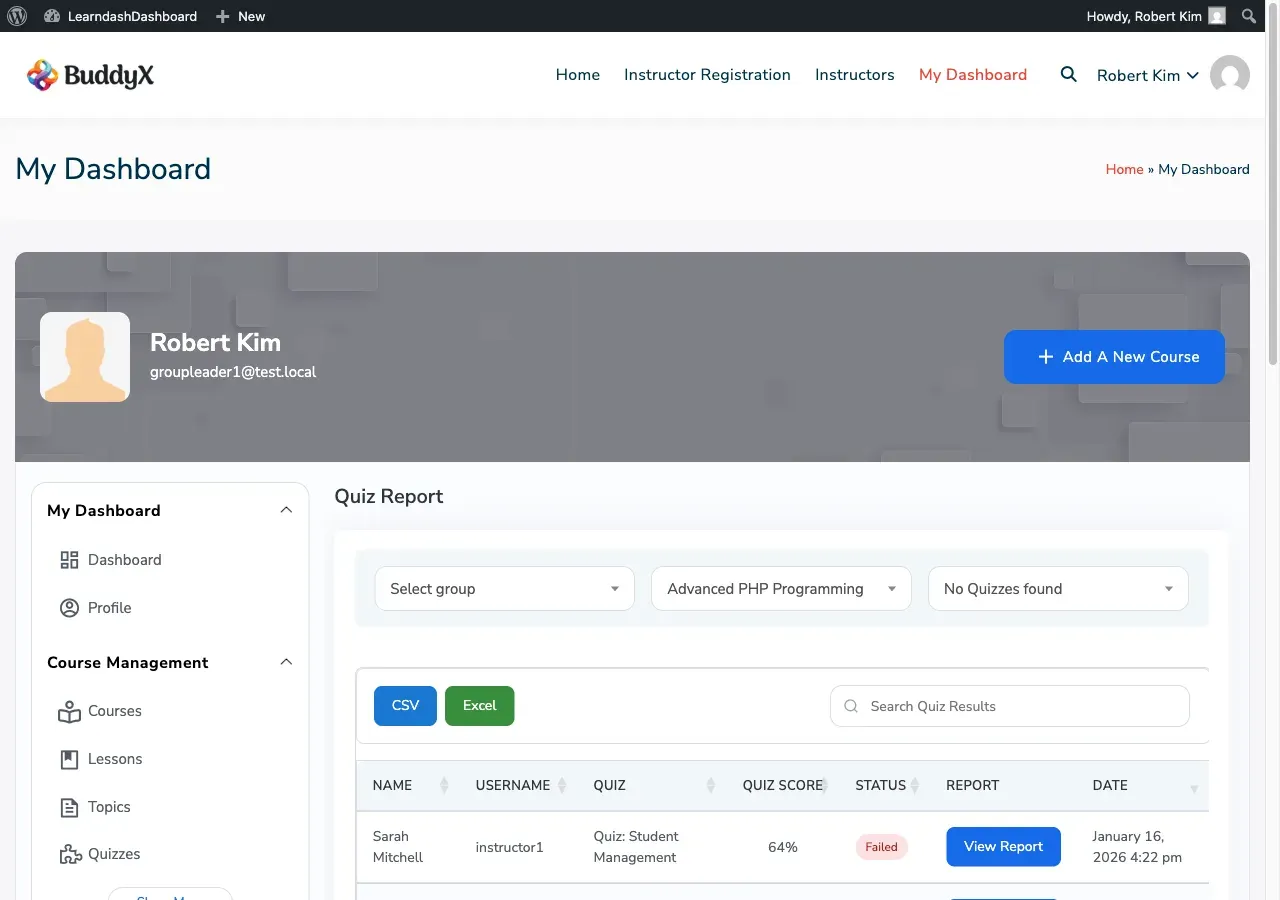
How to Access the Quiz Report
Section titled “How to Access the Quiz Report”Go to your dashboard and click Quiz Report in the sidebar. This section is available to admins, instructors, and group leaders.
What You See in the Report
Section titled “What You See in the Report”Each row in the report represents one quiz attempt by a student.
| Column | Description |
|---|---|
| Name | Student’s full name |
| Username | Student’s login name |
| Quiz | Name of the quiz |
| Score | Percentage score or points earned |
| Status | Passed, Failed, or Pending |
| Report | Link to view a detailed breakdown |
| Date | Date and time of the attempt |
Additional columns (such as email address) are available using the Column Visibility button.
Understanding Status Labels
Section titled “Understanding Status Labels”| Status | Meaning |
|---|---|
| Passed | The student met the passing score |
| Failed | The student did not meet the passing score |
| Pending | The quiz contains essay or manually graded questions that have not been reviewed yet |
Viewing a Detailed Attempt Breakdown
Section titled “Viewing a Detailed Attempt Breakdown”Click View Report on any row to open a detailed view of that attempt. You will see:
- Each question and the student’s answer
- The correct answer
- Points awarded for each question
- Time spent on each question (when available)
Filtering Results
Section titled “Filtering Results”Use the filter bar above the report to narrow down what you see.
| Filter | What it does |
|---|---|
| Course | Show only quizzes from a specific course |
| Quiz | Show only a specific quiz (updates after you select a course) |
| Student | Search by student name or username |
| Status | Show all, passed only, failed only, or pending only |
| Date range | Limit results to a specific time period |
Who Can See What
Section titled “Who Can See What”| Role | Access |
|---|---|
| Admin | All quiz attempts across all courses |
| Instructor | Attempts from students in your courses |
| Group Leader | Attempts from students in your assigned groups |
| Student | No access (students use the My Quiz Attempts section) |
Exporting Quiz Results
Section titled “Exporting Quiz Results”- Apply any filters to narrow down your results.
- Use Column Visibility to choose which columns to include.
- Click CSV or Excel to download the file.
The export includes all matching rows, not just the page currently displayed.