

Installation
After purchasing WB Polls, activate your license and configure the essential settings to get polls running on your BuddyPress community.
License Activation
Section titled “License Activation”WB Polls requires a valid license key for updates and support.
- Navigate to WP Admin > WB Plugins > License
- Enter your license key in the WB Polls field
- Click Activate License
- Verify the status shows “Active”
Keep your license active to receive plugin updates and access to support.
Accessing Settings
Section titled “Accessing Settings”Navigate to WP Admin > BuddyBoss > WB Polls to open the settings panel.
You will see two tabs:
- Community controls activity stream poll settings
- Polls Settings controls standalone poll settings
Configure Activity Polls
Section titled “Configure Activity Polls”Open the Community tab and configure these essential settings:
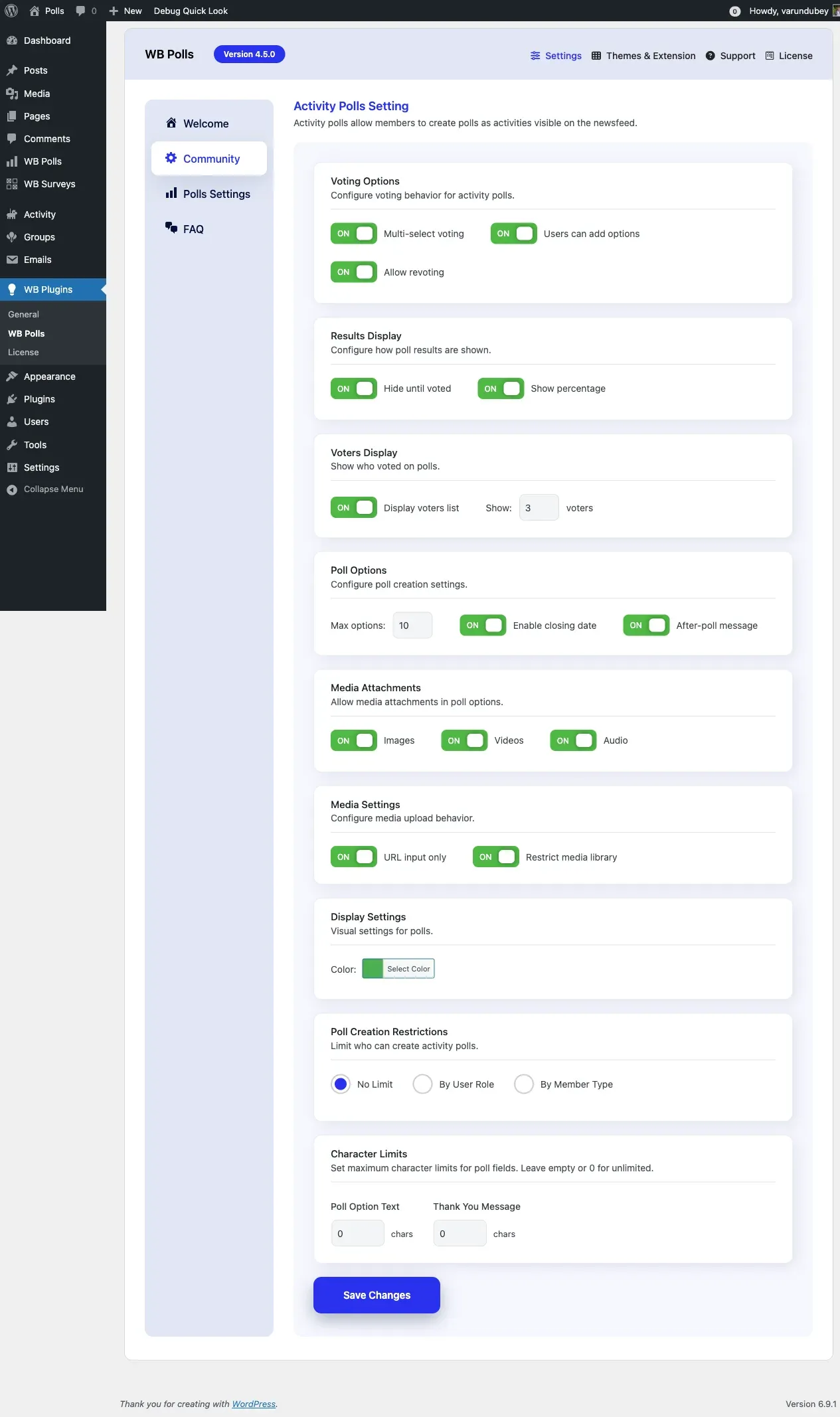
- Options Limit sets the maximum answer options per poll
- Enable Multi-select allows voters to choose multiple options
- Enable Close Date lets creators set poll expiration dates
- Enable Re-voting allows members to change their vote
- Poll User Roles determines which roles can create polls
- Media Settings enables image, video, or audio attachments
Click Save when finished.
Configure Standalone Polls
Section titled “Configure Standalone Polls”Open the Polls Settings tab and configure:
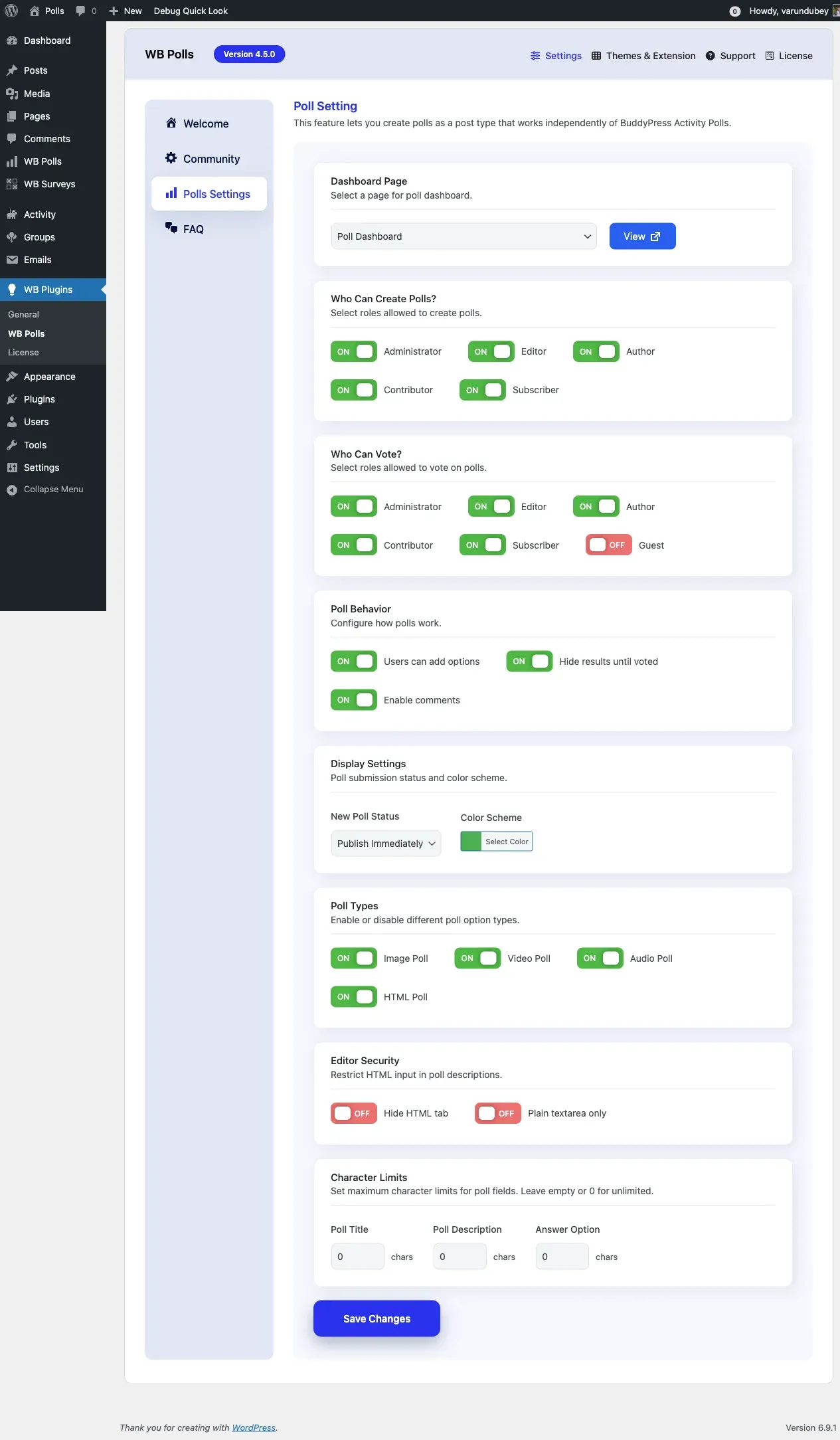
- Poll Dashboard Page selects the page displaying the poll dashboard (auto-created on activation)
- Create Poll Page selects the page with the poll creation form (auto-created on activation)
- Default Submit Status controls whether new polls publish immediately or require approval
- Who Can Create Polls sets which user roles can create standalone polls
- Who Can Vote includes a “Guest” option for allowing public voting
Click Save when finished.
Automatic Page Creation
Section titled “Automatic Page Creation”WB Polls automatically creates two pages when you activate the plugin:
- Poll Dashboard displays the poll management interface
- Create Poll displays the poll creation form
Both pages are template-based. The plugin injects content automatically, so no shortcode is needed. You can use these pages as-is or assign different pages in the settings.
What Happens on Activation
Section titled “What Happens on Activation”When you activate WB Polls:
- A Poll Dashboard page is created automatically
- A Create Poll page is created automatically
- Default settings are applied
- Database tables are created for poll vote tracking