

Group Polls Export
Activity polls work in BuddyPress groups and provide CSV export for data analysis. This guide covers group-specific polling features, vote data export, and best practices for running effective activity polls.
Group Polls
Section titled “Group Polls”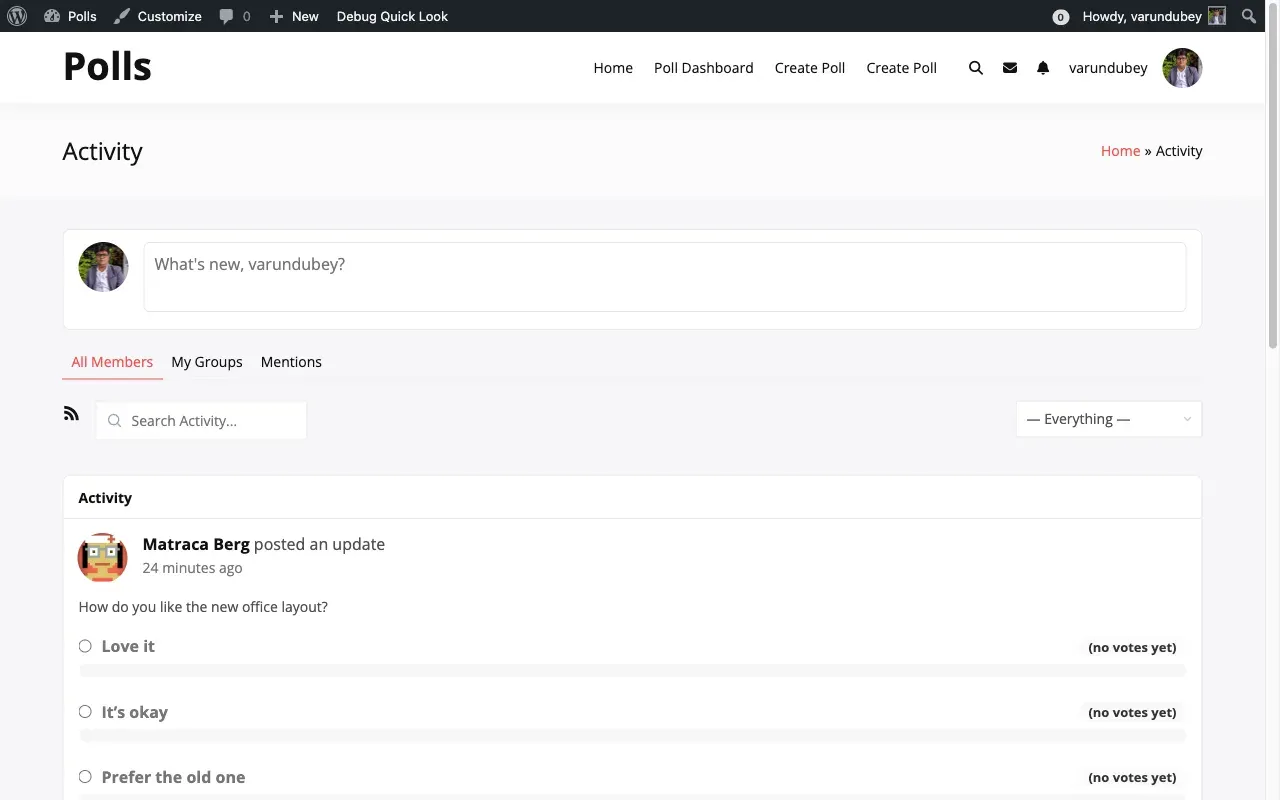
Activity polls work in BuddyPress groups. Group members with appropriate permissions can create polls in the group activity stream. Polls posted to a group appear only within that group’s activity feed.
Creating Polls in Groups
Section titled “Creating Polls in Groups”Group polls follow the same creation process as regular activity polls:
- Navigate to the group’s Activity tab
- Click the Poll icon in the activity composer toolbar
- Enter your question and add options
- Configure settings (multi-select, close date, media)
- Click Post to publish to the group
Who Can Create Group Polls
Section titled “Who Can Create Group Polls”Poll creation in groups follows two permission layers:
| Permission | Controlled By |
|---|---|
| Group membership | BuddyPress group settings (public, private, hidden) |
| Poll creation role | “Poll User Roles” in WB Polls > Community settings |
A member must satisfy both conditions. For example, if Poll User Roles is set to “Editor and above,” only group members who are also Editors or Administrators can create polls in the group.
Group Poll Visibility
Section titled “Group Poll Visibility”| Group Type | Who Sees Polls |
|---|---|
| Public group | All site members |
| Private group | Group members only |
| Hidden group | Group members only |
Group polls do not appear in the sitewide activity feed for private and hidden groups.
CSV Export
Section titled “CSV Export”Administrators can export activity poll vote data to CSV files for analysis.
Accessing the Export
Section titled “Accessing the Export”- Navigate to WP Admin > WB Polls > Logs
- Find the poll you want to export
- Click the Export CSV button
The Logs page also provides the Poll Graph widget with an export option. Navigate to Appearance > Widgets, add the “(BuddyPress) Poll Graph” widget, and use the Export CSV button visible to administrators.
CSV File Contents
Section titled “CSV File Contents”The exported CSV includes the following columns:
| Column | Description |
|---|---|
| Voter Name | Display name of the person who voted |
| User ID | WordPress user ID |
| Selected Option | The answer option they chose |
| Vote Date | Timestamp of when the vote was cast |
| Poll Question | The original poll question text |
| Activity ID | BuddyPress activity ID containing the poll |
Export Customization
Section titled “Export Customization”Developers can customize the CSV export using these filters:
| Filter | Purpose |
|---|---|
bpolls_csv_export_filename |
Change the download filename |
bpolls_csv_export_settings |
Modify delimiter, enclosure, date format |
bpolls_csv_export_header |
Add or modify column headers |
bpolls_csv_export_row |
Modify each data row before export |
Use Cases for Exported Data
Section titled “Use Cases for Exported Data”- Analyzing voting patterns across your community
- Creating reports on poll engagement
- Archiving poll results for record-keeping
- Importing data into spreadsheet tools for further analysis
- Comparing participation rates across different groups
- Identifying your most engaged community members
Standalone Poll Logs
Section titled “Standalone Poll Logs”Standalone polls also maintain vote logs accessible from the admin area. Navigate to WB Polls > Logs to view voting activity for standalone polls. Each log entry records the poll, voter, action taken, and timestamp. Administrators can delete individual log entries or use the logs for audit purposes.
Best Practices
Section titled “Best Practices”Writing Good Poll Questions
Section titled “Writing Good Poll Questions”- Keep questions clear and concise
- Provide distinct, non-overlapping options
- Enable user additional options for brainstorming polls
- Set reasonable expiration dates for time-sensitive topics
- Avoid leading or biased questions
- Limit options to 4-6 choices for best engagement
Group Poll Tips
Section titled “Group Poll Tips”- Use polls to make group decisions democratically
- Pin important polls by mentioning them in the group description
- Set close dates for decision polls so members know the deadline
- Use multi-select for “select all that apply” group questions
- Follow up on poll results with an action plan post
Engagement Tips
Section titled “Engagement Tips”- Post polls during peak activity hours for maximum participation
- Include a brief description explaining why you are asking
- Use thank you messages to acknowledge participants
- Follow up by sharing what you plan to do with the results
- Attach images to poll options for higher engagement rates
- Tag relevant group members to boost participation