

Question Bank
Question Bank
Section titled “Question Bank”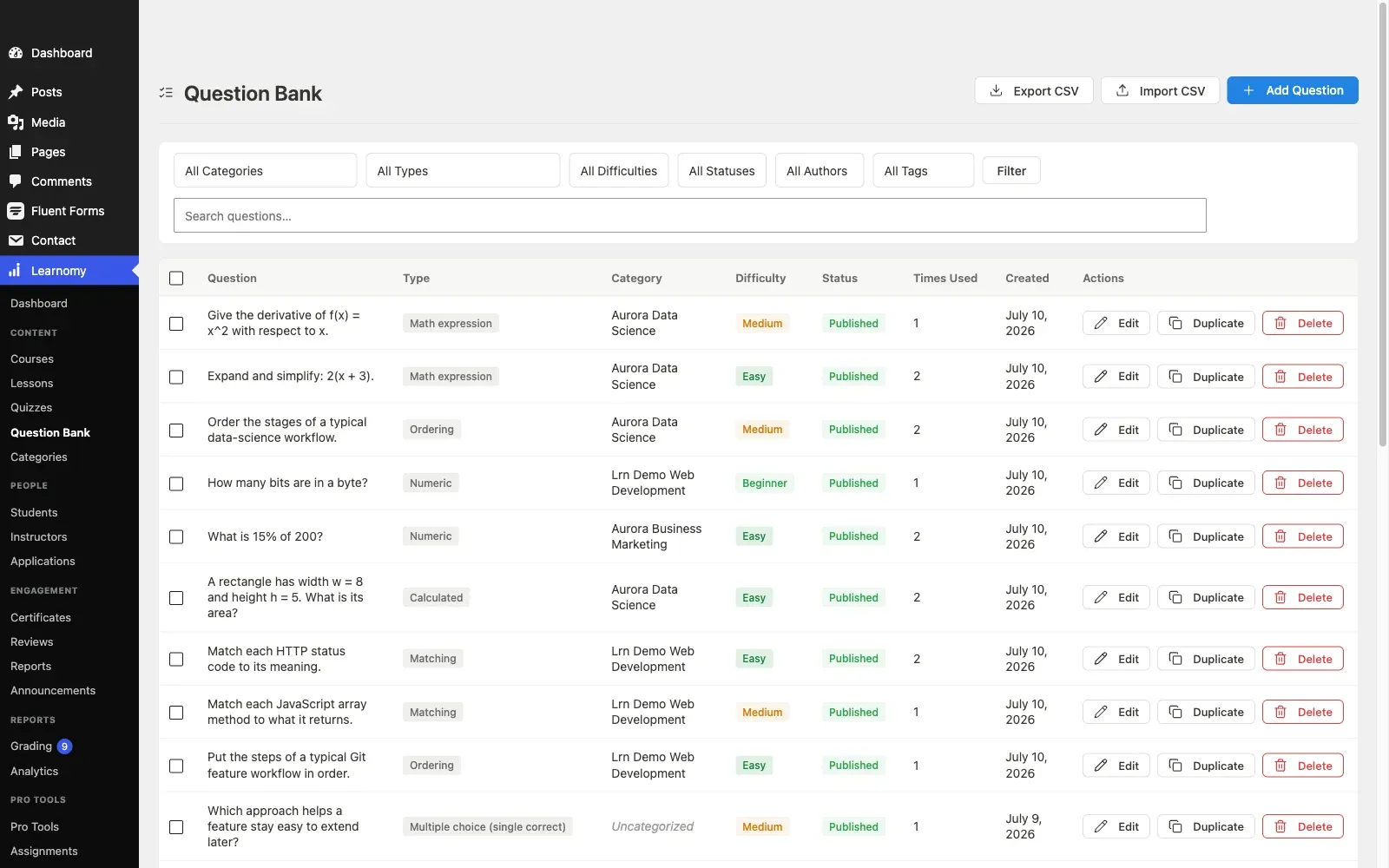
The Question Bank is a central library of all your questions. Questions are stored independently of any quiz so you can reuse them across multiple quizzes, edit them in one place, and keep your question sets organized with categories and tags.
Overview
Section titled “Overview”Go to Learnomy > Question Bank to see every question on your site. The Times Used column shows how many quizzes each question appears in.
The question list
Section titled “The question list”The list shows one row per question. Each row displays the question text (trimmed), its type, category, difficulty, status, how many quizzes use it, and when it was created.
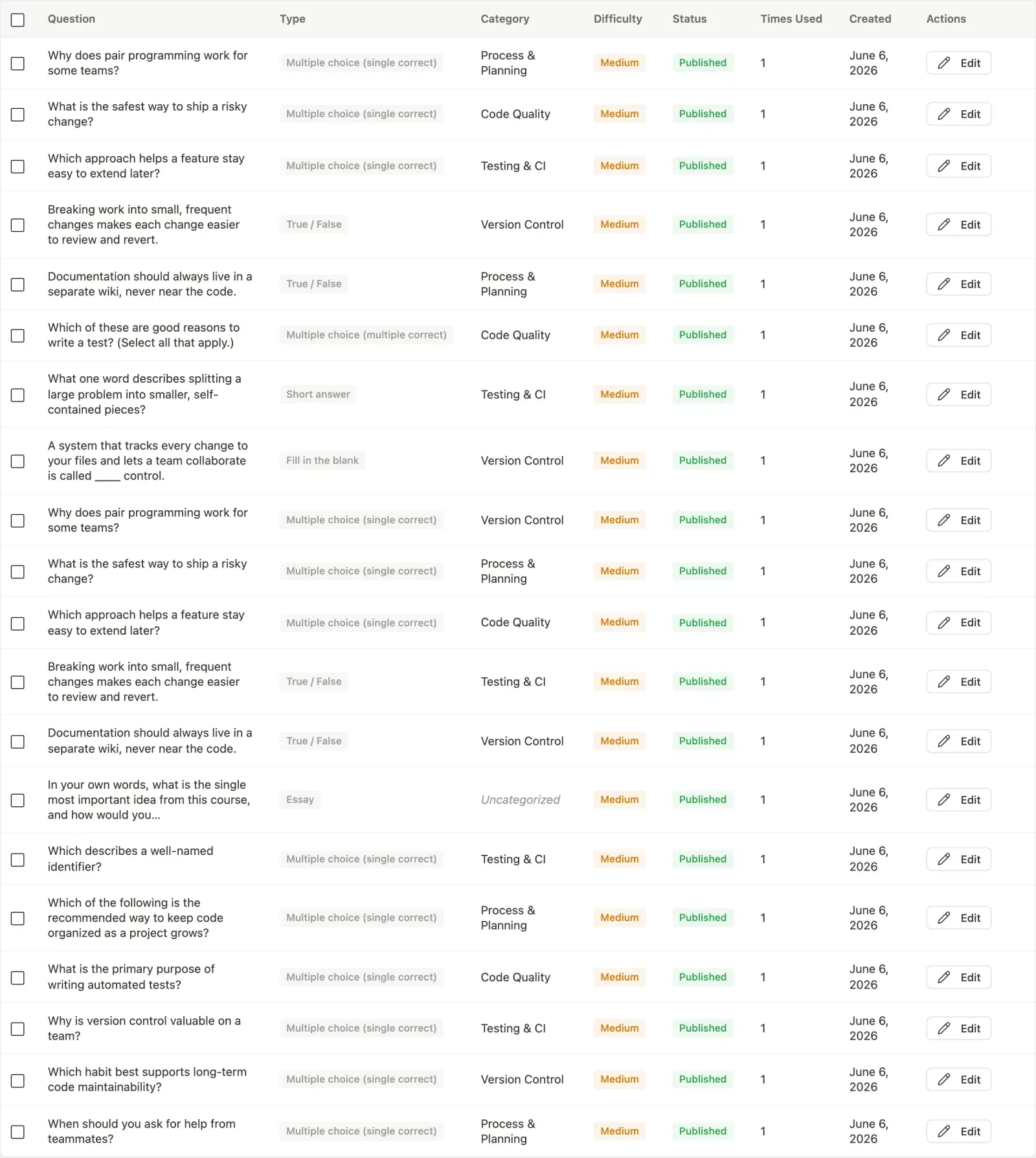
Row actions:
- Edit – opens the question editor.
- Duplicate – creates a copy of the question with all its answers. Useful for creating variations.
- Delete – permanently removes the question. It is removed from any quiz slot it was in.
You can select multiple rows with the checkboxes and use the Bulk Actions bar at the bottom to delete them all at once.
Filtering questions
Section titled “Filtering questions”The filter bar above the table lets you narrow down the list before you scroll or search.

| Filter | What it does |
|---|---|
| Category | Show only questions in a specific question category. |
| Type | Filter by question type (multiple choice, essay, etc.). |
| Difficulty | Show questions at a specific difficulty level (Beginner through Expert). |
| Status | Filter by Draft, Published, or Archived status. |
| Author | Show questions created by a specific instructor or admin. |
| Tag | Filter by a question tag. |
| Search | Keyword search against the question text. |
Select your filters and click Filter. Click Clear to reset to all questions.
Creating a new question
Section titled “Creating a new question”Step 1 - set up categories first
Section titled “Step 1 - set up categories first”Do this before you write a single question. Categories are how you pull “twenty questions from Module 3” into a quiz later, and retro-fitting them onto a few hundred loose questions is miserable.
One category per topic you will want to draw from is the right granularity. See Question categories below.
Step 2 - open the editor
Section titled “Step 2 - open the editor”Click Add Question in the top-right corner.
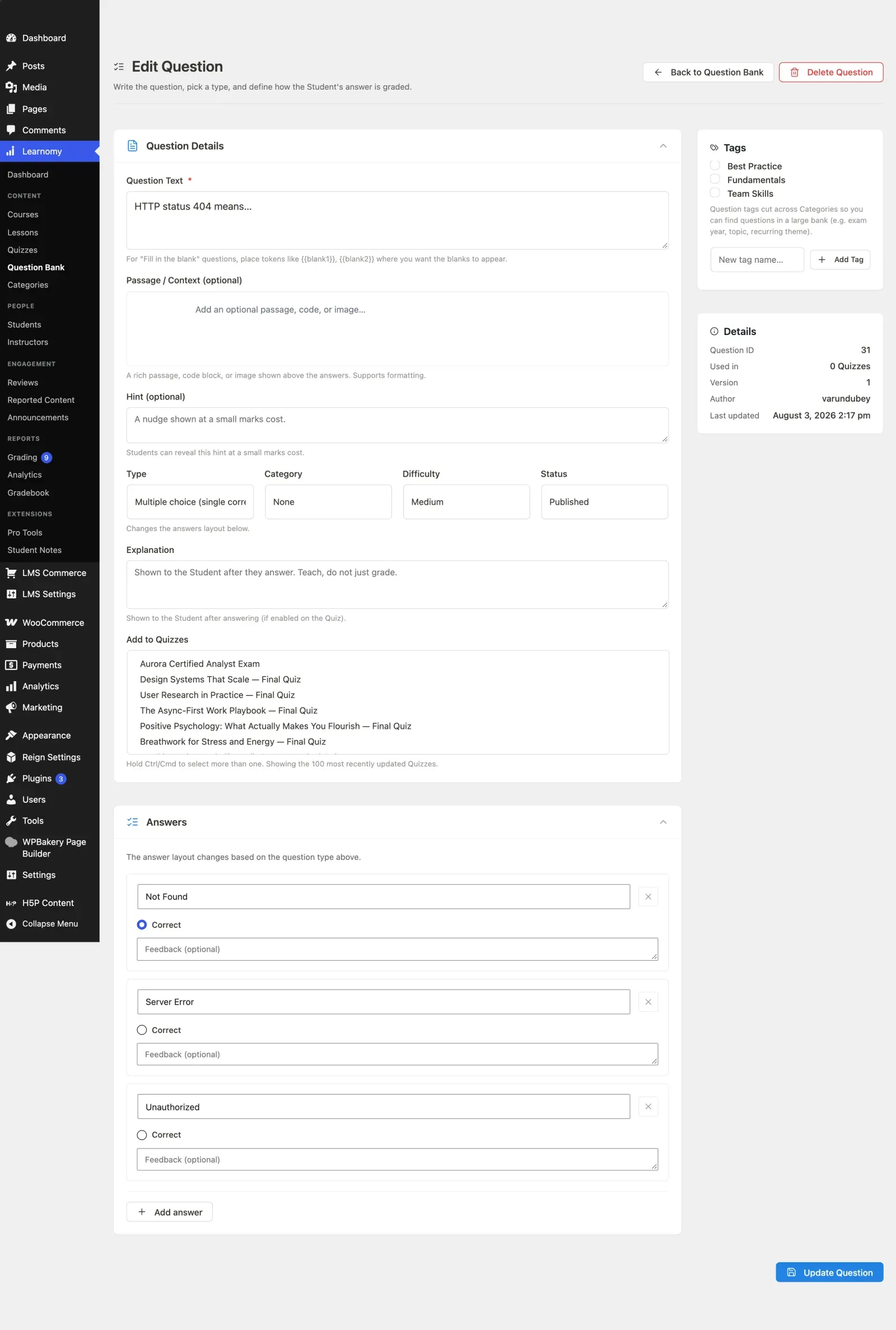
Step 3 - write the question and its answers
Section titled “Step 3 - write the question and its answers”Pick the type first, because it changes what the Answers section offers. Then write the question text and fill in the answers, marking the correct one.
Step 4 - file it
Section titled “Step 4 - file it”Set the category, and add tags if you use them. This is the step that makes the question findable in six months, and the one it is tempting to skip.
Step 5 - save and check it in a quiz
Section titled “Step 5 - save and check it in a quiz”Save, then open a quiz and add the question from the bank. A question that reads clearly in the editor sometimes does not in the player, and this is where you find out.
Question Details section
Section titled “Question Details section”| Field | Notes |
|---|---|
| Question Text | The prompt shown to the student. Required. For fill-in-the-blank questions, place {{blank1}}, {{blank2}}, etc. where the blanks should appear. |
| Passage / Context (optional) | A rich passage, code block, or image shown above the answer choices. Supports formatting. Use this field for any formatted passage or code sample. |
| Additional Context (plain text) | Optional plain-text context shown with the question. No formatting - for a formatted passage or code block, use Passage / Context above instead. |
| Hint | A nudge the student can reveal during the quiz at a small marks cost. |
| Type | The question type. Changing this updates the Answers section below. |
| Category | Assign the question to a question category for filtering. |
| Difficulty | Beginner, Easy, Medium, Hard, or Expert. Used for filtering only; does not affect scoring. |
| Status | Draft hides the question from the quiz picker. Published makes it available. Archived keeps it in the bank but removes it from the Add Questions picker. |
| Explanation | Shown to the student after they answer (depending on quiz feedback timing). |
| Add to quizzes | A multi-select list of existing quizzes. Hold Ctrl or Cmd to select more than one. Assigning the question here adds it as a slot to the selected quizzes. |

Answers section
Section titled “Answers section”The answers area changes dynamically based on the Type you selected. See Question Types for details on how to fill in each type.
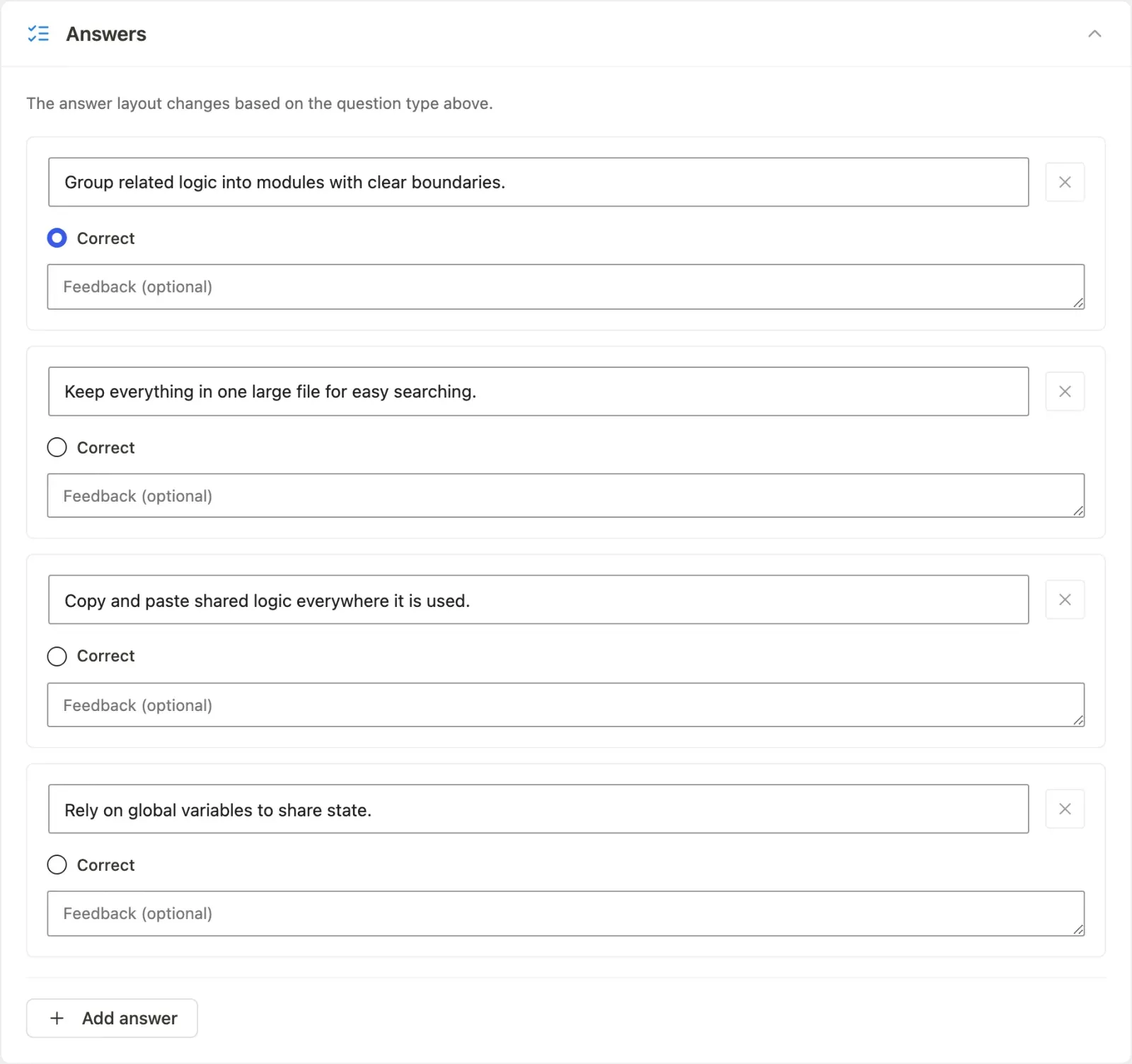
Click Add answer to add another answer row. Drag the handle on any row to reorder answers.
Each answer row has:
- Content – the answer text.
- Correct – checkbox or radio button to mark it correct.
- Fraction – partial-credit weight (used in multiple-correct and advanced types).
- Feedback – optional per-answer feedback shown to the student (depending on quiz feedback timing).
Sidebar: tags and details
Section titled “Sidebar: tags and details”After saving a question, a sidebar appears with a Tags card and a Details card.
The Details card shows the question ID, how many quizzes it is currently assigned to, its version number, author, and last-updated date. Every time you save changes to a question, the version number increments. Past attempts record the version they were answered against.
Settings section
Section titled “Settings section”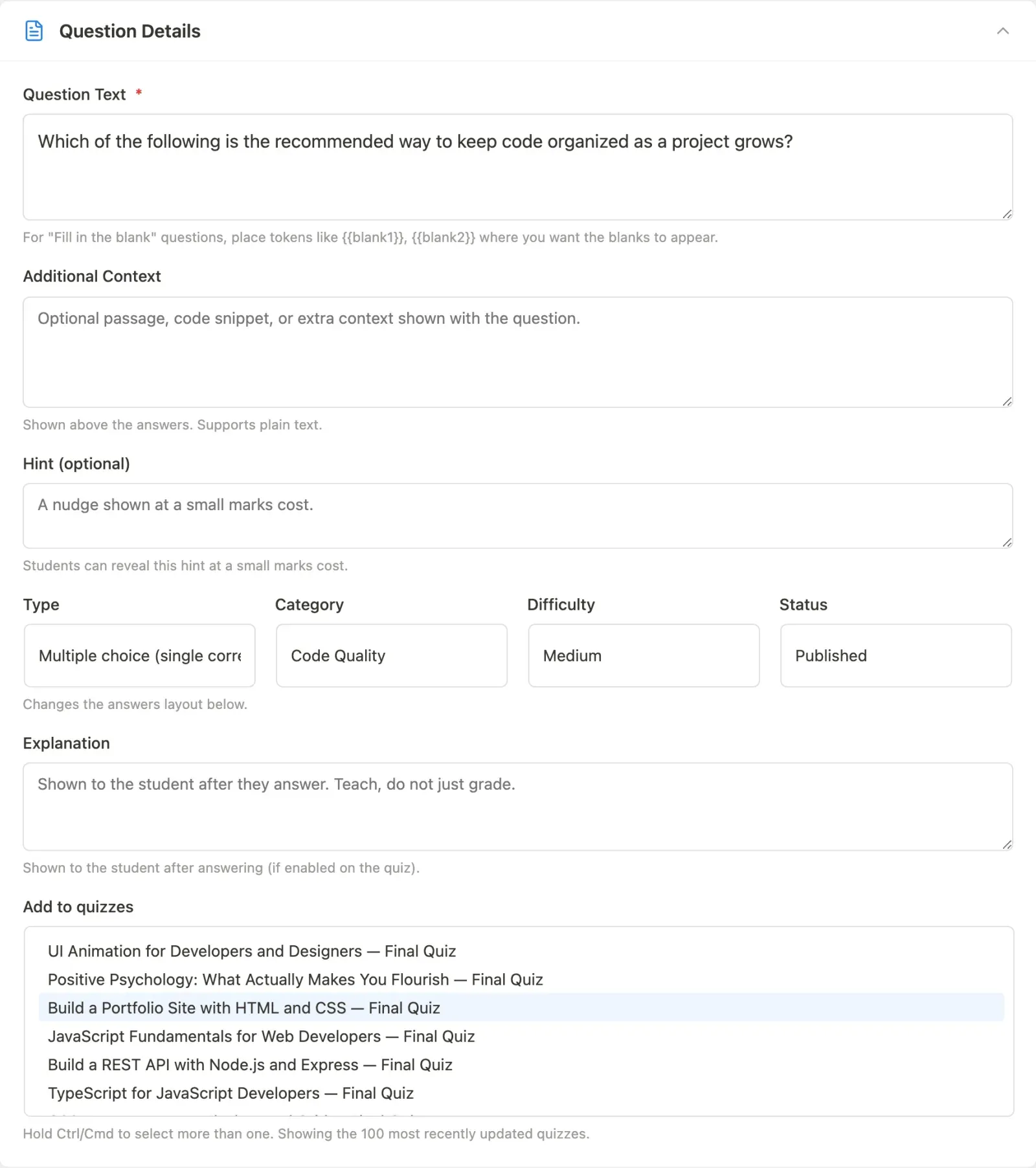
The Settings section on an existing question groups the metadata fields (category, difficulty, status) in one place.
Question categories
Section titled “Question categories”Question categories are a separate hierarchy from course categories. They are used only to organize the Question Bank.
Question categories are selected from a dropdown in the question editor. The category list is populated when you first create questions. A question can belong to one category. There is no standalone admin tab for managing question categories in the current release.
Tags can be applied to both questions and quizzes. They appear as checkboxes in the sidebar of the question and quiz editors. Admins can create new tags inline using the quick-add field in the tag card.
Tags for questions and quizzes are managed under Learnomy > Categories, on the respective tag vocabulary tab (for example, Question Tags or Quiz Tags).
Importing and exporting questions
Section titled “Importing and exporting questions”The Question Bank includes CSV import and export buttons in the page header.
Export: Click Export CSV to download all questions currently visible in the list (respecting any active filters). The file can be opened in a spreadsheet.
Import: The reliable way to build an import file is to export first, rather than writing one from scratch.
- Create one question of each type you need, by hand, in the editor.
- Click Export CSV. You now have a file in exactly the right shape, with real examples of the
answers_jsonformat for each type. - Add your rows to that file in a spreadsheet, keeping the header row untouched.
- Click Import CSV and upload it.
- Spot-check two or three imported questions in the editor before you rely on the batch.
The expected columns are:
title, type, difficulty, category_slug, status, hint, body_text, answers_jsonThe answers_json column contains a JSON array of answer objects. Use the export format as a template.
- Questions with Draft status do not appear in the Add Questions picker inside the quiz editor. Set status to Published when a question is ready to use.
- The Times Used count is a fast way to see which questions are used widely. Before editing a commonly-used question, consider whether the change might affect existing quiz attempts.
- A question marked Archived is excluded from the picker but stays in existing quiz slots. Use this to retire old questions without removing them from quizzes that already have them.