

Listing Owner Journey
You run a business. The directory operator (Site Owner) has invited you - or you found the site organically and want to claim your free listing. This is what you experience from “I want my business in this directory” through to “I’m running ongoing renewal cycles and replying to reviews.”
Who this is for
Section titled “Who this is for”- Restaurant / shop / studio owner wanting to be discovered locally
- Service professional (photographer, electrician, designer) hunting for leads
- Hotel / B&B operator building presence in a city guide
- Real estate agent posting listings or running a personal directory
- Job board poster publishing openings
Stage 1 - Discover the directory + decide to submit (~3 minutes)
Section titled “Stage 1 - Discover the directory + decide to submit (~3 minutes)”What you expect: understand within 30 seconds whether this directory matters for my business.
What you experience:
- You land on the directory home (Google, social, word of mouth).
- Search for your category - see existing listings, get a sense of quality + traffic.
- Find an “Add Listing” CTA in the header or hero. Click.
- Submitting a listing requires an account:
- Already a member? Log in and continue straight to the wizard.
- New here? Register a free account (the login modal has a Create Account link), then continue to the wizard.
Stage 2 - Submit your listing (~10-15 minutes)
Section titled “Stage 2 - Submit your listing (~10-15 minutes)”What you expect: a guided form, not a 50-field PHP relic. Save drafts. Don’t lose my work.
What you experience:
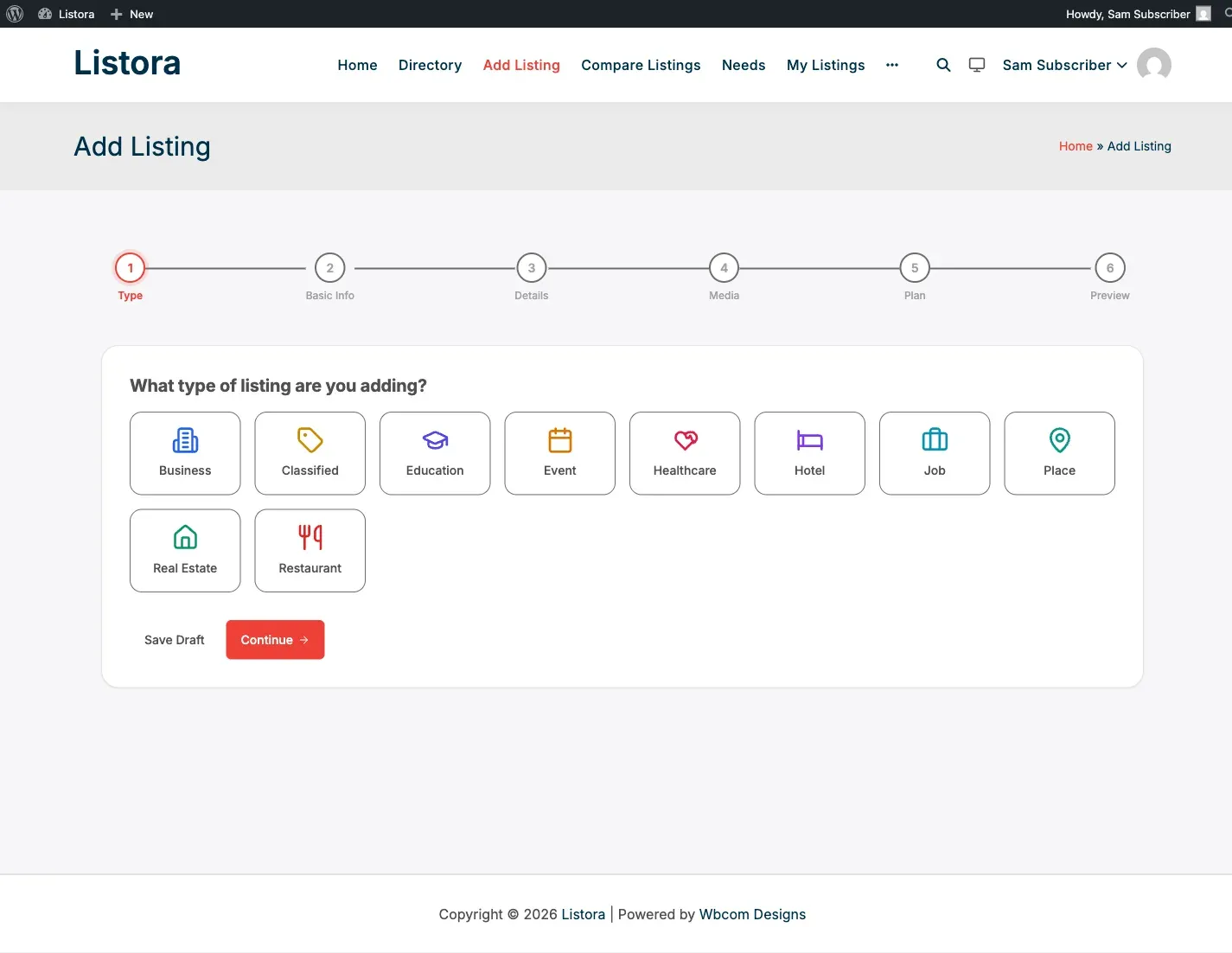
- The submission wizard walks you through 4-6 steps depending on your listing type:
- Basics - title, type, category, location.
- Details - description, custom fields (cuisine, price range, capacity, …).
- Media - featured image, gallery, video URL.
- Contact - phone, email, website, social links (7 platforms supported).
- Hours - business hours per day, timezone, 24/7 toggle.
- Services (Pro / optional) - sub-products under the listing (e.g. menu items, service tiers).
- Plan (Pro) - pick a plan if the operator charges for placement.
- Drafts auto-save as you go. Step back to any step without losing data.
- Map pin is draggable - pick the exact storefront.
- Submit. Status depends on operator setting:
- Auto-publish → live immediately
- Pending review → email confirms submission, you’ll get another when approved/rejected
- Awaiting credits (Pro) → “Pay X credits to activate” if your plan requires it
Stage 3 - Optional: Claim an existing listing (~5 minutes)
Section titled “Stage 3 - Optional: Claim an existing listing (~5 minutes)”What you expect: if my business is already in the directory (someone else added it), I should be able to take ownership without making a duplicate.
What you experience:
- Find your listing on the directory.
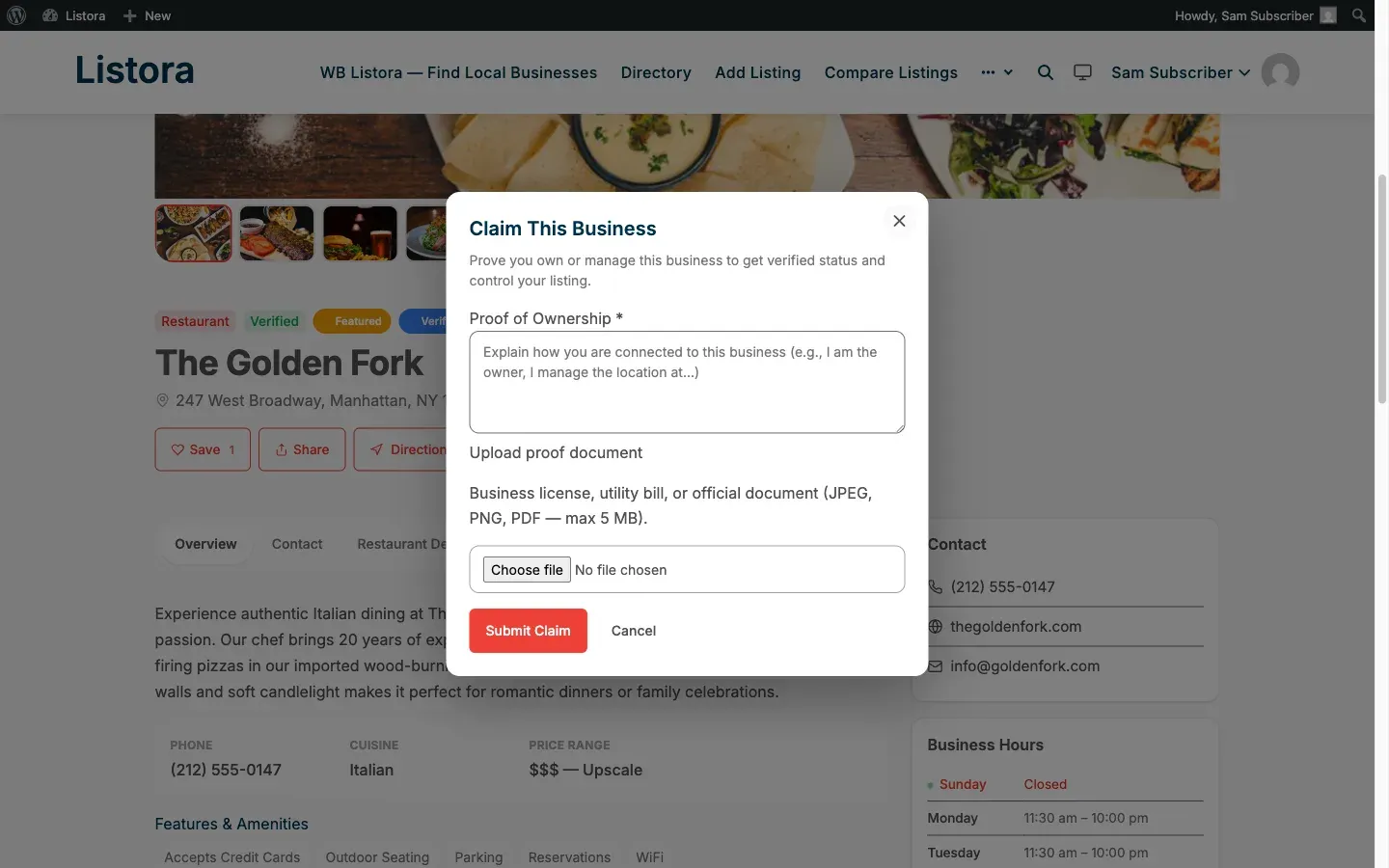
- Click “Claim this business” at the top of the listing.
- Upload proof of ownership (utility bill, business license, …).
- Admin reviews → approves →
post_authortransfers to you. You’re now the owner. - You can edit, reply to reviews, manage services from your dashboard.
Stage 4 - Manage your listings (ongoing)
Section titled “Stage 4 - Manage your listings (ongoing)”What you expect: a clean dashboard where I can see status, edit, renew, reply to reviews - no WordPress admin needed.
What you experience:
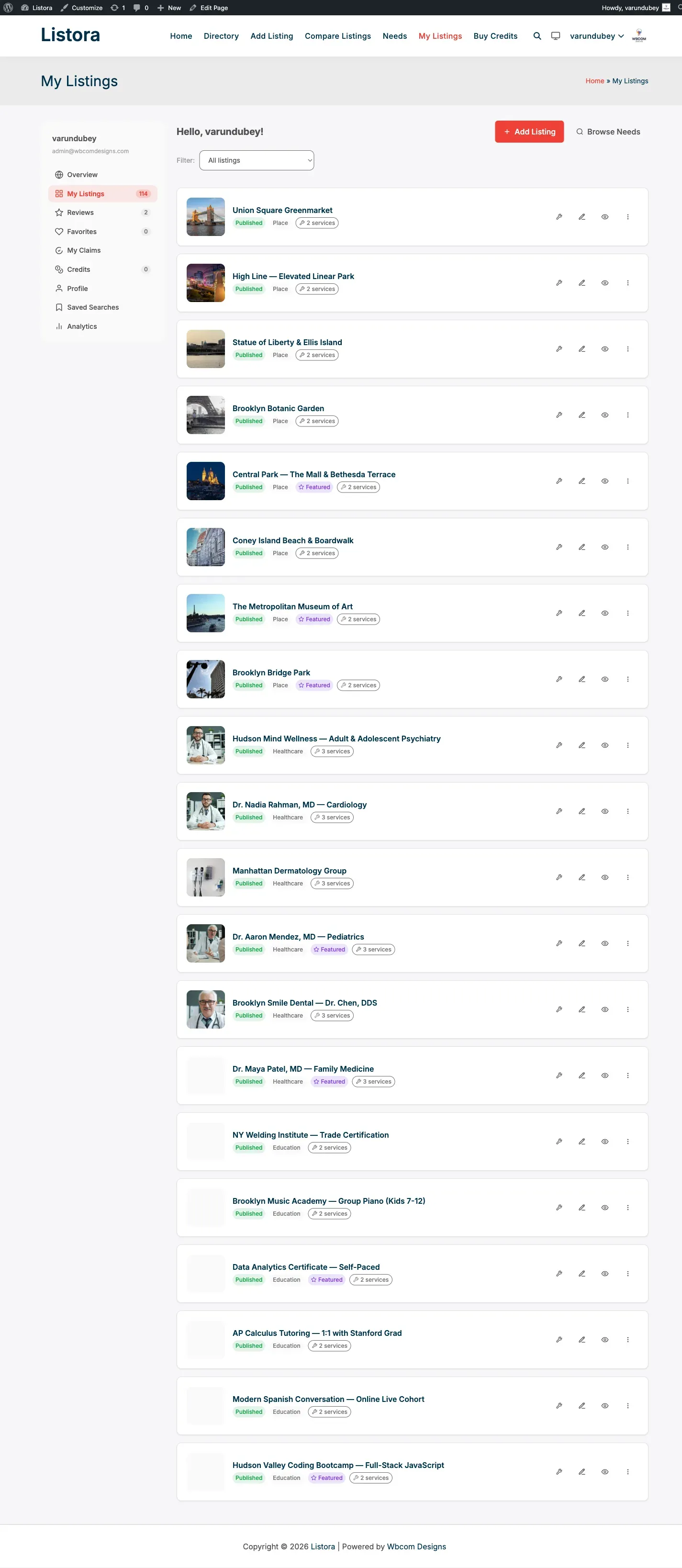
Visit your dashboard page - the operator names it on setup; the canonical Pro slug is /my-dashboard/, the legacy auto-created Free slug is /my-listings/. Both work. The dashboard block (User Dashboard) renders the same tabs either way:
| Tab | What you do here |
|---|---|
| Listings | Edit any owned listing, see status (Live / Pending / Expired / Awaiting Credits / Deactivated), renew/feature/deactivate per-row |
| Reviews | See reviews received, reply publicly, mark helpful |
| Favorites | Listings you’ve heart-saved across the site (for research or your own customers) |
| Claims | Track the status of business-claim requests you’ve filed |
| Saved Searches (Pro) | Recurring search alerts (“Notify me when a new restaurant appears in Brooklyn”) - shared with visitors; available to any logged-in user who saves a search |
| My Needs (Pro) | The buyer-posted needs you’ve submitted (if you also browse the marketplace as a buyer) |
| My Responses (Pro) | Quotes you’ve sent in response to buyer needs |
Stage 5 - Get found + engage (ongoing)
Section titled “Stage 5 - Get found + engage (ongoing)”What you expect: traffic, reviews, leads. Not just a static directory entry.
What you do:
- Reply to reviews - public replies build trust and bump SEO.
- Add Services (Pro) - sub-products under your listing get their own search facets and comparison.
- Featured listing (Pro) - spend credits to rotate into the homepage carousel for N days.
- Lead Form / Contact Owner - every new lead arrives at your account email with Reply-To set so a one-click reply goes straight to the visitor.
- Verification badge (Pro) - when the admin verifies you, the badge appears on your card + detail + search results, boosting click-through.
- Saved searches (Pro) - set alerts for new posted needs in your category so you can respond fast.
Stage 6 - Respond to buyer needs (Pro, ongoing)
Section titled “Stage 6 - Respond to buyer needs (Pro, ongoing)”What you expect: if this is a reverse marketplace, I want to see what buyers are looking for and respond fast.
What you experience:
- Visit /needs/ or your dashboard → My Needs tab (for needs you’ve posted) - to RESPOND, visit
/needs/and filter to find ones in your category. - Filter by type / urgency / location - see open requests.
- Click a need that fits your business - read the full request.
- Respond with a message + quote (price + lead time).
- Buyer reviews your quote. If they accept, they reach out directly via the message thread.
- Your responses live in the My Responses tab - track status.
Stage 7 - Renewal cycle (every N months)
Section titled “Stage 7 - Renewal cycle (every N months)”What you expect: plenty of warning before my listing expires, easy one-click renewal.
What you experience:
- 7 days before expiration → email reminder (“Your listing renews in 7 days”) via
wb_listora_listing_expiringevent. - At expiration → what happens depends on the plan.
- Plan without Auto-renew (the default): the listing transitions to Expired (hidden from public) and the owner renews manually.
- Plan with Auto-renew (Pro 1.7.0+): the plan cost is deducted from the owner’s credit balance and the listing keeps running. If the balance is short it pauses instead of expiring, and resumes on its own once they top up. No card is charged - auto-renew spends credits the member already bought, so there is no gateway, no stored card and no failed payment.
- From dashboard → click Renew on the expired row, confirm the credit cost via
GET /listings/{id}/renewal-quote, thenPOST /listings/{id}/renewtransitions the listing back to Live with a fresh expiration date.
What you do NOT have to do (because Listora handles it)
Section titled “What you do NOT have to do (because Listora handles it)”- No Worry about HTML / CSS / shortcodes - wizard is form-based.
- No Track expiration manually - the 7-day reminder cron fires before expiry.
- No Email new leads to a spreadsheet - Lead Form delivers each lead to your inbox with Reply-To set.
- No Reload your dashboard for status - REST + IAPI keep state in sync.
- No Re-upload photos if you change your plan - gallery persists across plan changes.
Common pitfalls
Section titled “Common pitfalls”| Pitfall | Avoid by |
|---|---|
| Listing rejected for missing details | Read the rejection email - admin includes specific feedback |
| “Add Listing” sends me to a login prompt | Submitting requires an account - log in or use the Create Account link, then the wizard resumes |
| Lead form fills not arriving | Check your spam folder + verify the email in your WP profile is current |
| Renewal failed | Buy more credits from /buy-credits/ then click Renew again |
| Photos look small in the gallery | Upload at 1200px or larger - Listora handles thumbnail generation |
Related
Section titled “Related”- Site Owner Journey - what your directory operator does.
- Visitor Journey - what your potential customers experience.
- User Dashboard - full dashboard feature doc.
- Listing Lifecycle Actions - renew / feature / deactivate / report.
- Frontend Submission - the wizard in depth.