

Groups Overview
The Groups section shows all the LearnDash groups you have access to. Admins see every group on the site. Group Leaders see only the groups they are assigned to manage.
Screenshots
Section titled “Screenshots”Admin View
Section titled “Admin View”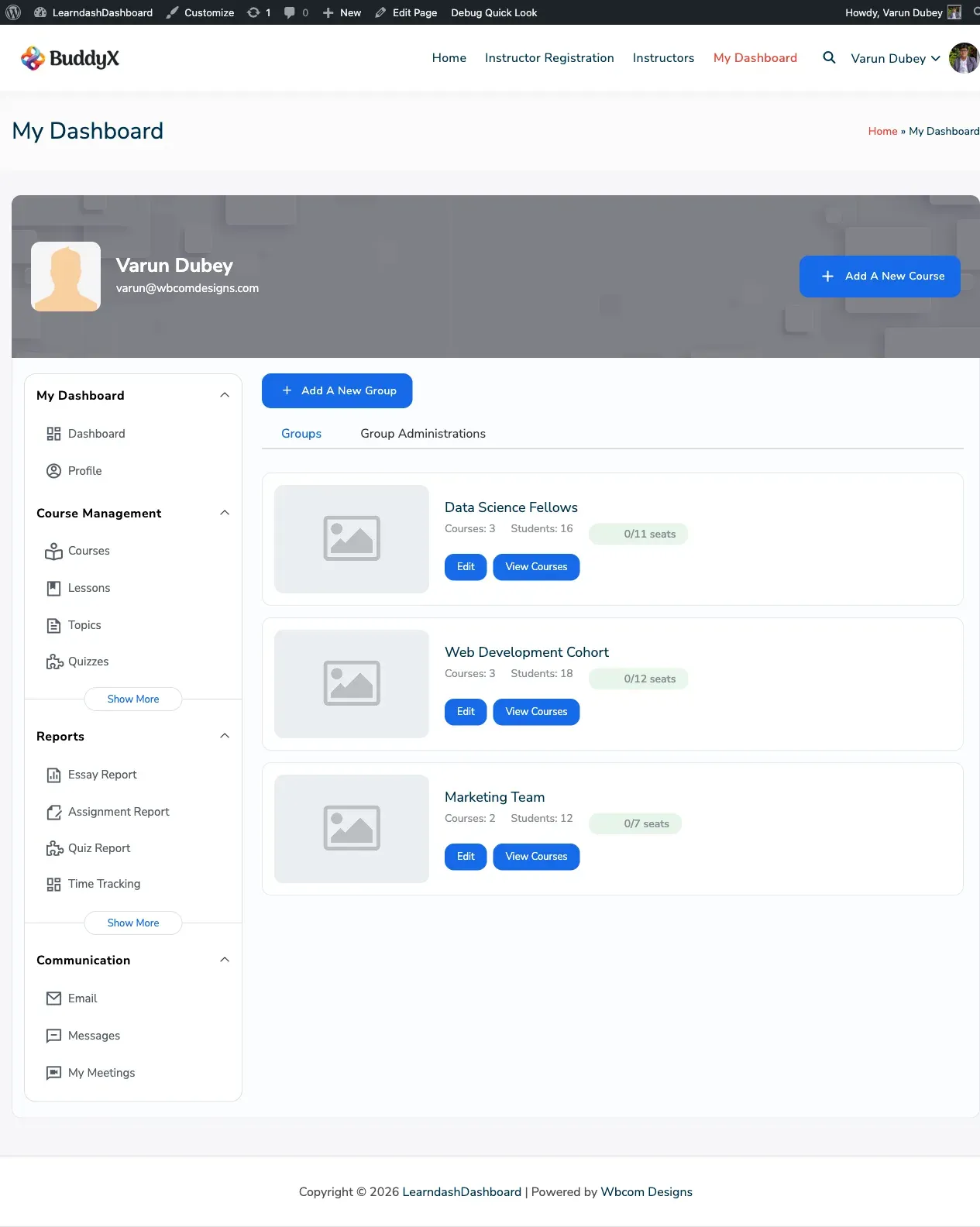
Group Leader View
Section titled “Group Leader View”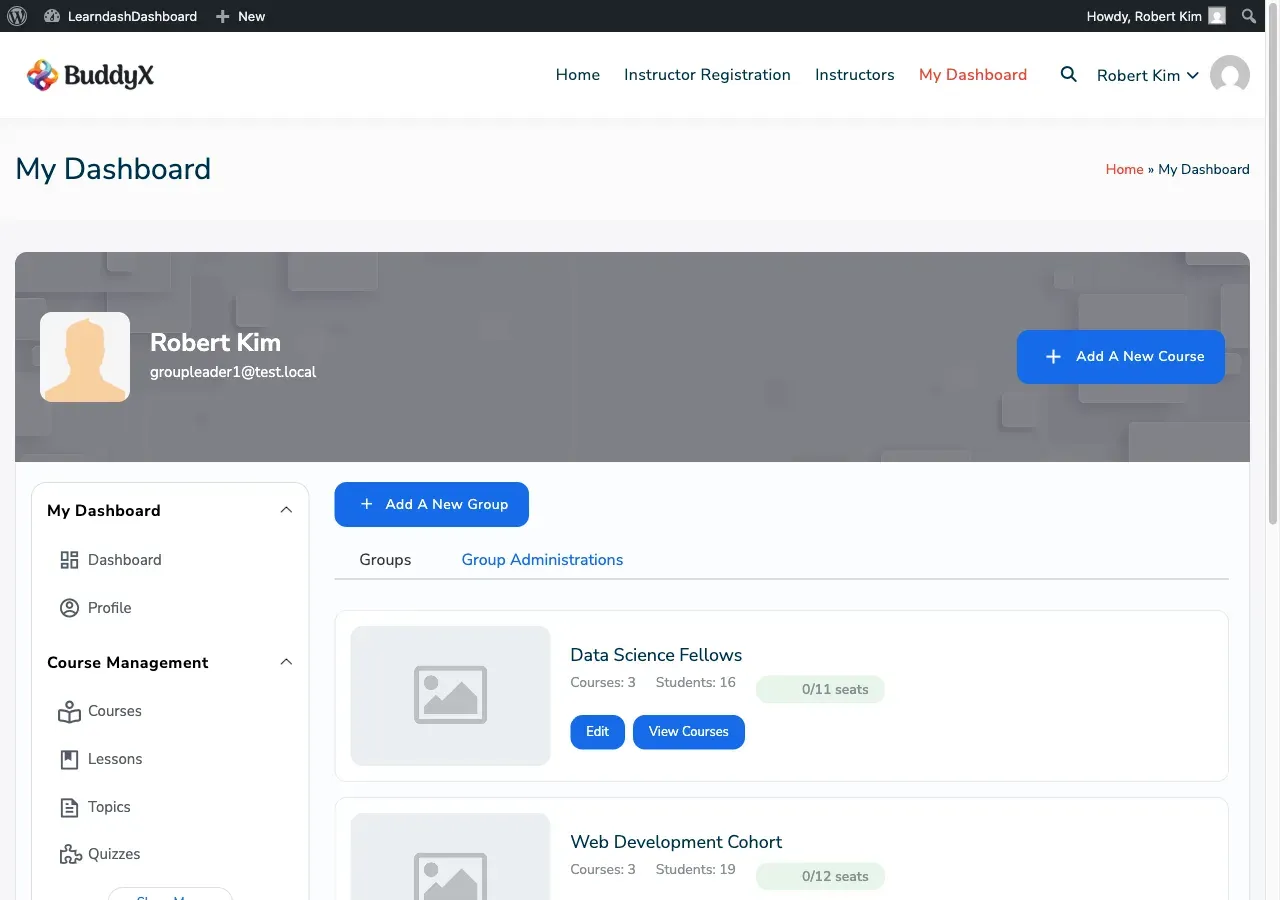
How to Access Your Groups
Section titled “How to Access Your Groups”Go to your dashboard and click Groups in the sidebar menu.
You can switch between two views:
- My Groups — groups you are a member of
- Group Administrations — groups you are assigned to manage
What You See on Each Group Card
Section titled “What You See on Each Group Card”Each group displays:
- Group name and cover image
- Number of courses assigned to the group
- Number of students currently enrolled
- Seat indicator — shows seats used out of the total available. Turns amber when the group is nearly full, and red when completely full. (Requires the Uncanny Groups add-on.)
- Hierarchy label — shows whether a group is a parent group or a child of another group. (Requires the Uncanny Groups add-on.)
Actions You Can Take
Section titled “Actions You Can Take”Each group card may show one or more of the following buttons, depending on your role:
| Action | Who sees it |
|---|---|
| Edit | Admins always; Group Leaders if their account has group management enabled |
| View Courses | Admins always; Group Leaders if course management is enabled for their account |
| Manage Codes | Admins and Group Leaders, only for groups that use enrollment codes |
Browsing Multiple Groups
Section titled “Browsing Multiple Groups”The list shows 10 groups at a time. Use the pagination controls at the bottom of the page to move between pages.
Requirements
Section titled “Requirements”- LearnDash LMS must be active with at least one group created
- You must be assigned as an admin or group leader to see groups here
- Seat indicators and hierarchy labels require the Uncanny Groups for LearnDash add-on