

Setup Wizard
The Setup Wizard is the fastest way to get your job board up and running. It creates all the pages you need in two quick steps.
What the Wizard Does
Section titled “What the Wizard Does”Step 1 - Create Pages
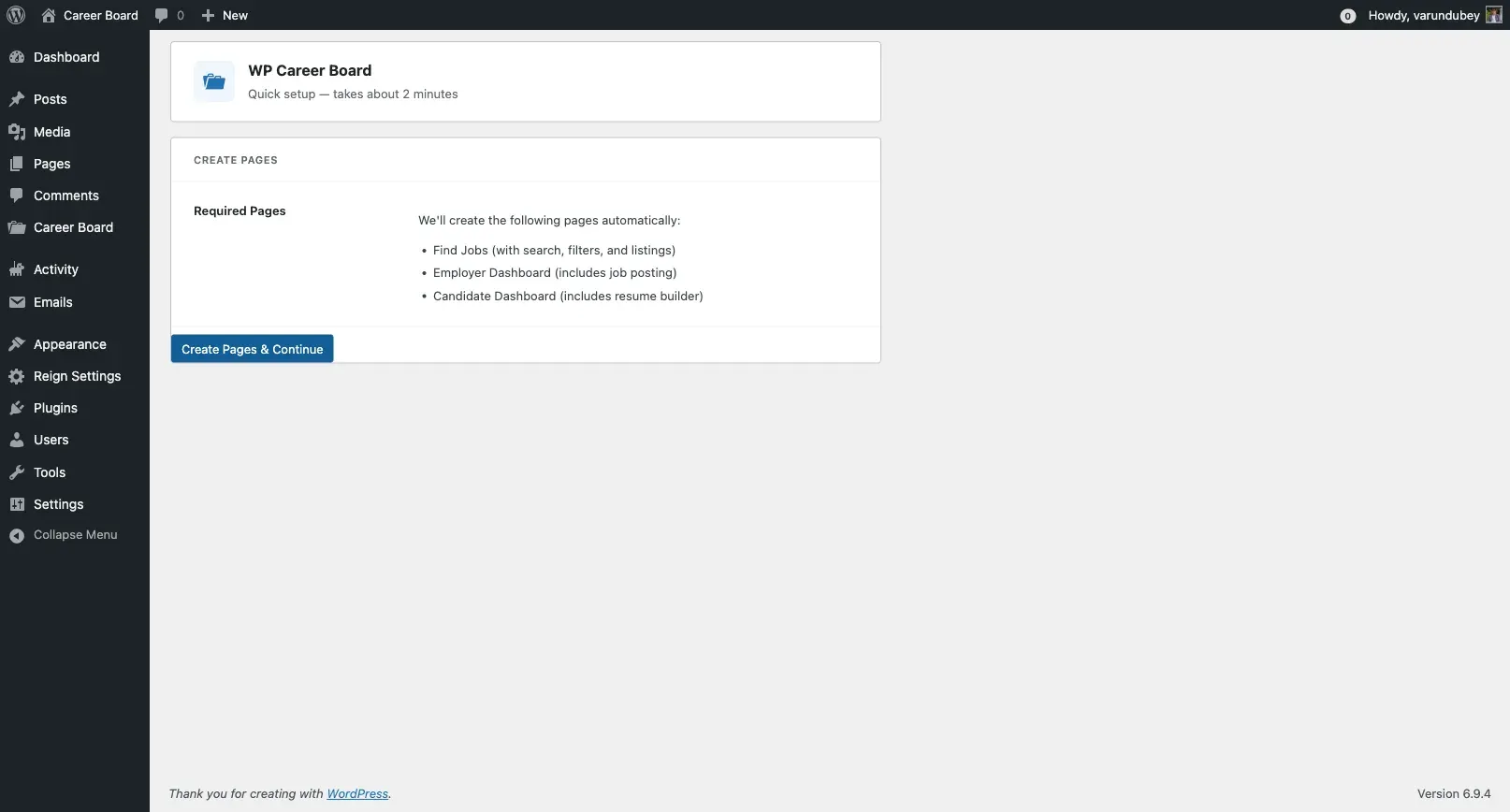
Section titled “Step 1 - Create Pages”The wizard creates six pages automatically, each with the correct block placed and configured:
| Page | Block(s) | Purpose |
|---|---|---|
| Find Jobs | Heading + Job Search + Job Filters + Job Listings | Main job board browse page |
| Post a Job | Job Form | Multi-step form for employers to submit listings |
| Employer Registration | Employer Registration | Unified registration for both employers and candidates (users choose “Find a Job” or “Hire Talent”) |
| Employer Dashboard | Employer Dashboard | Employer manages jobs + applications |
| Candidate Dashboard | Candidate Dashboard | Candidate tracks applications + saved jobs |
| Companies | Company Archive | Browsable company directory |
Step 2 - Sample Data
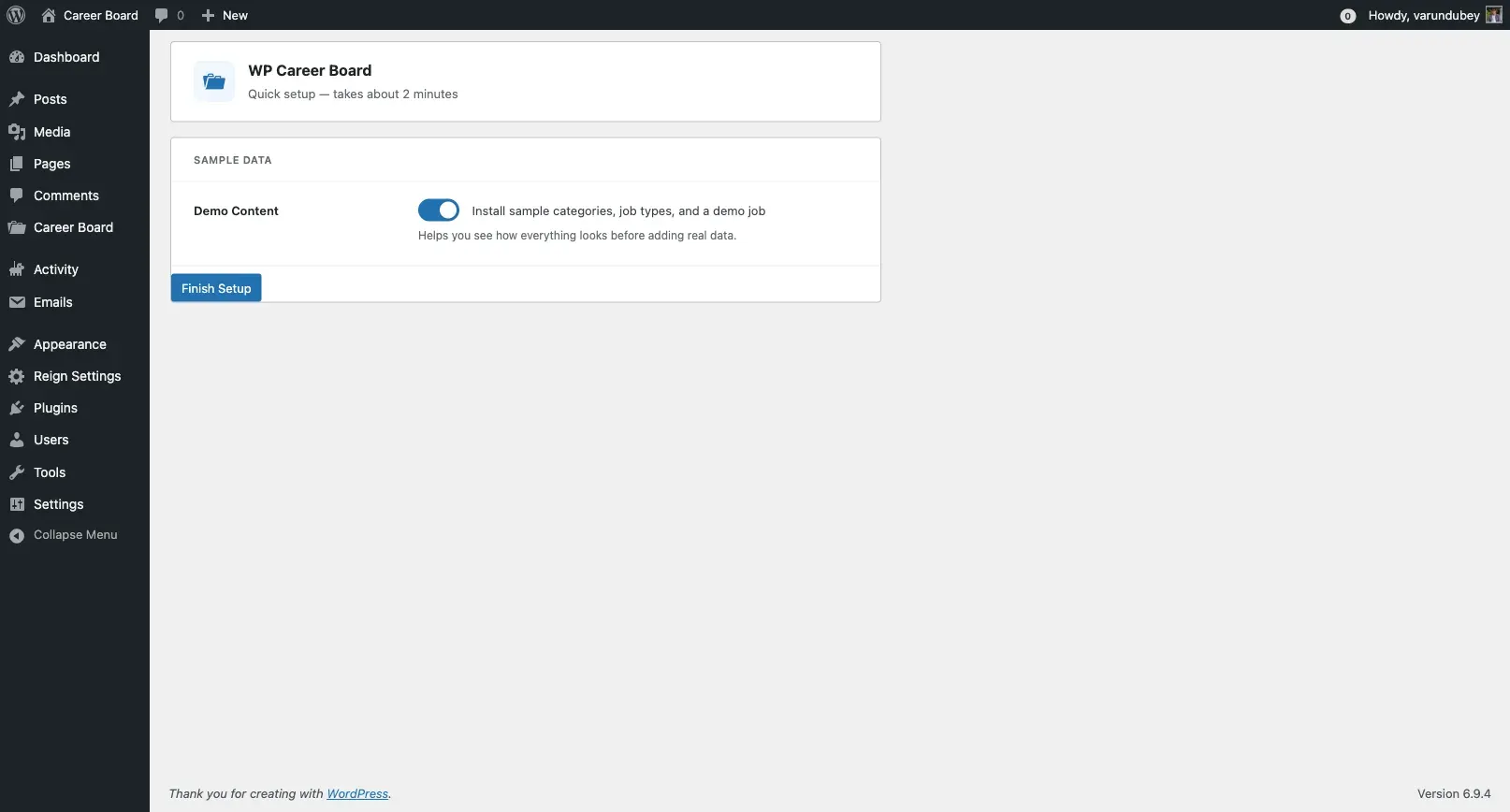
Section titled “Step 2 - Sample Data”Optionally install demo content - 3 companies, 8 published jobs across multiple categories, and all taxonomy terms. This lets you see how the board looks with real content before going live.
Safe to re-run. The wizard checks for existing pages first. If a page with the correct block already exists, it will not create a duplicate.
Extensible. WP Career Board Pro and other add-ons can append their own steps using the
wcb_wizard_stepsfilter and their own pages using thewcb_wizard_required_pagesfilter.
Running the Wizard
Section titled “Running the Wizard”- After plugin activation, the wizard launches automatically
- Click Create Pages & Continue - the wizard creates all pages and shows a progress indicator
- On Step 2, optionally click Install Sample Data to add demo content
- Click Finish Setup to complete
Running the Wizard Again
Section titled “Running the Wizard Again”If you dismissed the wizard or need to reset your pages:
- Go to Career Board → Settings
- Click Run Setup Wizard in the header
After the Wizard
Section titled “After the Wizard”Once complete, your site has a working job board. Next steps:
- Configure settings - set up moderation, job expiry, and page assignments
- Set up email notifications - customize the emails sent to employers and candidates
- Assign pages in Settings - link each page in the Pages settings tab if not done automatically