

Post a Job
Jobs are posted from within the Employer Dashboard - there is no separate “Post a Job” page. Navigate to your dashboard and click Post a Job in the sidebar (under the JOBS section), or use the Post Your First Job button on the Overview tab.
Before You Post
Section titled “Before You Post”Make sure you are logged in as a user with the Employer role. If you are not logged in, the dashboard will show a prompt to register or log in.
Step-by-Step: Posting a Job
Section titled “Step-by-Step: Posting a Job”The job form is a 4-step wizard that walks you through each section of the listing.
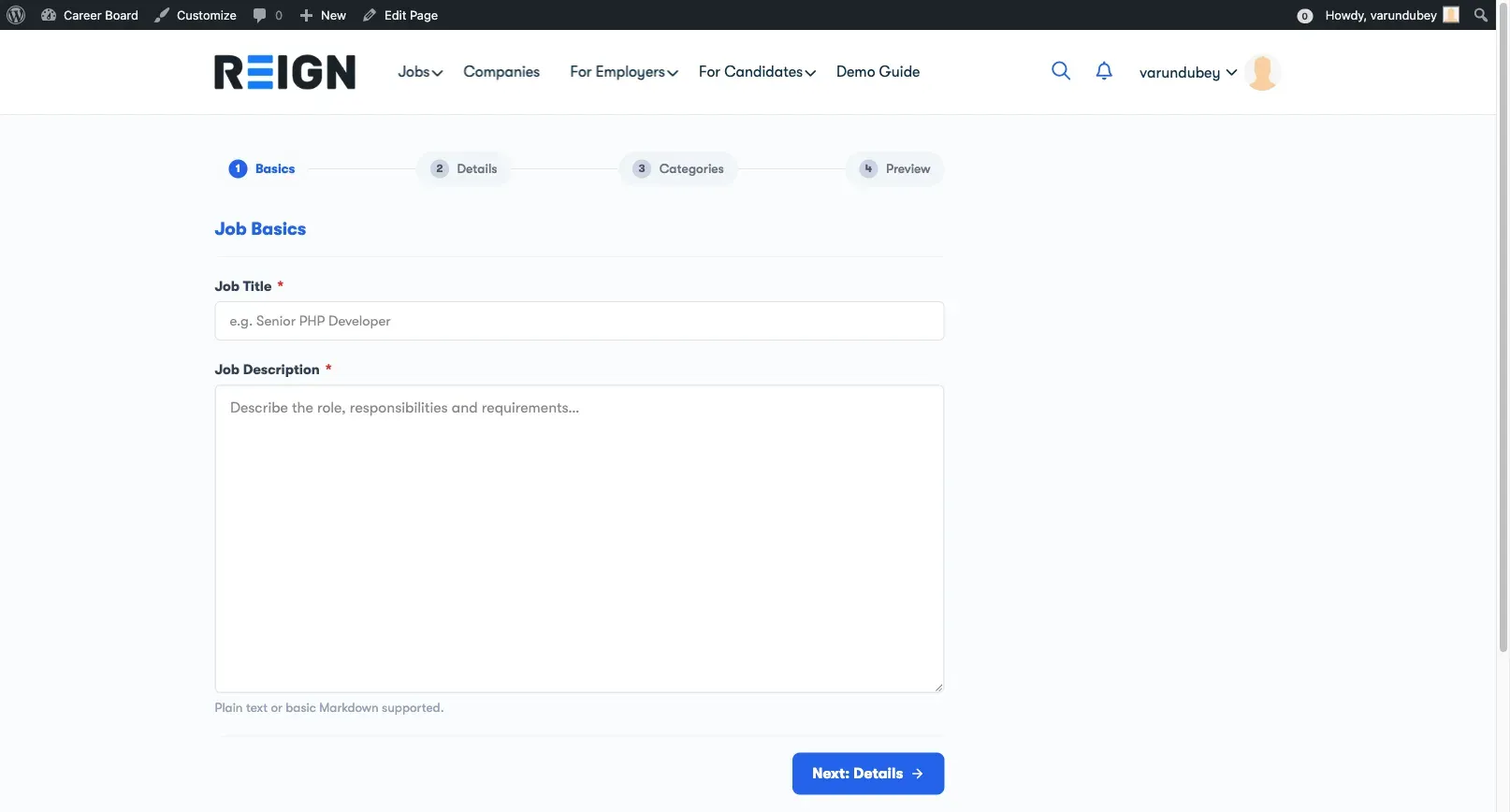
Step 1 - Basics
Section titled “Step 1 - Basics”Enter the core information about the role:
- Job Title - the position name (required)
- Job Description - full description of the role, responsibilities, and requirements
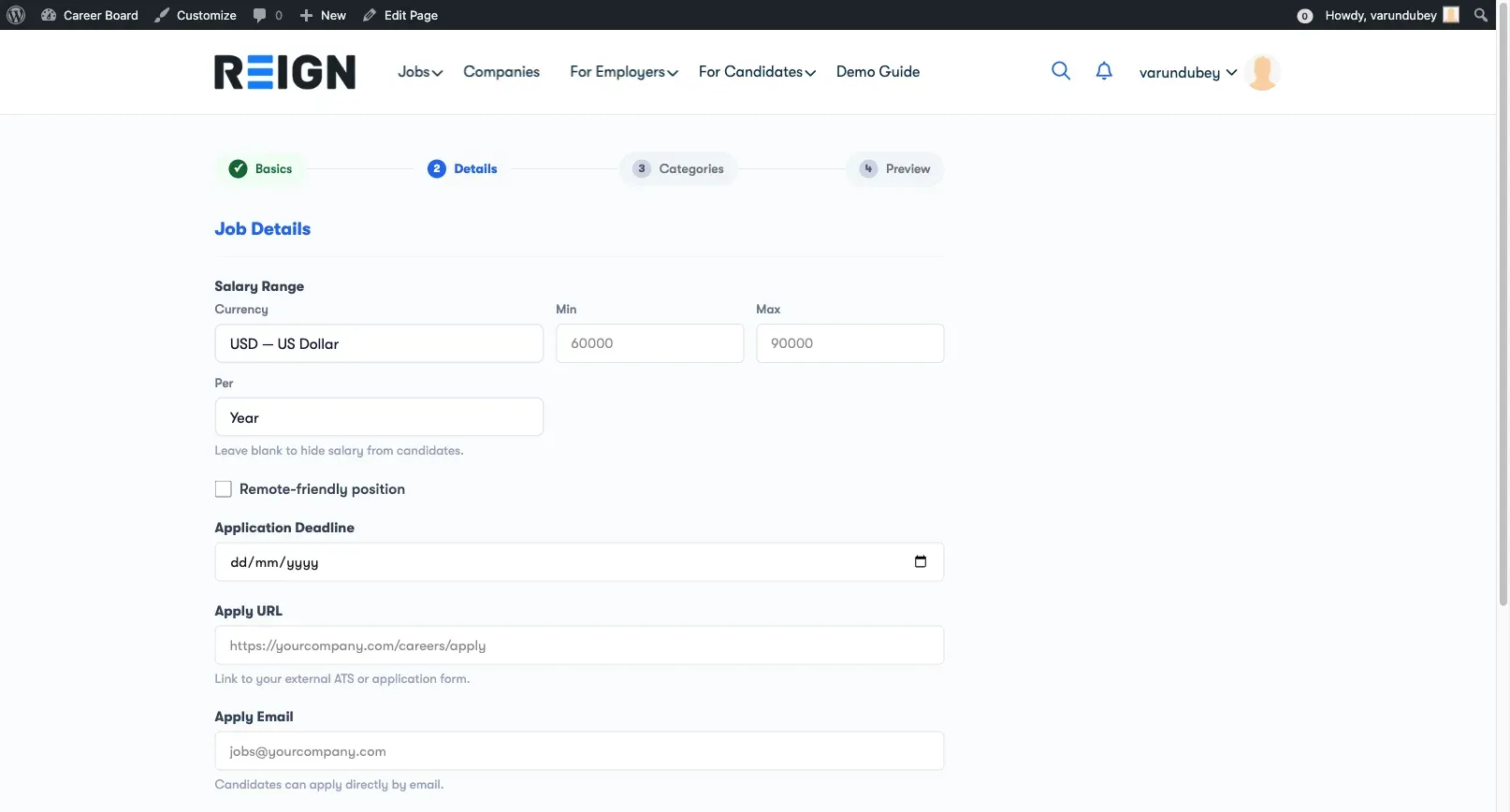
Step 2 - Details
Section titled “Step 2 - Details”Provide the specifics:
- Location - city, state/country, or Remote
- Salary - optional; enter a min and max range, with currency and period (yearly / monthly / hourly)
- Job Type - Full-time, Part-time, Contract, Freelance, or Internship
- Experience Level - Entry, Mid, Senior, Lead, or Executive
- Application Deadline - optional; date after which the job closes automatically
- Apply URL - optional; an external link where candidates apply on your own site. When set, the public job page shows an “Apply on Company Site” button instead of the on-site apply form. The URL must start with
http://orhttps://. - Apply Email - optional; an address candidates can email to apply
Step 3 - Categories
Section titled “Step 3 - Categories”Classify the job so candidates can find it:
- Job Category - select the industry or function category
- Tags - add relevant tags for better discoverability
Step 4 - Preview
Section titled “Step 4 - Preview”Review all the information you entered across the previous steps. If everything looks correct, click Post Job to submit. (When editing an existing job, this button reads Update Job.)
After Submitting
Section titled “After Submitting”If moderation is ON (default): your job is submitted for admin review. You will see a “Pending review” message. The job goes live after the admin approves it.
If moderation is OFF: your job is published immediately and appears on the job board.
You will receive a confirmation email when your job goes live.
Editing a Submitted Job
Section titled “Editing a Submitted Job”You can edit a pending or published job from your Employer Dashboard → My Jobs → Edit. Changes to a published job may require re-approval depending on your admin’s settings.
Job Expiry
Section titled “Job Expiry”If your admin has set an expiry period (e.g., 30 days), your job will automatically close on that date. You will receive an email notification before it expires, and you can re-open it from your dashboard.
Single-Page Form - when the 4-step wizard is overkill
Section titled “Single-Page Form - when the 4-step wizard is overkill”The default post-a-job experience is a 4-step wizard. For some embed points the wizard is too tall: sidebars, modal overlays, partner pages, single-page sites, and classic themes with limited vertical real estate. WP Career Board ships a second block, Job Form (Single-Page), that puts every field on one screen.
It submits to the same /wcb/v1/jobs endpoint, honours the same wcb_job_form_fields filter for custom fields, and respects the same employer-role gate. The only thing it does not support is edit mode - editing a job always routes through the wizard from the Employer Dashboard.
Block settings
Section titled “Block settings”- Board - target a specific board (multi-board sites only)
- Show Company Field - toggle the company name field on or off (on by default)
- Compact - tighter vertical rhythm for narrow embed contexts
Adding the single-page form
Section titled “Adding the single-page form”In Gutenberg, search for Job Form (Single-Page) in the block inserter. In classic editors or page builders, use the shortcode:
[wcb_job_form_simple][wcb_job_form_simple boardId="42" showCompanyField="false" compact="true"]When to use which: keep the wizard on your primary “Post a Job” page - the dashboard already places it for you. Reach for the single-page form when you need a job form alongside other content - homepage hero, partner page, sidebar widget, or modal overlay.