

Activity Stream
The activity stream is the heartbeat of your BuddyPress community. BuddyX Pro transforms the standard activity feed into an engaging, modern experience with card layouts, activity types, and social interactions.
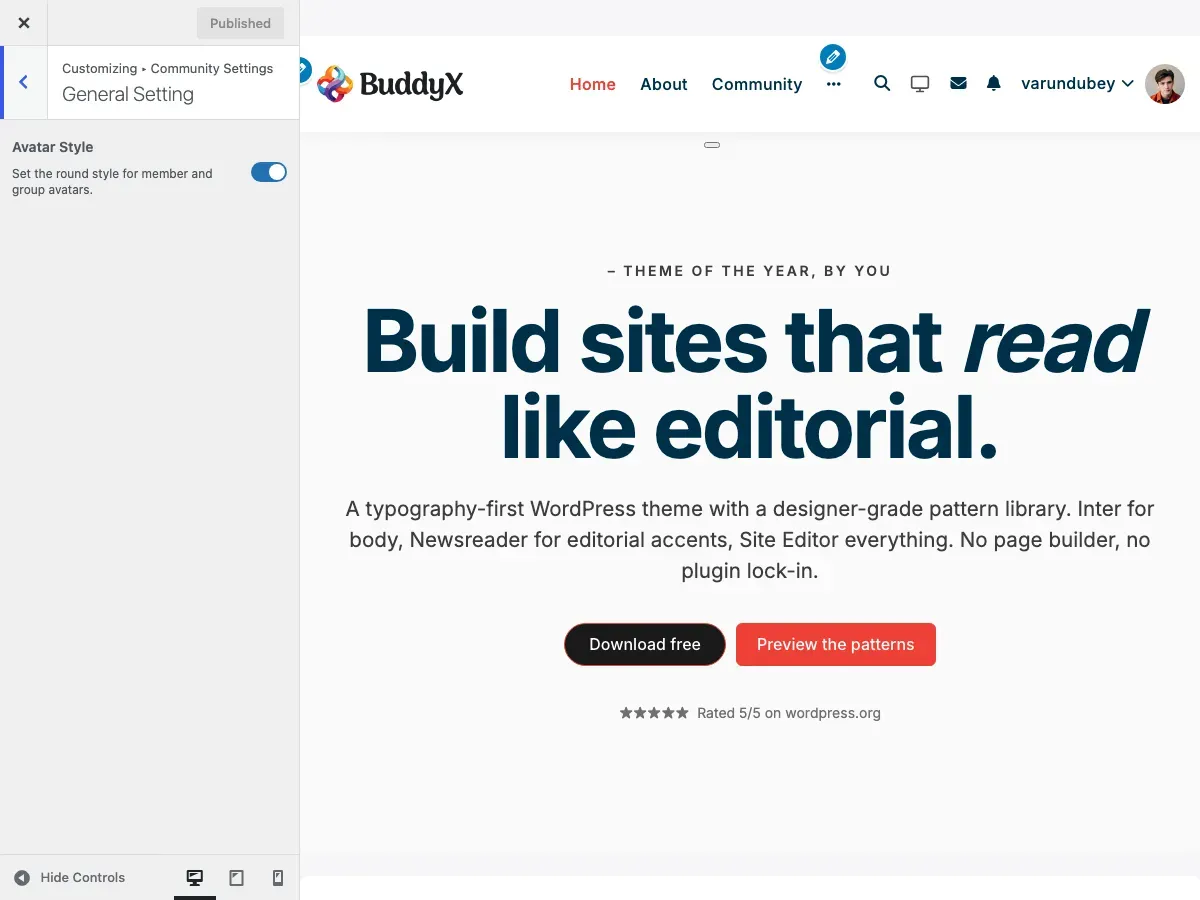
Where these settings live: The theme’s activity display controls are in Customizer > Community Settings > Activity Control. The MediaPress override is under Customizer > Community Settings > General Setting.
Youzify note: The Community Settings panel (including the Activity Control section) is removed when the Youzify plugin is active. Run BuddyPress without Youzify to use these options.
What You Can Do
Section titled “What You Can Do”BuddyX Pro enhances the BuddyPress activity stream with:
- Modern Card Layout - Instagram/Facebook-style activity cards
- Activity Type Badges - Visual indicators for different activities
- Action Buttons - Like, comment, share, delete
- Component Filtering - Filter by profile, groups, forums, etc.
- Activity Type Control - Show/hide cover image updates
- Media Display - Optimized photo and video rendering
- Comment Threading - Nested comment conversations
- Real-time Updates - AJAX-powered live updates
- Post Form - Share updates from any page
Activity Stream Features
Section titled “Activity Stream Features”Activity Card Design
Section titled “Activity Card Design”BuddyX Pro uses a modern card-based layout for all activity items.
What Each Card Shows:
1. Activity Type Badge
- Colored label at top
- Shows activity category
- Examples: “Profile”, “Activity”, “Groups”, “Forums”
2. Member Avatar
- Profile picture
- Links to member profile
- Shows online status (if enabled)
3. Activity Header
- Member name and action
- “John posted an update”
- “Jane joined the group Marketing Team”
- Timestamp
4. Activity Content
- Post text
- Embedded media
- Shared links
- Attachments
5. Activity Actions
- Like/Favorite button
- Comment button
- Share button (if enabled)
- Delete (for own activity)
6. Comment Section
- Existing comments
- Comment form
- Nested replies
Activity Types and Badges
Section titled “Activity Types and Badges”BuddyX Pro adds visual badges to help members quickly identify activity types.
| Activity Type | Badge Label | What It Represents |
|---|---|---|
| Profile | “Profile” | Profile updates, avatar changes |
| Activity | “Activity” | Status updates, posts |
| Groups | “Groups” | Group joins, posts, updates |
| Forums | “Forums” | Forum posts (bbPress) |
| Friends | “Friends” | New friendships |
| Members | “Members” | New member registrations |
| Blogs | “Blogs” | Blog posts (multisite) |
| Business | “Business” | Custom business activities |
Why This Matters: Members can quickly scan their feed and identify the types of content they’re interested in.
Activity Stream Locations
Section titled “Activity Stream Locations”The activity stream appears in multiple places throughout your site.
Sitewide Activity
Section titled “Sitewide Activity”Location: Main activity page (usually /activity/)
What It Shows:
- All public activity across the site
- Member posts
- Group updates
- New friendships
- Profile changes
Who Sees It:
- All visitors (public activity only)
- Logged-in members see more
Member Profile Activity
Section titled “Member Profile Activity”Location: Individual member profiles, Activity tab
What It Shows:
- That member’s personal activity
- Posts they’ve made
- Comments they’ve left
- Activity mentions
Who Sees It:
- Depends on privacy settings
- Usually public
Group Activity
Section titled “Group Activity”Location: Individual group pages, Activity tab
What It Shows:
- Activity within that group
- Member posts to group
- Group announcements
- Member joins
Who Sees It:
- Group members only (private groups)
- Everyone (public groups)
Activity Widgets
Section titled “Activity Widgets”Location: Sidebars and widget areas
What Shows:
- Recent activity
- Filtered activity streams
- Specific components
Activity Type Settings
Section titled “Activity Type Settings”Control what types of activity appear in feeds.
Cover Image Activity Settings
Section titled “Cover Image Activity Settings”BuddyX Pro lets you hide profile update clutter.
Available Settings:
| Setting | What It Controls | Default |
|---|---|---|
| Member Cover Image Activity | Shows when member updates cover | On |
| Group Image Activity | Shows when group avatar changes | On |
| Group Cover Image Activity | Shows when group cover updates | On |
Why You’d Disable These:
Reasons to Hide:
- Reduces activity stream noise
- Focuses on user-generated content
- Members update covers frequently
- Professional communities prefer substance over style changes
Reasons to Show:
- Encourages profile customization
- Celebrates member engagement
- Visual community culture
- Shows active participation
How to Configure:
- Appearance > Customize
- Community Settings > Activity Control
- Check/uncheck desired activity types
- Click Publish
Activity Posting
Section titled “Activity Posting”Let members share updates from anywhere on your site.
The Activity Post Form
Section titled “The Activity Post Form”What It Includes:
- “What’s new?” text area
- Media upload button (with plugins)
- Privacy selector (with plugins)
- Post button
Where It Appears:
- Top of activity stream page
- Member profile pages
- Group pages (post to group)
Who Can Post:
- Logged-in members only
- Must have posting permissions
Posting to Groups
Section titled “Posting to Groups”Members can post specifically to groups:
- Visit group page
- Use post form at top
- Write message
- Click Post
- Appears in group activity only
Privacy:
- Public groups: Activity visible to all
- Private groups: Members only
- Hidden groups: Members only
@Mentions
Section titled “@Mentions”Tag other members in posts and comments.
How to Mention:
- Type
@symbol - Start typing member name
- Select from autocomplete
- Member gets notification
Example: @JohnDoe check out this cool feature!
What Happens:
- Tagged member gets notification
- Activity appears in their Mentions stream
- Creates engagement opportunity
Activity Filtering
Section titled “Activity Filtering”Help members find relevant content.
Filter Options
Section titled “Filter Options”Members can filter activity by:
By Component:
- Everything (default)
- Updates & Replies
- Profile Updates
- Friendships
- New Groups
- Group Updates
- Forum Topics (bbPress)
By Scope:
- Everything
- My Activity
- My Favorites
- My Friends (if friends enabled)
- My Groups
- Mentions (@mentions)
How to Use Filters:
- Visit activity stream
- Click filter dropdown
- Select desired filter
- Stream updates instantly (AJAX)
Custom Activity Streams
Section titled “Custom Activity Streams”Create focused activity streams with widgets:
Widget Examples:
- Recent activity from specific group
- Activity from members in same city
- Forum activity only
- Friend activity only
Setup:
- Appearance > Widgets
- Add BP Activity Widget
- Configure filters
- Place in sidebar
Activity Actions
Section titled “Activity Actions”What members can do with activity items.
Like/Favorite
Section titled “Like/Favorite”What It Does:
- Marks activity as favorite
- Shows appreciation
- Saves for later
How It Works:
- Click heart/star icon
- Activity saved to “My Favorites”
- Counter increments
- Original poster sees engagement
Who Can See:
- Favorite count is public
- Individual favorites are private
Comment
Section titled “Comment”What It Does:
- Add comment to activity
- Start conversations
- Nested replies supported
How to Comment:
- Click Comment button
- Type comment
- Click Post
- Appears below activity
Comment Features:
- @mention support
- Threaded replies
- Delete own comments
- Like comments (with plugins)
Share (If Plugin Enabled)
Section titled “Share (If Plugin Enabled)”What It Does:
- Reshare activity to your stream
- Credit original poster
- Amplify content
Requires: Activity sharing plugin
Delete
Section titled “Delete”Who Can Delete:
- Original poster (own activity)
- Site administrators
- Group moderators (group activity)
How to Delete:
- Click Delete or trash icon
- Confirm deletion
- Activity removed permanently
Note: Deleting activity also deletes all comments on it.
Activity Privacy
Section titled “Activity Privacy”Control who sees activity content.
Default Privacy Levels
Section titled “Default Privacy Levels”Public Activity:
- Status updates
- Profile changes
- New friendships
- Group joins (public groups)
Private Activity:
- Private group posts
- Hidden group activity
- Direct mentions (sometimes)
Privacy by Component
Section titled “Privacy by Component”Friends Component:
- New friendships are public
- Friend activity filter is personal
Groups Component:
- Public groups: Activity is public
- Private groups: Members only
- Hidden groups: Members only
Private Messages:
- Never appear in activity stream
- Completely private
Media in Activity
Section titled “Media in Activity”Enhance posts with photos, videos, and links.
Photo Uploads
Section titled “Photo Uploads”Requires: Media plugin (MediaPress, BuddyPress Media, etc.)
What Members Can Do:
- Upload photos to posts
- Create photo albums
- Tag photos
- Like and comment on media
Display in Activity:
- Inline photo display
- Lightbox viewing
- Gallery layouts
Video Uploads
Section titled “Video Uploads”Requires: Media plugin
Supported:
- Uploaded videos
- YouTube embeds
- Vimeo embeds
Display:
- Inline video players
- Thumbnail previews
- Responsive sizing
Link Previews
Section titled “Link Previews”What Happens:
- Member pastes URL in post
- System fetches link preview
- Shows thumbnail, title, description
- Rich preview in activity stream
Supported Platforms:
- YouTube
- Vimeo
- Most websites with OpenGraph tags
MediaPress Integration
Section titled “MediaPress Integration”If MediaPress Plugin Installed:
BuddyX Pro provides enhanced media list views.
Enhanced Features:
- Better media grid layouts
- Improved activity media display
- Optimized lightbox viewing
Control Setting:
- Customizer > Community Settings > General Setting
- Override Activity Media List View: Enable/Disable
- Publish
Note: When enabled, MediaPress backend settings for media size may not function as expected.
Activity Notifications
Section titled “Activity Notifications”How members stay updated on activity.
Notification Triggers
Section titled “Notification Triggers”Members get notified for:
- @mentions in activity
- Replies to their activity
- Comments on their posts
- Likes on their activity (with plugins)
- New group activity (if enabled)
Notification Display
Section titled “Notification Display”Header Notification Icon:
- Bell icon in site header
- Badge shows unread count
- Dropdown shows recent notifications
Email Notifications:
- Configurable in member settings
- Instant, daily digest, or never
- Per-notification-type controls
Performance Optimization
Section titled “Performance Optimization”Keep your activity stream fast.
For Large Communities
Section titled “For Large Communities”Best Practices:
- Enable object caching (Redis/Memcached)
- Limit activity per page (10-15 items)
- Disable unnecessary activity types
- Use lazy loading for media
- Implement infinite scroll carefully
Caching Considerations
Section titled “Caching Considerations”Don’t Cache:
- Activity stream pages (dynamic content)
- Post forms (nonce issues)
- Comment forms
Do Cache:
- Media files
- Avatars
- Static elements
How to Exclude from Cache: Add activity pages to cache plugin exclusions.
Common Questions
Section titled “Common Questions”Q: Can I delete old activity automatically? A: Not built-in. Requires plugin like “BP Activity Cleaner” or custom cron job.
Q: Why don’t I see all activity types? A: Only active BuddyPress components generate activity. Enable components in Settings > BuddyPress.
Q: Can members hide their activity from others? A: Not by default. BuddyPress activity is generally public. Requires custom development.
Q: How do I disable activity stream entirely? A: Deactivate the Activity component in Settings > BuddyPress > Components.
Q: Why do cover image updates clutter my feed? A: Disable them in Customizer > Community Settings > Activity Control > Uncheck cover image options.
Q: Can I limit who can post activity? A: You can disable posting for specific user roles with custom code or plugins.
Q: How do I moderate inappropriate activity? A: Site admins can delete any activity. Consider moderation plugins for better tools.
Q: Does activity have a character limit? A: No character limit by default. Can be added with custom code.
Q: Can I schedule activity posts? A: Not natively. Requires third-party scheduling plugins.
Q: Why don’t @mentions work? A: Ensure notifications component is active and member name is spelled correctly.
Activity Stream Best Practices
Section titled “Activity Stream Best Practices”Encourage Engagement
Section titled “Encourage Engagement”Do:
- Post regularly as admin
- Respond to member activity
- Create discussion prompts
- Feature member content
- Use @mentions actively
Don’t:
- Over-moderate (stifles conversation)
- Let spam accumulate
- Ignore member questions
- Post only announcements
Content Moderation
Section titled “Content Moderation”Set Clear Guidelines:
- Post community rules
- Link to guidelines in post form
- Moderate consistently
- Explain removals
Use Tools:
- Moderation plugins
- Report buttons
- Admin controls
- Spam filters
Drive Activity
Section titled “Drive Activity”Strategies:
- Weekly discussion topics
- Member spotlights
- Questions of the day
- Challenges and contests
- Group activity prompts
Recommended Configurations by Community Type
Section titled “Recommended Configurations by Community Type”Professional Network
Section titled “Professional Network”- Disable: Cover image activity, group image activity
- Enable: @mentions, comments
- Focus: Professional updates, industry discussions
- Moderation: Higher standard, clear guidelines
Casual Social Community
Section titled “Casual Social Community”- Enable: All activity types, media sharing
- Encourage: Photos, videos, personal updates
- Features: Likes, favorites, sharing
- Moderation: Lighter touch, community-driven
Learning Community
Section titled “Learning Community”- Disable: Cover image updates
- Enable: Group activity, forum activity
- Focus: Educational content, course discussions
- Features: Document sharing, Q&A
Support Community
Section titled “Support Community”- Disable: Friendship updates, cover images
- Enable: Group activity, @mentions
- Privacy: Consider more private groups
- Moderation: High sensitivity, quick response
Hobby/Interest Community
Section titled “Hobby/Interest Community”- Enable: All activity, media sharing
- Encourage: Project photos, achievements
- Features: Rich media, photo albums
- Moderation: Community guidelines, self-policing
Related Settings
Section titled “Related Settings”- BuddyPress Customizer Settings - Activity customization options
- Member Profiles - Personal activity streams
- Groups - Group activity feeds
- Member Directory - Member discovery
Got a question? We’re a friendly team - happy to help.
- Visit our Documentation Portal
- Email us at support@wbcomdesigns.com
- View Video Tutorials