

Payment Gateways
Payment Gateways
Section titled “Payment Gateways”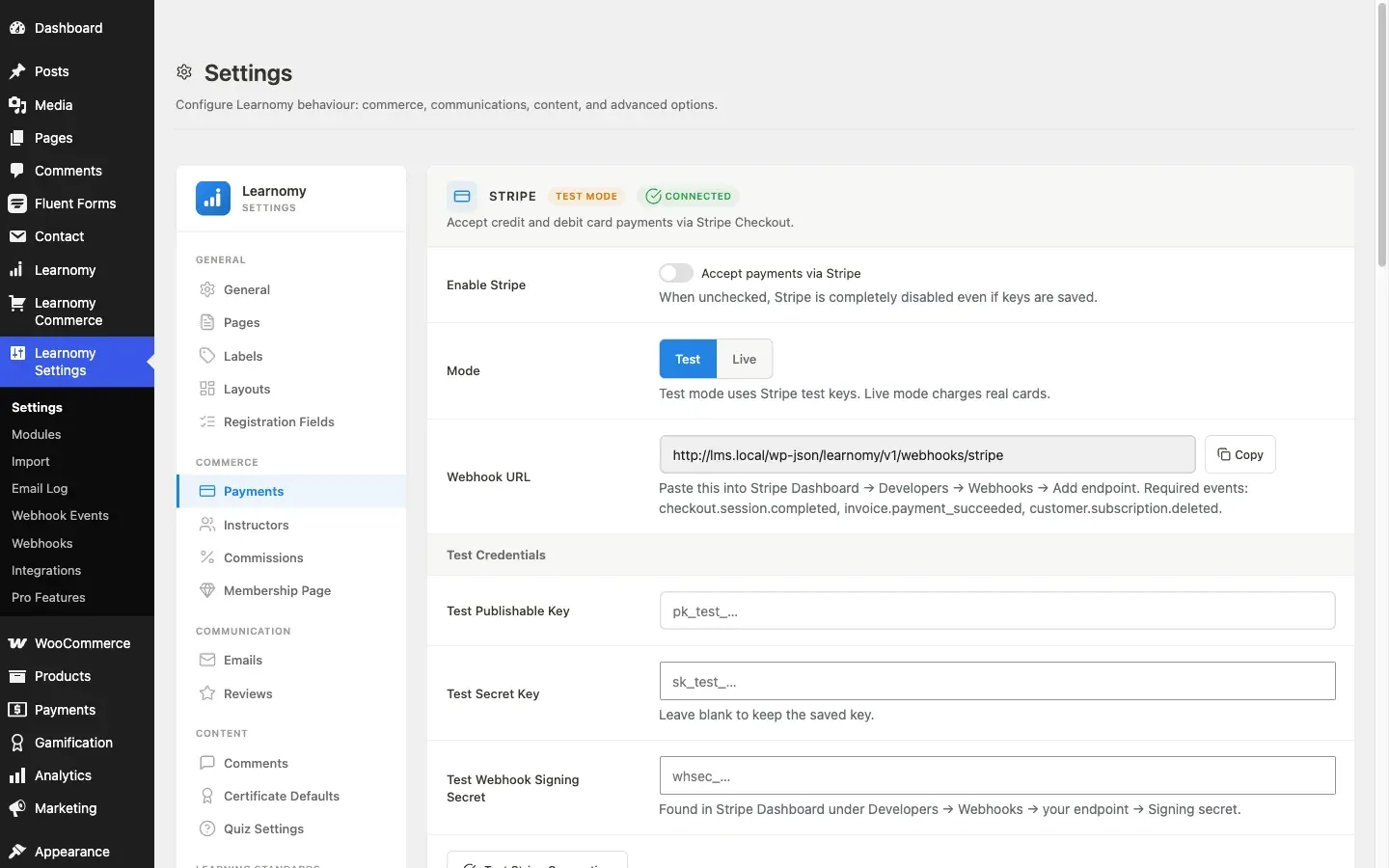
Learnomy supports three real-money payment gateways: Stripe, PayPal, and WooCommerce. Each one handles the money collection independently; Learnomy handles enrolment, subscription creation, and commission calculation the same way regardless of which gateway the customer used.
You can also enable a Test Gateway for development and QA work.
Overview
Section titled “Overview”Go to LMS Settings > Payments to configure gateways. Each gateway has its own settings card.
Pick one checkout route for the whole site: either WooCommerce, or Learnomy’s own internal methods (Stripe and/or PayPal). Enabling WooCommerce makes it the exclusive checkout – every purchase type (course, membership, gift, learning path, space, seat pack) goes through it, and Stripe, PayPal and the Test gateway stop being offered at checkout even if their toggles are still on. Without WooCommerce, enable Stripe and/or PayPal and the student picks between whichever of those are on.
The Payments tab also contains Checkout settings (business name, refund policy, guarantee days).
Stripe
Section titled “Stripe”Stripe processes credit and debit card payments for one-time purchases and recurring membership subscriptions.
The on-page checkout experience
Section titled “The on-page checkout experience”Students pay without leaving your site. The card fields render directly on the Learnomy checkout page using Stripe’s Payment Element, so there is no redirect to a Stripe-hosted page and customers stay in your branding the whole time. The form themes itself to match the page, including dark mode, and re-themes live if the student toggles light or dark mid-checkout.
The same on-page Payment Element backs every purchase type Learnomy sells: single courses, memberships, space seat packs, gift purchases, and learning paths. Your own checkout button submits the payment, so there is one consistent flow regardless of what is being bought.
The billing address is collected by Learnomy’s own fields, above the payment method, for every gateway rather than only for card buyers. That satisfies the export-transaction requirement Indian card payments are subject to, and prevents the “missing address” decline. See Checkout and Purchase Flow.
The amount is fetched live and re-validated on the server before the charge, so a stale price in the browser can never be charged: if a price changes between page load and pay, the checkout self-heals to the current amount.
Delayed and bank-based payment methods
Section titled “Delayed and bank-based payment methods”Some payment methods do not clear at checkout. A bank debit or a cash voucher tells Stripe “accepted” immediately but the money can take days to arrive: SEPA Direct Debit, Bacs, BECS, boleto, OXXO, Konbini.
Learnomy handles those correctly. The buyer is not enrolled when they submit – they land on the thank-you page in a pending state that says the enrollment is being set up. The enrollment is created when Stripe confirms the funds actually cleared, and if the payment ultimately fails, nothing is granted and no paid-looking order is left behind.
You do not configure anything for this. Enable the methods you want in your Stripe Dashboard and they appear in the on-page Payment Element. The one requirement is the webhook: the async events below must be subscribed, because for these methods the webhook is the only signal that the money arrived.
Enable Stripe
Section titled “Enable Stripe”Check Enable Stripe to activate the gateway. Uncheck to disable Stripe entirely even if API keys are saved.
Choose Test or Live. The mode toggle switches which set of credentials the gateway reads. Test mode uses Stripe test API keys and does not charge real cards. Live mode charges real cards.
A badge at the top of the Stripe card shows the current mode (TEST MODE or LIVE MODE).
Webhook URL
Section titled “Webhook URL”Copy the webhook URL shown in the settings card and add it to your Stripe account.
-
In Stripe Dashboard, go to Developers > Webhooks > Add endpoint.
-
Paste the Learnomy webhook URL.
-
Subscribe to these events:
checkout.session.completed,checkout.session.async_payment_succeeded,checkout.session.async_payment_failed,payment_intent.succeeded,invoice.payment_succeeded,invoice.payment_failed,customer.subscription.deleted,customer.subscription.updated,charge.refunded.The two
async_payment_*events are what fulfil delayed methods such as SEPA or boleto. Without them, a buyer who pays by bank debit is charged and never enrolled.charge.refundedis what reverses access when you refund from the Stripe Dashboard rather than from Learnomy. -
Copy the Signing secret from the created endpoint and paste it into the Webhook Signing Secret field in Learnomy.
Test credentials
Section titled “Test credentials”- Test Publishable Key - starts with
pk_test_. Enter it in plain text; it is not a secret. - Test Secret Key - starts with
sk_test_. Stored encrypted. Leave blank to keep the saved value; the field shows bullet characters when a key is already saved. - Test Webhook Signing Secret - starts with
whsec_. Stored encrypted.
Live credentials
Section titled “Live credentials”The same three fields for the live environment (pk_live_..., sk_live_..., whsec_...).
Testing the connection
Section titled “Testing the connection”Click Test Stripe Connection after saving credentials. The button sends a test API call and returns a pass or fail message without creating any charge.
Membership plan setup
Section titled “Membership plan setup”No Stripe product or Price setup is required. Set the plan’s price and billing interval in the plan editor (the Essentials section) and save - Learnomy creates the matching recurring Stripe Price for you the first time it is needed, in whichever mode (test or live) your gateway is configured for.
Earlier versions asked you to create a Price in the Stripe Dashboard and paste its ID into a Payment Provider Mapping accordion. That accordion and those fields were removed on purpose: a hand-typed Price ID is a typo that only surfaces at checkout, and Stripe can create the Price from the figure you already entered. If you are following an older guide or screenshot that shows that accordion, it no longer exists and nothing replaces it - setting the price is the whole job.
For one-time course purchases, no Stripe product setup is required either. Learnomy creates a checkout session at the time of purchase with the exact course price.
PayPal
Section titled “PayPal”PayPal handles one-time course purchases and recurring membership subscriptions via its REST API.
Enable PayPal
Section titled “Enable PayPal”Check Enable PayPal to activate the gateway. Requires both a Client ID and Secret to be configured.
Choose Sandbox or Live. Sandbox uses PayPal Developer test accounts. Live charges real PayPal balances.
Webhook URL
Section titled “Webhook URL”Copy the webhook URL and register it in the PayPal Developer Dashboard.
-
Go to PayPal Developer > My Apps > your app > Webhooks > Add webhook.
-
Paste the Learnomy webhook URL.
-
Subscribe to all seven events Learnomy handles. Miss one and the matching outcome silently never happens on your site:
Event What Learnomy does with it CHECKOUT.ORDER.APPROVEDRecords the one-off purchase and enrolls the buyer PAYMENT.SALE.COMPLETEDRecords a subscription’s recurring payment PAYMENT.CAPTURE.REFUNDEDRecords the refund and revokes access BILLING.SUBSCRIPTION.ACTIVATEDStarts the membership BILLING.SUBSCRIPTION.UPDATEDApplies a plan change BILLING.SUBSCRIPTION.CANCELLEDEnds the membership at the period end BILLING.SUBSCRIPTION.PAYMENT.FAILEDMarks the subscription past due and starts the retry sequence The two refund/failure events are the ones most often missed: without
PAYMENT.CAPTURE.REFUNDEDa refunded student keeps access indefinitely, and withoutBILLING.SUBSCRIPTION.PAYMENT.FAILEDa failed renewal never triggers a dunning email and the member keeps access for free. -
Copy the Webhook ID from the created webhook entry (a string like
1AB23456CD789012E) and paste it into the Webhook ID field in Learnomy.
Sandbox credentials
Section titled “Sandbox credentials”- Sandbox Client ID - from PayPal Developer Dashboard under your app credentials.
- Sandbox Secret - stored encrypted. Leave blank to keep the saved value.
- Sandbox Webhook ID - the webhook ID from the PayPal sandbox webhook you created.
Live credentials
Section titled “Live credentials”The same three fields for the live environment.
Testing the connection
Section titled “Testing the connection”Click Test PayPal Connection after saving credentials. Returns a pass or fail without creating a charge.
Membership plan setup
Section titled “Membership plan setup”No PayPal Billing Plan setup is required. Set the plan’s price and billing interval in the plan editor and save - Learnomy creates the matching PayPal billing plan (and its product) for you the first time a member subscribes, in whichever mode (sandbox or live) your gateway is configured for.
As with Stripe, the old Payment Provider Mapping accordion where you pasted a PayPal Plan ID was removed. The gateway is handed the terms you already entered, so there is nothing to create in the PayPal Dashboard and nothing to paste back into Learnomy.
WooCommerce
Section titled “WooCommerce”WooCommerce, when enabled, becomes the payment gateway for every Learnomy purchase type on the site: single course, membership plan, space, space seat, gift, and learning path. It is not possible to sell one purchase type through WooCommerce and another through Stripe or PayPal on the same site – enabling WooCommerce takes over the whole checkout.
WooCommerce only collects the money. Learnomy handles enrolment, subscription, and commission the same way it does for Stripe and PayPal.
How it works
Section titled “How it works”When a student checks out with WooCommerce:
- Learnomy adds one hidden virtual product (“Learnomy Checkout Item”) to the WooCommerce cart and sets the line price to the exact amount (already adjusted for any sale or coupon).
- The student is redirected to the standard WooCommerce checkout page.
- The student pays using whatever payment method WooCommerce has configured (any WooCommerce payment plugin works).
- When the order reaches “processing” or “completed” status, Learnomy’s adapter reads the purchase payload from the order, records a transaction, fires the standard enrolment or subscription actions, and calculates instructor commission.
For one-time purchases, Learnomy uses one reusable hidden virtual product across all purchase types. Recurring membership billing (when WooCommerce Subscriptions is active) uses a small set of period-keyed subscription products, one per billing interval (for example, monthly and yearly), with the price still set dynamically at checkout. Learnomy does not create a separate WooCommerce product per course or membership plan.
Prerequisites
Section titled “Prerequisites”- WooCommerce must be installed and active.
- The WooCommerce Checkout page must use the classic shortcode (
[woocommerce_checkout]), not the block-based checkout. The block checkout does not support third-party payment gateways that operate outside the Store API. - The WooCommerce Cart page must also use the classic shortcode (
[woocommerce_cart]). - If WooCommerce has “Coming soon” store mode enabled, disable it (set WooCommerce > Settings > General > Store notice off or use the
woocommerce_coming_soon=nooption). Coming-soon mode blocks the cart and checkout.
Enabling WooCommerce
Section titled “Enabling WooCommerce”- Install and activate WooCommerce.
- In Learnomy, go to LMS Settings > Payments.
- Check Enable WooCommerce and save.
WooCommerce now handles checkout for every purchase type. Stripe, PayPal and the Test gateway are no longer offered at checkout while WooCommerce is enabled, even if you leave their toggles on.
No API keys or per-plan mapping is required. WooCommerce uses its own installed payment methods (card, PayPal, bank transfer, etc.) for the actual charge.
Recurring subscriptions via WooCommerce Subscriptions (Pro feature)
Section titled “Recurring subscriptions via WooCommerce Subscriptions (Pro feature)”Pro feature. Recurring membership billing through WooCommerce Subscriptions is available in Learnomy Pro.
When the WooCommerce Subscriptions extension is active, recurring membership plans are supported. Learnomy creates a period-keyed subscription product per billing interval (e.g. one for monthly, one for yearly) and sets the recurring price dynamically at checkout. No per-plan subscription products are needed.
Lifecycle events (cancellation, expiry, payment failure, reactivation) from WooCommerce Subscriptions are mapped back to the corresponding Subscription_Service methods in Learnomy, so the subscription status in Commerce > Subscriptions stays in sync.
Commission with WooCommerce
Section titled “Commission with WooCommerce”Instructor commission works exactly as with Stripe and PayPal. When the WooCommerce order completes, Learnomy fires learnomy_payment_completed and the commission service calculates the platform and instructor split using the same rules (per-course rate, per-instructor rate, or the default 30% platform / 70% instructor). The commission rows appear on the transaction detail page.
Test Gateway
Section titled “Test Gateway”The Test Gateway completes any checkout instantly without calling an external service. It records a completed transaction and triggers all the same fulfilment actions as a real gateway (enrolment, subscription creation, coupon redemption).
Enable it at LMS Settings > Payments > Test Gateway. Turn it off before going live. It is intended for development and QA only.
The test payment mode notice
Section titled “The test payment mode notice”While the Test Gateway is enabled, a single notice appears on Learnomy’s admin screens: “Learnomy is in test payment mode.” It explains that orders placed with the Test option are simulated, no real charge is taken, and they are recorded at $0 and kept out of your revenue. The notice links straight to Payment settings.
This replaces an earlier, more alarming warning that suggested customers could not purchase at all. That was misleading: test mode is a normal staging state (the same way WooCommerce has a sandbox mode), and the real safeguard isn’t blocking checkout, it’s that test orders can never inflate your numbers.
Test orders record at zero
Section titled “Test orders record at zero”Every order placed through the Test Gateway is recorded with an amount of 0.00, tagged as test mode in its metadata. This means:
- Test purchases never add to your revenue totals, earnings, or instructor payouts.
- The transaction row still exists and is fully visible in Commerce > Transactions, with provider “Test”, so you can verify the buy-to-access flow end to end.
- The original intended price is kept in the transaction’s metadata for reference, but it is not what gets summed anywhere in reporting.
If you ever see $0 sales piling up from the Test provider, that’s the signal test mode is still on, not a billing problem.
Checkout and Refund Policy settings
Section titled “Checkout and Refund Policy settings”Below the gateway cards, the Checkout settings card contains:
- Business Name - shown on receipt PDFs and invoice emails. Defaults to the site title.
- Money-Back Guarantee - the number of guarantee days shown on course pages and at checkout. Set to 0 to hide it.
- Refund Policy - plain-text refund policy shown at checkout and on receipts.
- You can run Stripe in Test mode and PayPal in Live mode at the same time. Each gateway uses its own mode setting.
- Stripe and PayPal secret keys are stored encrypted in the database using WordPress’s
AUTH_KEY. They are never sent back to the browser. - If a student’s checkout redirects to WooCommerce but the cart looks empty, the most common cause is that WooCommerce’s “Coming soon” store mode is active.
- For WooCommerce refunds, go to the WooCommerce order (find the order ID in the transaction’s gateway reference) and use WooCommerce’s own Refund button. Learnomy detects the refund via webhook and creates the corresponding refund transaction row automatically.
- With only the test gateway enabled, Learnomy does not warn that no payment gateway is configured – a test-mode site can genuinely take (simulated) orders, so that warning would be untrue. Instead you get a calm notice: “Test gateway active. Purchases are simulated, so you can demo checkout now.” Test-gateway orders are recorded at 0.00 and excluded from revenue, earnings, and payouts, so demoing checkout never inflates your numbers.