

Announcements
The Announcements tab lets instructors and admins publish updates for their students directly from the frontend dashboard. Students see announcements on their own dashboard, filtered to the courses they are enrolled in.
Screenshots
Section titled “Screenshots”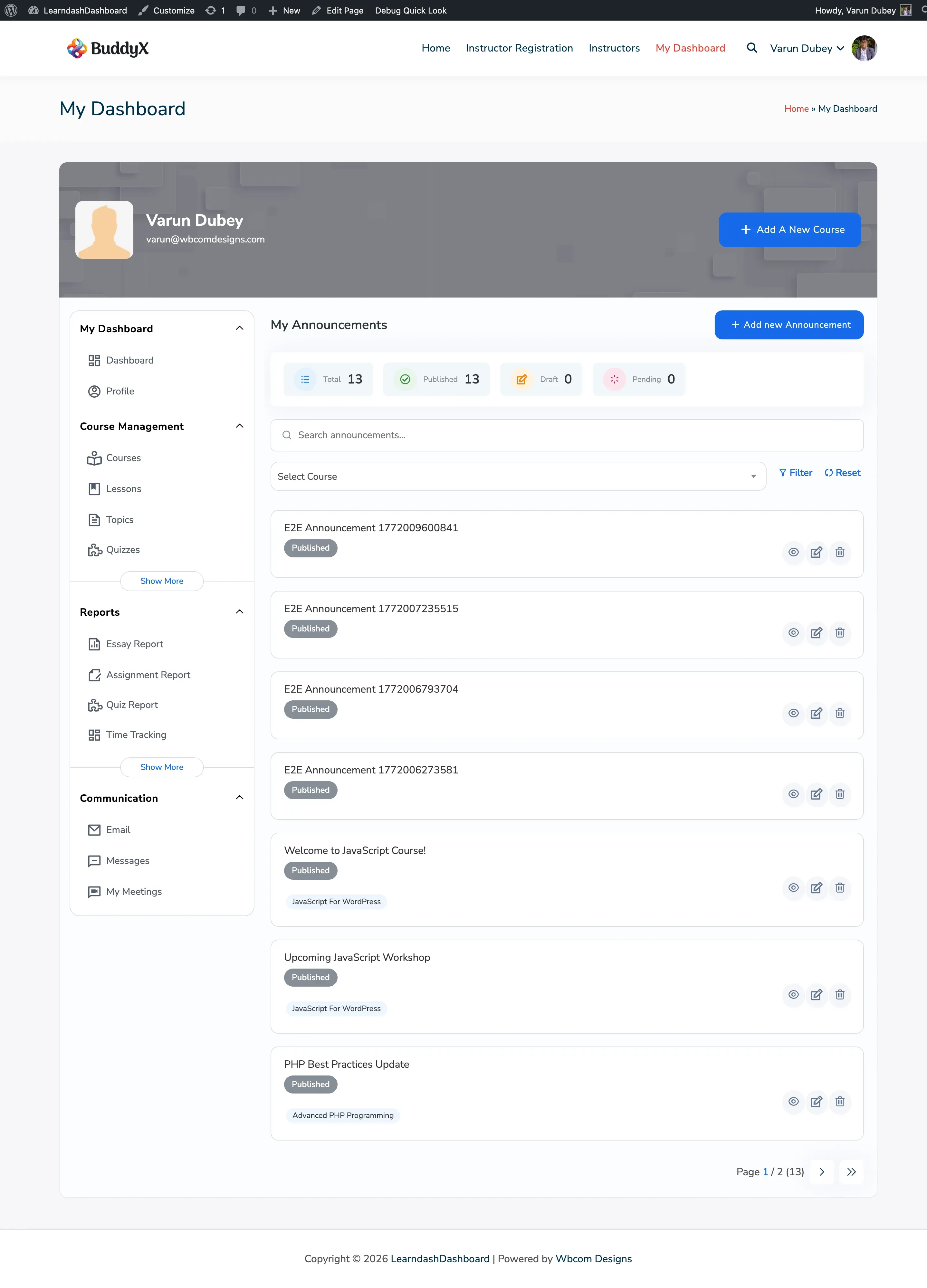
Who Can Do What
Section titled “Who Can Do What”| Action | Admin | Instructor | Group Leader | Student |
|---|---|---|---|---|
| View announcement list | All announcements | Own + course-linked | No | No |
| Create announcement | Yes | Yes | No | No |
| Edit announcement | Yes | Own only | No | No |
| Delete announcement | Yes | Own only | No | No |
| View announcements | Yes | Yes | Yes | Enrolled students only |
Group Leaders do not have access to the Announcements management tab. Students see announcements through their own Announcements tab, showing only updates for courses they are enrolled in.
Viewing Your Announcements
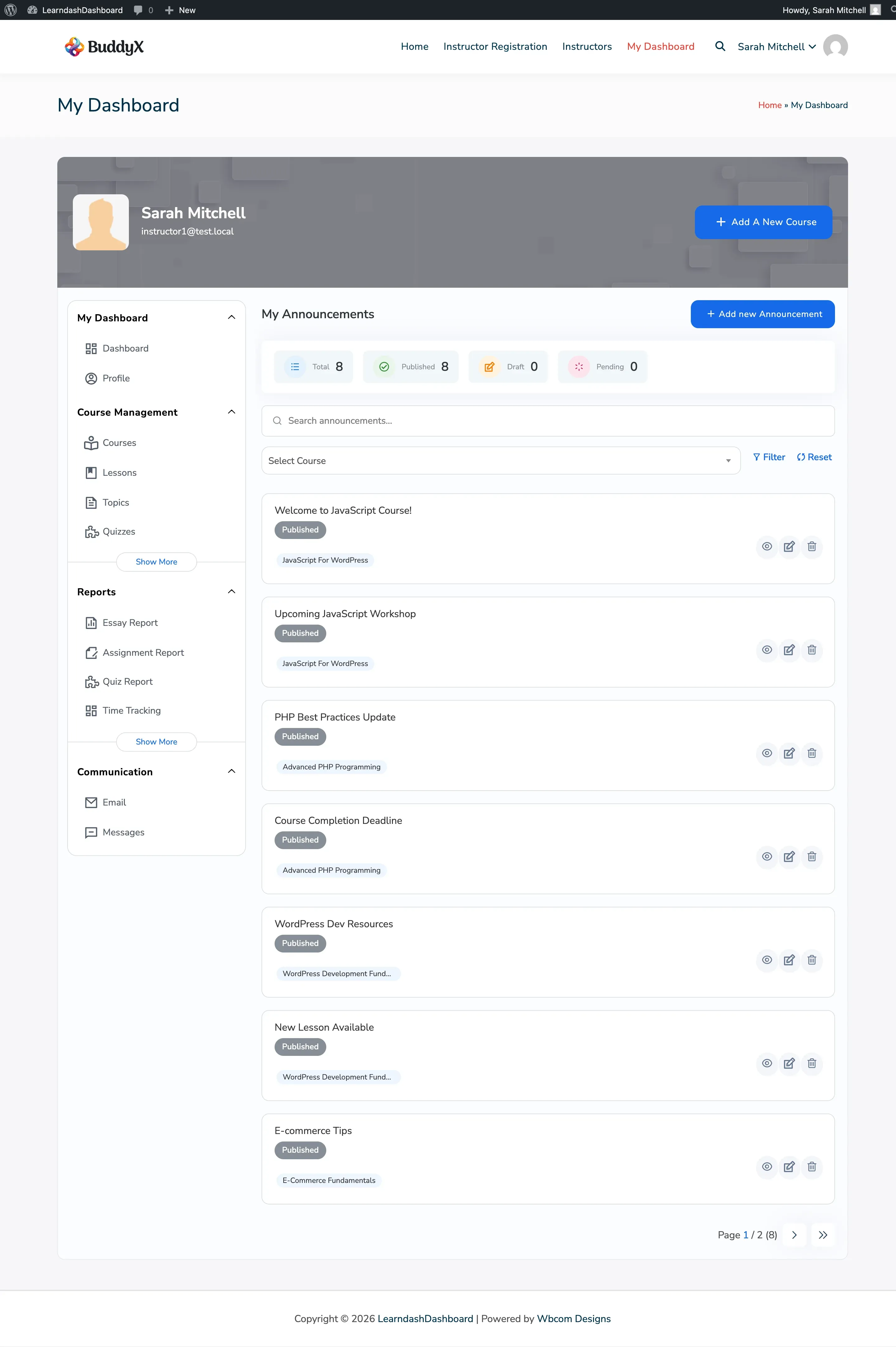
Section titled “Viewing Your Announcements”Go to My Dashboard > Announcements. Each announcement card shows:
- Announcement title
- Publication status: Published, Draft, or Pending
- The course it targets
- Action buttons: View, Edit, Delete
Use the course filter dropdown or the search bar to narrow your list. The list shows 7 announcements per page.
Instructors see announcements they created, plus any announcements tied to courses they manage. Admins see all announcements.
Creating an Announcement
Section titled “Creating an Announcement”-
Go to My Dashboard > Announcements.
-
Click Add New Announcement.
-
Fill in the fields:
Field Required Description Title Yes The announcement headline your students will see Content No The full announcement message Select Course No Target this announcement to students enrolled in a specific course Notify Enrolled Students No Send an email to all enrolled students when you publish -
Click Save Announcement.
The Notify Enrolled Students option only appears after you select a course. When turned on, an email goes out to all students in that course when the announcement is published.
Targeting an Announcement to a Specific Course
Section titled “Targeting an Announcement to a Specific Course”When you select a course, only students enrolled in that course see the announcement. If you do not select a course, the announcement is visible to all students on the dashboard.
To change the course after creating an announcement:
- Click the Edit icon on the announcement card.
- Update the Select Course field.
- Click Save Announcement.
Editing an Announcement
Section titled “Editing an Announcement”- Click the Edit icon on the announcement card.
- Update the title, content, course, or notification setting.
- Click Save Announcement.
Editing a published announcement does not send another email to students. To notify students of a change, use the Email tab to send a separate message.
Deleting an Announcement
Section titled “Deleting an Announcement”- Click the Delete icon on the announcement card.
- Confirm the deletion.
The announcement moves to the trash and immediately disappears from the student-facing view.
What Students See
Section titled “What Students See”Students go to My Dashboard > Announcements to read updates. Only published announcements for their enrolled courses appear here.