

Moderation Queue
The moderation queue is your single dashboard for everything that needs human review - posts waiting for approval, flagged content, and items caught by spam filters. You can action everything from one page without digging through individual topics.
What You Will Learn
Section titled “What You Will Learn”- How to access the moderation queue
- What types of content appear in the queue
- What actions you can take on each item
- How per-space moderation differs from global moderation
- How Akismet-held content appears in the queue
- Where to ban a member when content-level actions are not enough
Accessing the Moderation Queue
Section titled “Accessing the Moderation Queue”There are two moderation surfaces, and they do not show the same tabs.
- wp-admin - Jetonomy → Moderation. For site administrators and anyone
with the
jetonomy_moderatecapability. Shows a count badge on the admin menu item whenever items are waiting. - Front end -
/community/mod/, plus a per-space queue at/community/s/{slug}/mod/. This is where space moderators work; they do not need access to the WordPress dashboard at all.
The sections below describe the wp-admin tabs. See The front-end queue for what a space moderator sees.
What Appears in the Queue (wp-admin)
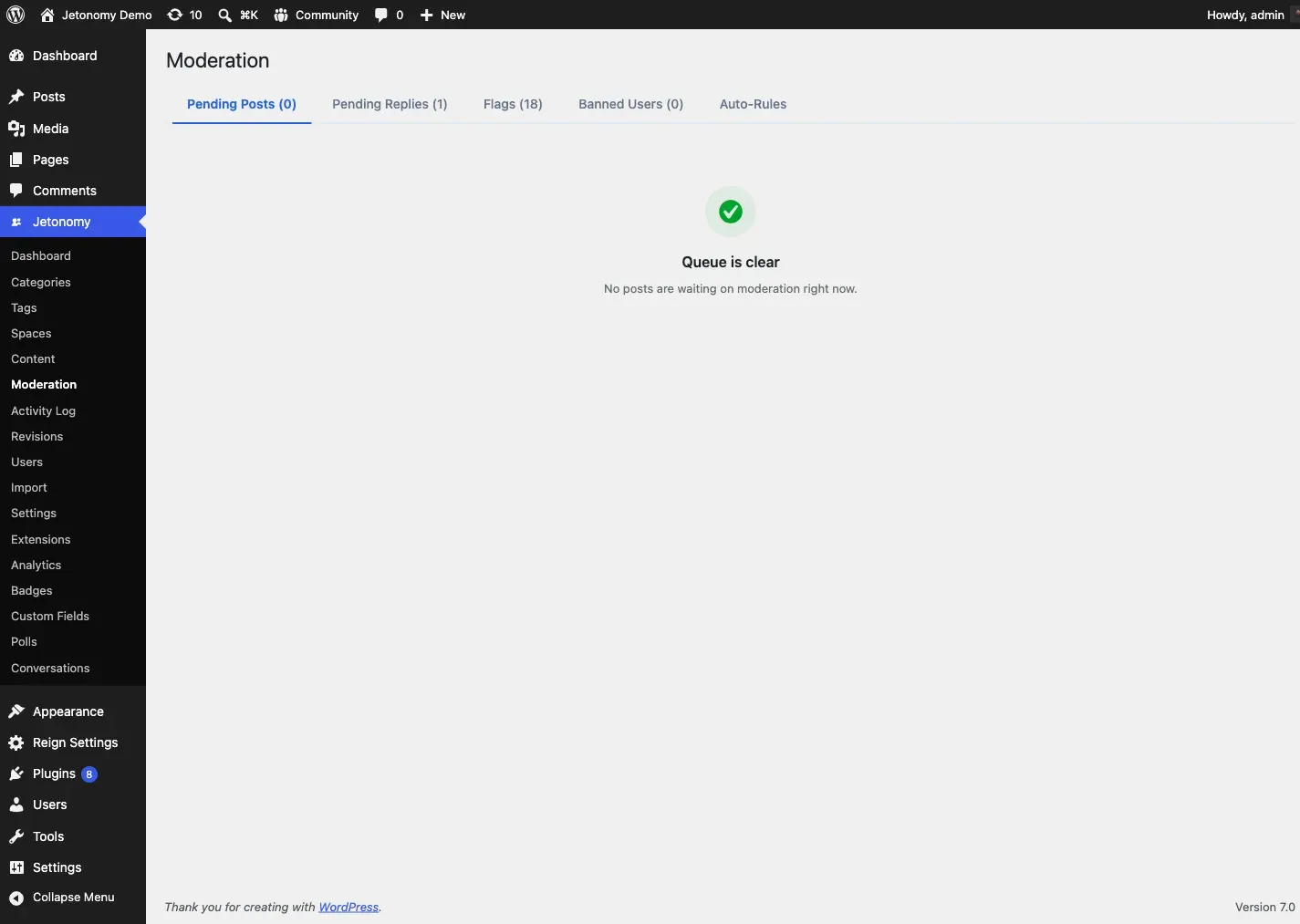
Section titled “What Appears in the Queue (wp-admin)”The wp-admin queue is split into four tabbed views, each with a count of how many items it holds:
Pending Posts
Section titled “Pending Posts”These are topics submitted in a space with Require Post Approval enabled. They are not visible to other community members until a moderator approves them.
Each pending item shows the full content, the author, the space it was submitted to, and how long it has been waiting. Items are ordered oldest first so nothing sits in the queue unnoticed.
Automated checks can also route content here. Jetonomy Pro’s AI spam detection and moderation rules can place a post or reply into this held “pending” state for review rather than publishing it outright.
Pending Replies
Section titled “Pending Replies”The same as Pending Posts, but for replies awaiting approval in spaces that require it. Replies get their own tab so you can clear topics and replies independently.
These are live topics and replies that members have flagged for review. Flagged content stays visible in the community until a moderator acts. Each item shows the content, the flag reason(s), how many unique members flagged it, and the timestamp of the most recent flag.
Banned Users
Section titled “Banned Users”A list of members who are currently banned, with the option to lift each ban. See Banning Members for the full ban workflow.
Available Actions
Section titled “Available Actions”Actions differ between the pending tabs and the Flags tab.
On Pending Posts and Pending Replies, each item has three buttons:
| Action | What it does |
|---|---|
| Approve | Publishes the pending post or reply so the community can see it |
| Spam | Marks the content as spam and moves it to trash; updates Akismet’s spam training if Akismet is active |
| Trash | Moves the content to trash without marking it as spam |
On the Flags tab, each flag row has two buttons:
| Action | What it does |
|---|---|
| Valid (Trash) | Confirms the flag was justified - the content is trashed and the flag resolved |
| Dismiss | Marks the flag unfounded - the content stays live and the flag is resolved |
Tip: Use Spam rather than Trash when content is clearly commercial spam. This trains Akismet for your site, making future auto-detection more accurate.
Spam and Trash ask for confirmation. Both actions remove content, so clicking either one opens a confirmation dialog before anything is deleted - individually per row and for the bulk action across selected rows. Approve does not prompt, since it only publishes. This guards against a misclick trashing a legitimate post.
The flag counter updates live. When you resolve a flag (Valid or Dismiss), the resolved row is removed and the “N pending” flag badge decrements immediately, without a page reload. When the last flag is cleared, the badge disappears. You always see the true outstanding count without refreshing.
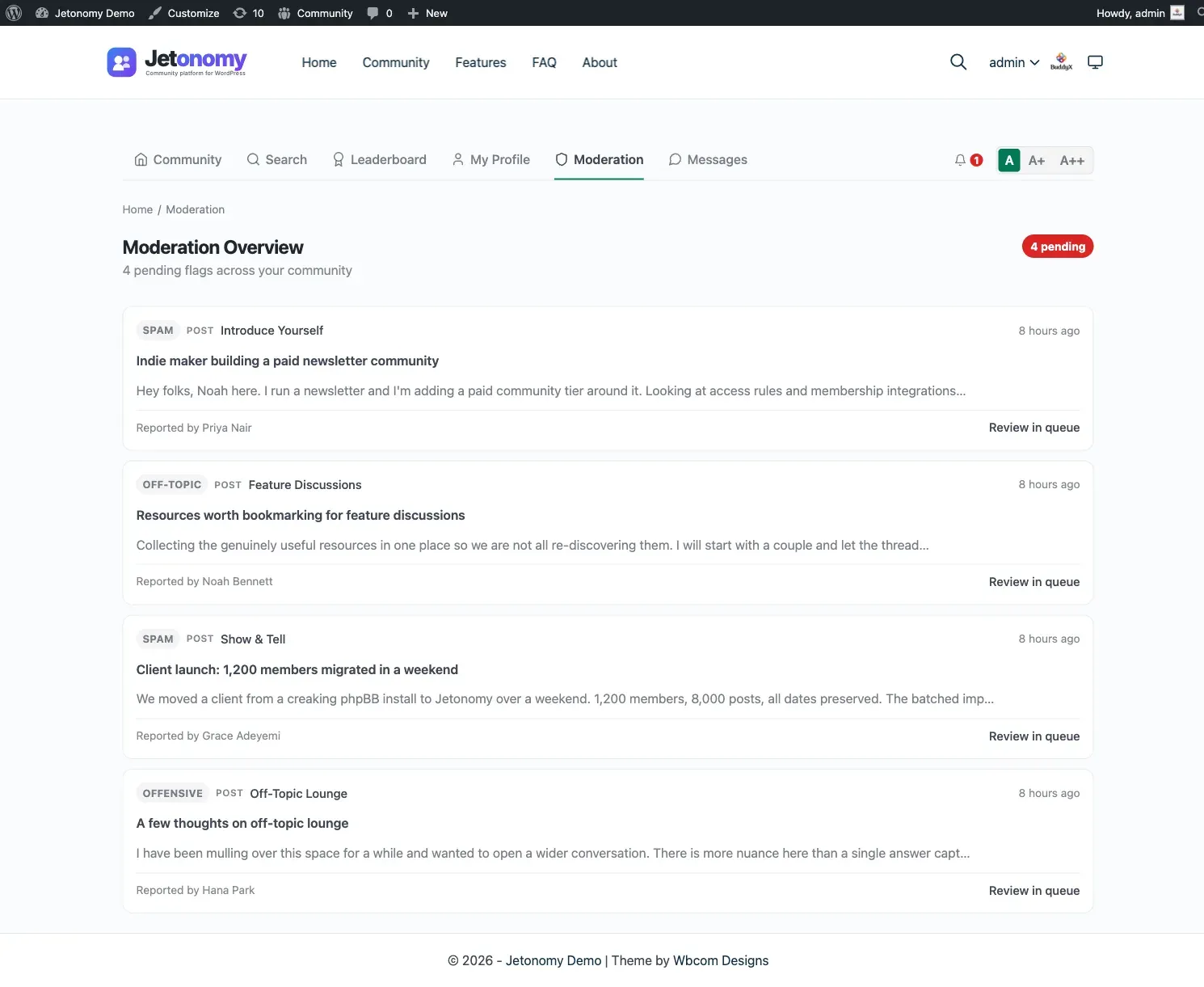
The Front-End Queue
Section titled “The Front-End Queue”Space moderators work at /community/mod/ (everything they moderate) or
/community/s/{slug}/mod/ (one space). The tabs there are:
| Tab | What it holds |
|---|---|
| Flags | Content other members reported. |
| Awaiting approval | Content the space itself held back, because the space has New posts require moderator approval switched on. Split into Posts and Replies sub-tabs, each with its own count. |
| Banned members | Active bans and silences. Only shown to moderators who hold the site-wide jetonomy_moderate capability, since lifting a ban requires it. |
Each tab carries a count so you can see there is work waiting without opening it, and each list is paginated.
New in 1.9.4: the Awaiting approval tab. Before this, content held by require approval never appeared in the front-end queue at all - it only existed in wp-admin. A space moderator without dashboard access had no way to approve it. Approving or rejecting from here works for space moderators; you do not need a site-wide capability.
Approve publishes the item. Reject moves it to trash. If another moderator handles the same item first, the row tells you rather than failing silently.
Per-Space vs Global Moderation
Section titled “Per-Space vs Global Moderation”In wp-admin the queue shows content from all spaces by default. Use the Space filter dropdown at the top of the queue to narrow to a single space. This is useful when you have dedicated space moderators - a moderator for your Support space only needs to see Support space items.
Space moderators who do not have global admin access see only their own spaces’ items when they visit /community/mod/. They do not see content from spaces they do not moderate.
Fixed in 1.4.1: moderators of multiple spaces now see every queue they own when they visit
/community/mod/. Earlier versions could redirect a multi-space moderator away from the dashboard if access checks ran in the wrong order. If you have moderators who report “I can see one space’s queue but not the others,” update to 1.4.1 and the dashboard will load all of them.
Akismet Integration
Section titled “Akismet Integration”If the Akismet Anti-Spam plugin is active and configured on your site, Jetonomy automatically passes new posts and replies through Akismet before saving them. If Akismet marks content as spam:
- The post or reply is saved with a Spam status (not Pending)
- It does not appear in the community
Spam-flagged content is set to a Spam status rather than surfaced as a dedicated tab in the moderation screen. The four moderation tabs are Pending Posts, Pending Replies, Flags, and Banned Users.
Note: Akismet integration requires the Akismet plugin to be installed, activated, and connected with a valid API key. Jetonomy does not bundle Akismet - it integrates with it automatically when present.
Banning Members
Section titled “Banning Members”Approve, Mark as Spam, and Trash all act on individual pieces of content. When a member is repeatedly disruptive, content-level actions are not enough and you need to act on the person instead. The Banned Users tab here shows everyone who is currently banned, with an Unban control on each row.
Banning is a subsystem of its own - three ban types, durations, auto-expiry, and the Jetonomy → Users admin page - covered in full in its own guide.
What’s Next?
Section titled “What’s Next?”Learn about Jetonomy’s built-in anti-spam tools - reCAPTCHA, Turnstile, and rate limiting - that reduce how much reaches the moderation queue in the first place.
Related Pro Features
Section titled “Related Pro Features”- Advanced Moderation - automated content rules that act before items ever reach the queue.