

Recurring Events
Recurring Events
Section titled “Recurring Events”Recurring events let you create a single event that repeats on a schedule. Eventonomy generates a materialized occurrence for each date, so each instance appears on the calendar with its own RSVP counts, and attendees can RSVP to a specific date.
What You Will Learn
Section titled “What You Will Learn”- How to set up a recurring event
- Which repeat patterns the Free plan supports, and which need Pro
- How occurrences are generated and kept up to date
- How RSVPs work across a series
Enabling Recurrence
Section titled “Enabling Recurrence”Note: Recurring events must be enabled at Eventonomy → Settings → Appearance → Recurring events. The feature is on by default.
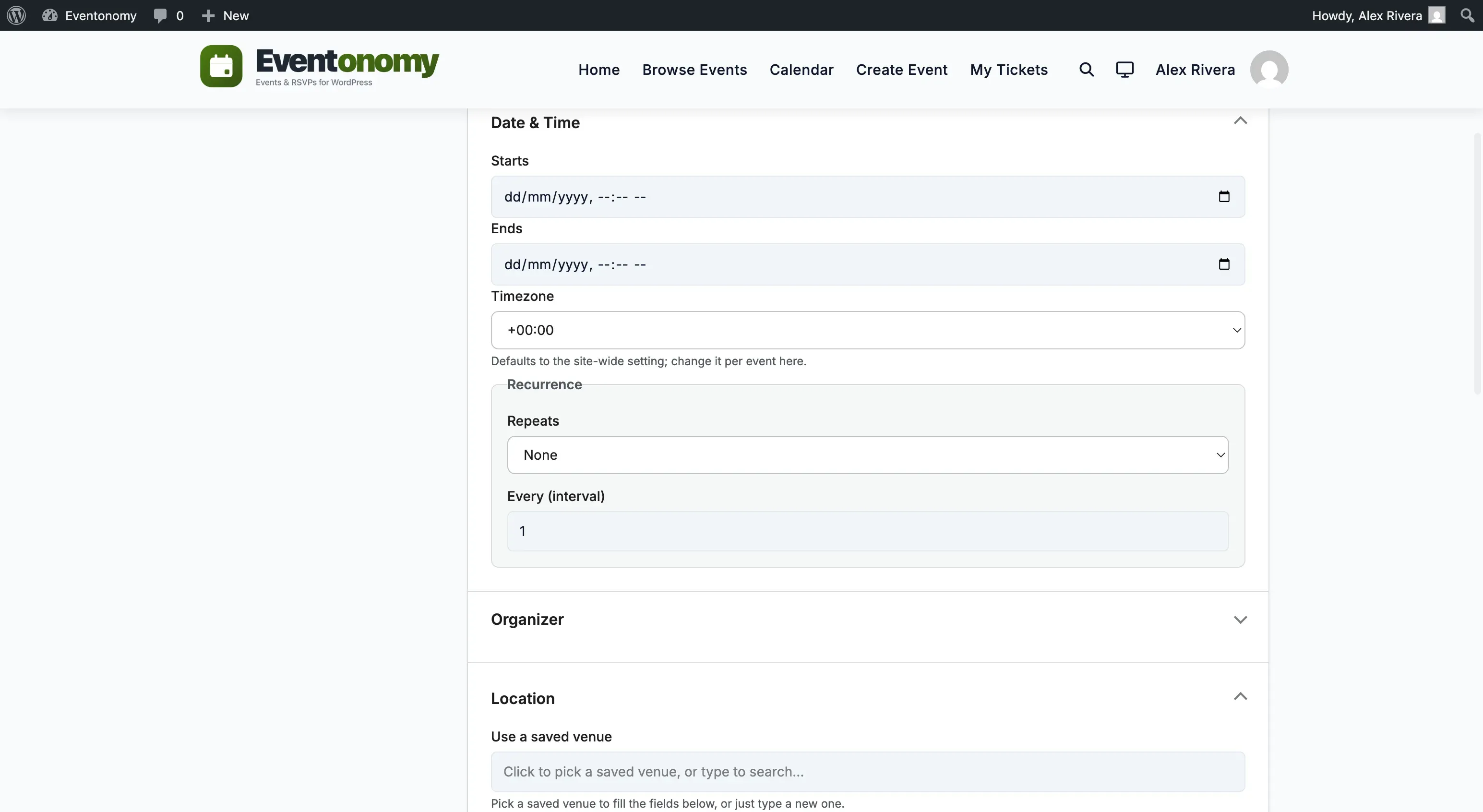
When creating or editing an event, open the Recurrence panel in the event editor and pick a value in Repeats. Leaving it on None keeps the event a one-off.
Repeat Patterns
Section titled “Repeat Patterns”The Free event editor gives you two controls, and that is the whole of Free’s recurrence:
| Control | What it does |
|---|---|
| Repeats | None, Daily, Weekly, Monthly, or Yearly. |
| Every (interval) | Repeat every N days, weeks or months. 1 is every time, 2 is every other. |
So Free covers “every day”, “every 2 weeks”, “every month”, and so on.
Yearly needs Pro. The Yearly option appears in the dropdown, but only Pro’s recurrence engine can expand a yearly rule. On a Free-only site an event saved as Yearly simply keeps its single date and never repeats.
Everything more specific than a plain interval is Pro: specific weekdays (“every Monday and Wednesday”), “the 2nd Tuesday of every month”, “the last Friday”, a fixed day of the month, an end-after count or end-on date, and skip dates. Pro adds those controls to the same Recurrence panel. See Advanced Recurrence.
How Occurrences Are Generated
Section titled “How Occurrences Are Generated”When you save a recurring event, Eventonomy expands the rule into a real row per date, so each instance appears on the calendar with its own RSVP counts and attendee list. It expands up to the recurrence horizon (default: 12 months ahead, configurable at Settings → Appearance → Recurring events → Expand recurring events up to, which accepts 1 to 60 months).
A daily background job extends the horizon as time passes, so future dates are always ready and a long-running series never quietly runs out.
Note: How many occurrences one event can hold scales with the horizon you set. A daily event with a 24-month horizon generates all 730 dates.
RSVPs on Recurring Events
Section titled “RSVPs on Recurring Events”Attendees RSVP to the event, not to one date on it. One RSVP covers the series, and the capacity you set on the event applies across it.
Reminder emails are still per-date: an attendee gets the 1-day and 1-hour reminder for each upcoming occurrence, naming that occurrence’s date.
Cancelling one date. Open the event editor and find Upcoming dates under Date & Time. Each date has a Cancel this date action, and a cancelled date can be restored. A cancelled date leaves the calendar, the browse views and the public event page, while the rest of the series is untouched - use it when there is no class next week.
For developers: an RSVP can carry an occurrence_id, and the REST API can cancel an individual occurrence (DELETE/PATCH /occurrences/{id}); the editor panel above uses those same routes. See the REST API Reference.
Updating a Recurring Event
Section titled “Updating a Recurring Event”Editing a recurring event edits the whole series. Change the schedule and the occurrences are recomputed from the new rule; dates you have already cancelled individually stay cancelled.
There is no “this occurrence only” or “this and future occurrences” choice. If one date genuinely needs to differ, create a separate one-off event for it.
What’s Next?
Section titled “What’s Next?”Learn how to create and manage the shared Venue and Organizer catalog.