

Body Typography
Configure the typography settings for body text throughout your BuddyX Pro website. These settings control the primary reading experience for your visitors.
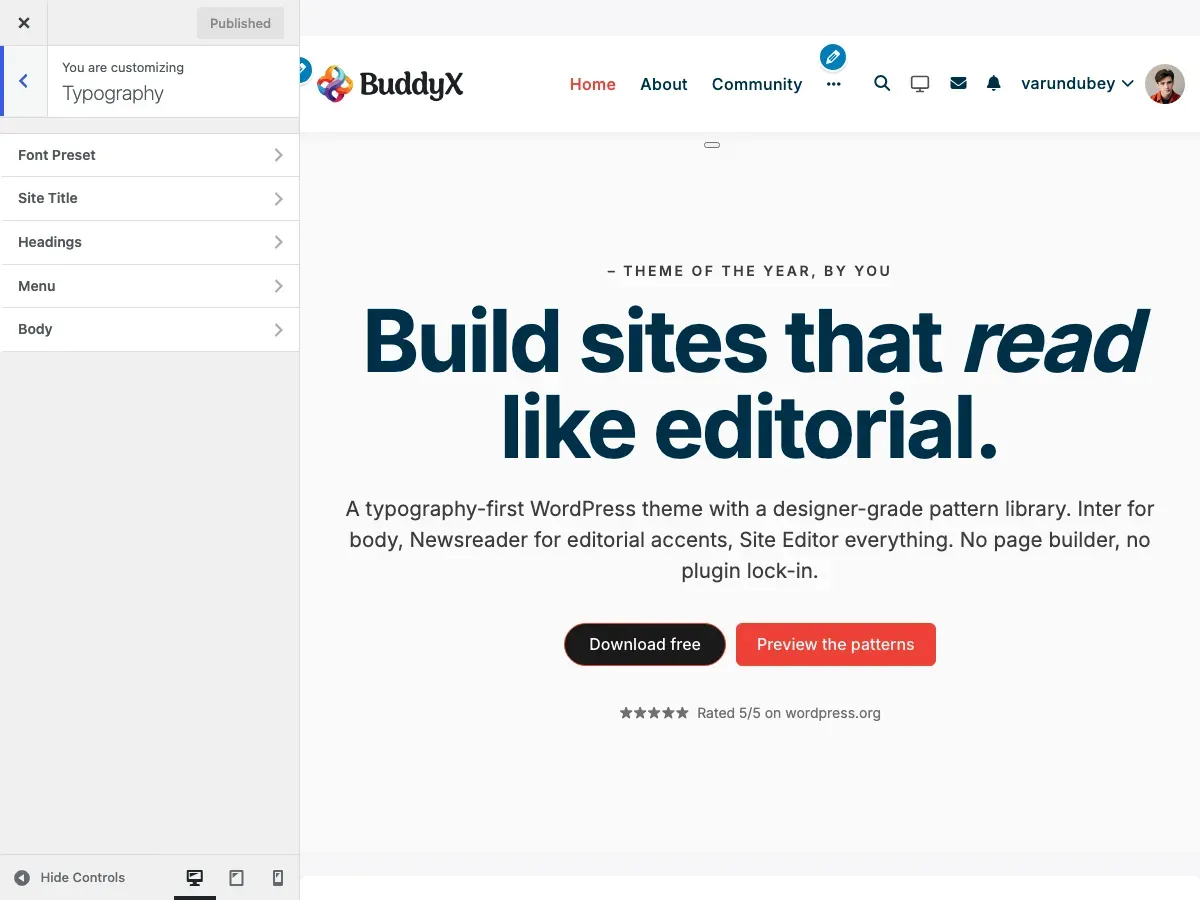
Accessing Typography Settings
Section titled “Accessing Typography Settings”- Go to Appearance > Customize
- Navigate to Typography > Body Typography
Body Font Settings
Section titled “Body Font Settings”The Body typography control (typography_option) is a single picker with nine inputs. There is no separate “font source” switch and no per-breakpoint size fields - the family dropdown already groups every available font, and the size field takes one value. (Global size scaling across headings and body lives in the Font Preset section’s Base font size and Heading scale ratio sliders, not here - see Typography Presets.)
Font Family
Section titled “Font Family”Choose the body font from a single grouped dropdown. There is no Google-vs-system toggle; every source appears in the same list:
| Group | Where it comes from |
|---|---|
| Theme fonts | Fonts registered in the theme’s theme.json (self-hosted, including the system-ui baseline) |
| Google Fonts | The bundled Google Fonts catalog |
| Custom Fonts | Fonts you uploaded via Appearance > Fonts (WordPress Font Library) - shown only when present |
The dropdown has a searchable Default (theme) entry at the top; leaving it selected uses the theme baseline. Default: Default (theme).
Font Weight
Section titled “Font Weight”| Setting | Options | Default |
|---|---|---|
| Weight | 300, 400, 500, 600, 700 | 400 (Regular) |
The control exposes the weights 300-700. The weights that actually render also depend on the chosen font - a font that ships only 400/700 will approximate the others.
Font Style
Section titled “Font Style”| Setting | Options | Default |
|---|---|---|
| Style | Normal, Italic | Normal |
Font Size
Section titled “Font Size”| Setting | Description | Default |
|---|---|---|
| Size | Body font size in px (range 8-200) | 16px |
Size is a single pixel value. BuddyX Pro does not expose separate mobile/tablet body-size fields; use Additional CSS with a media query if you need a different size on small screens.
Line Height
Section titled “Line Height”| Setting | Description | Default |
|---|---|---|
| Line height | Space between lines (range 0.8-3, step 0.05) | 1.6 |
Recommendations:
- Body text: 1.5 - 1.8
- Dense content: 1.4 - 1.5
- Spacious layout: 1.8 - 2.0
Letter Spacing
Section titled “Letter Spacing”| Setting | Description | Default |
|---|---|---|
| Letter | Space between characters, in em (range -0.1 to 0.5) | 0 |
Usage:
- Normal text: 0 to 0.02em
- Uppercase text: 0.05em+ improves readability
- Negative values: tighten text for headings
Additional Text Options
Section titled “Additional Text Options”The body control also exposes three styling options beyond family, weight, style, size, line height, and letter spacing:
| Setting | Options | Default |
|---|---|---|
| Transform | none, uppercase, lowercase, capitalize | none |
| Align | Inherit, left, center, right, justify | left |
| Decoration | none, underline, line-through, overline | none |
The chosen body font family is also published as the global --global-font-family CSS variable, so plugins and custom CSS can inherit the same base font.
Menu Typography
Section titled “Menu Typography”BuddyX Pro styles your navigation separately from body and heading text, with dedicated controls for top-level menu items and their dropdown sub-menus.
- Go to Appearance > Customize
- Click on Typography
- Select Menu Typography
Menu Settings
Section titled “Menu Settings”Controls the typography of top-level navigation links (the main menu and the mobile menu toggle).
| Option | Description | Default |
|---|---|---|
| Font Family | Google Font or system font | Theme baseline |
| Font Weight | Thickness of menu text | 500 (Medium) |
| Font Size | Size of menu links | 16px |
| Line Height | Space between lines | 1.6 |
| Letter Spacing | Space between characters | 0.02em |
| Text Transform | Case style (none, uppercase, lowercase, capitalize) | none |
| Text Decoration | Additional styling (none, underline) | none |
Sub Menu Settings
Section titled “Sub Menu Settings”Controls the typography of dropdown sub-menu links that appear under a parent menu item.
| Option | Description | Default |
|---|---|---|
| Font Family | Google Font or system font | Theme baseline |
| Font Weight | Thickness of sub-menu text | 500 (Medium) |
| Font Size | Size of sub-menu links | 16px |
| Line Height | Space between lines | 1.6 |
| Letter Spacing | Space between characters | 0.02em |
| Text Transform | Case style | none |
| Text Align | Horizontal alignment (left, center, right) | left |
| Text Decoration | Additional styling (none, underline) | none |
Tip: Keep the menu and sub-menu font family the same for a cohesive navigation, and reserve weight or letter-spacing changes to distinguish the two levels. Menu link colors are set separately under Skin settings - see Color Scheme Settings.
Text Colors
Section titled “Text Colors”Body Text Color
Section titled “Body Text Color”| Setting | Description | Default |
|---|---|---|
| Text Color | Primary body text color | #333333 |
| Link Color | Hyperlink text color | Primary Color |
| Link Hover | Link hover state | Primary Hover |
See Color Scheme Settings for complete color configuration.
Font Loading Optimization
Section titled “Font Loading Optimization”BuddyX Pro optimizes Google Fonts loading for performance:
Preconnect
Section titled “Preconnect”Automatically adds DNS preconnect for faster font loading:
<link rel="preconnect" href="https://fonts.googleapis.com"><link rel="preconnect" href="https://fonts.gstatic.com" crossorigin>Font Display
Section titled “Font Display”| Option | Behavior |
|---|---|
| Swap | Show fallback font, swap when loaded (default) |
| Block | Hide text until font loads |
| Fallback | Brief block, then fallback if slow |
| Optional | Use if cached, otherwise fallback |
Recommendation: Use swap for best user experience and Core Web Vitals.
Subsetting
Section titled “Subsetting”BuddyX Pro requests only necessary character subsets:
- Latin (default)
- Latin Extended (European languages)
- Cyrillic (Russian, etc.)
- Greek
- Vietnamese
System Font Stack
Section titled “System Font Stack”When using system fonts, BuddyX Pro uses this optimized stack:
font-family: -apple-system, BlinkMacSystemFont, "Segoe UI", Roboto, Oxygen-Sans, Ubuntu, Cantarell, "Helvetica Neue", sans-serif;Benefits:
- Zero external requests
- Fastest possible loading
- Native look and feel per OS
- Excellent readability
Configuration Examples
Section titled “Configuration Examples”Example 1: Modern Blog
Section titled “Example 1: Modern Blog”Font Family: InterFont Size: 17pxFont Weight: 400Line Height: 1.75Letter Spacing: 0Example 2: Corporate Site
Section titled “Example 2: Corporate Site”Font Family: Source Sans ProFont Size: 16pxFont Weight: 400Line Height: 1.6Letter Spacing: 0.2pxExample 3: Community Platform
Section titled “Example 3: Community Platform”Font Family: NunitoFont Size: 15pxFont Weight: 400Line Height: 1.7Letter Spacing: 0Accessibility Considerations
Section titled “Accessibility Considerations”Minimum Font Size
Section titled “Minimum Font Size”- Body text: Minimum 16px recommended
- Never below 14px for readability
- Consider users with visual impairments
Contrast Ratio
Section titled “Contrast Ratio”Ensure text meets WCAG 2.1 requirements:
- Normal text: 4.5:1 minimum contrast
- Large text (18px+): 3:1 minimum contrast
Line Length
Section titled “Line Length”Optimal reading experience:
- 45-75 characters per line
- Controlled by container width, not font settings
Troubleshooting
Section titled “Troubleshooting”Font Not Loading
Section titled “Font Not Loading”Problem: Selected Google Font doesn’t appear.
Solutions:
- Check internet connectivity
- Verify font name is spelled correctly
- Clear browser cache
- Check for ad blockers blocking Google Fonts
- Try a different font to test
Font Appears Different Than Preview
Section titled “Font Appears Different Than Preview”Problem: Font looks different on live site.
Solutions:
- Different operating systems render fonts differently
- Check font weight is available for chosen font
- Verify font-smoothing CSS isn’t conflicting
- Some fonts have limited weight options
Performance Impact
Section titled “Performance Impact”Problem: Fonts slowing down page load.
Solutions:
- Limit to 2-3 font families maximum
- Use font-display: swap
- Consider system fonts for body text
- Preload critical fonts
- Use variable fonts when available
Font Not Matching Design
Section titled “Font Not Matching Design”Problem: Font looks too light or heavy.
Solutions:
- Adjust font weight setting
- Some fonts have different weight distributions
- Check if font supports the weight you need
- Consider a different font with better weight options
Related Documentation
Section titled “Related Documentation”- Heading Typography - H1-H6 font settings
- Google Fonts Integration - Font loading details
- Color Scheme Settings - Text colors
Got a question? We’re a friendly team - happy to help.
- Visit our Documentation Portal
- Email us at support@wbcomdesigns.com