

Troubleshooting
This guide helps you diagnose and fix common issues with Advanced Username Manager. Follow the solutions step-by-step for the best results.
Username Change Not Working
Section titled “Username Change Not Working”Problem: Form Submits But Username Doesn’t Change
Section titled “Problem: Form Submits But Username Doesn’t Change”Symptoms:
- Click Save Changes button
- Success message appears
- But username remains the same
Solution 1: Check Database Permissions
WordPress needs proper database write permissions. Contact your hosting provider if you see database errors in the debug log.
Solution 2: Check for Plugin Conflicts
- Deactivate all other plugins except Advanced Username Manager
- Try changing the username again
- If it works, reactivate plugins one by one to find the conflict
- Contact support about the conflicting plugin
Solution 3: Clear All Caches
- Clear browser cache (Ctrl+Shift+Delete or Cmd+Shift+Delete)
- Clear WordPress cache (if using a caching plugin)
- Clear server cache (contact your host if needed)
- Try again
Solution 4: Check WordPress Debug Log
- Enable WordPress debugging in
wp-config.php:define( 'WP_DEBUG', true );define( 'WP_DEBUG_LOG', true );define( 'WP_DEBUG_DISPLAY', false ); - Try changing username again
- Check
wp-content/debug.logfor error messages - Share errors with support if needed
Problem: “You Do Not Have Permission” Message
Section titled “Problem: “You Do Not Have Permission” Message”Symptoms:
- User sees error: “You do not have permission to change usernames”
- User should have access but doesn’t
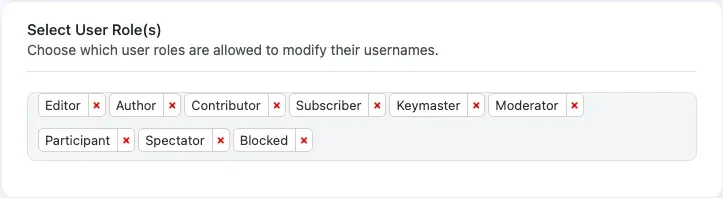
Solution 1: Verify User Role is Selected
- Go to WB Plugins → Advanced Username Manager → General Settings
- Check “Select User Role(s)” section
- Ensure the user’s role is selected (e.g., Subscriber, Customer, etc.)
- Click Save Changes
Solution 2: Check if Feature is Enabled
For BuddyPress:
- Verify “Enable Username Change in Profile” is toggled ON
- Click Save Changes
For WooCommerce:
- Verify “Enable Username Change in WooCommerce” is toggled ON
- Click Save Changes
Solution 3: Log Out and Log Back In
Sometimes role permissions need a fresh session:
- Log out completely
- Clear browser cookies
- Log back in
- Try accessing the feature again
Problem: Rate Limit / Cooldown Error
Section titled “Problem: Rate Limit / Cooldown Error”Symptoms:
- Message: “You have already updated your username. You can change it again after [date].”
- User needs to change username urgently
Solution 1: Wait for Cooldown Period to Expire
This is by design to prevent abuse. Users must wait until the date shown in the message.
Solution 2: Administrator Override
If a user has a legitimate reason to change username immediately:
- Log in as an administrator
- Go to Users → All Users
- Edit the user’s account
- Use a database query to reset the cooldown (for advanced users only):
DELETE FROM wp_username_change_logs WHERE user_id = [USER_ID];Replace [USER_ID] with the actual user ID. Use with caution.
Solution 3: Adjust Cooldown Period
For future changes, adjust the cooldown period:
- Go to General Settings
- Change “Username Change Limit” to a shorter period (7 days instead of 30)
- Click Save Changes
This only affects future username changes, not the current cooldown.
Problem: “Username Already Exists” Error
Section titled “Problem: “Username Already Exists” Error”Symptoms:
- User tries to save a username
- Error: “Sorry, this username is already in use”
- User claims the username should be available
Solution 1: Choose a Different Username
This error means another WordPress user already has that username. The user needs to:
- Choose a different username
- Click on one of the suggested alternatives
- Or modify the desired username (add numbers, etc.)
Solution 2: Check for Deleted Users
Usernames from deleted WordPress users remain in the database. To reclaim a username:
- Go to Users → All Users (as admin)
- Check if the username exists in inactive/deleted users
- Permanently delete the user if appropriate
- The username becomes available immediately
Solution 3: Database Check
For advanced users, verify in the database:
SELECT * FROM wp_users WHERE user_login = 'username_here';This shows if the username exists and which user ID owns it.
BuddyPress Integration Issues
Section titled “BuddyPress Integration Issues”Problem: Username Change Tab Not Showing in BuddyPress
Section titled “Problem: Username Change Tab Not Showing in BuddyPress”Symptoms:
- BuddyPress Settings page doesn’t have a “Username Change” tab
- Feature is enabled in plugin settings
Solution 1: Verify BuddyPress Settings Component
- Go to Settings → BuddyPress → Components
- Ensure “Account Settings” is checked
- Click Save Settings
- Refresh the profile page

Solution 2: Check Plugin Settings
- Go to WB Plugins → Advanced Username Manager → General Settings
- Verify “Enable Username Change in Profile” is ON
- Verify your user role is selected in “Select User Role(s)”
- Click Save Changes
Solution 3: Flush Rewrite Rules
- Go to Settings → Permalinks
- Click Save Changes (don’t change anything)
- This flushes WordPress rewrite rules
- Check the profile page again
Solution 4: Check You’re on Your Own Profile
The tab only appears when viewing your own profile (or if you’re a super admin viewing another profile). Make sure you’re logged in and on your own profile page.
Solution 5: Clear BuddyPress Cache
If using a BuddyPress cache plugin:
- Clear all BuddyPress caches
- Clear site cache
- Refresh the page
Problem: BuddyPress Profile URL Shows 404 After Username Change
Section titled “Problem: BuddyPress Profile URL Shows 404 After Username Change”Symptoms:
- Changed username successfully
- Profile page now shows 404 error
- Can’t access profile
Solution 1: Clear All Caches
- Clear browser cache
- Clear WordPress cache (WP Rocket, W3 Total Cache, etc.)
- Clear BuddyPress object cache
- Wait a few minutes for caches to fully clear
Solution 2: Flush Permalinks
- Go to Settings → Permalinks
- Click Save Changes
- This regenerates rewrite rules
- Try accessing the profile with the new username URL
Solution 3: Use Unique Identifier URL
If you enabled the Unique Identifier feature:
- The profile URL should use the unique identifier, not the username
- Try accessing:
https://example.com/members/aum[identifier]/ - Check your email for the success notification (may contain the correct URL)
Solution 4: Manually Navigate
- Go to the site homepage
- Click on Members directory
- Search for the user by display name
- Click on the profile from search results
This often rebuilds the proper URL association.
Problem: BuddyPress Activity Stream Shows Old Username
Section titled “Problem: BuddyPress Activity Stream Shows Old Username”Symptoms:
- Username changed successfully
- Activity stream still displays old username
- Profile shows new username correctly
Solution: Clear BuddyPress Activity Cache
The activity cache needs time to update:
- Clear all site caches
- Wait 5-10 minutes
- Refresh the page
- If still showing old username, clear cache again
For persistent issues, BuddyPress caching plugins may need configuration adjustments.
WooCommerce Integration Issues
Section titled “WooCommerce Integration Issues”Problem: Change Username Tab Not Showing in WooCommerce
Section titled “Problem: Change Username Tab Not Showing in WooCommerce”Symptoms:
- WooCommerce My Account page doesn’t have “Change Username” tab
- Feature is enabled in plugin settings
Solution 1: Verify WooCommerce is Active
- Go to Plugins → Installed Plugins
- Ensure WooCommerce is Active
- If not, activate WooCommerce
Solution 2: Check Plugin Settings
- Go to WB Plugins → Advanced Username Manager → General Settings
- Verify “Enable Username Change in WooCommerce” is ON
- Verify Customer role is selected in “Select User Role(s)”
- Click Save Changes
Solution 3: Flush Rewrite Rules
- Go to Settings → Permalinks
- Click Save Changes (don’t change anything)
- This registers the custom endpoint
- Check My Account page again
Solution 4: Check Permalink Structure
The plugin requires permalinks to be enabled:
- Go to Settings → Permalinks
- Ensure you’re NOT using “Plain” permalinks
- Select any other structure (Post name recommended)
- Click Save Changes
Solution 5: Deactivate and Reactivate Plugin
Sometimes reactivation is needed to register endpoints:
- Go to Plugins → Installed Plugins
- Deactivate Advanced Username Manager
- Reactivate Advanced Username Manager
- Go to Settings → Permalinks and save
- Check My Account page
Problem: WooCommerce Change Username Page Shows 404
Section titled “Problem: WooCommerce Change Username Page Shows 404”Symptoms:
- Click “Change Username” tab
- Page shows 404 error
Solution 1: Flush Rewrite Rules
- Go to Settings → Permalinks
- Click Save Changes
- Try accessing the page again
Solution 2: Check Permalink Structure
- Ensure permalinks are enabled (not “Plain”)
- Try changing to “Post name” structure
- Save and test again
Solution 3: Deactivate and Reactivate
- Deactivate Advanced Username Manager
- Reactivate it
- Go to Settings → Permalinks and save
- Test the page
Problem: WooCommerce Customers Can’t Change Username
Section titled “Problem: WooCommerce Customers Can’t Change Username”Symptoms:
- Tab appears in My Account
- Customer sees permission error when trying to change
Solution: Verify Customer Role is Selected
- Go to General Settings
- Check “Select User Role(s)”
- Ensure Customer is selected
- Click Save Changes
- Have customer log out and back in
Shortcode Issues
Section titled “Shortcode Issues”Problem: Shortcode Displays as Text
Section titled “Problem: Shortcode Displays as Text”Symptoms:
- Added
[username_manager]to a page - Shortcode appears as
[username_manager]instead of showing the form
Solution 1: Check for Typos
Ensure you’re using the exact shortcode:
- Correct:
[username_manager] - Wrong:
[username-manager],[username_change],[user_manager]
Solution 2: Verify Plugin is Active
- Go to Plugins → Installed Plugins
- Ensure Advanced Username Manager is active
- If not, activate it
Solution 3: Switch Editor Mode
In Gutenberg:
- Switch to Code Editor (three dots → Code editor)
- Verify the shortcode is properly formatted
- Switch back to Visual Editor
In Classic Editor:
- Switch to Text tab
- Check the shortcode syntax
- Switch back to Visual tab
Solution 4: Check for Extra Spaces
Ensure no spaces inside the brackets:
- Correct:
[username_manager] - Wrong:
[ username_manager ],[username_manager ]
Problem: Shortcode Shows “You Need to Log In” Message
Section titled “Problem: Shortcode Shows “You Need to Log In” Message”Symptoms:
- Shortcode displays properly
- Shows message: “To change your username, please log in first.”
- User is already logged in
Solution 1: Clear Browser Cache and Cookies
- Clear all browser cache and cookies
- Log out completely
- Log back in
- Reload the page
Solution 2: Check for Caching Plugin Issues
If using a page caching plugin:
- Exclude the username change page from cache
- Or disable caching for logged-in users
- Clear all caches
- Test again
Solution 3: Verify User Session
Sometimes sessions expire:
- Log out
- Close all browser tabs
- Reopen browser
- Log in again
- Try the page
Problem: Save Button Stays Disabled
Section titled “Problem: Save Button Stays Disabled”Symptoms:
- Enter a new username
- Save Changes button remains grayed out
- Can’t click it
Solution 1: Check Username Availability
The button only enables when username is valid and available:
- Ensure you see green checkmark (username available)
- If red X appears, choose a different username
- Check that username meets length requirements
Solution 2: Check Browser Console
- Open browser developer tools (F12)
- Go to Console tab
- Look for JavaScript errors
- Share errors with support if present
Solution 3: Disable Browser Extensions
Browser extensions can interfere with JavaScript:
- Disable all browser extensions
- Reload the page
- Try again
- If it works, enable extensions one by one to find the conflict
Solution 4: Try Different Browser
Test in a different browser to rule out browser-specific issues:
- Chrome
- Firefox
- Safari
- Edge
License Issues
Section titled “License Issues”Problem: Can’t Activate License
Section titled “Problem: Can’t Activate License”Symptoms:
- Enter license key
- Click Activate License
- Error message or no activation
Solution 1: Verify License Key
- Check your purchase email for the correct license key
- Copy the key carefully (no extra spaces)
- Paste it in the license field
- Try activating again
Solution 2: Check License Status
- Log in to your Wbcom Designs account
- Check if the license is active
- Verify it hasn’t expired
- Check how many sites it’s activated on (limit may be reached)
Solution 3: Deactivate from Other Sites
If you’ve reached the activation limit:
- Log in to your Wbcom Designs account
- Go to your licenses
- Deactivate the license from old/test sites
- Try activating on the current site
Solution 4: Contact Support
If none of the above work:
- Contact Wbcom Designs support
- Provide your license key and purchase email
- They can manually activate or reset your license
Problem: Not Receiving Updates
Section titled “Problem: Not Receiving Updates”Symptoms:
- New plugin version available
- Updates don’t appear in WordPress dashboard
Solution: Verify License is Active
- Go to WB Plugins → License
- Check license status shows “Active”
- If not, activate your license
- Go to Dashboard → Updates to check for updates
Updates only appear when license is active.
Email Notification Issues
Section titled “Email Notification Issues”Problem: Users Not Receiving Email Notifications
Section titled “Problem: Users Not Receiving Email Notifications”Symptoms:
- Username changes successfully
- No email confirmation received
Solution 1: Check Spam Folder
Email may be marked as spam:
- Check user’s spam/junk folder
- Mark as “Not Spam” if found
- Add sender to contacts
Solution 2: Verify WordPress Email Functionality
Test if WordPress can send emails:
- Install “Check Email” or “WP Mail SMTP” plugin
- Send a test email
- If test fails, WordPress email isn’t working
- Configure SMTP settings (recommended: WP Mail SMTP plugin)
Solution 3: Check Email Address
- Verify user’s email address is correct in their profile
- Go to Users → Profile (or user profile)
- Check the email field
- Update if incorrect
Solution 4: Configure SMTP
WordPress default email is unreliable. Use SMTP:
- Install WP Mail SMTP plugin
- Configure with your email provider (Gmail, SendGrid, etc.)
- Test email sending
- Try username change again
Performance Issues
Section titled “Performance Issues”Problem: Username Availability Check is Slow
Section titled “Problem: Username Availability Check is Slow”Symptoms:
- Type a username
- Takes several seconds to check availability
- Slow response time
Solution 1: Check Internet Connection
Slow internet affects AJAX requests:
- Test your internet speed
- Try on a different network
- Contact your ISP if consistently slow
Solution 2: Check Server Performance
- Contact your hosting provider
- Ask about server load/performance
- May need to upgrade hosting plan
Solution 3: Disable Heavy Plugins Temporarily
Some plugins slow down AJAX:
- Deactivate non-essential plugins
- Test username availability
- Reactivate plugins one by one to find the culprit
Solution 4: Enable Object Caching
If your host supports it:
- Enable Redis or Memcached
- This speeds up database queries
- Contact host for setup assistance
Debug Mode
Section titled “Debug Mode”When troubleshooting, enable WordPress debug mode to see detailed error messages.
Enable Debug Mode
Section titled “Enable Debug Mode”Add to wp-config.php:
define( 'WP_DEBUG', true );define( 'WP_DEBUG_LOG', true );define( 'WP_DEBUG_DISPLAY', false );@ini_set( 'display_errors', 0 );Check Debug Log
Section titled “Check Debug Log”Errors are logged to: wp-content/debug.log
- Access via FTP or hosting file manager
- Look for recent errors related to “advanced-username-manager”
- Share errors with support if needed
Disable Debug Mode
Section titled “Disable Debug Mode”After troubleshooting, set back to:
define( 'WP_DEBUG', false );Getting Support
Section titled “Getting Support”If you’ve tried the solutions above and still have issues:
Before Contacting Support
Section titled “Before Contacting Support”Gather this information:
- WordPress Version - Dashboard → Updates
- PHP Version - Site Health → Info → Server
- Plugin Version - Plugins → Installed Plugins
- Active Theme - Appearance → Themes
- Error Messages - Copy exact error text
- Screenshots - Capture the issue visually
- Debug Log - Include relevant errors
- Steps to Reproduce - How to trigger the issue
Contact Support
Section titled “Contact Support”Support Portal: https://wbcomdesigns.com/support
Email: support@wbcomdesigns.com
Include:
- Your license key
- Site URL (if possible)
- All information from “Before Contacting Support” above
We typically respond within 24-48 hours on business days.
Related Documentation
Section titled “Related Documentation”- Frequently Asked Questions - Common questions
- General Settings - Plugin configuration
- BuddyPress Integration - BuddyPress setup
- WooCommerce Integration - WooCommerce setup
- Shortcode Usage - Shortcode implementation
- Hooks and Filters - Developer customization