

Employer Overview
Employers are businesses or individuals who post jobs and manage applications on your job board. This section covers everything an employer can do.
What Employers Can Do
Section titled “What Employers Can Do”- Register an account with the Employer role
- Post new jobs using a guided multi-step form, or a single-page form
- Manage all their job listings (edit, close, re-open, resubmit)
- Review applications in a list or a drag-and-drop Board (Kanban) view
- Set up and edit a public company profile with a live preview
- Bookmark jobs, companies, and candidate resumes
- Update their own display name, email, and password from the dashboard
- Receive email notifications for new applications
The Employer Role
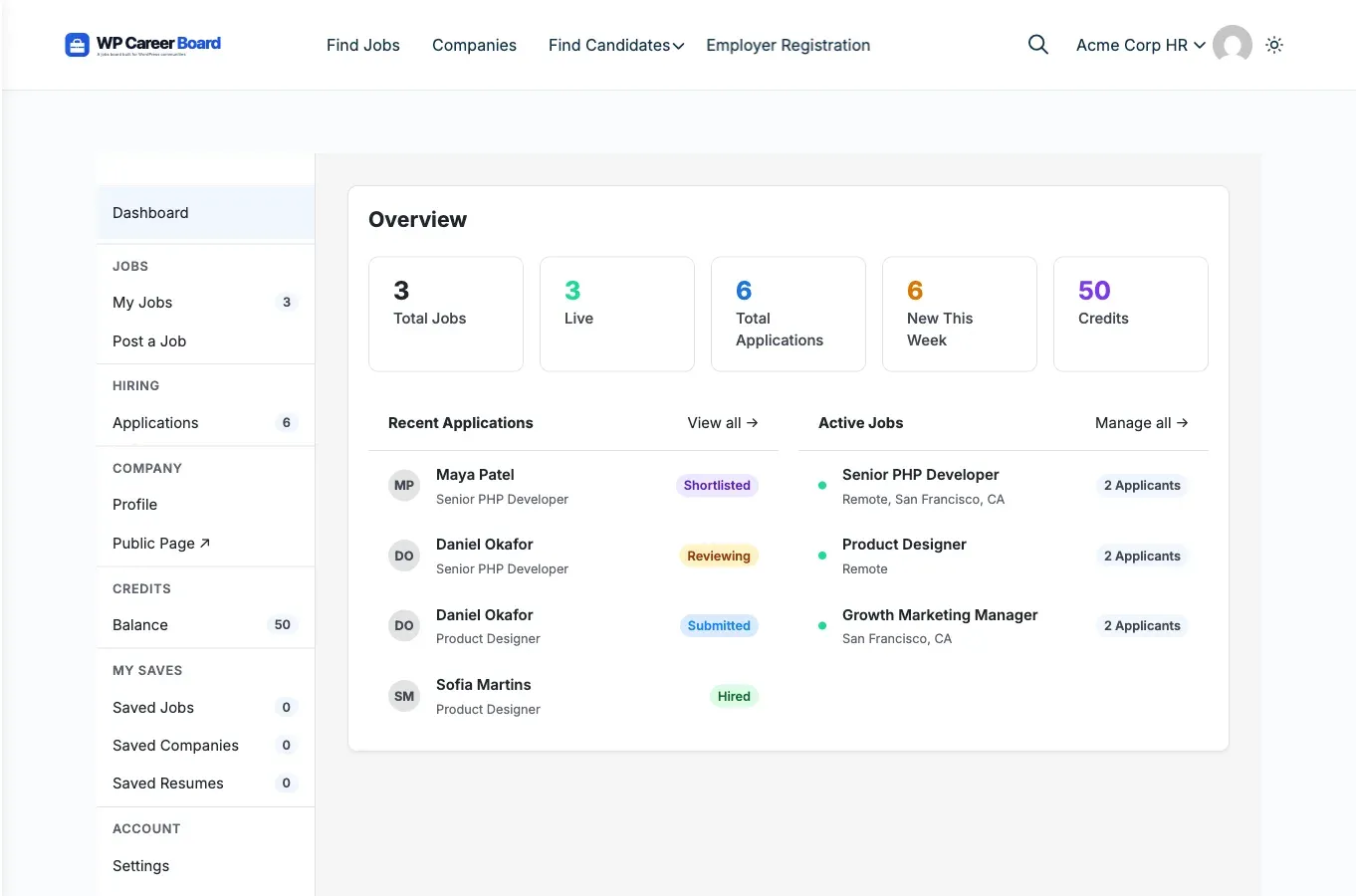
Section titled “The Employer Role”When a user registers as an employer, they get the Employer role. This gives them access to the Employer Dashboard, a single-page app with a left sidebar grouped into sections rather than a row of top tabs. The sidebar items are:
- Dashboard (Overview) - summary stat cards and quick actions
- JOBS
- My Jobs - manage all job listings (with a count badge)
- Post a Job - submit a new job using the multi-step wizard
- HIRING
- Applications - review applicants in List or Board view (with a count badge)
- COMPANY
- Profile - set up the public employer page
- Public Page - a link that opens your live company page in a new tab
- CREDITS (only shown when the Credit System is enabled)
- Balance - your current credit balance
- Buy Credits - appears when the admin has set a purchase page
- MY SAVES
- Saved Jobs, Saved Companies, and Saved Resumes (Saved Resumes appears only when the resume feature is active)
- ACCOUNT
- Settings - display name, email, and password
- Notifications - appears when the in-dashboard notification bell is enabled
Admins can also manually assign the Employer role to any user from Users → Edit User in wp-admin.
How Applications Reach Employers
Section titled “How Applications Reach Employers”When a candidate applies to a job, the employer sees the application immediately in their dashboard. They get:
- Applicant name and email
- Application status (Submitted / Reviewing / Shortlisted / Rejected / Hired)
- Submission date
- A direct link to the applicant’s profile (if they are a registered candidate)
Section Contents
Section titled “Section Contents”- Post a Job - step-by-step guide to submitting a new job listing
- Manage Jobs - editing, closing, and re-opening jobs
- Review Applications - working through the applicant list
- Company Profile - setting up the public employer page
- Application Pipeline - the custom stage pipeline (Pro)
- Find Resumes - browsing the candidate resume archive (Pro)
- Quick Job Form - the single-page job form
- Bulk Applicant CSV Export - exporting applicants from wp-admin
- Your Credit Balance - credits, when the Credit System is on
- Page-builder Embeds - shortcodes for Elementor, Divi, Bricks, and more
- Troubleshooting - common employer questions