

Social Login
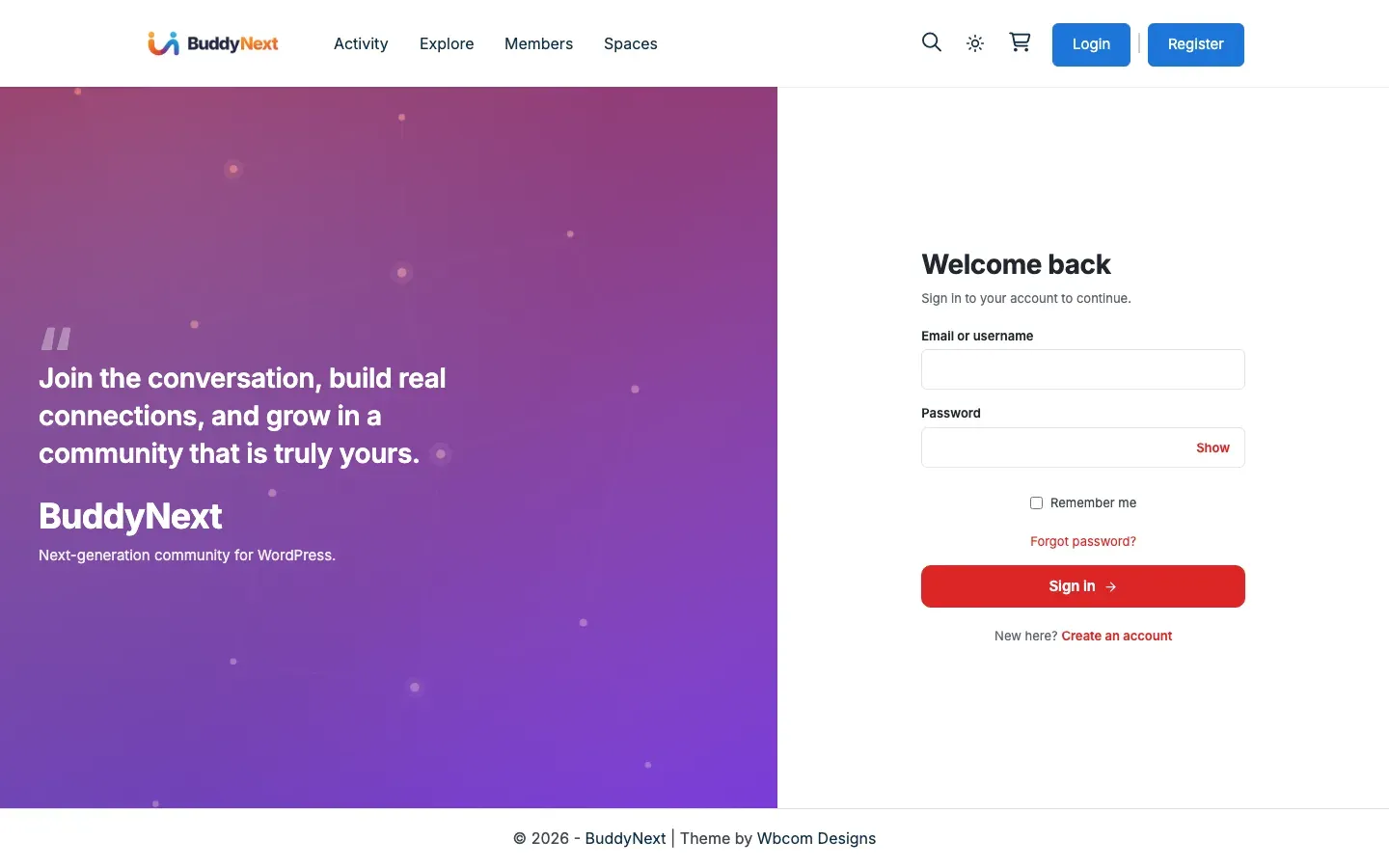
Social login lets people sign in or sign up using an account they already have - their Google, Facebook, Apple, GitHub, or Discord account - instead of creating and remembering another password. When you turn on a provider, a sign-in button for it appears on your login and sign-up screens. It is the quickest way for a newcomer to get from “interested” to “inside your community.”
Why use it
Section titled “Why use it”- Faster sign-up. New members join in a couple of clicks, without filling in the full form. Fewer steps means fewer people give up halfway.
- Fewer passwords. Members do not have to invent or remember another password, and you store one less credential to worry about.
- Trusted email out of the box. When a provider confirms a member’s email is already verified, BuddyNext treats that account as verified too, so those members skip the verification step.
- On-brand and on-site. The provider buttons sit right on your branded login and sign-up forms. The only off-site moment is the provider’s own quick consent screen.
Supported providers
Section titled “Supported providers”BuddyNext includes five providers out of the box:
- Apple (added in 1.1.1)
- GitHub
- Discord
These five are the providers BuddyNext ships and walks you through setting up. They cover the networks most communities need.
How it works for members
Section titled “How it works for members”- Click a provider button. On the login or sign-up screen, the member clicks the button for the network they want (for example, “Continue with Google”).
- Approve on the provider’s site. They are taken to that provider’s consent screen and approve sharing their basic profile and email.
- Return signed in. BuddyNext brings them back to your community, signed in. A returning member is matched to their existing account; a brand-new member gets an account created automatically (when registration is open).
- Finish sign-up, if anything is missing. A provider hands over a name and an email address, and nothing else. If your community asks for something it cannot supply - agreement to your terms, or a required profile field - the new member sees a short “Almost there” screen asking for just those things, then goes straight into the community. Because the terms checkbox is on by default, most social sign-ups pass through this screen once. Returning members never see it.
- Link from profile settings. A member who is already signed in can connect a provider to their existing account from their profile settings, then use it to sign in next time. They can unlink it again the same way.
Note: Social sign-up still respects your registration mode. In Admin Approval mode a social sign-up creates the account but holds it for approval. In Invite Only mode, a social sign-up works if the person is holding a valid invitation for that email address - the invitation travels with them through the provider and drops them into the space they were invited to, exactly as it would on the password form. Without a matching invitation, no account is created. If an unverified provider email matches an existing account, BuddyNext asks the member to sign in with their password first and link the account from profile settings - a safeguard against account takeover.
Setting it up (for owners)
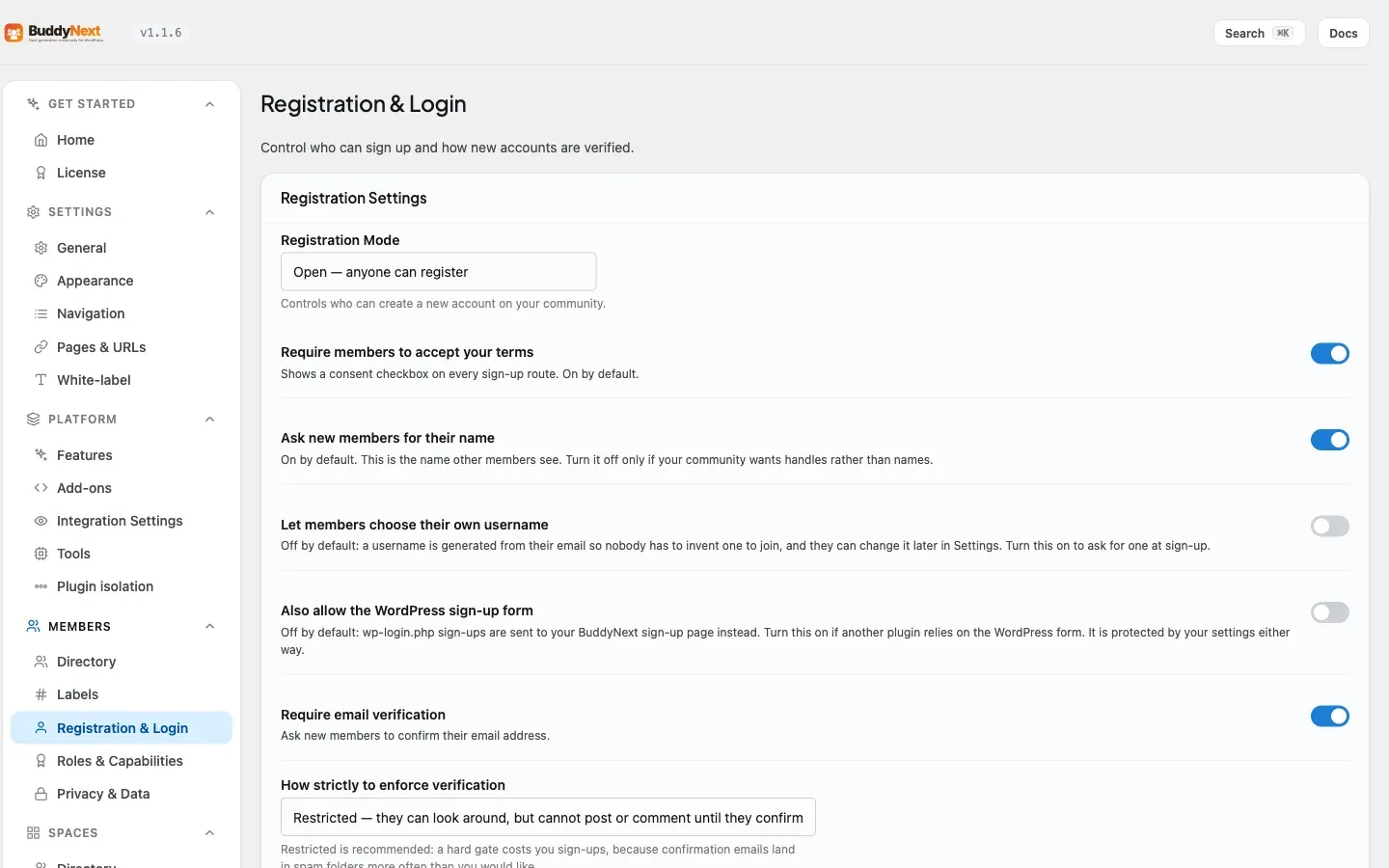
Section titled “Setting it up (for owners)”Social login is configured under BuddyNext > Members > Registration & Login, in the Social Login section. For each network you want to offer, you create a free app on that provider’s site, paste the provider’s keys into BuddyNext (two for most providers, four for Apple), and copy one redirect link back into the provider. No coding is required.
Steps for each provider
Section titled “Steps for each provider”- Open the provider card for Google, Facebook, Apple, GitHub, or Discord on the Social Login section.
- Copy the redirect link shown on the card and paste it into your provider app’s “redirect” or “callback URL” field. Each card includes a step-by-step “How to get your keys” guide and a button that opens the provider’s developer site.
- Paste the Client ID and Client Secret the provider gives you into the two fields on the card. Apple is the exception: its card asks for a Services ID (the Client ID), a Team ID, a Key ID, and a
.p8private key instead of a Client Secret - paste all four. - Turn on “Show this button” to make the provider live on your login and sign-up screens.
A button only appears for members once a provider is both enabled and has both keys filled in. The card shows its status as Active (enabled with keys), Configured (off) (keys saved but the button is hidden), or Not set up (no keys yet).
| Setting | What it does | Default |
|---|---|---|
| Show this button | Enables the provider and shows its button on the login and sign-up screens. | Off |
| Client ID | The public app identifier from the provider’s developer console. | Empty |
| Client Secret | The private app secret from the provider’s developer console. | Empty |
| Redirect link | Read-only. The exact callback URL to paste into the provider’s app settings. | Auto-generated per provider |
Note: Each provider’s redirect link is specific to your site and that provider. Paste the exact link shown on the card - if it does not match what the provider has on file, sign-in fails.
Good to know
Section titled “Good to know”- Safe by design. Each sign-in is tied to the member’s own browser session, the return step is protected against abuse, and BuddyNext only links a provider to an existing account when the provider confirms the email is verified.
- Avatars come along. When a provider supplies a profile picture and the member has no avatar yet, BuddyNext adopts it automatically.
- Members can unlink, but not lock themselves out. Connecting a provider is reversible from profile settings. The one exception: if a member signed up with a provider and has never set a password, that provider is their only way in - so BuddyNext refuses the unlink and asks them to set a password first. (They can do that without entering a “current” password, because they never had one.) Once they have a password, they can unlink freely. This is the difference between giving someone a choice and letting them delete their own front door.
- Works alongside the password form. Social login is additive - members can still use email/username and password whenever they prefer.
- Free vs Pro. Social login with these five providers is included in free BuddyNext. White-label branding on the surrounding login and sign-up screens is a BuddyNext Pro feature.
Related
Section titled “Related”- Login - the login screen the provider buttons appear on
- Registration - how social sign-up respects your registration mode
- Account Settings - linking and unlinking a provider from profile settings