

In-App Notifications
Every important event in your marketplace triggers an in-app notification so users never miss an update, even if they do not check their email.
How It Works
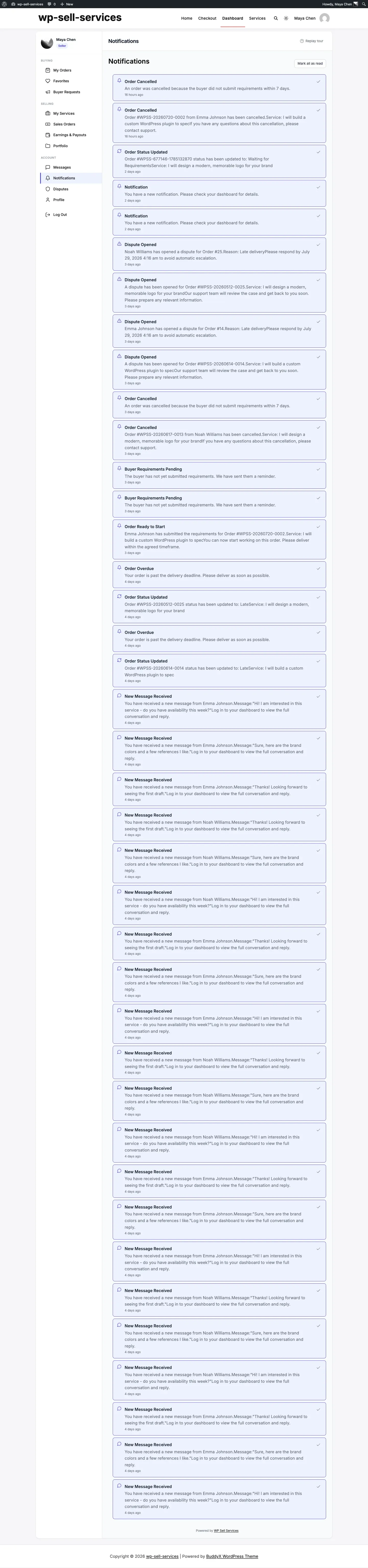
Section titled “How It Works”A notification bell appears in the dashboard with an unread count badge. When something happens – a new order, a message, a delivery, a review – a notification is created instantly. Users click the bell to see their alerts and navigate directly to the relevant page.
What Triggers Notifications
Section titled “What Triggers Notifications”Notifications are created for all major marketplace events:
- New order placed
- Order status changes (in progress, delivered, completed, cancelled)
- New message received in an order conversation
- Delivery submitted by vendor
- Delivery accepted by buyer
- Revision requested by buyer
- Review received from a buyer
- Dispute opened or resolved
These in-app notifications are always created, regardless of whether email notifications are enabled or disabled. They are independent systems.
Viewing Notifications
Section titled “Viewing Notifications”From the dashboard, click the notification bell to see your notifications list. Each notification shows:
- An icon indicating the type of event
- A brief message describing what happened
- A relative timestamp (e.g., “2 minutes ago”)
- A link to the relevant order, message, or page
You can filter to see only unread notifications or browse by notification type.
Managing Notifications
Section titled “Managing Notifications”Mark as Read
Section titled “Mark as Read”Click on any notification or use the “Mark as Read” link to clear it from your unread count.
Mark All as Read
Section titled “Mark All as Read”Click the Mark All as Read button at the top of the notification list to clear all unread notifications at once.
Automatic Cleanup
Section titled “Automatic Cleanup”Read notifications are automatically deleted after 90 days to keep things tidy. Unread notifications are kept until you read or dismiss them. Important notifications (disputes, order completions) are preserved longer.
The Unread Badge
Section titled “The Unread Badge”The notification bell shows a number badge indicating how many unread notifications you have. This count updates as new events occur and decreases as you read or dismiss notifications.
Notifications vs. Email
Section titled “Notifications vs. Email”In-app notifications and email notifications work independently:
| Feature | In-App | |
|---|---|---|
| Always created | Yes | Only if admin enables the type |
| Requires login to see | Yes | No – delivered to inbox |
| Can be marked as read | Yes | No |
| Stored in dashboard | Yes | No – lives in email inbox |
| Links directly to relevant page | Yes | Yes |
Disabling an email notification type does not affect in-app notifications. Users will still see the alert in their dashboard.
- Check notifications regularly. The dashboard bell is the quickest way to stay on top of orders, messages, and reviews.
- Use email for time-sensitive items. If you need to respond quickly (like a new order or message), make sure those email types are enabled so vendors and buyers get immediate alerts.
- Do not ignore the unread badge. A growing badge count usually means there are actions that need your attention.