

Deliveries & Revisions
When a vendor finishes the work, they submit a delivery. The buyer then reviews it and either accepts the work or requests changes. Here is how the whole process works.
How Vendors Deliver Work
Section titled “How Vendors Deliver Work”Once an order is in progress (or a revision has been requested), the vendor can submit their delivery:
- Go to Dashboard > Sales Orders and open the order.
- Click Submit Delivery.
- Upload the finished files.
- Write a message explaining what is included.
- Click Submit.
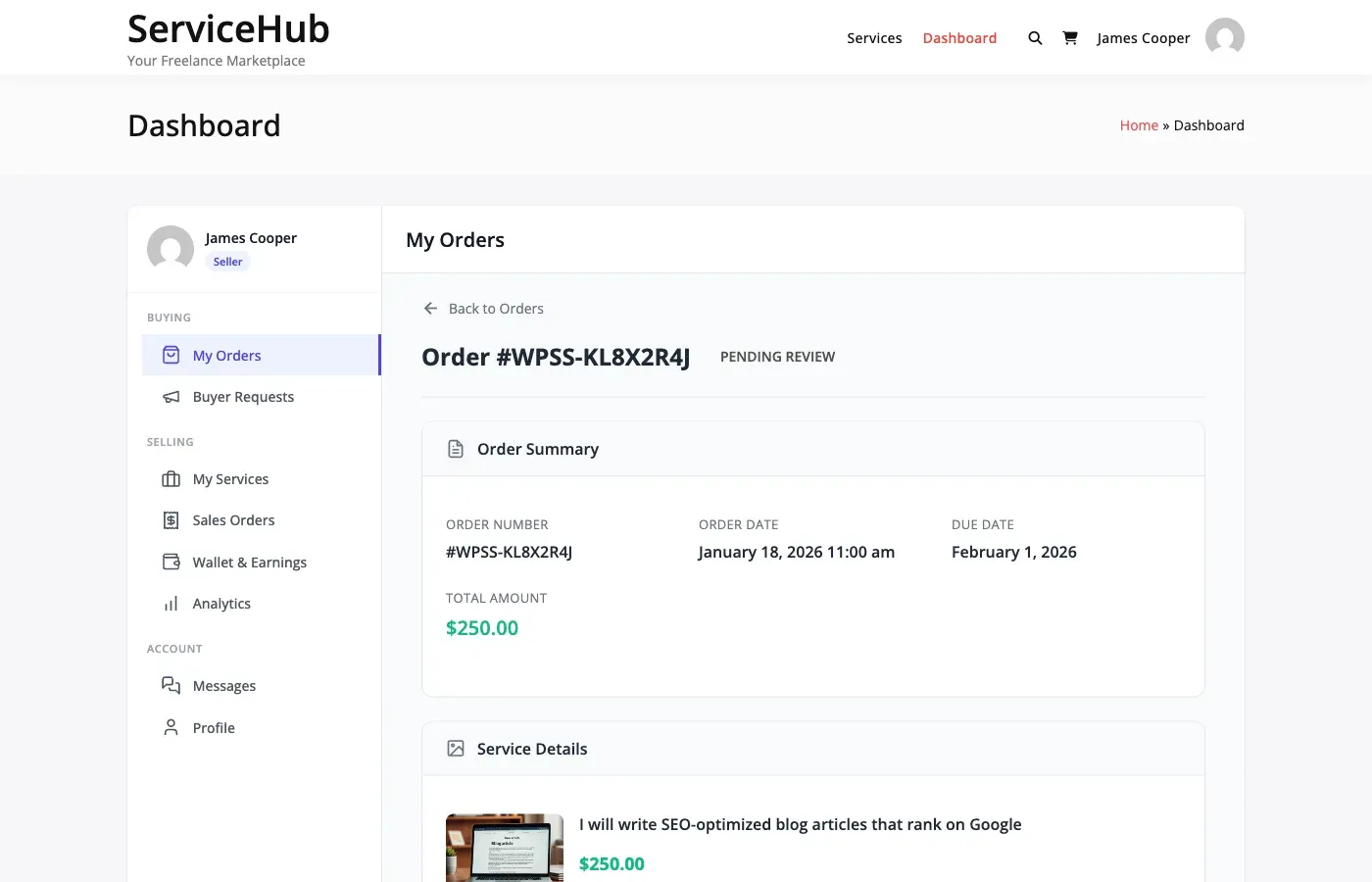
The order immediately moves to “Pending Approval” and the buyer gets an email notification.
Supported file types include: images, documents, archives, audio, video, design files, and data files. For security, SVG, HTML, CSS, and JavaScript files are not allowed – use a ZIP archive if you need to deliver those formats.
What the Buyer Sees
Section titled “What the Buyer Sees”When a delivery arrives, the buyer can download the files and review the work. They have three options:
Accept the Delivery
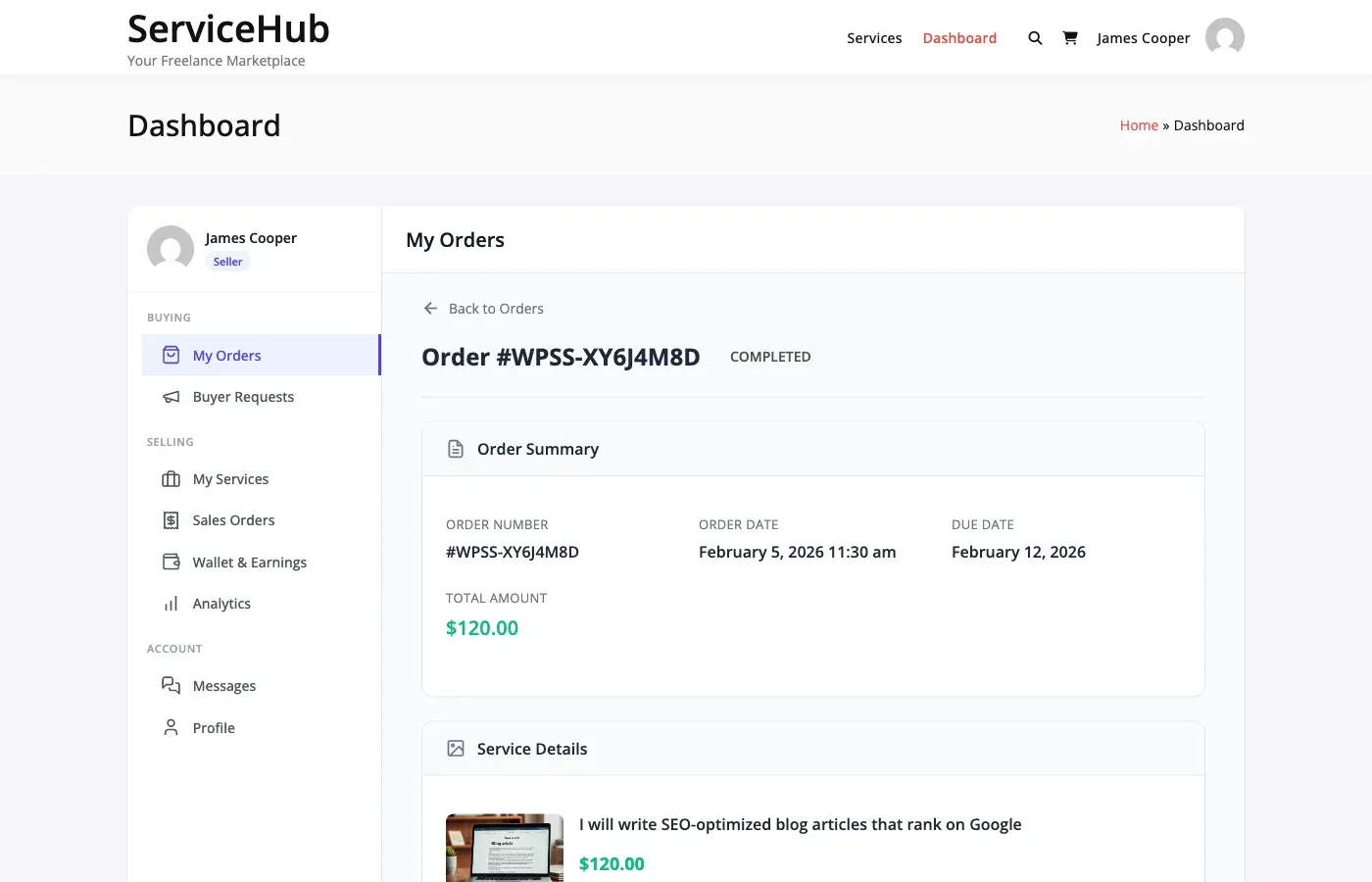
Section titled “Accept the Delivery”If the work meets expectations, the buyer clicks Accept Delivery. The order is marked as complete, the vendor gets paid, and both parties can leave reviews.
Request a Revision
Section titled “Request a Revision”If changes are needed, the buyer clicks Request Revision and provides specific feedback about what needs to be fixed. The order goes back to the vendor, who makes the changes and submits a new delivery.
Open a Dispute
Section titled “Open a Dispute”If there is a serious problem that cannot be resolved through revisions, the buyer can open a formal dispute. See Opening a Dispute for details.
Auto-Complete
Section titled “Auto-Complete”If the buyer does not respond to a delivery within the auto-complete window, the order completes automatically. The default is 3 days, but admins can change this in Settings > Orders & Disputes. Setting it to 0 disables auto-completion entirely.
This protects vendors from orders that sit in limbo because a buyer never responds.
How Revisions Work
Section titled “How Revisions Work”Revisions let the buyer request changes to delivered work. Each service package has its own revision limit set by the vendor (for example, Basic gets 1 revision, Premium gets unlimited).
When a buyer requests a revision:
- They describe what needs to change (specific feedback is required).
- The vendor gets notified and sees the feedback.
- The vendor makes the changes and submits a new delivery.
- Each resubmission creates a new version – both parties can access all previous versions.
When Revisions Run Out
Section titled “When Revisions Run Out”If all included revisions have been used, the buyer can no longer request changes through the system. At that point, their options are:
- Accept the work as-is.
- Negotiate an extra paid revision with the vendor.
- Open a dispute if the work does not meet the original requirements.
The vendor can always offer additional revisions as a goodwill gesture, even after the limit is reached.
Delivery File Access
Section titled “Delivery File Access”Delivery files are private and secure:
- Only the buyer, vendor, and admin can access them.
- Files require login to download.
- All versions are kept – nothing is deleted when a new delivery is submitted.
Settings That Affect Deliveries
Section titled “Settings That Affect Deliveries”Go to Settings > Orders & Disputes to configure:
| Setting | Default | What It Does |
|---|---|---|
| Auto-Complete Days | 3 | Days after delivery before auto-completing if buyer does not respond. 0 to disable. |
For Vendors:
- Test all files before delivering – make sure everything opens and works correctly.
- Include all promised deliverables in one submission.
- When resubmitting after a revision, clearly explain what you changed.
- Try to deliver before your deadline.
For Buyers:
- Review deliveries within 2-3 days to avoid auto-completion.
- When requesting revisions, be as specific as possible about what needs to change.
- Compare the delivery against your original requirements.
- Accept promptly once you are satisfied.