

Widgets Guide
WB Polls includes two widgets for displaying poll results in sidebars and widget areas. Show real-time voting data with visual progress bars to keep your community engaged with active polls.
Available Widgets
Section titled “Available Widgets”| Widget | Purpose | Poll Type |
|---|---|---|
| (BuddyPress) Poll Graph | Activity poll results | BuddyPress Activity Polls |
| WB Poll Report | Standalone poll results | Standalone Polls |
(BuddyPress) Poll Graph Widget
Section titled “(BuddyPress) Poll Graph Widget”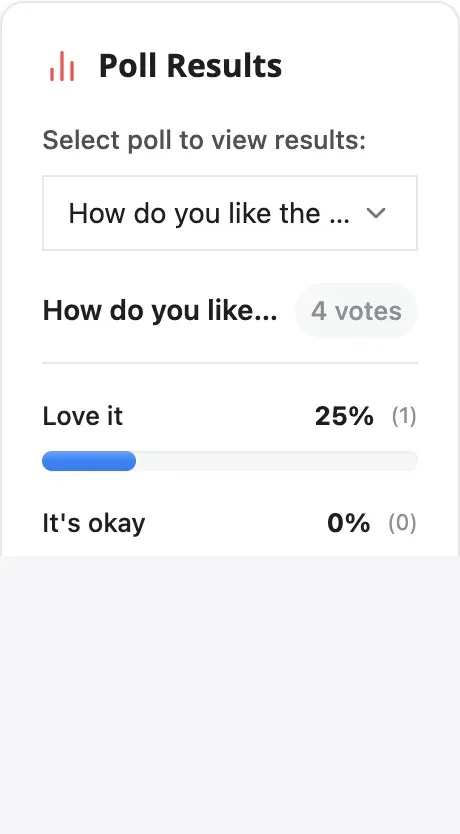
Display results from BuddyPress activity polls with interactive progress bars and a poll selector dropdown.
Requirements
Section titled “Requirements”- BuddyPress must be active
- User must be logged in to view the widget
- At least one activity poll must exist
Adding the Widget
Section titled “Adding the Widget”- Navigate to Appearance > Widgets
- Find “(BuddyPress) Poll Graph” in the available widgets
- Drag it to your preferred sidebar or widget area
- Configure the settings
- Click Save
Widget Settings
Section titled “Widget Settings”| Setting | Description | Default |
|---|---|---|
| Title | Widget heading displayed above results | “Poll Graph” |
| Max polls to show | Number of polls in the dropdown selector (1-20) | 5 |
| Default poll | Which poll loads when the widget first appears | First available |
What It Displays
Section titled “What It Displays”Poll Selector: A dropdown menu showing available activity polls by title. The widget loads new results automatically when you change the selection.
For Each Poll Option: The option text, vote percentage, vote count, and an animated progress bar with color coding.
Additional Features: Total vote count at the bottom, CSV export button for administrators, and a loading spinner during AJAX updates.
Progress Bar Colors
Section titled “Progress Bar Colors”The widget cycles through eight distinct colors for visual distinction: blue, green, amber, red, purple, pink, cyan, and lime.
User Access
Section titled “User Access”| User Type | What They See |
|---|---|
| Logged-out visitors | Widget is hidden |
| Regular users | Their own polls and public polls |
| Administrators | All activity polls |
CSV Export
Section titled “CSV Export”Administrators see an “Export CSV” button that downloads poll data including the poll question, all options with vote counts, voter information, and timestamps.
WB Poll Report Widget
Section titled “WB Poll Report Widget”Display results from standalone polls with support for single poll or all-polls display modes.
Requirements
Section titled “Requirements”- At least one published standalone poll must exist
- Works for all visitors including logged-out users
Adding the Widget
Section titled “Adding the Widget”- Navigate to Appearance > Widgets
- Find “WB Poll Report” in the available widgets
- Drag it to your preferred sidebar or widget area
- Configure the settings
- Click Save
Widget Settings
Section titled “Widget Settings”| Setting | Description | Options |
|---|---|---|
| Title | Widget heading | Default: “Poll Results” |
| Display Type | How polls are shown | All Polls or Single Poll |
| Select Poll | Which poll to display (single mode only) | Dropdown of published polls |
Display Modes
Section titled “Display Modes”All Polls Mode (Default): Shows a dropdown with all polls that have received votes. Users can switch between polls, and results update dynamically via AJAX. Use this for sites with multiple active polls.
Single Poll Mode: Displays one specific poll without a dropdown selector. Best for focused campaigns or featured polls.
What It Displays
Section titled “What It Displays”Each poll shows its title and total vote count at the top. For each option, the widget displays the option text, vote percentage, vote count, and a colored progress bar.
If no published polls exist, the widget shows “No polls found.” If a selected poll has no votes yet, it shows “No votes yet.”
Progress Bar Colors
Section titled “Progress Bar Colors”Uses the same eight-color rotation as the Activity Poll Graph widget: blue, green, amber, red, purple, pink, cyan, and lime.
User Access
Section titled “User Access”| User Type | What They See |
|---|---|
| Guest visitors | Published poll results |
| Logged-in users | Published poll results |
| Administrators | Published poll results |
WB Polls Sidebar
Section titled “WB Polls Sidebar”WB Polls registers a custom sidebar called “WB Polls Sidebar” that appears on single poll pages and the poll archive. You can add widgets to this area to complement poll content.
Widget Placement Ideas
Section titled “Widget Placement Ideas”Homepage Poll Highlight
Section titled “Homepage Poll Highlight”Feature your most important poll on the homepage sidebar:
- Add the “WB Poll Report” widget
- Set Display Type to “Single Poll”
- Select your featured poll
- Set the title to “Vote Now!”
Activity Feed Companion
Section titled “Activity Feed Companion”Show recent poll results alongside the BuddyPress activity stream:
- Add the “(BuddyPress) Poll Graph” widget
- Set Max polls to 3
- Set the title to “Recent Poll Results”
- Place in the activity page sidebar
Multiple Poll Dashboard
Section titled “Multiple Poll Dashboard”Let users browse all active polls from the sidebar:
- Add the “WB Poll Report” widget
- Set Display Type to “All Polls”
- Set the title to “Community Polls”
Widget Comparison
Section titled “Widget Comparison”| Feature | Activity Poll Graph | WB Poll Report |
|---|---|---|
| Poll Type | BuddyPress Activity | Standalone |
| Login Required | Yes | No |
| Guest Access | No | Yes |
| Display Modes | Single with dropdown | Single or All Polls |
| Export Feature | Yes (admin only) | No |
| Max Polls Setting | Yes (1-20) | No |
| Real-time Updates | Yes (AJAX) | Yes (AJAX) |
Styling Widgets
Section titled “Styling Widgets”CSS Classes
Section titled “CSS Classes”Both widgets use consistent CSS classes for customization:
.wb-poll-widget { } /* Widget container */.wb-poll-widget select { } /* Poll selector dropdown */.wb-poll-results { } /* Results container */.wb-poll-option { } /* Individual option row */.wb-poll-bar-container { } /* Progress bar container */.wb-poll-bar { } /* Filled progress bar */.wb-poll-votes { } /* Vote text (percentage and count) */Customizing Progress Bar Colors
Section titled “Customizing Progress Bar Colors”Override the default colors in your theme CSS:
.wb-poll-bar:nth-child(1) { background-color: #your-color; }.wb-poll-bar:nth-child(2) { background-color: #your-color; }Responsive Behavior
Section titled “Responsive Behavior”Both widgets are fully responsive. Progress bars scale to the container width, text wraps appropriately, and the dropdown fills the available width on mobile devices.