

General
The General settings tab is the first place to go after installation. It controls your community URL, pagination defaults, and who can read or participate.
What You Will Learn
Section titled “What You Will Learn”- How to change your community’s base URL slug
- What the default space type setting controls
- How to set your community’s display title
- How to configure pagination for posts and replies
- How the Public / Private access control works
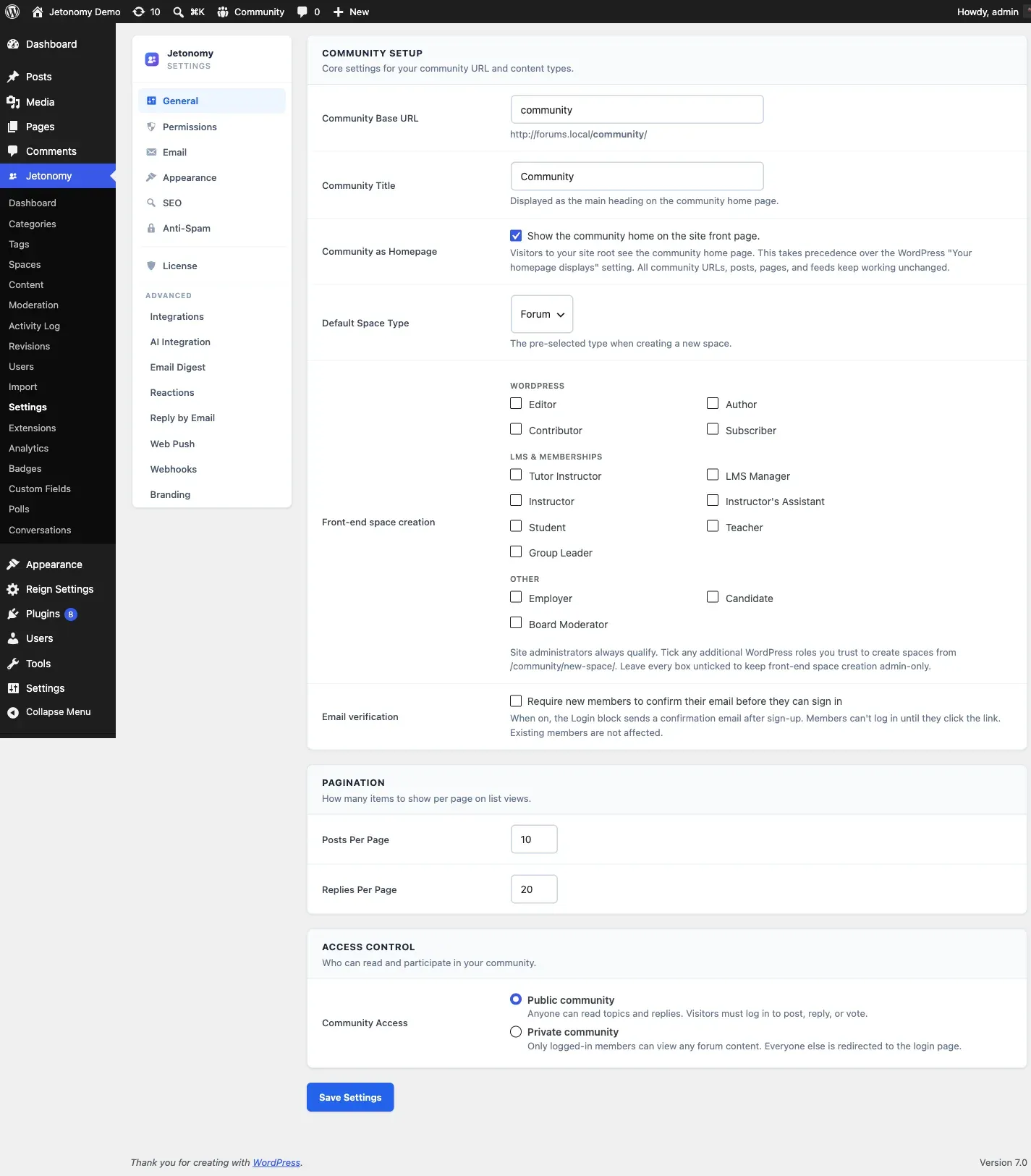
Go to Jetonomy → Settings to access these options. All changes take effect on save.
Community Base URL
Section titled “Community Base URL”Setting: base_slug
Default: community
Location: General tab → Community URL section
This is the URL prefix for all Jetonomy pages on your site. With the default value, your community home is at yoursite.com/community/. Spaces live at yoursite.com/community/s/space-name/, and so on.
You can change this to any URL-safe string, for example forum, hub, or discuss. Jetonomy automatically flushes rewrite rules when you change the base URL and save settings.
Warning: Changing the base URL after your community has content will break all existing links. If you must change it on a live site, set up 301 redirects from the old slug to the new one.
Community Title
Section titled “Community Title”Setting: community_title
Default: Community
Location: General tab → Community URL section
The display name of your community. It is shown as the main heading at the top of the community home page. Change it to your brand or community name (for example “Acme Support Forum” or “The Builders Hub”). This is a display label only - it does not change the base URL or any links.
Default Space Type
Section titled “Default Space Type”Setting: default_space_type
Default: forum
Options: Forum, Q&A, Ideas, Feed
When you create a new space in the admin, this setting pre-fills the Type dropdown. It is a convenience setting only - you can always change the type on any individual space. It does not affect existing spaces.
Choose the type that best matches the primary purpose of your community:
- Forum - open discussion, replies sorted by date
- Q&A - questions and answers, accepted answers float to top
- Ideas - feature requests and votes, status workflow
- Feed - short-form cards, optional title, chronological feed
Posts Per Page
Section titled “Posts Per Page”Setting: posts_per_page
Default: 20
Location: General tab → Pagination section
Controls how many posts appear per page in space listings and search results. A lower number is faster on large communities; a higher number reduces clicks for users who prefer scrolling. This value also controls how many additional posts load each time a member clicks Load More on a space listing.
Tip: For communities with 10,000+ posts per space, keep this at 20 or lower. Higher values increase page load time and database query time proportionally.
Replies Per Page
Section titled “Replies Per Page”Setting: replies_per_page
Default: 30
Location: General tab → Pagination section
Controls how many replies load per page inside a single post view. This value also controls how many additional replies load each time a member clicks Load More in a thread. Pagination starts at the oldest replies and works forward. Members can jump to the last page to see the most recent replies.
Activity Log Retention
Section titled “Activity Log Retention”Setting: activity_log_retention_days
Default: 90
Range: 1 to 3650 days
Location: General tab → Pagination section
How long activity log entries are kept before a daily prune removes them.
The activity log records who did what - posts created, content moderated, members banned - and it grows continuously on a busy community. Ninety days is enough for the usual purpose, which is answering “who changed this and when” about something recent.
Raise it if you need a longer audit trail for compliance. Lower it if the log table is large and you do not consult it - a shorter window keeps the table small, and the prune runs daily rather than in one large sweep.
Deleted entries cannot be recovered, so if you are lowering this substantially, export what you need first from Jetonomy → Activity Log.
Terms of Service and Privacy Policy URLs
Section titled “Terms of Service and Privacy Policy URLs”Settings: terms_url, privacy_url
Default: empty
Location: General tab → Community Setup card
Links to your terms and privacy policy. They are shown to members in the mobile app before they sign up.
Leave them empty if you have none - the app simply omits them. If you publish an app, though, app store review generally expects both to be reachable from the sign-up screen, so filling these in is usually part of getting an app approved rather than an optional nicety.
These do not change anything on the web community, which follows whatever your WordPress theme and privacy settings already do.
Guest Access (Public / Private)
Section titled “Guest Access (Public / Private)”Setting: guest_read
Default: Public (guest reading on)
Location: General tab → Access Control card
This is the single control that decides whether logged-out visitors can read your community. On the Access Control card it appears as two radio buttons - Public community and Private community - not a checkbox.
- Public community (default) - logged-out visitors can read all public spaces, posts, and member profiles. They see a prompt to log in when they try to vote, reply, or follow a space.
- Private community - every community page redirects guests to sign-in, and the REST API rejects unauthenticated requests. Choose this for members-only communities you do not want indexed by search engines.
Note: Even in Public mode, anonymous posting is not supported. “Public” means read-only browsing for logged-out visitors. Visitors must always log in to post, reply, or vote.
This Public/Private toggle is the same guest_read setting documented in full - including exactly which pages stay reachable in Private mode and how the REST API behaves - on the Access Control page.
Community as Homepage
Section titled “Community as Homepage”Setting: front_page
Default: off
Location: General tab → Community Setup section
When enabled, visitors to your site root see the community home page instead of the WordPress front page. This takes precedence over the WordPress Settings → Reading → Your homepage displays setting. All community URLs, posts, pages, and feeds keep working unchanged.
Front-end Space Creation
Section titled “Front-end Space Creation”Setting: frontend_space_creation_roles
Default: empty (admin-only)
Location: General tab → Community Setup section
Controls which WordPress roles may create spaces from the front end at /community/new-space/. Tick any roles you trust to create spaces. Site administrators always qualify regardless of the selection. Leave every box unticked to keep front-end space creation admin-only.
Require Email Verification
Section titled “Require Email Verification”Setting: require_email_verification
Default: off
Location: General tab → Access section
When this is on, new members who register through Jetonomy’s Login block receive a confirmation email immediately after sign-up. They cannot log in until they click the verification link in that email. Existing members are not affected - this setting applies only to accounts created after you enable it.
A follow-up reminder is sent automatically if the member has not confirmed within the configured window.
Setting: verification_reminder_hours
Default: 24
Location: Stored in jetonomy_settings['verification_reminder_hours']
Where to change it: Settings → Email, in the “Email Sender” card - not on this General tab, even though the verification toggle it belongs to lives here.
This controls how many hours after registration the reminder email is sent. The reminder runs on an hourly WP-Cron schedule (hook: jetonomy_verification_reminder). The email template can be customized on the Settings → Email screen under the “Verification reminder” row.
Note: If you use a third-party registration flow (WooCommerce, Restrict Content Pro, LearnDash) instead of Jetonomy’s Login block, those plugins handle their own email verification. This setting only applies to registrations that go through the Jetonomy Login block.
Member Names
Section titled “Member Names”Settings → General → Member names
Choose how members are identified across the community:
- Display name only - e.g. “Alex Rivera” (the default; nothing changes).
- Handle only - e.g. “@alex-rivera”.
- Both - e.g. “Alex Rivera @alex-rivera”.
Why it matters: a display name is not unique - WordPress lets any number of accounts share one, so two members called “Alex Rivera” look identical on every post. A handle is the member’s unique username, and is already what @mentions resolve against. Choose Both when you want readable names that can still be told apart. Even on “Display name only”, two members who happen to share a name are automatically shown with their @handle so nobody is mistaken for someone else.
Members can never publish under a reserved name - “Administrator”, “Support”, “Moderator”, your site’s name and similar - whatever this setting is.
Terminology
Section titled “Terminology”Settings → General → Terminology
Rename the built-in words your community uses. Each of the five nouns has a singular and a plural field:
| Default | Rename to (examples) |
|---|---|
| Space / Spaces | Group, Forum, Channel, Board |
| Topic / Topics | Thread, Question, Discussion |
| Reply / Replies | Comment, Answer, Response |
| Member / Members | Player, Student, Customer |
| Category / Categories | Board, Section |
The labels you type are shown exactly as entered, everywhere the community renders that noun - on the front end, in the admin menu, and in the mobile app. Leave a field blank to keep the default.
Note: a custom label bypasses translation, so on a non-English site an English custom label shows in English. Developers can override any label programmatically with the jetonomy_label filter (see the Developer Guide → Hooks Reference → Terminology).
Deleting Spaces
Section titled “Deleting Spaces”Settings → General → Deleting spaces
Off by default. Controls whether space admins can permanently destroy a space and everything in it, or only archive it.
Archiving keeps every topic and reply and can be undone. Permanent deletion cannot. Because a space contains other members’ contributions, permanent deletion stays restricted unless you deliberately allow it.
Site administrators can always do either, regardless of this setting. See Removing a Space.
Rebuild Counters
Section titled “Rebuild Counters”Location: Dashboard → Quick Actions, or via WP-CLI / REST API
Jetonomy stores denormalized counters (reply counts per post, post counts per space, member counts per space, vote scores) for performance. These counters are updated in real time on every write, but they can drift from true values after bulk database edits, server failures, or plugin imports.
Use Rebuild Counters to recalculate all denormalized values from the canonical tables.
WP-CLI:
wp --path="/path/to/wordpress" jetonomy recountwp --path="/path/to/wordpress" jetonomy recount --type=posts # posts onlywp --path="/path/to/wordpress" jetonomy recount --type=spaces # spaces onlywp --path="/path/to/wordpress" jetonomy recount --type=votes # votes onlywp --path="/path/to/wordpress" jetonomy recount --type=users # user profile counters onlyREST API (site admin only):
POST /jetonomy/v1/admin/recount{ "type": "all" }Valid type values: all, posts, spaces, votes, users. Omit or pass all to rebuild everything. The response reports how many rows were updated per step. On a large community (100,000+ posts), a full recount may take 10-60 seconds - run it during low-traffic hours.
Tip: After running an import from bbPress, wpForo, or Asgaros, always run a full recount. The importers insert rows directly and skip the counter-update logic.
Admin Bar Shortcut
Section titled “Admin Bar Shortcut”All logged-in members see a Community menu in the WordPress admin bar. This menu links to the community home, your notification inbox, and your profile.
Members who have the jetonomy_manage_spaces or manage_options capability also see an admin sub-section with direct links to: Manage Spaces, Add New Space, Categories, Moderation Queue, Posts and Replies, and Settings.
The admin bar menu appears on both the public site and inside wp-admin, so you can jump from any page in the dashboard directly into the community and back.
Settings Save Confirmations
Section titled “Settings Save Confirmations”After you click Save Changes, a confirmation banner appears at the top of the settings page. The banner stays visible until you dismiss it - it does not disappear automatically. This ensures you always have a clear signal that your changes were saved.
What’s Next?
Section titled “What’s Next?”Configure trust level thresholds and rate limits to control who can do what in your community.
Related Pro Features
Section titled “Related Pro Features”- White Label - replace Jetonomy branding with your own.
- Analytics - community health and engagement dashboard.
- Webhooks - send community events to external services.