

Notification Preferences
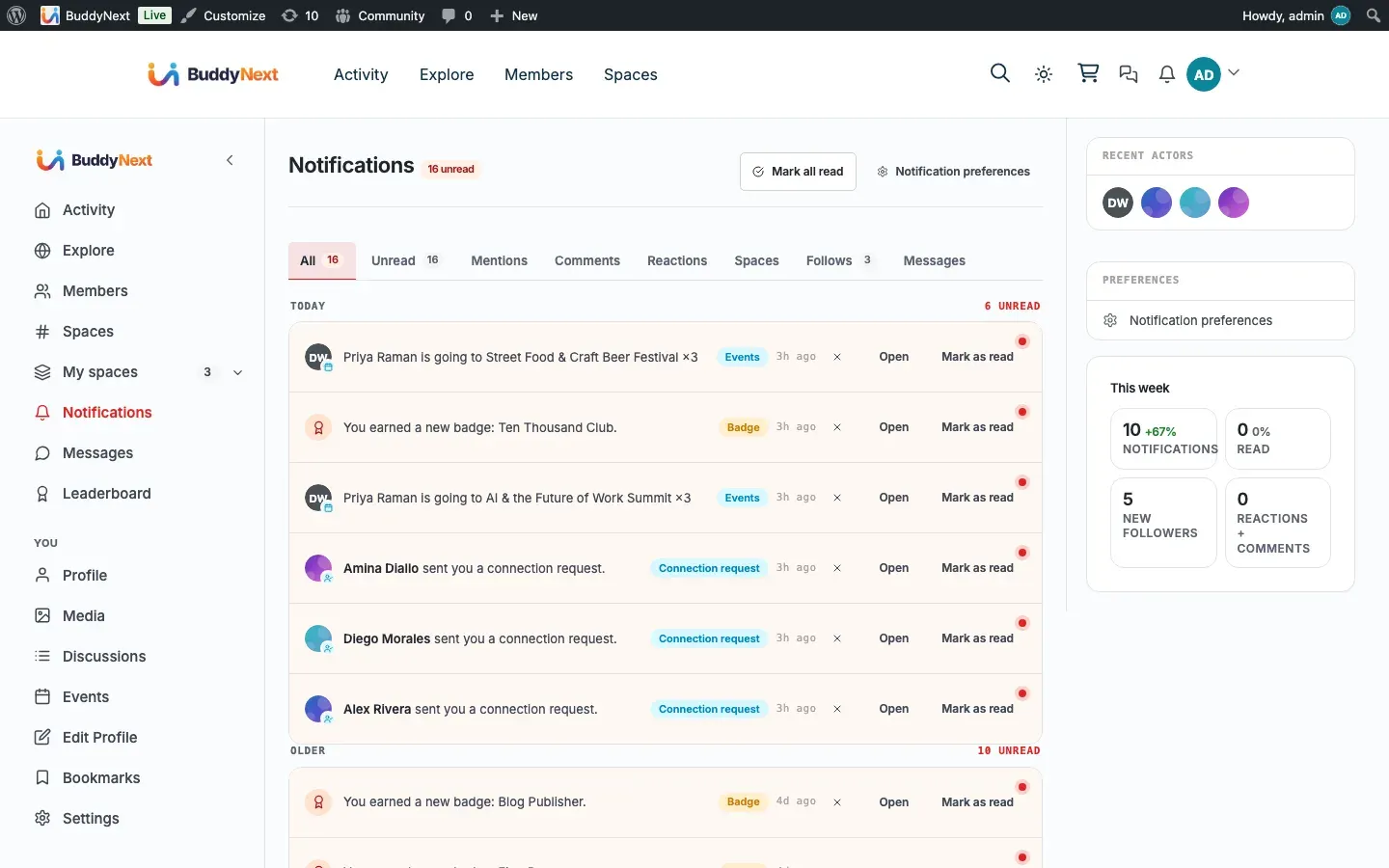
Notification Preferences let each member decide which events notify them and how those notifications are delivered: on-site, by email, and (with Pro) by web push. The site owner sets the starting defaults for the most common types; the member fine-tunes the rest.
Why use it
Section titled “Why use it”The fastest way to lose a member is to send them notifications they did not want. Too many emails, too many pings, and they either tune everything out or turn it all off - and a member who has globally muted you is hard to win back. Giving people granular control is what prevents that. A member who can keep the one notification they care about and silence the five they do not is a member who stays opted in.
For the owner, this is the difference between healthy engagement and a stream of unsubscribe complaints. You set sensible defaults so members start in a good place, and you trust them to adjust from there. For the member, it is simple respect: they choose what reaches them and through which channel, so notifications stay useful instead of becoming noise.
How it works (for members)
Section titled “How it works (for members)”A member manages their preferences from their notification settings, where every notification type BuddyNext supports is listed and grouped into sections: Social graph, Feed activity, Spaces, Messages, Moderation, and Growth and digests.
Per-type on or off
Section titled “Per-type on or off”Each notification type has its own on-site toggle. Turning it off stops that type from showing up on the Notifications page and in the bell count, while leaving every other type untouched. For example, a member can keep mentions and direct messages but turn off “new posts in your spaces” if a busy space is too noisy.
Delivery channels
Section titled “Delivery channels”Notifications can reach a member through more than one channel, and each is controlled independently:
| Channel | What it delivers | Default |
|---|---|---|
| On-site | The in-app notification on the bell and Notifications page | On |
| A transactional email for the event, at the member’s chosen frequency | On | |
| Push (Pro) | A web push alert to the browser, even when the tab is closed | On when Pro push is active |
| Sound | A short sound when a new notification arrives while the member is on the site | Off |
| Newsletters and announcements (Pro) | Broadcast emails sent to the whole community | On |
The Push channel only appears when the Pro push module is installed and active. See Push Notifications.
Newsletters and announcements is the master switch for broadcast email. It is a different thing from the other channels: the rest of this page is about notifications, which are things that happened to the member. A broadcast is a newsletter or announcement sent to everyone. Turning this off stops all of them - not just the last campaign the member unsubscribed from. A member can also reach the same switch from the unsubscribe link at the bottom of any broadcast, without logging in. It appears only when Pro is active. See Broadcast Email.
Email frequency
Section titled “Email frequency”For each type that can send email, the member picks how often email arrives:
| Frequency | What it does |
|---|---|
| Immediate | Send an email as soon as the event happens |
| Daily | Roll the event into one daily digest email |
| Weekly | Roll the event into one weekly digest email |
| Off | Never email for this type (on-site still works if it is on) |
Choosing Daily or Weekly batches that type into a single digest instead of one email per event, which is the usual choice for high-volume types like reactions. Email delivery is handled by the email system - see Email System for how digests are built and sent, and for the unsubscribe links that set a type to Off without the member having to log in.
Per-space preferences
Section titled “Per-space preferences”For spaces a member belongs to, the level of new-post notifications can be set per space, so one active space can be quieted without affecting the others.
Setting it up (for owners)
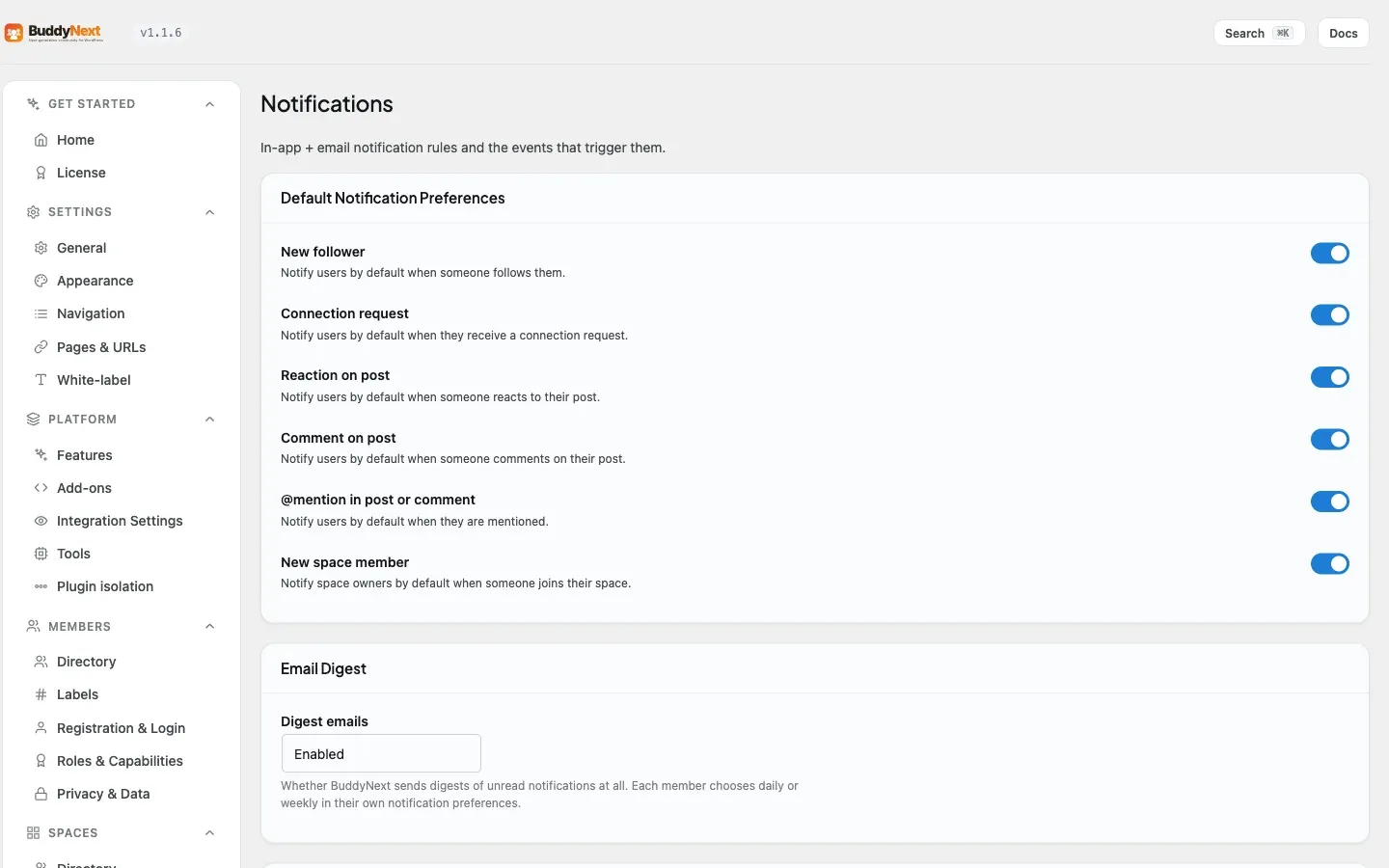
Section titled “Setting it up (for owners)”The owner controls the starting on-site default for the most common notification types under BuddyNext > Notifications. These defaults apply to members who have not changed the setting themselves; once a member adjusts their own preference, their choice wins.
| Setting | What it controls | Default |
|---|---|---|
| New follower | Whether members are notified by default when someone follows them | On |
| Connection request | Whether members are notified by default when they receive a connection request | On |
| Reaction on post | Whether members are notified by default when someone reacts to their post | On |
| Comment on post | Whether members are notified by default when someone comments on their post | On |
| @mention in post or comment | Whether members are notified by default when they are mentioned | On |
| New space member | Whether space owners are notified by default when someone joins their space | On |
Every type that is not in the table above ships with its own sensible default built in. As a guide, social, feed, space, message, and moderation notifications default to on-site on, while the email frequency varies by type - immediate for high-signal events like mentions, comments, connection requests, and direct messages; daily or weekly for higher-volume events like reactions, shares, and new space members; and off for low-value confirmations. Members can override any of these.
Note: These owner settings govern the on-site default only. Whether the matching email goes out, and how often, is the member’s choice through the email-frequency selector described above.
Good to know
Section titled “Good to know”- Owner defaults are a starting point, not a lock. A member who changes a preference keeps their own choice from then on.
- Turning a type’s on-site channel off removes it from the bell count as well as the list.
- A type set to email Off still shows on-site if the on-site channel is on; the two channels are independent.
- The Sound channel is off by default and only plays while the member is actively on the site.
- A notification type whose underlying feature is not active (for example, direct messages when messaging is disabled) does not appear in the preferences list, so there are no dead toggles.
Free vs Pro
Section titled “Free vs Pro”Per-type control, the on-site and email channels, email frequency, the optional sound, per-space new-post preferences, and the owner defaults are all part of the free plugin. Pro adds the Push channel - instant browser web push - which then appears as its own toggle in this same preferences screen. See Push Notifications for setup, and Email System for how email and digest delivery work.
Related
Section titled “Related”- Notifications - the in-app alerts these preferences govern
- Email Digests - batching a type into a daily or weekly roundup
- Push Notifications - the Pro Push channel this screen adds
- Broadcast Email - the newsletter switch this screen controls