

Settings
Configure WP Career Board from WP Career Board → Settings in wp-admin. Settings are organized into tabs.
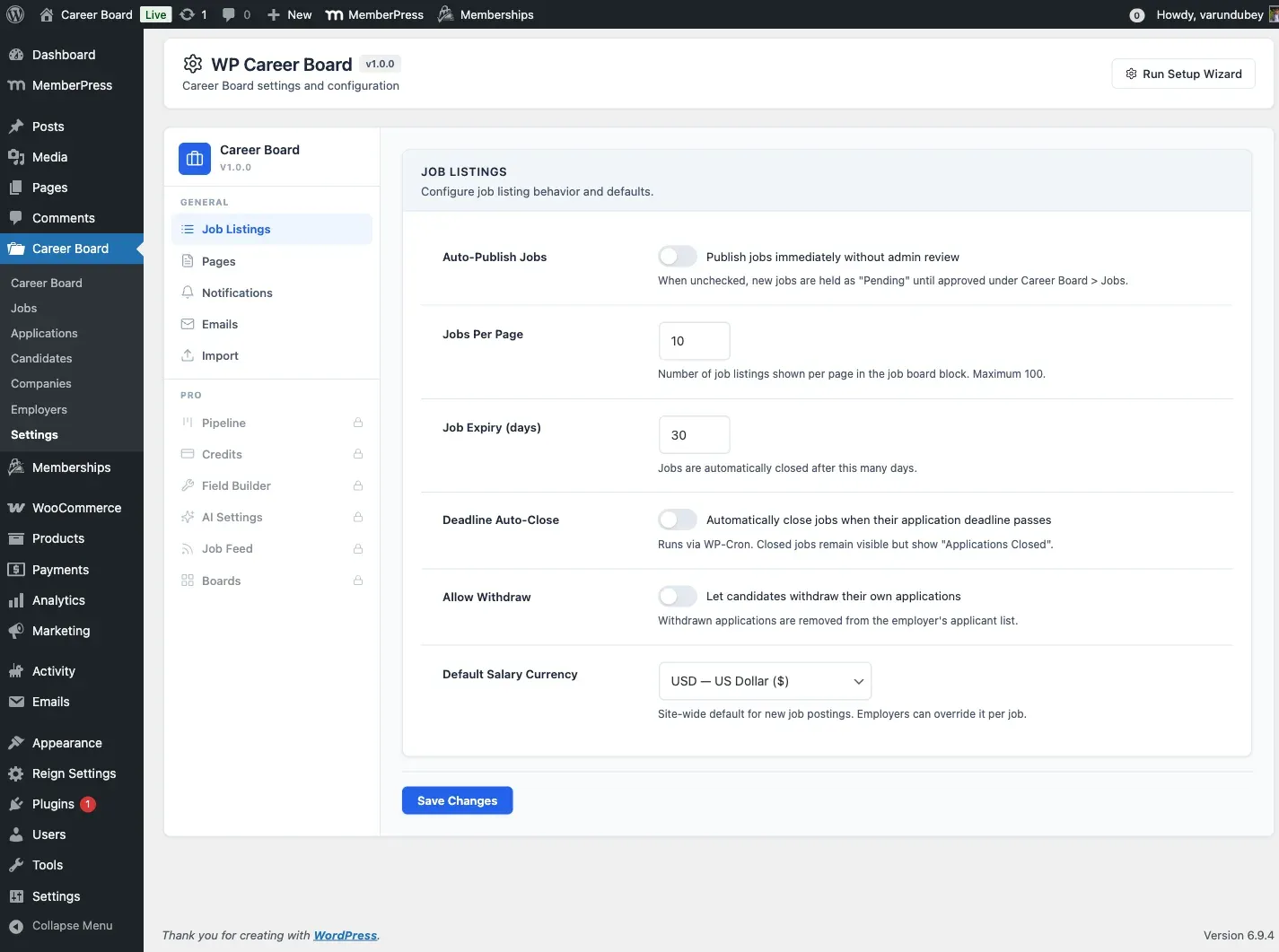
Job Listings Tab
Section titled “Job Listings Tab”Controls how jobs behave on your board.
| Setting | Default | Description |
|---|---|---|
| Auto-Publish Jobs | Off | When on, submitted jobs go live immediately without admin approval |
| Jobs Per Page | 10 | Number of jobs shown per page in the listings grid (1-100) |
| Job Expiry (days) | 30 | Jobs auto-close after this many days (1-365). Closing is reversible - open the job in admin and republish to extend its lifetime |
| Deadline Auto-Close | Off | Automatically closes jobs when their application deadline passes |
| Allow Withdraw | On | Lets candidates withdraw their own applications. Turn off for apply-once-final flows (compliance, regulated hiring) |
| Default Salary Currency | USD | Site-wide default currency for new job postings; employers can override per job |
| Resume Required | On | Require applicants to attach a resume on the apply form |
| Application Resume File Size (MB) | (host default) | Maximum size for an uploaded resume file |
| Featured Duration (days) | 30 | How many days a job stays in the Featured spotlight before reverting automatically (1-365). See Featured Listing Expiry |
| Require Candidate Role | Off | Off lets any logged-in member apply and manage a resume (ideal for community sites). Turn on to reserve the candidate experience for users with the Candidate role |
Pages Tab
Section titled “Pages Tab”Links each feature to its dedicated page. If the Setup Wizard ran successfully, these are filled in automatically.
| Setting | Purpose |
|---|---|
| Jobs Archive Page | The main job board browse page (Find Jobs) |
| Employer Dashboard Page | The employer’s management page |
| Candidate Dashboard Page | The candidate’s tracking page |
| Company Archive Page | The public company directory |
| Post a Job Page | The standalone job-submission page |
| Employer Registration Page | The employer sign-up page |
| Resume Archive Page | The resume directory (used when WP Career Board Pro is active) |
If a page assignment is blank, the related functionality (e.g., “View your dashboard” links in emails) won’t work correctly. Always fill these in.
Notifications Tab
Section titled “Notifications Tab”Controls the sender name, from email, and admin notification email address used by all WCB emails. See Email Notifications for the full guide.
Emails Tab
Section titled “Emails Tab”Lets you enable or disable each individual email notification and customize its subject line and body. See Email Notifications for placeholders and customization options.
Import Tab
Section titled “Import Tab”One-click migration from WP Job Manager. See Import & Migration for the full guide.
Anti-Spam Tab
Section titled “Anti-Spam Tab”A honeypot field protects every submission form automatically (no setup, no performance cost). For a stronger second layer, choose a CAPTCHA provider:
- None - honeypot only (default).
- Cloudflare Turnstile - enter the Turnstile Site Key and Secret Key.
- Google reCAPTCHA v3 - enter the reCAPTCHA Site Key, Secret Key, and an optional score threshold (default 0.5).
The chosen provider guards both the job-submission and job-application forms.
Pro-Only Tabs
Section titled “Pro-Only Tabs”When WP Career Board Pro is active, seven additional tabs appear:
| Tab | What It Controls |
|---|---|
| Resumes | Resume visibility, file upload, and resume builder settings |
| Boards | Multi-board engine: create and manage independent job boards; pipeline stages are configured within this tab |
| Field Builder | Custom fields for jobs, companies, and candidates |
| Credits | Credit settings, product-to-credit mappings, detected payment providers, and credits-per-job-post value |
| AI Settings | Configures the AI provider key for AI Chat Search and job description generation |
| Job Feed | RSS/JSON feed settings for job listing aggregators |
| Integrations | Third-party service connections and API integrations |
| License | Pro license key activation and management |
Saving Settings
Section titled “Saving Settings”Click Save Changes at the bottom of any tab. Settings are saved per-tab - you don’t need to switch tabs before saving.