

Header Elements & Icons
Add functional elements to your header to improve navigation and access to key features. These toggles live in the Site Header section of the Customizer and let you show or hide search, cart, community icons, and the login/register links.
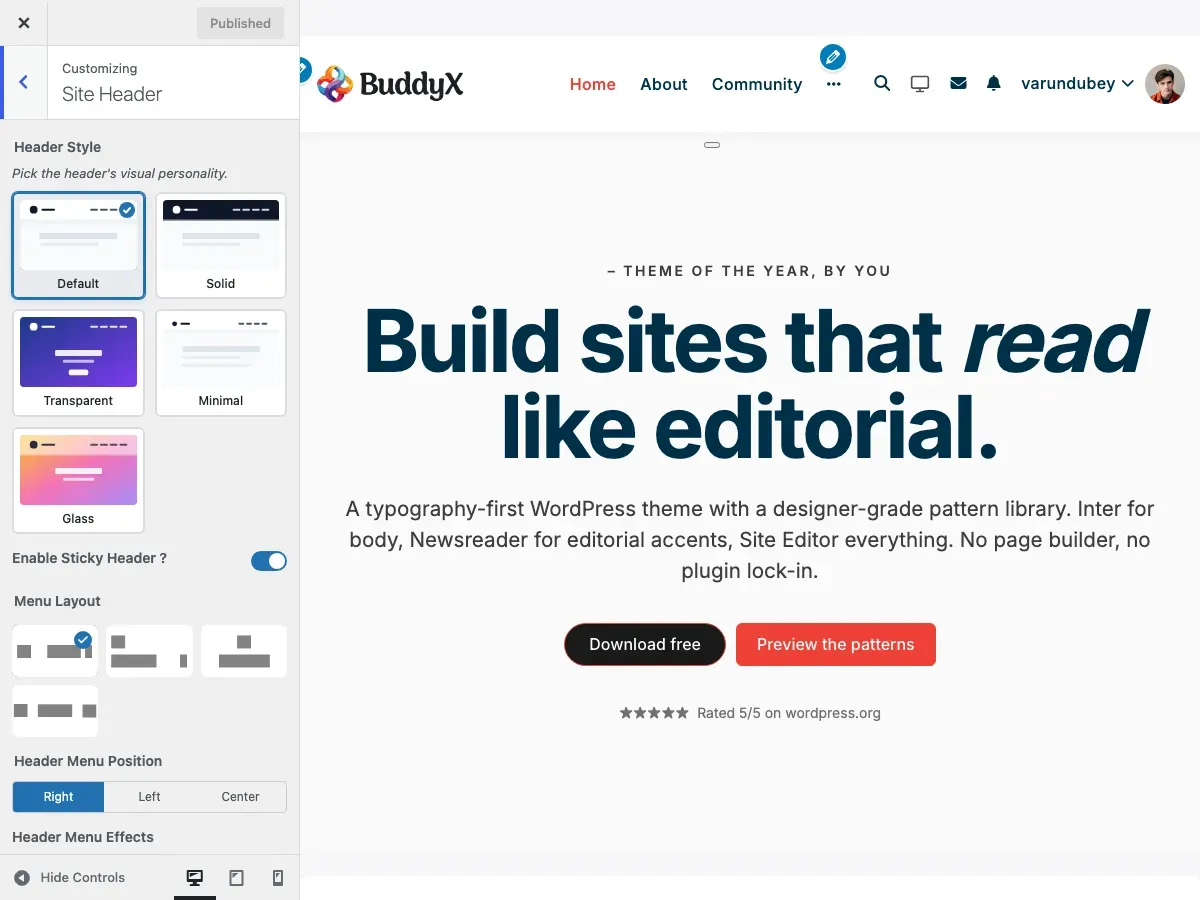
What You Can Add
Section titled “What You Can Add”BuddyX Pro lets you enable these header elements from the Site Header section:
- A More Menu overflow toggle for extra menu items
- A Site Search icon, with a Default or Fullwidth search style
- A Site Cart icon (when WooCommerce is active)
- Friends, Messages, and Notifications icons (when BuddyPress is active)
- Login and Register links for logged-out visitors, with a button style picker
Enabling Header Elements
Section titled “Enabling Header Elements”- Go to Appearance > Customize
- Open the Site Header section
- Toggle on the elements you want
- Click Publish
Available Header Elements
Section titled “Available Header Elements”Every control below is a Yes / No switch unless noted otherwise.
More Menu
Section titled “More Menu”Collapses overflow navigation items into a “more” dropdown so the header stays tidy when the menu is long.
| Setting | Setting ID | Options | Default |
|---|---|---|---|
| More Menu ? | site_more_menu |
Yes / No | Yes |
Site Search
Section titled “Site Search”Shows a search icon in the header. When enabled, a second control chooses how the search field expands.
| Setting | Setting ID | Options | Default |
|---|---|---|---|
| Site Search ? | site_search |
Yes / No | Yes |
| Site Search Style | side_search_style |
Default, Fullwidth | Default |
The Site Search Style control only appears when Site Search is set to Yes. Choosing Fullwidth adds a search-fullwidth body class so the search field spans the full header width.
Site Cart (WooCommerce)
Section titled “Site Cart (WooCommerce)”Displays a cart icon in the header. This control appears only when WooCommerce is active.
| Setting | Setting ID | Options | Default |
|---|---|---|---|
| Site Cart ? | site_cart |
Yes / No | Yes |
Community Icons (BuddyPress)
Section titled “Community Icons (BuddyPress)”When BuddyPress is active, three switches control the community icons for logged-in members.
| Setting | Setting ID | Options | Default |
|---|---|---|---|
| Friends Component ? | site_friend |
Yes / No | No |
| Messages Component ? | site_message |
Yes / No | Yes |
| Notifications Component ? | site_notification |
Yes / No | Yes |
These controls appear only when BuddyPress is active.
Login & Register Links
Section titled “Login & Register Links”For logged-out visitors, the header can show links to sign in and register.
| Setting | Setting ID | Options | Default |
|---|---|---|---|
| Site Login Link ? | site_login_link |
Yes / No | Yes |
| Site Register Link ? | site_register_link |
Yes / No | Yes |
Login/Register Button Style
Section titled “Login/Register Button Style”Sets how the login/register links are presented. This control appears only when Site Login Link is set to Yes.
| Setting | Setting ID | Options | Default |
|---|---|---|---|
| Login/Register Button Style | site_header_button_style |
Icon+Text, Only Icon, Only Text, Icon+Text Button, Icon Button, Text Button | Icon+Text |
What Visitors See
Section titled “What Visitors See”- Logged Out: Login and Register links (styled per the button-style control)
- Logged In: the community icons you enabled (Friends, Messages, Notifications) plus the account menu
Recommended Setups by Site Type
Section titled “Recommended Setups by Site Type”Online Store
Section titled “Online Store”Enable: Site Search + Site CartSearch Style: DefaultButtons: Icon+Text login/registerWhy this works: shoppers can search products and reach the cart, while login and register stay clear for new customers.
Community Platform
Section titled “Community Platform”Enable: Site Search + Friends + Messages + NotificationsSearch Style: FullwidthButtons: Icon+Text Button login/registerWhy this works: members can search and stay on top of friend requests, messages, and notifications from the header.
Blog / Magazine
Section titled “Blog / Magazine”Enable: Site Search + More MenuSearch Style: DefaultButtons: Only Text login/registerWhy this works: readers can search and browse a long menu without clutter.
Common Questions
Section titled “Common Questions”Which elements should I enable? Only enable what your visitors will use. A store needs the cart; a blog may only need search.
Why don’t I see the cart or community toggles? The Site Cart toggle appears only with WooCommerce active. The Friends, Messages, and Notifications toggles appear only with BuddyPress active.
Where is the dark mode toggle? The dark/light mode toggle is not a Site Header control. It lives under Appearance > Customize > Site Skin (see the Dark Mode documentation).
Can I change the search style after enabling it? Yes. Set Site Search to Yes, then pick Default or Fullwidth under Site Search Style.
Related Settings
Section titled “Related Settings”- Header Layout Styles - Menu layout, header style, and menu effects
- Sticky Header - Keep the header fixed while scrolling
- Dark Mode - Dark mode toggle settings (Site Skin)
- BuddyPress Integration - Community features
Got a question? We’re a friendly team - happy to help.
- Visit our Documentation Portal
- Email us at support@wbcomdesigns.com